

Adding new users in CloudTalk is a quick and straightforward process. As an administrator, you can create user accounts, assign roles, and configure permissions to match each user’s responsibilities.This article focuses on manually creating individual users via the CloudTalk Dashboard. Other user creation methods are also available and referenced below.
CloudTalk supports multiple methods for creating user accounts:
- Manual creation of individual users in the CloudTalk Dashboard
- CloudTalk API, using the Add an Agent endpoint (Agent role only)
- Bulk user upload for faster onboarding of multiple users
Create a New User (Manual Setup)
- Go to the Users section in the CloudTalk Dashboard, where you’ll see a list of all existing users.
-
Click the
+ Add Userbutton at the top of the page to open the user setup form.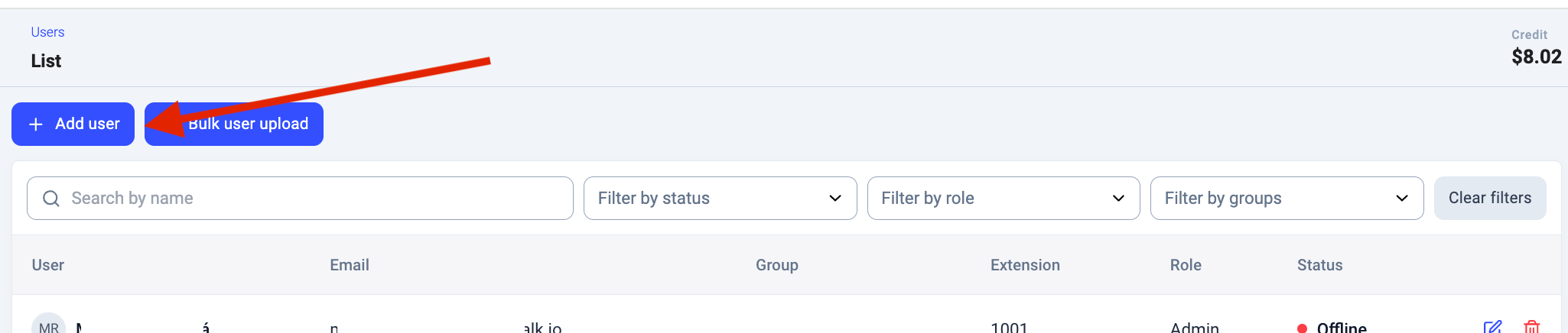
-
Configure Basic settings
- Enter the agent’s first and last name
- Enter their email address, which will serve as their unique identifier in the system
- (Optional) Enter the agent’s external phone number details
- If required, assign a custom 4-digit user extension. If you leave this field empty, an extension will be automatically assigned. Please note that the extension cannot be changed after it’s created.
-
If needed, switch to Advanced Settings tab and configure advanced settings. If the default configuration is sufficient, you can skip this step.
- Select the default language for the user’s admin panel
-
Assign a user role to user. Available roles are:
- Admin
- Supervisor
- Agent
- Analyst
- If applicable, assign skills to the user in User skill tab. Learn more about skills and skill-based routing in the related article.
-
Finally, click
Save Userto complete the setup.
Advanced Settings
You have successfully created a user in CloudTalk. Admins can update user settings or make changes as needed. For more advanced user management, explore bulk upload or Cloudtalk API.
FAQs
-
A new user isn’t receiving the invitation or password-reset email
If a new user isn’t receiving their CloudTalk invitation or password-reset emails, and recreating the user hasn’t helped, work through these steps.
Start with the checks you can do yourself:
- Confirm the email address is spelled correctly on the user’s profile.
- Ask the user to check their spam, junk, and quarantine folders.
- Ask your IT team to confirm that CloudTalk’s emails aren’t being blocked by a mail filter, security rule, or domain policy on your side, and to run a mail trace if possible.
- Getting “email already in use” but the person isn’t in your account? The email may be tied to a separate CloudTalk account (such as an expired trial). Contact Support to have the old record released so you can re-invite the user.
Need help or have a question? Just reach out through our Support portal — we’re here for you.