

Learn how to set up time route actions in our call flow designer, and how the logic works.
Day/Time Splitter in Call Flows
When you want to route inbound calls differently depending on the time or day, the Day/Time Splitter step is the best option. It works similarly to a Condition Splitter in that it creates branches below it, but instead of setting logical conditions based on caller data, you set time ranges and days as the criteria. Common use cases include routing calls to a different team after hours, handling holidays, or directing calls between offices in different time zones.Configure a Day/Time Splitter
- From the Dashboard, click Numbers.
- In the My numbers tab, find the number you want to configure.
- Click + Configure (or the flow name, if one exists) in the Call Flow column.

- On the canvas, click the + button where you want the Day/Time Splitter to go.
- In the step library, under Routing logic, select Day/Time Splitter.
- For each branching action added after your Day/Time Splitter step, set:
- Branch active from and Branch active to (the time range).
- Active on… days (select the days of the week).
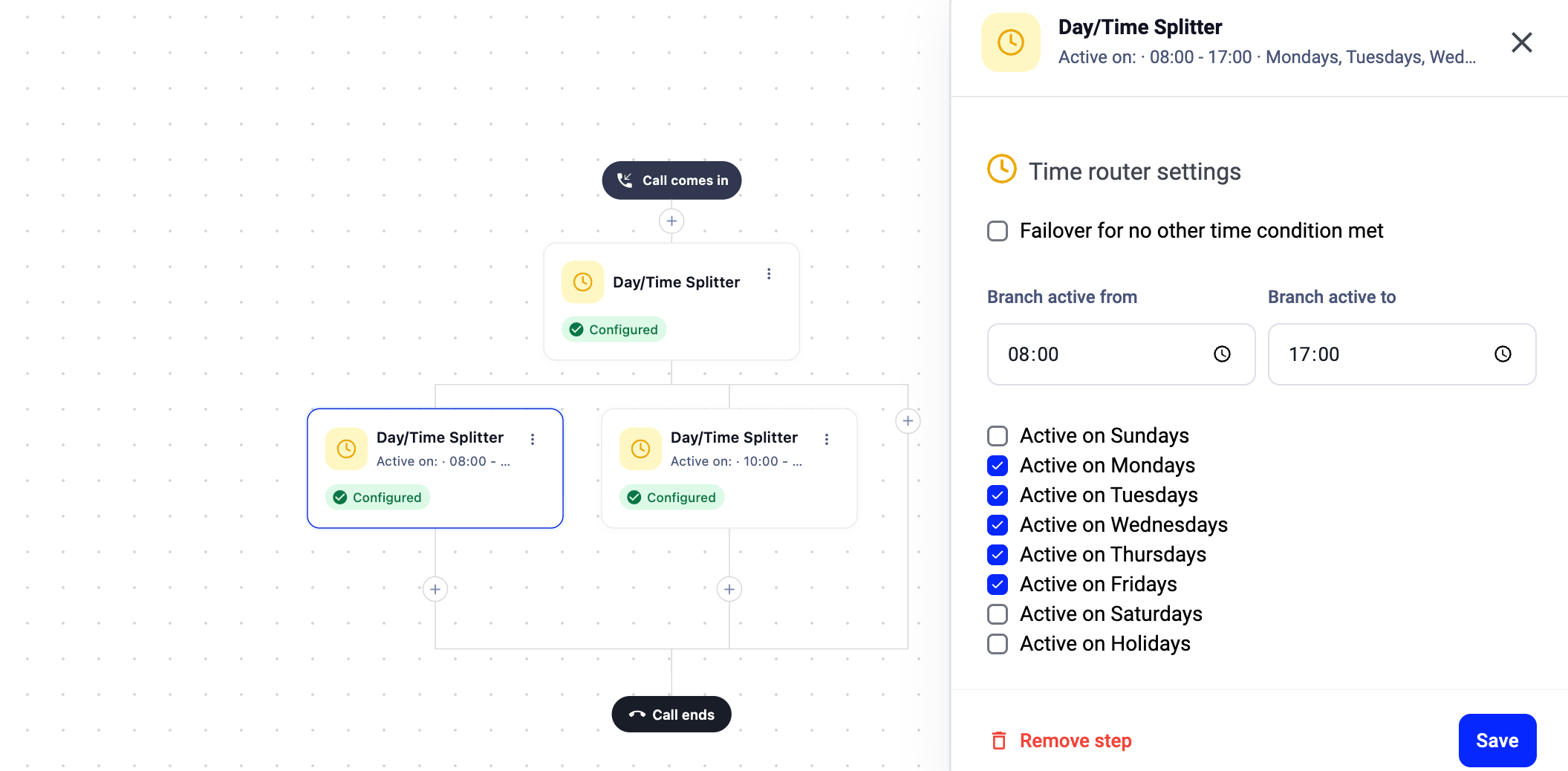
- Choose one of the branches to be a failover by selecting the Failover for no other time condition met option. This branch catches all calls that don’t match any of your time rules.
- Click Save in the top-right corner to make your flow live.
Day/Time Splitter Logic
The Day/Time Splitter works in accordance with the default time zone set in Settings > General. Times set within a Day/Time Splitter step can sometimes overlap with holidays and business hours, both those for the particular number and/or in your company settings. The list of holidays included within a Day/Time Splitter will be based on the national holidays of the country where the given phone number is registered. Holiday calendars cover national-level holidays only. Regional and state-level holidays are not included. For the full list of supported countries and details, see Business Hours.How do business hours interact with the Day/Time Splitter?
If your company has business hours that conflict with a Day/Time Splitter step, the order of priority is:- Number-specific business hours (if set for that number)
- Global business hours (if set company-wide but not number-specific)
- The Day/Time Splitter step
Example: Route After-Hours Calls to a Different Office
Scenario: A company’s Czech call center is available Monday to Friday, 8:00 AM to 11:00 PM. During weekends, evenings past 11:00 PM, and Czech holidays, callers should be routed to the company’s US call center. Flow: Day/Time Splitter → Branch 1 (weekdays 8:00-23:00): Ring to Czech Support group / Failover: Ring to US Support group.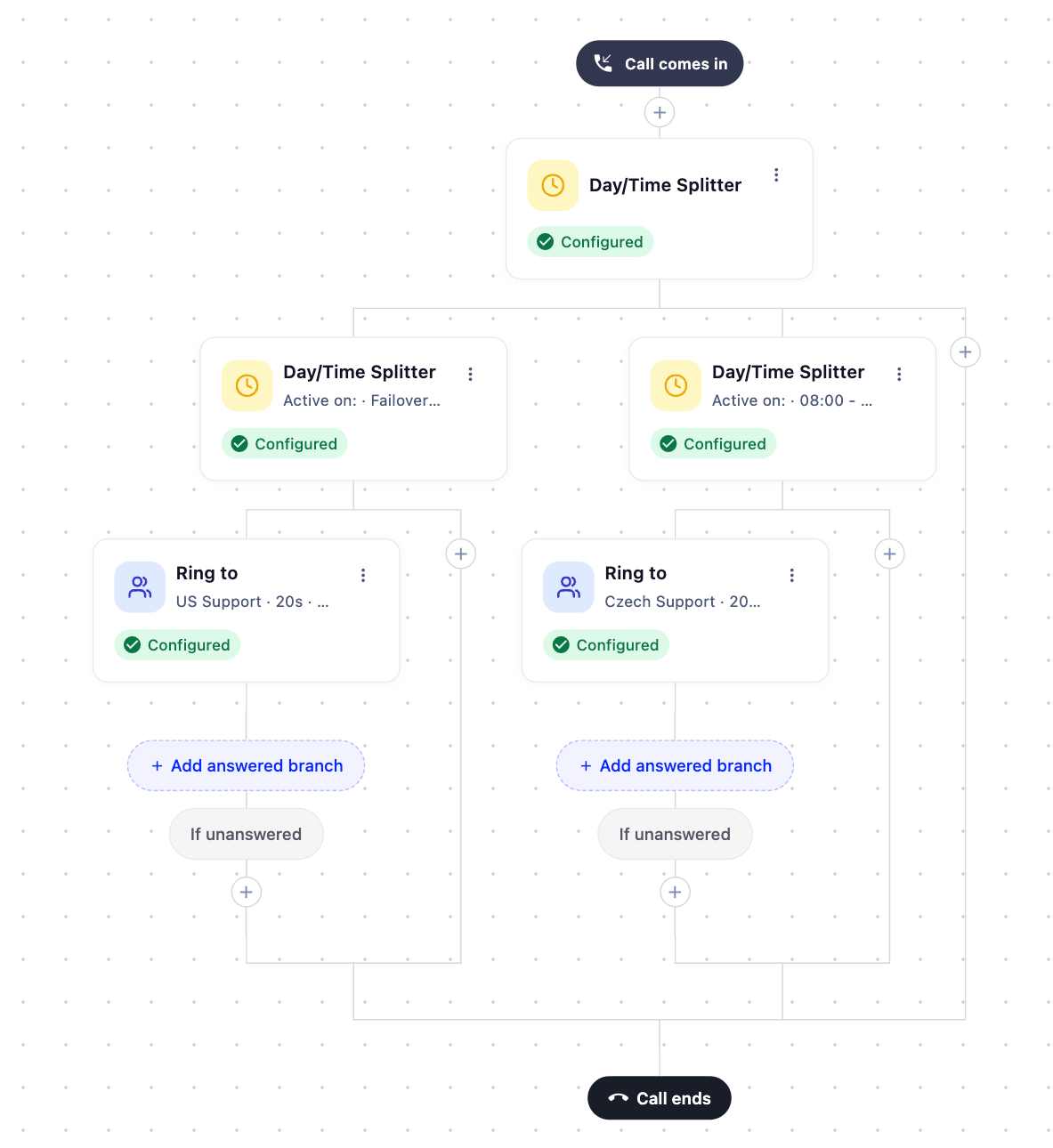
- A caller rings in on a Monday at 10:00 AM. The call satisfies both time conditions (on a weekday, between 8:00-23:00), so the caller is directed to the Ring to step for the Czech Center group.
- Another caller rings in on Sunday at 9:30 AM. The call does not satisfy both conditions (it’s a weekend), so the caller is directed to the failover branch with the Ring to step for the US Center group.
Need help or have a question? Just reach out through our Support portal — we’re here for you.