

In this article, you’ll learn how to get the most out of CloudTalk once your Pipedrive integration is up and running, including how to log calls, use advanced contact insights, and streamline team workflows with practical tips and real-world use cases.
Watch how it works
To see the CloudTalk + Pipedrive integration in action, watch this short overview:Calling from Pipedrive
Outbound Calls
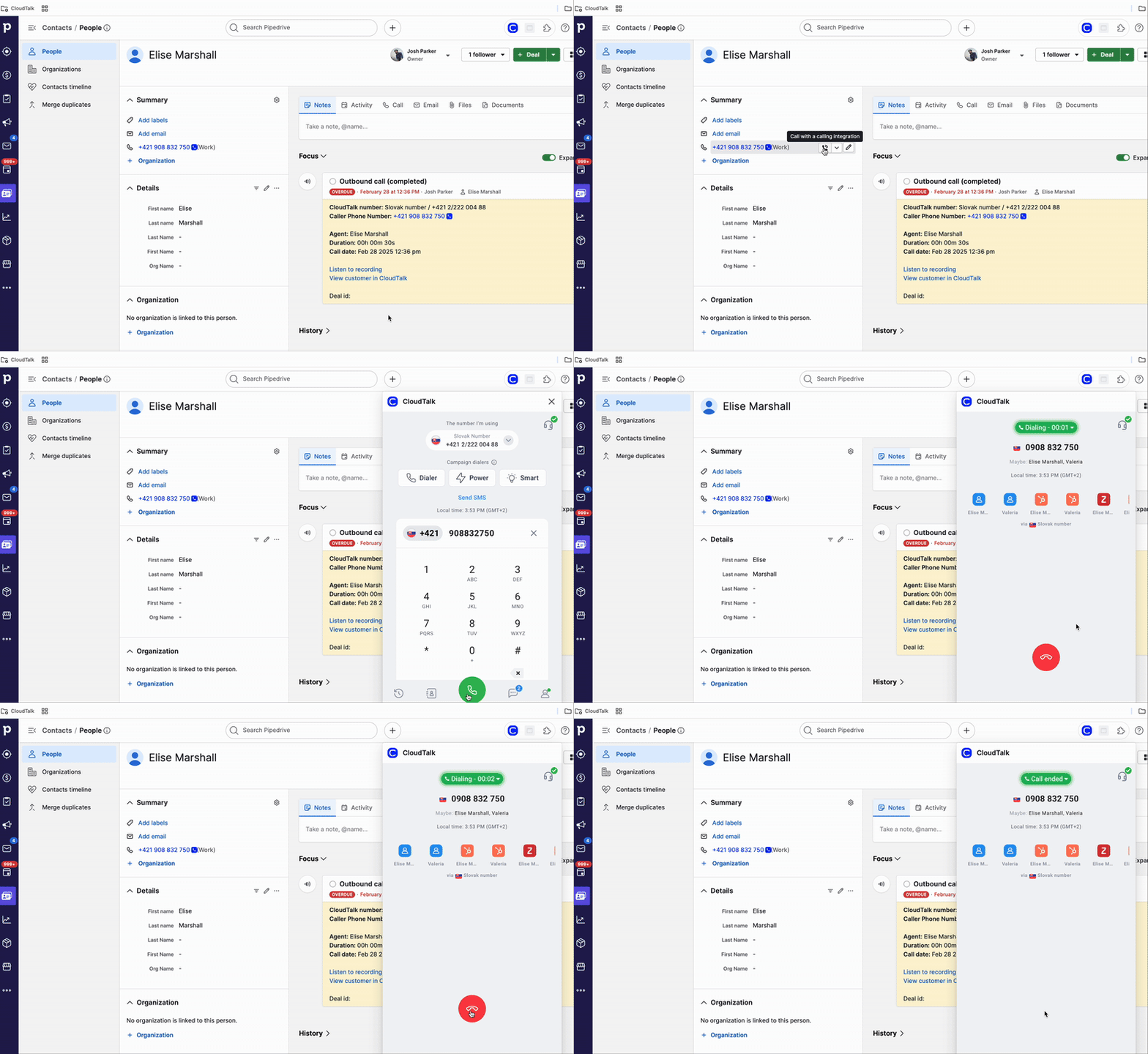
You can make calls directly from Pipedrive using either of the following methods:CTI (Recommended)
Once CTI is installed, all phone numbers in Pipedrive become clickable.- Click a phone number.
- The CloudTalk CTI opens with the number pre-filled.
- Click Call to start the conversation.
Manual Dial
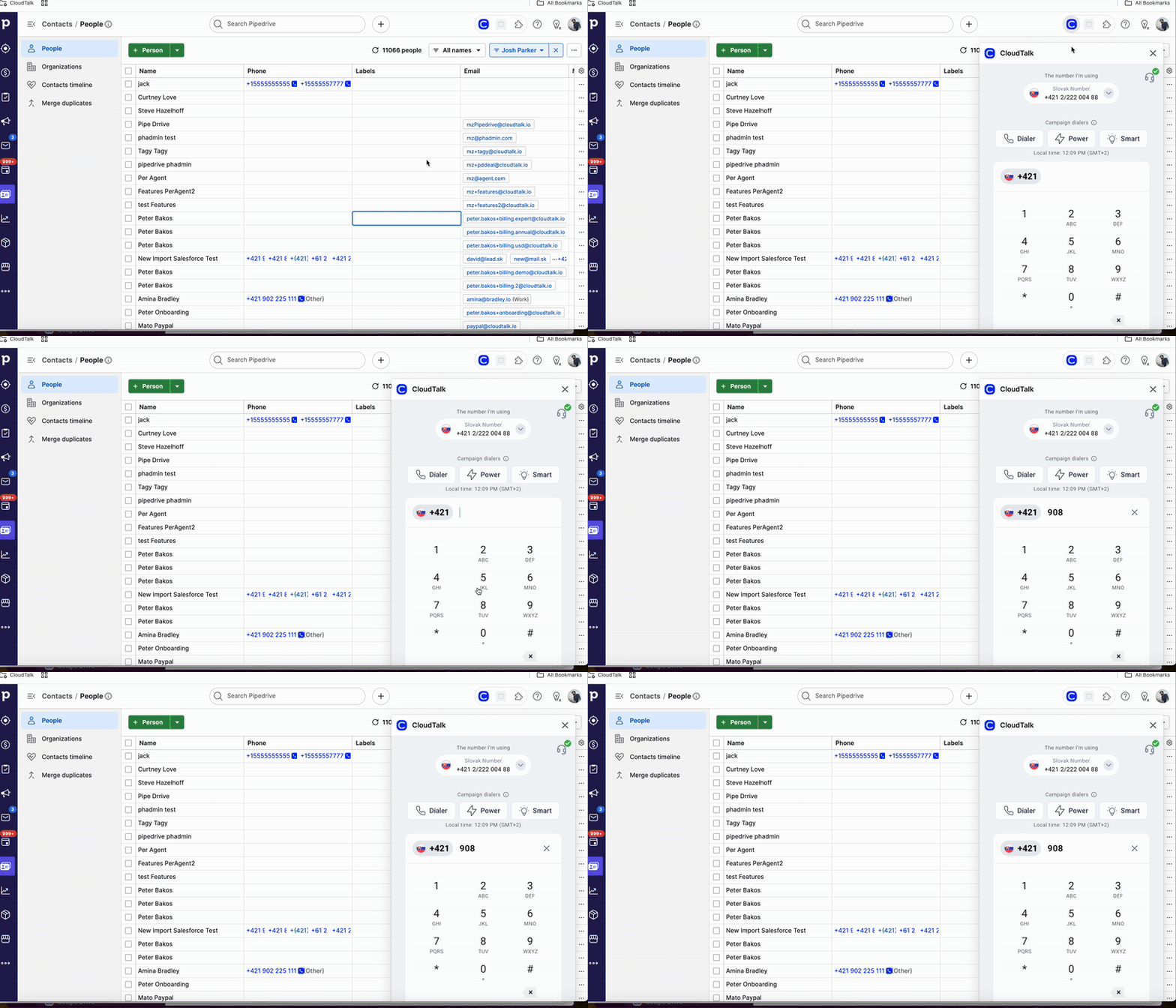
- Click the CloudTalk icon in the top-right of the screen to open the dialer manually.
- Enter the number or copy-paste it as needed.
Inbound Calls
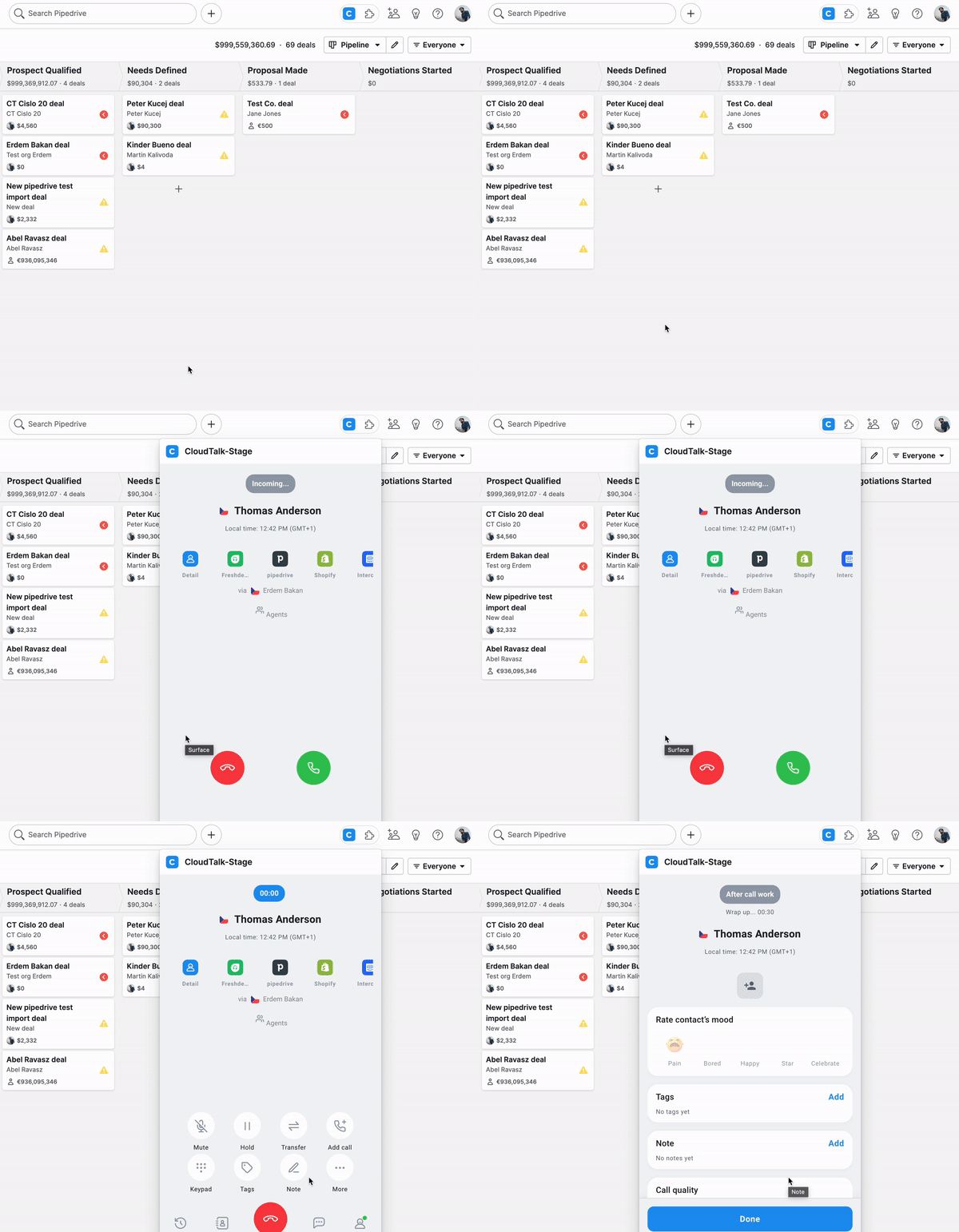
When an incoming call arrives:- The CTI panel pops up in your active Pipedrive tab.
- Agents can view the caller’s profile, including past notes, deals, and call history, before answering.
- Once the call ends, it can be tagged, noted, and saved right from the same panel.
Using Multiple Browser Tabs
When you work with Pipedrive in more than one browser tab, CloudTalk CTI can only stay active in one tab at a time. This means only that tab will ring for incoming calls.- You are always “online” in the last CTI-enabled tab you opened or in the tab where you last made a call.
- If you have multiple tabs open and aren’t sure which one is active, you may miss calls if you’re looking at a different tab.
- User opens contact A
- User opens contact B
- A call comes in
- Contact B tab will ring
- User opens contact A
- User opens contact B
- User makes an outbound call from contact A.
- A call comes in
- Contact A tab will ring
- Keep one Pipedrive tab open when expecting calls, so you always know where the CTI panel will appear.
- If you switch between tabs often, refresh the one you want to stay active in before handling calls.
- Close unused Pipedrive tabs to avoid confusion.
Contact Sync
People as Contacts
New Contact
* = required fieldUpdating a Person in Pipedrive
* = required fieldUpdating a Contact in CloudTalk
* = required fieldOrganizations as Contacts
New Organization
* = required fieldUpdating an Organization in Pipedrive
* = required fieldUpdating an Organization in CloudTalk
* = required fieldCall Logging & Export
Once a call ends and the agent clicks Done, CloudTalk automatically logs the call in Pipedrive as an Activity under the relevant contact or deal.Logged call details include:
- Call date and time
- Duration
- Call direction (inbound/outbound)
- Tags (if added)
- Notes
- Recording link (if enabled)
Calls to Unassociated Numbers
If a call is made to or received from a number that does not exist in Pipedrive:- The call can still be logged.
- A new contact may be created depending on your integration settings.
- If no matching contact is found, the call will not be associated with a deal.
SMS Logging
CloudTalk CTI also supports SMS messaging inside Pipedrive. You can:- Open the CTI panel
- Navigate to the Messages section
- View existing conversations
- Send and receive SMS directly from Pipedrive
Conversation Intelligence Data Export
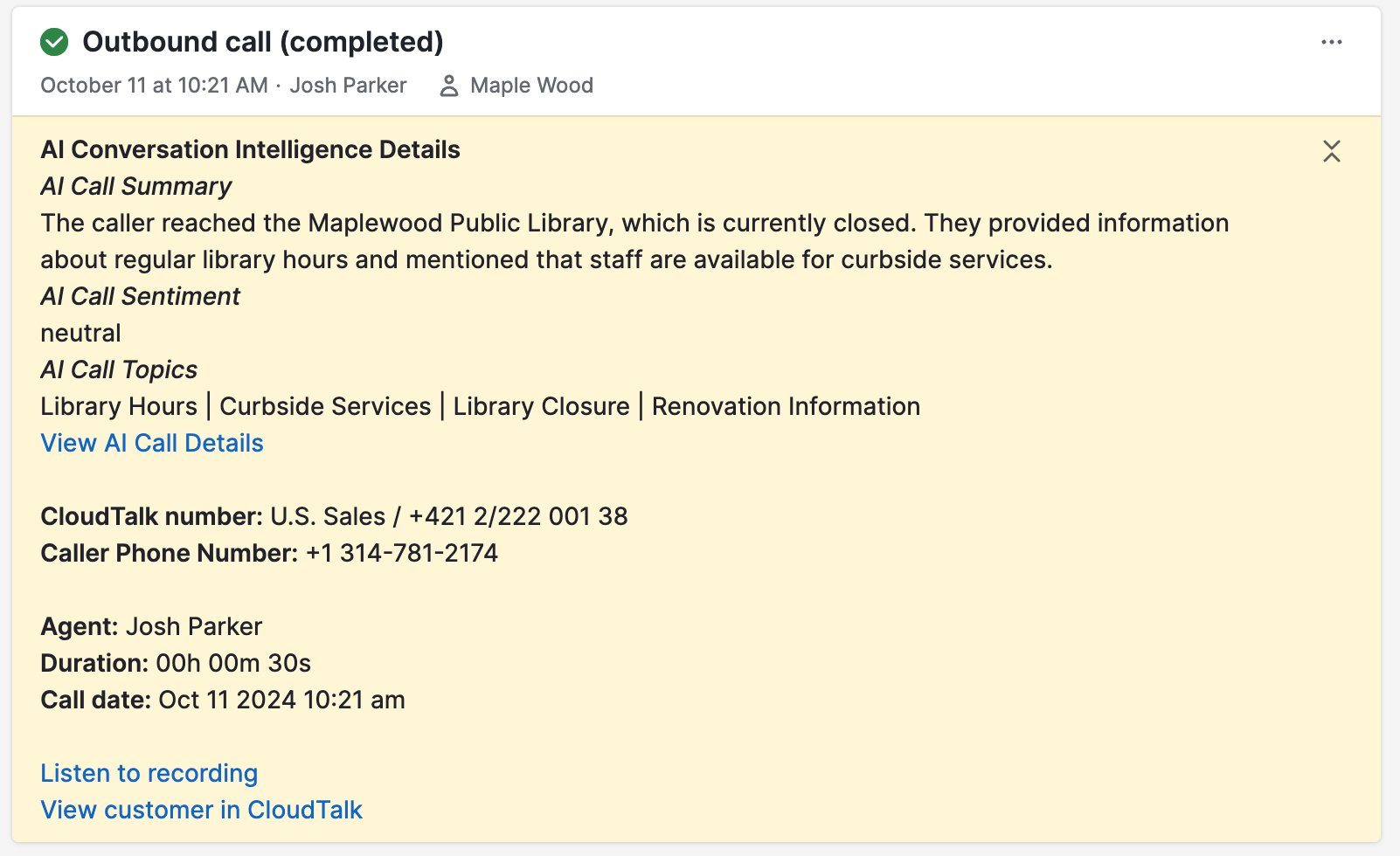
If Conversation Intelligence (CI) is enabled, CloudTalk exports AI-generated insights directly into Pipedrive.Exported CI data includes:
- AI call summary
- AI call sentiment
- AI call topics
- Recording link
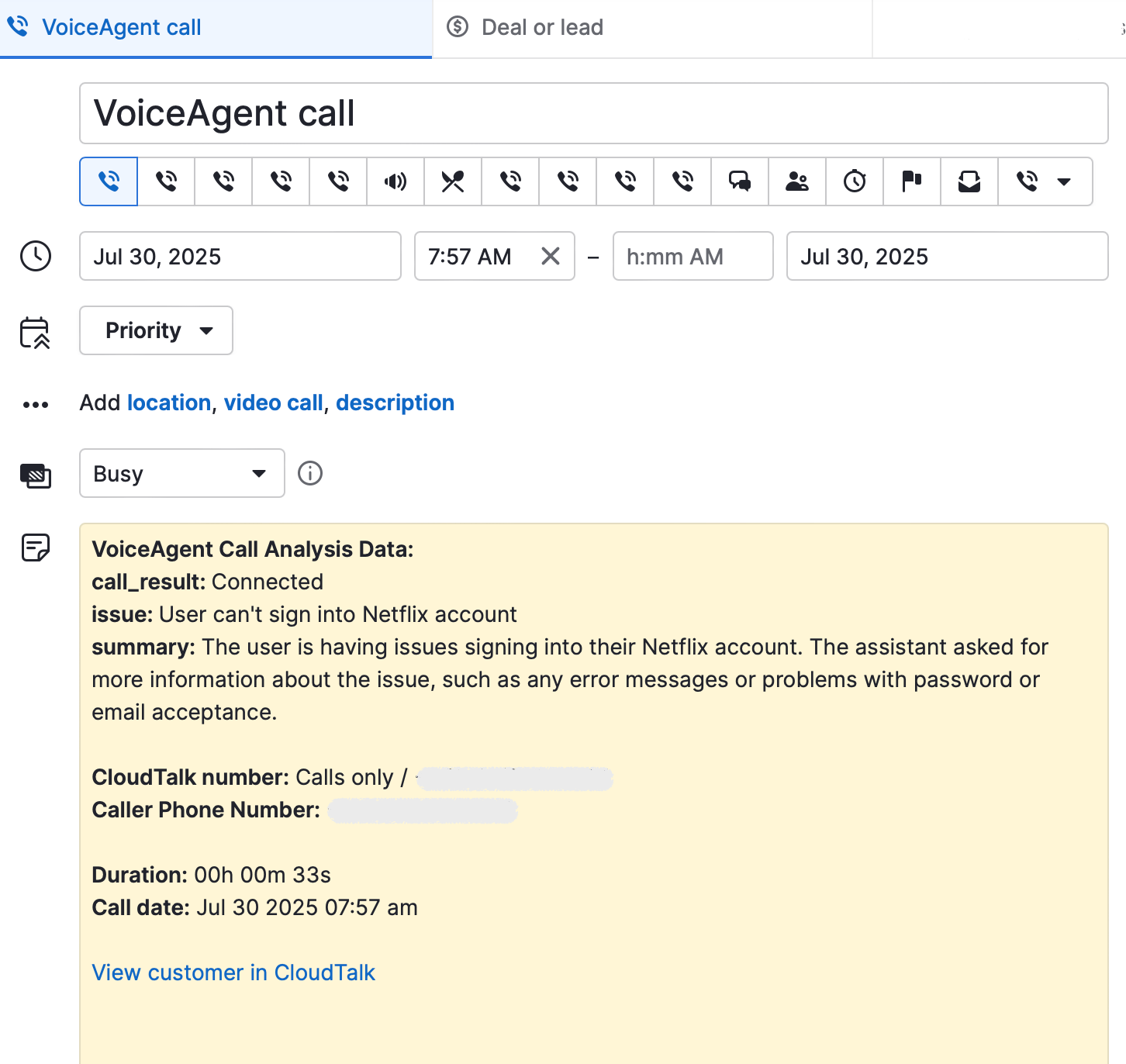
VoiceAgent Call Logging
CloudTalk VoiceAgent calls are also logged in Pipedrive, just like agent-handled calls. These entries are labeled “VoiceAgent call” in the activity title for easy identification. In the call analysis prompt, you can specify what information the VoiceAgent should extract during the call. CloudTalk will then automatically capture and log the requested details, such as the customer’s issue, a summary of the conversation, or custom data like an order number or preferred subscription plan.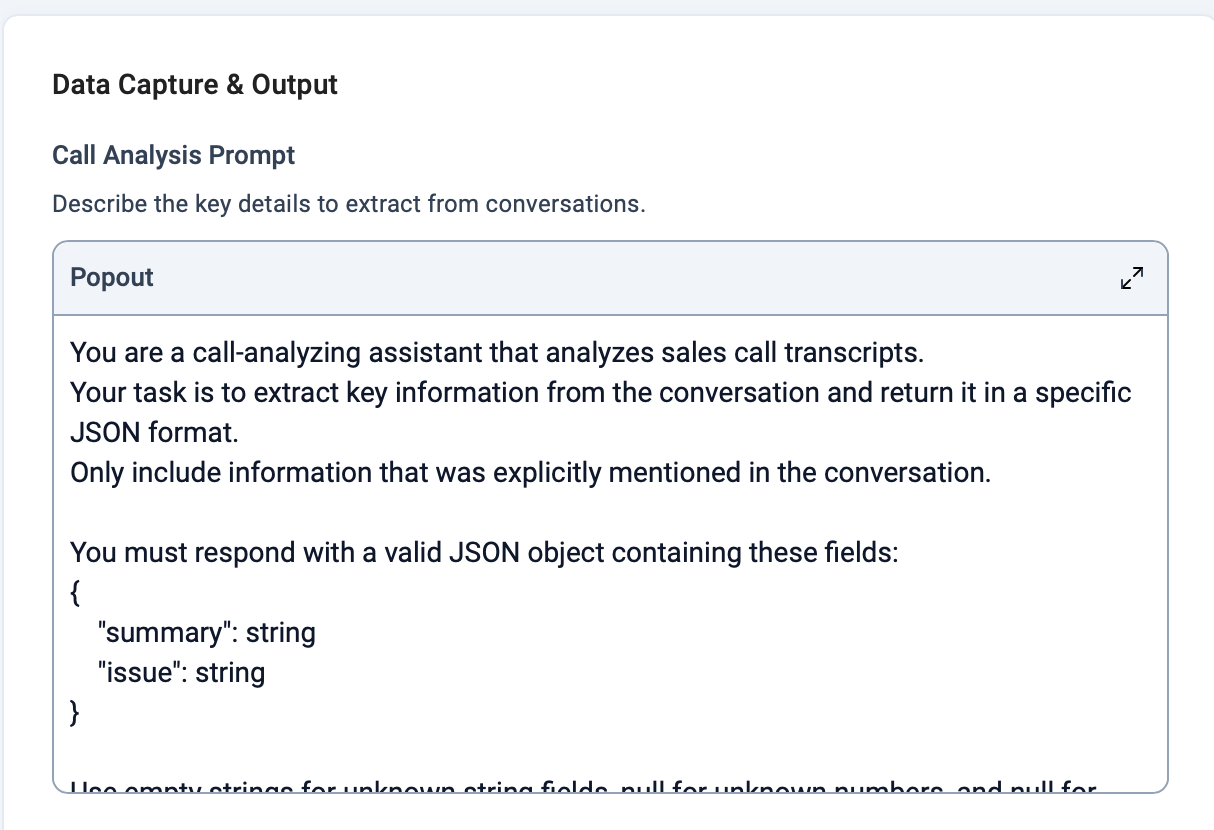
- Call result (connected, failed)
- Issue description
- Summary of the conversation
- Custom fields (e.g., order number, subscription plan)
- Call date and time
- Duration
- Caller number
- CloudTalk number used
FAQ
- Why are calls from certain agents missing in Pipedrive, when other agents’ calls log fine? The most common cause is a missing phone number on that agent’s CloudTalk profile. To match a call to the agent who handled it, CloudTalk uses the phone number on their profile. If an agent has no phone number set, their calls can’t be matched and are skipped without an error, so they never appear in Pipedrive even though the integration is active. To fix it: in the CloudTalk Dashboard, go to Users, open the affected agent’s profile, add their phone number, and save. Then have them place a test call and confirm it appears in Pipedrive. If calls still don’t log after adding the number, check that the agent’s CloudTalk email exactly matches their Pipedrive email (even a capitalization or spacing difference will block logging), that the integration shows as Active under Settings > Integrations, and that the relevant call types are enabled under the integration’s Workflow Settings. If it continues, contact Support with the agent’s name and a recent call ID so the team can trace the export.
Need help or have a question? Just reach out through our Support portal — we’re here for you.