> ## Documentation Index
> Fetch the complete documentation index at: https://help.cloudtalk.io/llms.txt
> Use this file to discover all available pages before exploring further.
# Kennismaking met CloudTalk en CloudTalk Phone installeren
> Eenvoudige stapsgewijze handleiding voor het installeren van de CloudTalk Phone-app op uw Mac, Windows of Linux.
In dit artikel vindt u eenvoudige handleidingen voor het installeren van de CloudTalk Phone-app op uw **[Mac](#h_691f1b463c)**, **[Windows](#h_30c0372dcb)** of **[Linux](#h_9d544c9cfd)** - klik op deze links om het gedeelte van het artikel te vinden dat u nodig hebt.
**Gebruikersniveau:** Admin, agent, Supervisor
***
Bent u nieuw bij CloudTalk en zoekt u een algemene introductie met een aantal handige tips? Dan raden we u sterk aan om eerst de onderstaande video te bekijken en de rest van ons [YouTube-kanaal](https://www.youtube.com/@cloudtalk7726) te bekijken voordat u begint!
CloudTalk Phone openen
Volg deze stappen om CloudTalk Phone voor het eerst te openen nadat u bent ingelogd op het Dashboard:
1. Ga naar uw CloudTalk Dashboard
2. Klik in het bovenste paneel van het CloudTalk Dashboard op het **telefoonpictogram** linksboven, naast de knop **Get Rewarded**.
3. Er verschijnt een pop-upvenster. In dit venster kunt u:
1. Op **App openen** klikken om CloudTalk Phone te starten als deze al is geïnstalleerd
2. Op **Openen in browser** klikken om de [webversie](https://phone.cloudtalk.io) te gebruiken
3. De downloadlinks gebruiken om de CloudTalk-desktopapp voor uw besturingssysteem te installeren
Voor snelle toegang kunt u de CloudTalk-app vastmaken aan uw taakbalk (Windows), Dock (Mac) of launcher/paneel (Linux), afhankelijk van uw systeem.
CloudTalk Phone installeren op Mac
Het installatiepakket voor Mac-gebruikers wordt geleverd als **dmg**-pakket. Volg de onderstaande instructies om CloudTalk Phone op uw computer te installeren.
1. Download het **[installatiebestand](https://www.cloudtalk.io/download-app)** voor Mac van onze website.
2\. Open het bestand. Zodra de download is voltooid, **dubbelklikt u erop om het te openen**.
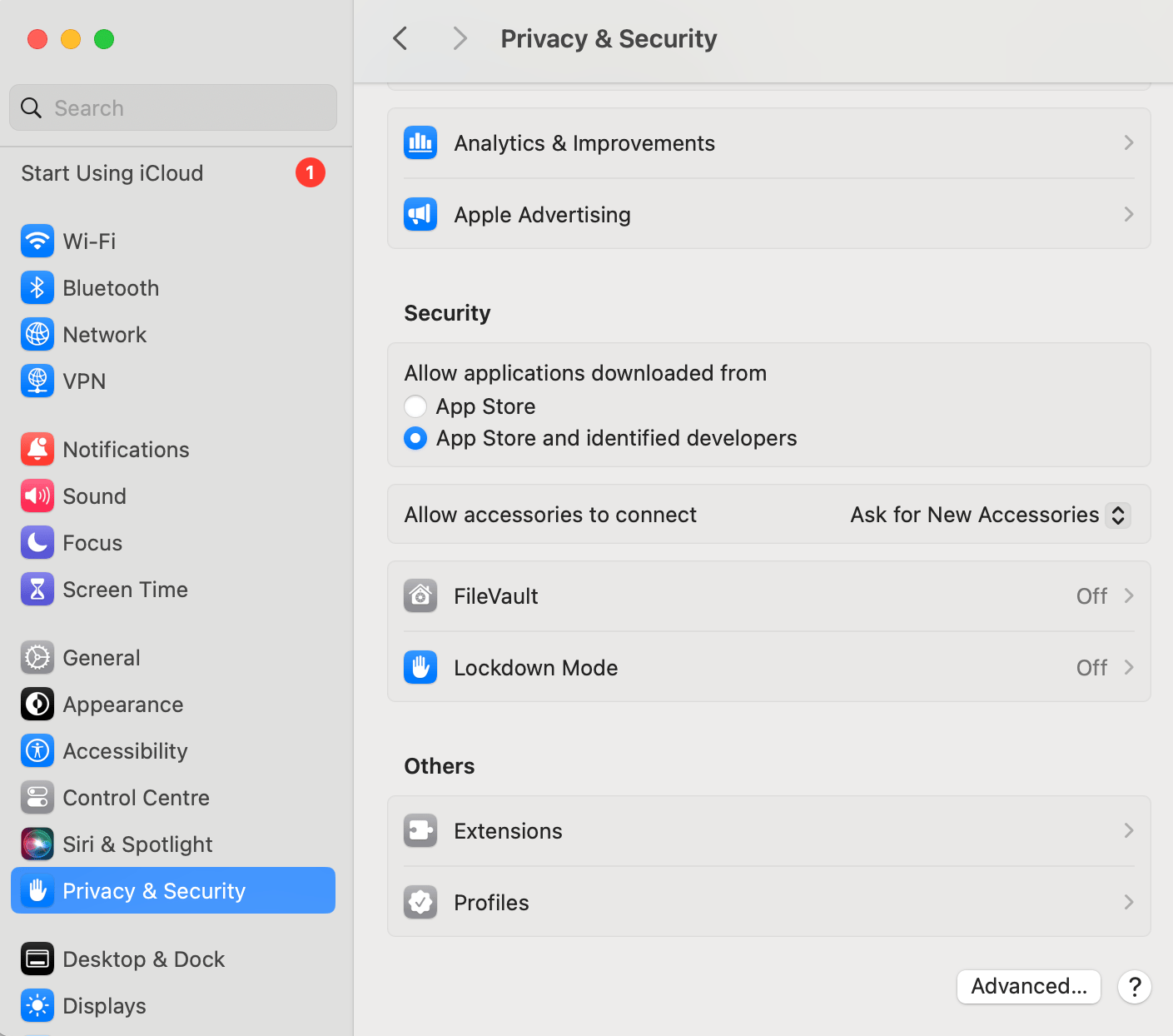
Als u het gedownloade bestand niet kunt openen, moet u uw beveiligingsinstellingen aanpassen. Klik hiervoor op het Apple-pictogram linksboven op uw Mac, ga naar Systeeminstellingen en zoek vervolgens Privacy en beveiliging. Zorg ervoor dat de volgende optie is ingeschakeld, zoals hieronder weergegeven:
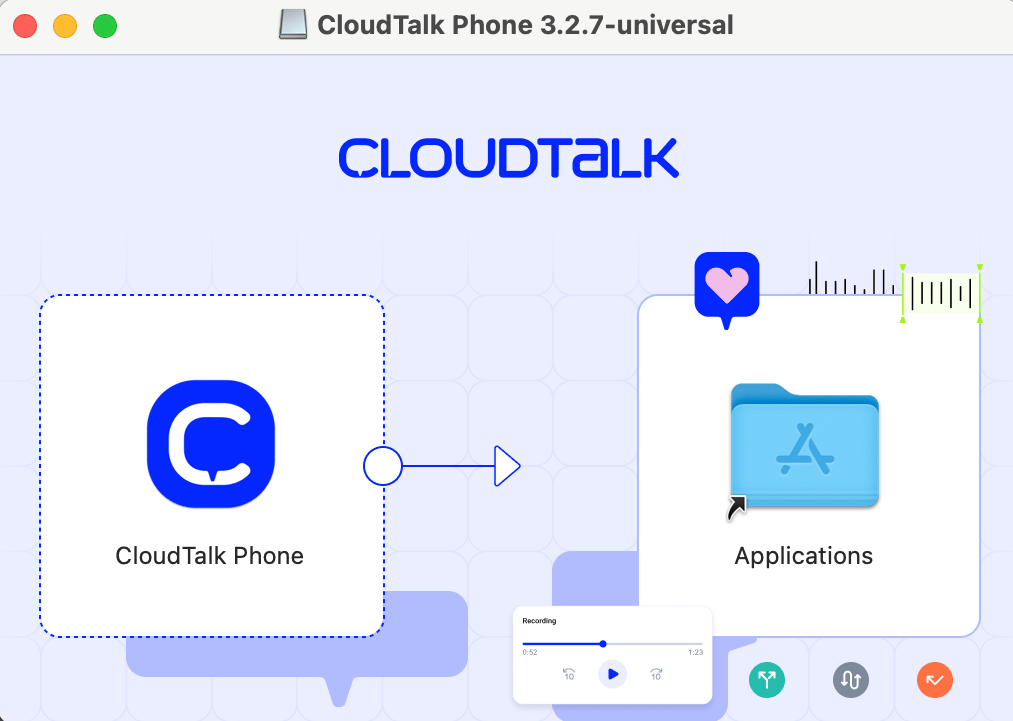
**Slepen en neerzetten:** CloudTalk Phone-app in de **map Programma's**.
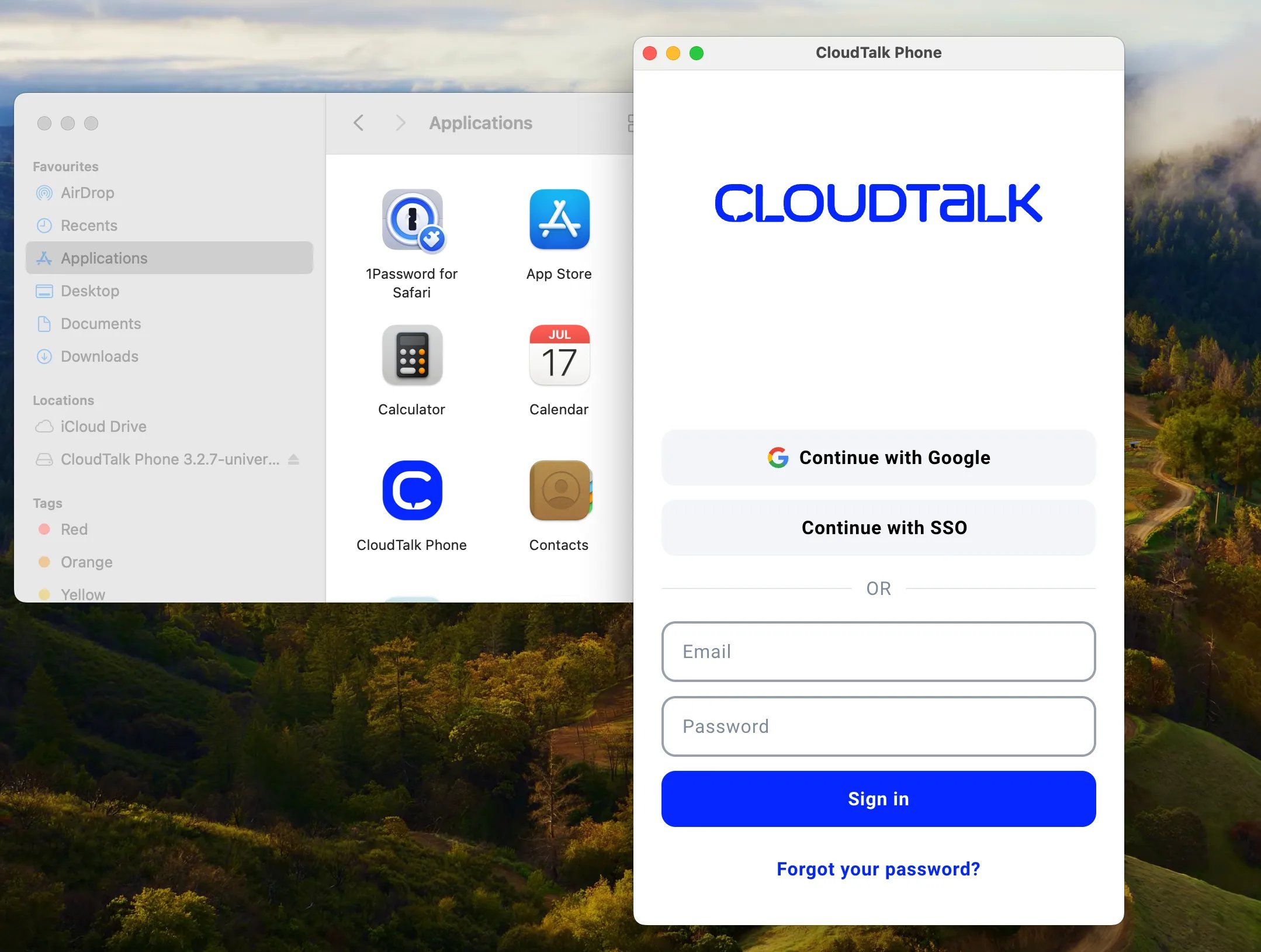
3\. Open de app rechtstreeks in uw **map Programma's** of via uw **[Spotlight-zoekfunctie](https://support.apple.com/en-us/HT204014)**.
**Pro tip:** U kunt de app vastgezet houden in het Dock. Tik simpelweg met twee vingers (of klik met de rechtermuisknop) op de app in het Dock. Ga met de muis over **"Opties"**. Tik op **"Bewaar in Dock"**.
Zodra de installatie **succesvol is voltooid**, kunt u de app meteen gebruiken. Meer over enkele functies van de app leest u **[hier](/nl/articles/2144759-using-cloudtalk-phone).**
CloudTalk Phone installeren op Windows
De app voor Windows-gebruikers wordt geleverd als **EXE**-installatiepakket. Volg de onderstaande instructies om de app op uw Windows-computer te installeren.
1. Download het **[installatiebestand](https://www.cloudtalk.io/download-app)** voor Windows. CloudTalk Desktop ondersteunt Windows 10 en Windows 11. Oudere systemen zoals Windows 7, 8 en 8.1 worden niet meer ondersteund.
2. Dubbelklik op het **gedownloade bestand**.
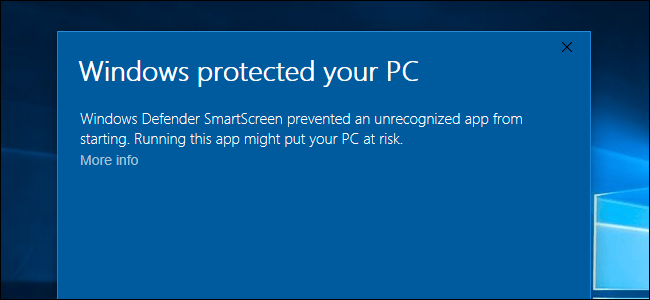
**Belangrijke opmerking:** Als het bestand niet kan worden geïnstalleerd, klikt u op Meer informatie en bevestigt u de installatie opnieuw.
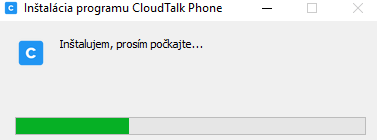
De installatie start nu:
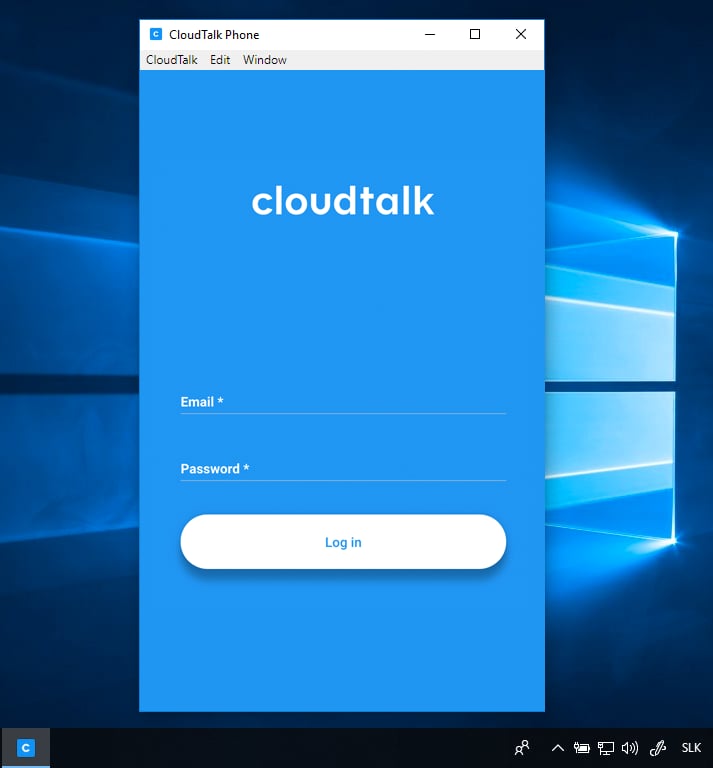
3\. Zodra de installatie is voltooid, wordt de app **automatisch gestart**.
En dat is alles!
Zodra de installatie s**uccesvol is voltooid**, kunt u de app meteen gebruiken. Meer over enkele functies van de app leest u **[in dit artikel](/nl/articles/2144759-using-cloudtalk-phone)**.
Stille installatie (Windows)
Het Windows-installatieprogramma kan stil vanaf de opdrachtregel worden uitgevoerd, zonder dat de installatiewizard wordt weergegeven. Dat is handig voor geautomatiseerde uitrol op meerdere machines.
1. Download het installatiebestand voor Windows van onze website.
2. Open Opdrachtprompt of PowerShell in de map met het gedownloade bestand.
3. Voer het installatieprogramma uit met een van de volgende parameters (beide worden ondersteund):
`"name-of-the-downloaded-file.exe" /S`
`"name-of-the-downloaded-file.exe" /qn`
**Notitie:** CloudTalk Phone voor Windows wordt uitsluitend als EXE-installatieprogramma verspreid. Een MSI-pakket is niet beschikbaar.
CloudTalk Phone installeren op Linux
De app voor Linux-gebruikers wordt geleverd als **AppImage**. Volg de onderstaande instructies om de app op uw computer te installeren.
1. Download het **[installatiebestand](https://www.cloudtalk.io/download-app)** voor Linux.
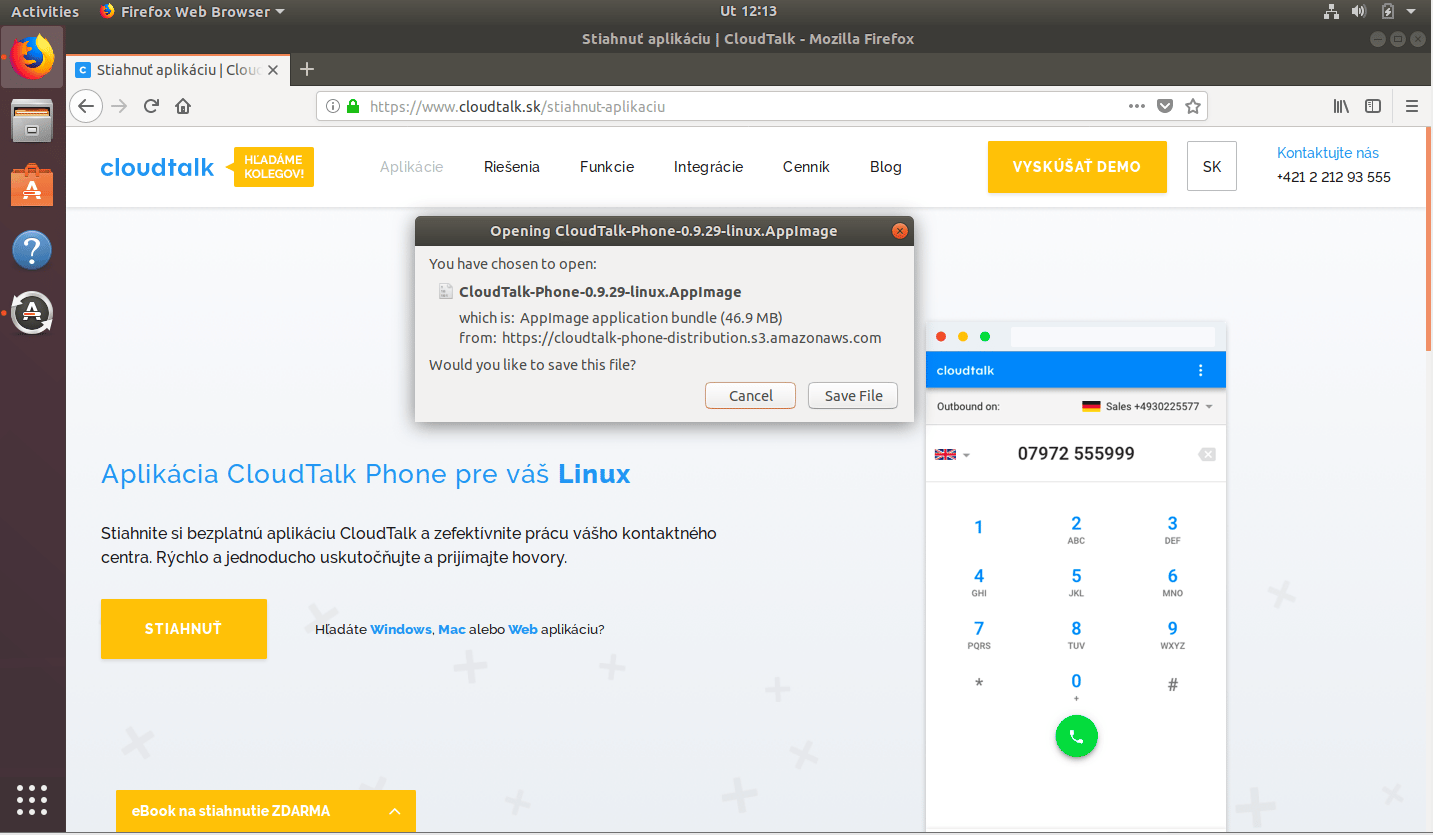
2\. Dubbelklik op het gedownloade bestand.
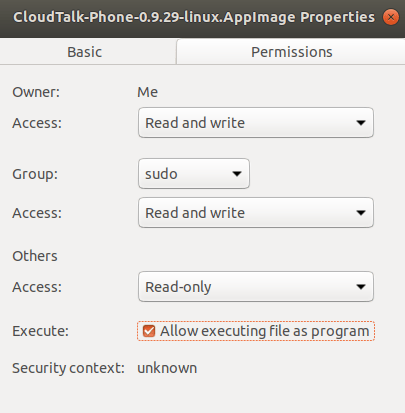
**Belangrijke opmerking:** Als u het gedownloade bestand niet kunt openen, moet u het bestand als uitvoerbaar instellen. Klik met de rechtermuisknop op het bestand, selecteer Eigenschappen in het contextmenu en vink op het tabblad Rechten het selectievakje **"Uitvoeren van bestand als programma toestaan"** aan.
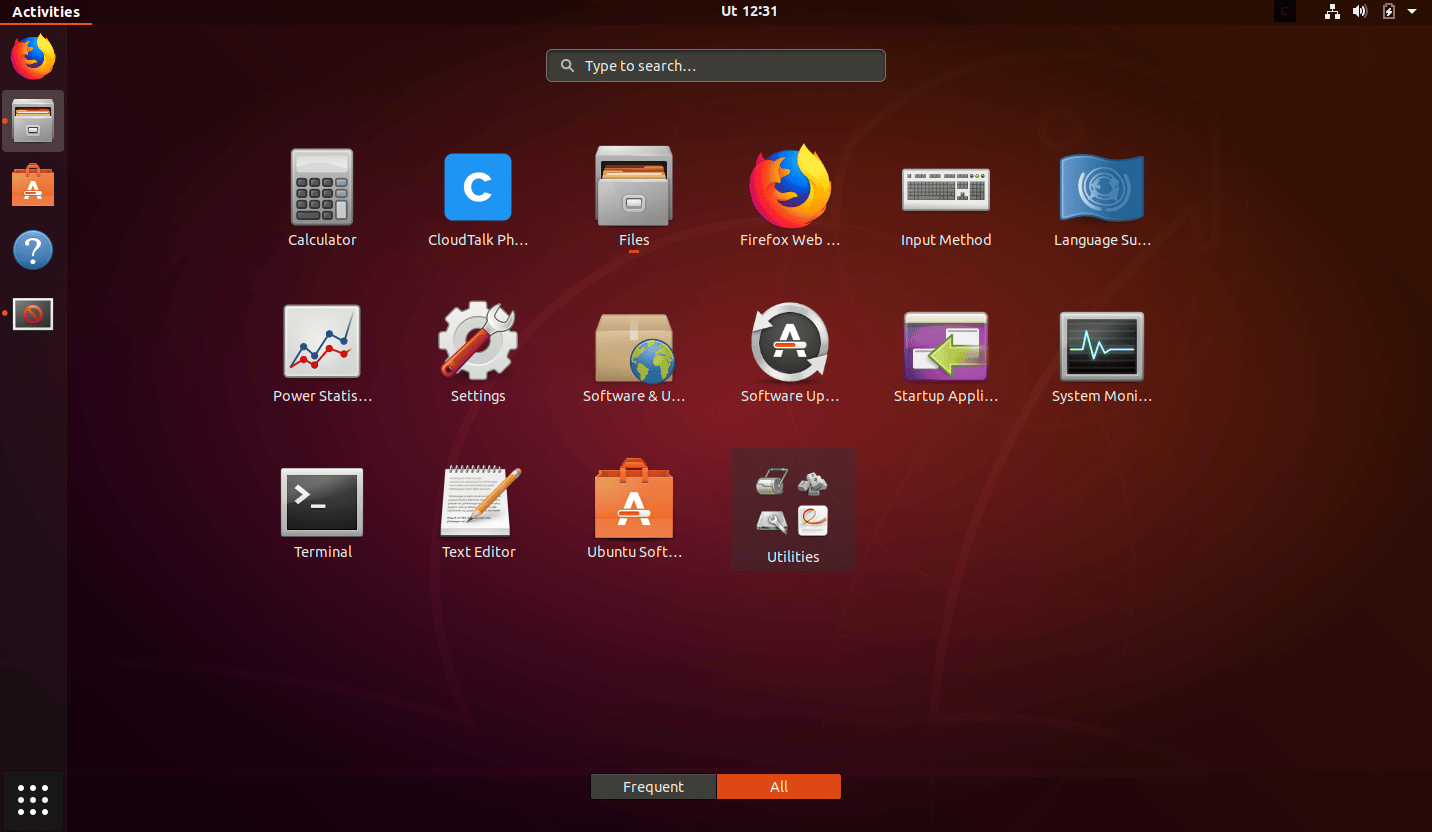
3\. De app wordt **gestart** en **verschijnt** automatisch tussen uw andere apps.
En dat is alles.
Zodra de installatie succesvol is voltooid, kunt u de app meteen gebruiken.
***
*Hulp nodig of een vraag?* Neem gerust contact met ons op via ons [Supportportaal](https://support.cloudtalk.io/hc/en-us/requests/new?ticket_form_id=26305535257884) — we staan voor u klaar.
## Related topics
- [CloudTalk Phone installeren op Linux](/nl/articles/2144740-installing-cloudtalk-phone-in-linux.md)
- [CloudTalk Phone installeren op Mac](/nl/articles/2144706-installing-cloudtalk-phone-on-mac.md)
- [CloudTalk Phone installeren op Windows](/nl/articles/2144727-installing-cloudtalk-phone-in-windows.md)
This documentation is built and hosted on [Mintlify](https://mintlify.com), a developer documentation platform.
 3. Er verschijnt een pop-upvenster. In dit venster kunt u:
1. Op **App openen** klikken om CloudTalk Phone te starten als deze al is geïnstalleerd
2. Op **Openen in browser** klikken om de [webversie](https://phone.cloudtalk.io) te gebruiken
3. De downloadlinks gebruiken om de CloudTalk-desktopapp voor uw besturingssysteem te installeren
3. Er verschijnt een pop-upvenster. In dit venster kunt u:
1. Op **App openen** klikken om CloudTalk Phone te starten als deze al is geïnstalleerd
2. Op **Openen in browser** klikken om de [webversie](https://phone.cloudtalk.io) te gebruiken
3. De downloadlinks gebruiken om de CloudTalk-desktopapp voor uw besturingssysteem te installeren
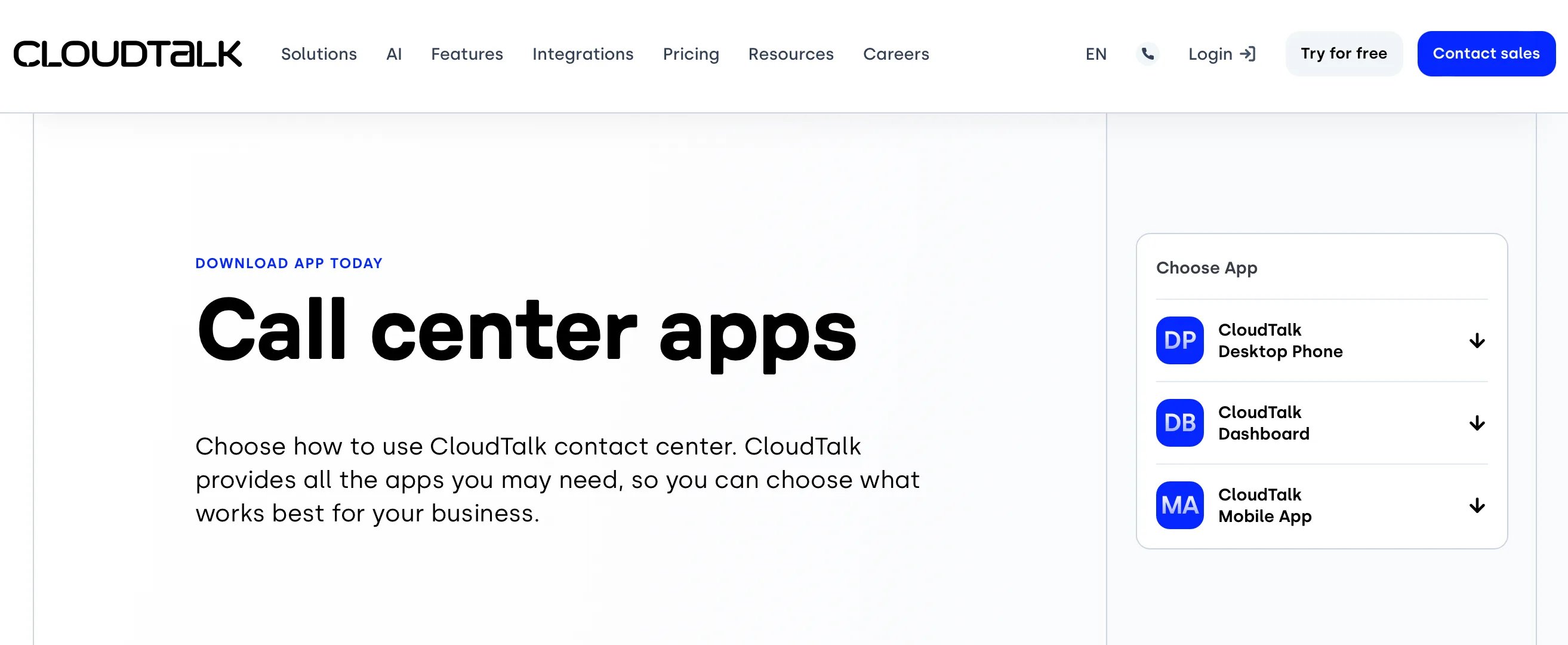 2\. Open het bestand. Zodra de download is voltooid, **dubbelklikt u erop om het te openen**.
Als u het gedownloade bestand niet kunt openen, moet u uw beveiligingsinstellingen aanpassen. Klik hiervoor op het Apple-pictogram linksboven op uw Mac, ga naar Systeeminstellingen en zoek vervolgens Privacy en beveiliging. Zorg ervoor dat de volgende optie is ingeschakeld, zoals hieronder weergegeven:
2\. Open het bestand. Zodra de download is voltooid, **dubbelklikt u erop om het te openen**.
Als u het gedownloade bestand niet kunt openen, moet u uw beveiligingsinstellingen aanpassen. Klik hiervoor op het Apple-pictogram linksboven op uw Mac, ga naar Systeeminstellingen en zoek vervolgens Privacy en beveiliging. Zorg ervoor dat de volgende optie is ingeschakeld, zoals hieronder weergegeven:
 **Slepen en neerzetten:** CloudTalk Phone-app in de **map Programma's**.
 3\. Open de app rechtstreeks in uw **map Programma's** of via uw **[Spotlight-zoekfunctie](https://support.apple.com/en-us/HT204014)**.
 De installatie start nu:
 3\. Zodra de installatie is voltooid, wordt de app **automatisch gestart**.
 En dat is alles!
Zodra de installatie s**uccesvol is voltooid**, kunt u de app meteen gebruiken. Meer over enkele functies van de app leest u **[in dit artikel](/nl/articles/2144759-using-cloudtalk-phone)**.
En dat is alles!
Zodra de installatie s**uccesvol is voltooid**, kunt u de app meteen gebruiken. Meer over enkele functies van de app leest u **[in dit artikel](/nl/articles/2144759-using-cloudtalk-phone)**.
 2\. Dubbelklik op het gedownloade bestand.
 3\. De app wordt **gestart** en **verschijnt** automatisch tussen uw andere apps.
 En dat is alles.
Zodra de installatie succesvol is voltooid, kunt u de app meteen gebruiken.
***
*Hulp nodig of een vraag?* Neem gerust contact met ons op via ons [Supportportaal](https://support.cloudtalk.io/hc/en-us/requests/new?ticket_form_id=26305535257884) — we staan voor u klaar.
## Related topics
- [CloudTalk Phone installeren op Linux](/nl/articles/2144740-installing-cloudtalk-phone-in-linux.md)
- [CloudTalk Phone installeren op Mac](/nl/articles/2144706-installing-cloudtalk-phone-on-mac.md)
- [CloudTalk Phone installeren op Windows](/nl/articles/2144727-installing-cloudtalk-phone-in-windows.md)
This documentation is built and hosted on [Mintlify](https://mintlify.com), a developer documentation platform.
En dat is alles.
Zodra de installatie succesvol is voltooid, kunt u de app meteen gebruiken.
***
*Hulp nodig of een vraag?* Neem gerust contact met ons op via ons [Supportportaal](https://support.cloudtalk.io/hc/en-us/requests/new?ticket_form_id=26305535257884) — we staan voor u klaar.
## Related topics
- [CloudTalk Phone installeren op Linux](/nl/articles/2144740-installing-cloudtalk-phone-in-linux.md)
- [CloudTalk Phone installeren op Mac](/nl/articles/2144706-installing-cloudtalk-phone-on-mac.md)
- [CloudTalk Phone installeren op Windows](/nl/articles/2144727-installing-cloudtalk-phone-in-windows.md)
This documentation is built and hosted on [Mintlify](https://mintlify.com), a developer documentation platform.