> ## Documentation Index
> Fetch the complete documentation index at: https://help.cloudtalk.io/llms.txt
> Use this file to discover all available pages before exploring further.
# MS Teams configureren
> Configureer de gegevensuitwisseling tussen CloudTalk en Microsoft Teams om ervoor te zorgen dat uw gegevens up-to-date blijven.
Deze handleiding legt uit hoe u de Microsoft Teams-integratie met CloudTalk configureert, zodat u belfuncties rechtstreeks vanuit uw Teams-werkruimte kunt gebruiken.
**Gebruikersniveau**: Admin
***
Voor informatie over het gebruik van de integratiefuncties, zie [CloudTalk gebruiken met MS Teams](/nl/articles/9691181-using-cloudtalk-with-ms-teams).
Voordat u begint
Om MS Teams met CloudTalk te integreren, moet u:
* Een Expert-abonnement of hoger hebben
* [Azure Single sign-on (SSO)](/nl/articles/5912324-microsoft-azure-sso-setup) ingeschakeld hebben
* Houd de [CloudTalk Phone](https://www.cloudtalk.io/download-app/)-desktopapplicatie op de achtergrond actief terwijl u belt in MS Teams
MS Teams configureren
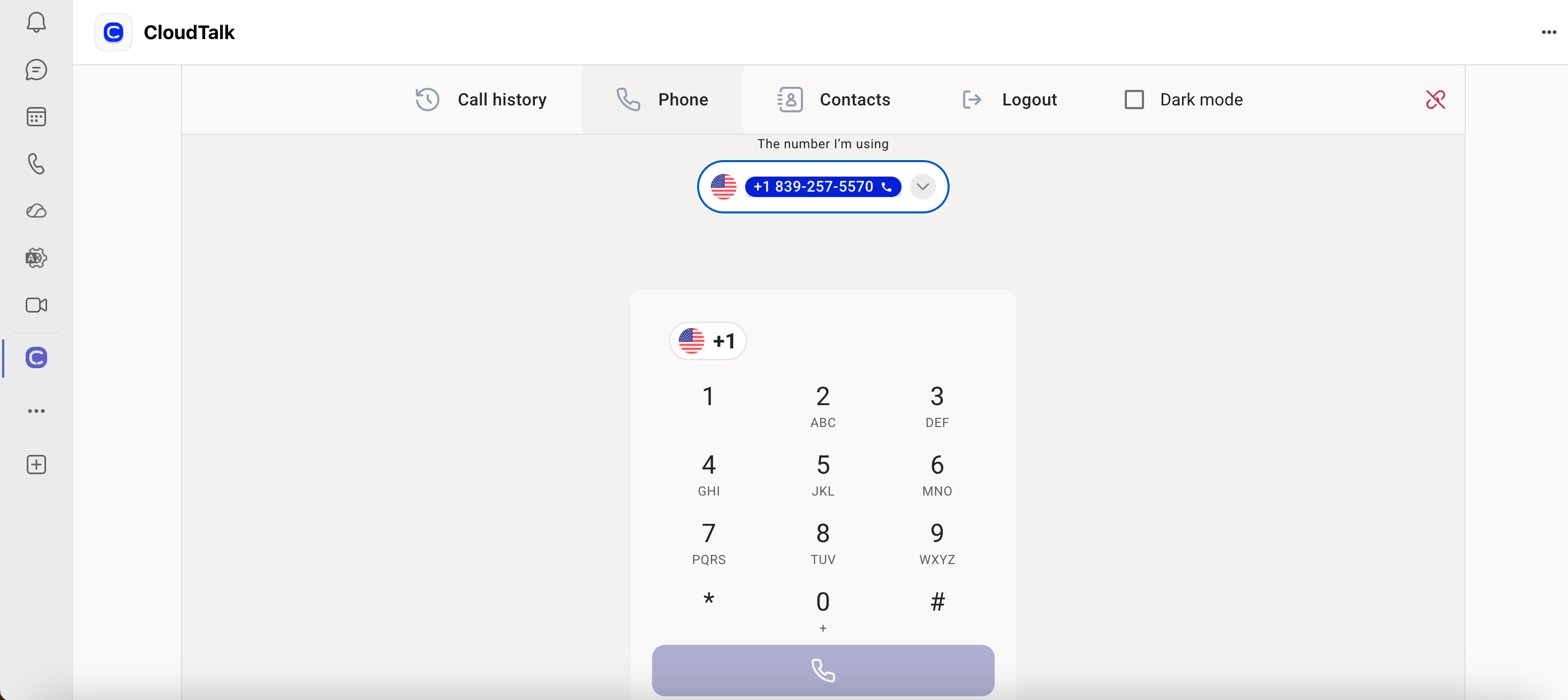
Vanuit uw MS Teams-dashboard heeft u toegang tot onze CTI, net als bij elke andere app die aan uw Microsoft-account is toegevoegd:
1. Klik in de zijbalk aan de linkerkant op **Apps** (onderaan de zijbalk)
2. Zoek naar **CloudTalk** in de Microsoft-appmarktplaats.
3. Zoek de [CloudTalk-app](https://appsource.microsoft.com/en-us/product/office/wa200007800) voor MS Teams en klik op **Get it now**.
4. Selecteer de app in de zijbalk om toegang te krijgen tot CloudTalk Phone-functies binnen Teams.
5. Zorg ervoor dat Azure SSO is ingesteld in het Dashboard om in te loggen.
6. Houd de CloudTalk-desktopapp geopend op hetzelfde apparaat terwijl u belt.
CloudTalk verwijderen uit MS Teams
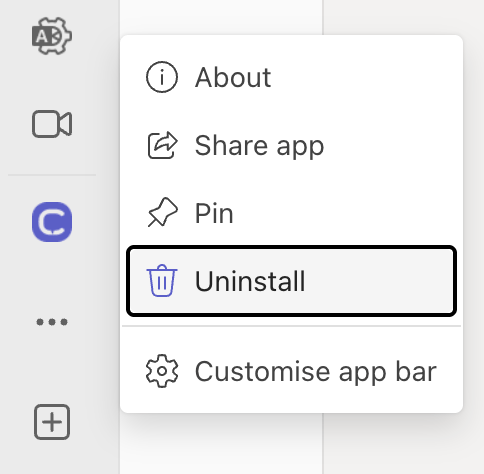
1. Open **Microsoft Teams**
2. Zoek in de zijbalk aan de linkerkant de **CloudTalk-app**
3. Klik met de rechtermuisknop op het **CloudTalk-icoon**
4. Selecteer **Uninstall,** en vervolgens **Verwijderen.**
 ***
*Hulp nodig of heeft u een vraag?* Neem gerust contact met ons op via ons [supportportaal](https://support.cloudtalk.io/hc/en-us/requests/new?ticket_form_id=26305535257884) — we staan voor u klaar.
## Related topics
- [CloudTalk gebruiken met MS Teams](/nl/articles/9691181-using-cloudtalk-with-ms-teams.md)
- [Salesloft configureren](/nl/articles/5890178-configure-salesloft.md)
- [Pipedrive configureren](/nl/articles/2843578-configure-pipedrive.md)
This documentation is built and hosted on [Mintlify](https://mintlify.com), a developer documentation platform.
***
*Hulp nodig of heeft u een vraag?* Neem gerust contact met ons op via ons [supportportaal](https://support.cloudtalk.io/hc/en-us/requests/new?ticket_form_id=26305535257884) — we staan voor u klaar.
## Related topics
- [CloudTalk gebruiken met MS Teams](/nl/articles/9691181-using-cloudtalk-with-ms-teams.md)
- [Salesloft configureren](/nl/articles/5890178-configure-salesloft.md)
- [Pipedrive configureren](/nl/articles/2843578-configure-pipedrive.md)
This documentation is built and hosted on [Mintlify](https://mintlify.com), a developer documentation platform.