> ## Documentation Index
> Fetch the complete documentation index at: https://help.cloudtalk.io/llms.txt
> Use this file to discover all available pages before exploring further.
# Capsule CRM configureren
> Configureer de gegevensuitwisseling zodat uw gegevens actueel blijven en uw team direct kan bellen vanuit Capsule CRM.
Deze handleiding begeleidt u bij het koppelen van CloudTalk aan Capsule CRM, zodat u contacten kunt synchroniseren, oproepen en SMS kunt bijhouden en alle activiteiten op één plek kunt beheren.
**Gebruikersniveau:** Admin
***
Voor meer informatie over hoe oproepen worden gelogd en hoe gegevens na de installatie worden gesynchroniseerd, zie [CloudTalk gebruiken met Capsule CRM](/nl/articles/11196736-using-cloudtalk-with-capsule-crm).
Vereisten
Zorg dat u het volgende hebt voordat u begint:
* **Beheerderstoegang** in zowel CloudTalk als Capsule CRM.
* Een **Capsule API-token**. De instructies vindt u [hieronder.](#:~:text=Where%20to%20find%20your%20Capsule%20API%20token)
* Het e-mailadres dat u in CloudTalk gebruikt, moet exact overeenkomen met het e-mailadres in uw Capsule CRM-account. Als de e-mailadressen niet overeenkomen, werkt de synchronisatie niet correct.
Capsule CRM configureren
U kunt uw Capsule CRM in een paar stappen koppelen aan CloudTalk. Hieronder leest u hoe u de integratie verifieert en telefoonnummers toewijst voor bellen en berichten.
1. **Inloggen** op uw CloudTalk Dashboard.
2. Navigeer naar **Account > Integraties**.
3. Zoek **Capsule CRM** in de lijst en klik op ➕ **Toevoegen**.
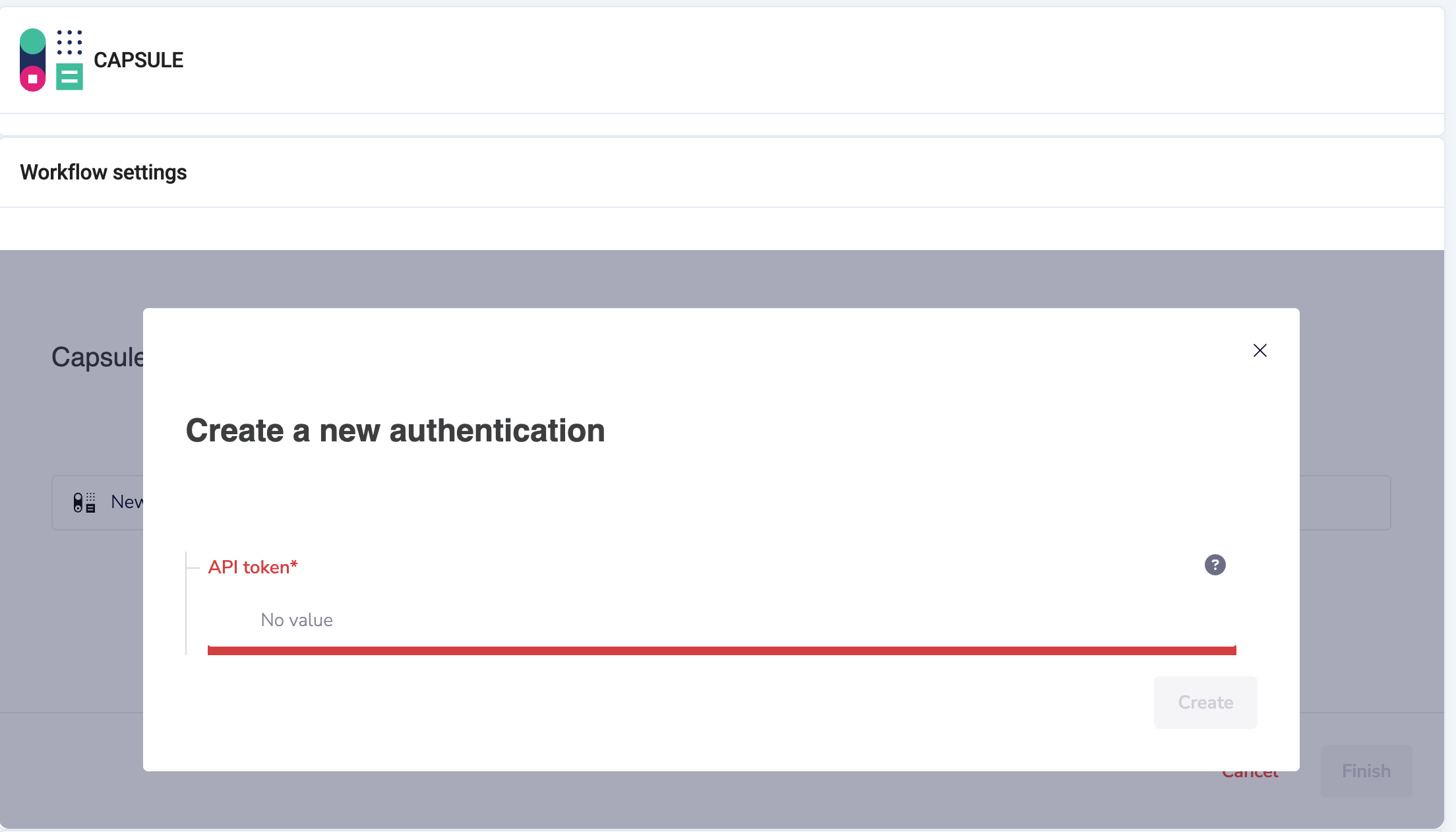
 4. Er verschijnt een pop-up. Plak onder **API-token** uw Capsule-token.
5. Klik op **Aanmaken** om de verificatie te voltooien.
4. Er verschijnt een pop-up. Plak onder **API-token** uw Capsule-token.
5. Klik op **Aanmaken** om de verificatie te voltooien.
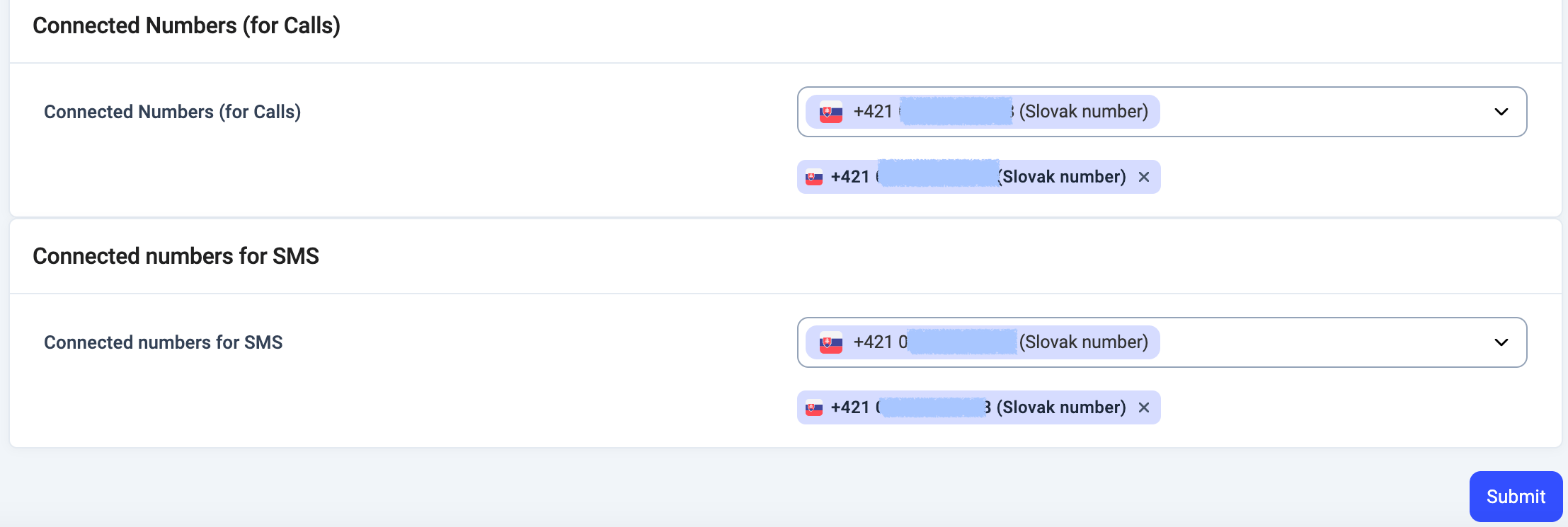
 6. **Nummers toewijzen** (optioneel):
* Kies welke CloudTalk-nummers moeten worden gekoppeld aan Capsule voor het loggen van oproepen en SMS.
* Als u dit leeg laat, worden uw standaard CloudTalk-nummers gebruikt.
* Dit is handig als u wilt dat Capsule alleen oproepen van specifieke teams of lijnen logt.
6. **Nummers toewijzen** (optioneel):
* Kies welke CloudTalk-nummers moeten worden gekoppeld aan Capsule voor het loggen van oproepen en SMS.
* Als u dit leeg laat, worden uw standaard CloudTalk-nummers gebruikt.
* Dit is handig als u wilt dat Capsule alleen oproepen van specifieke teams of lijnen logt.
 7. Configureer in **Algemene instellingen** de labels:
* **Label**: de interne naam voor deze integratie (bijvoorbeeld "Capsule CRM").
* **Contacttag**: alle contacten die vanuit Capsule worden gesynchroniseerd, krijgen automatisch deze tag, zodat u ze later eenvoudig kunt filteren.
7. Configureer in **Algemene instellingen** de labels:
* **Label**: de interne naam voor deze integratie (bijvoorbeeld "Capsule CRM").
* **Contacttag**: alle contacten die vanuit Capsule worden gesynchroniseerd, krijgen automatisch deze tag, zodat u ze later eenvoudig kunt filteren.

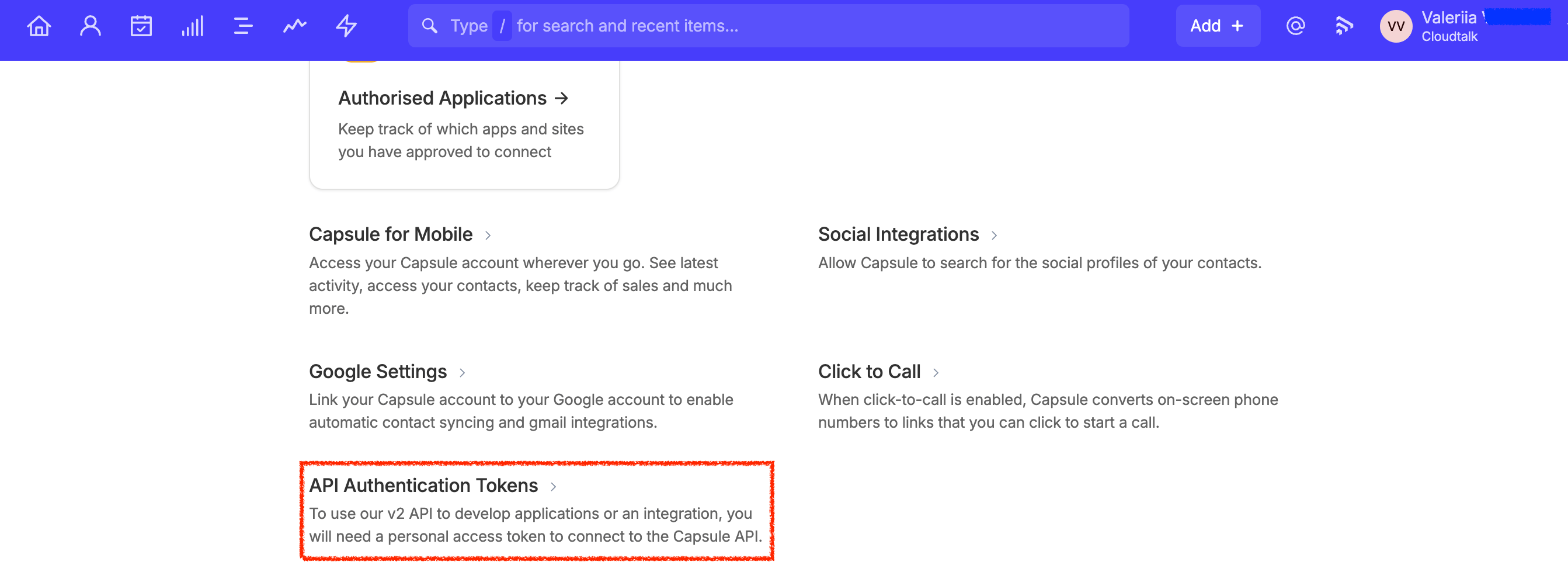
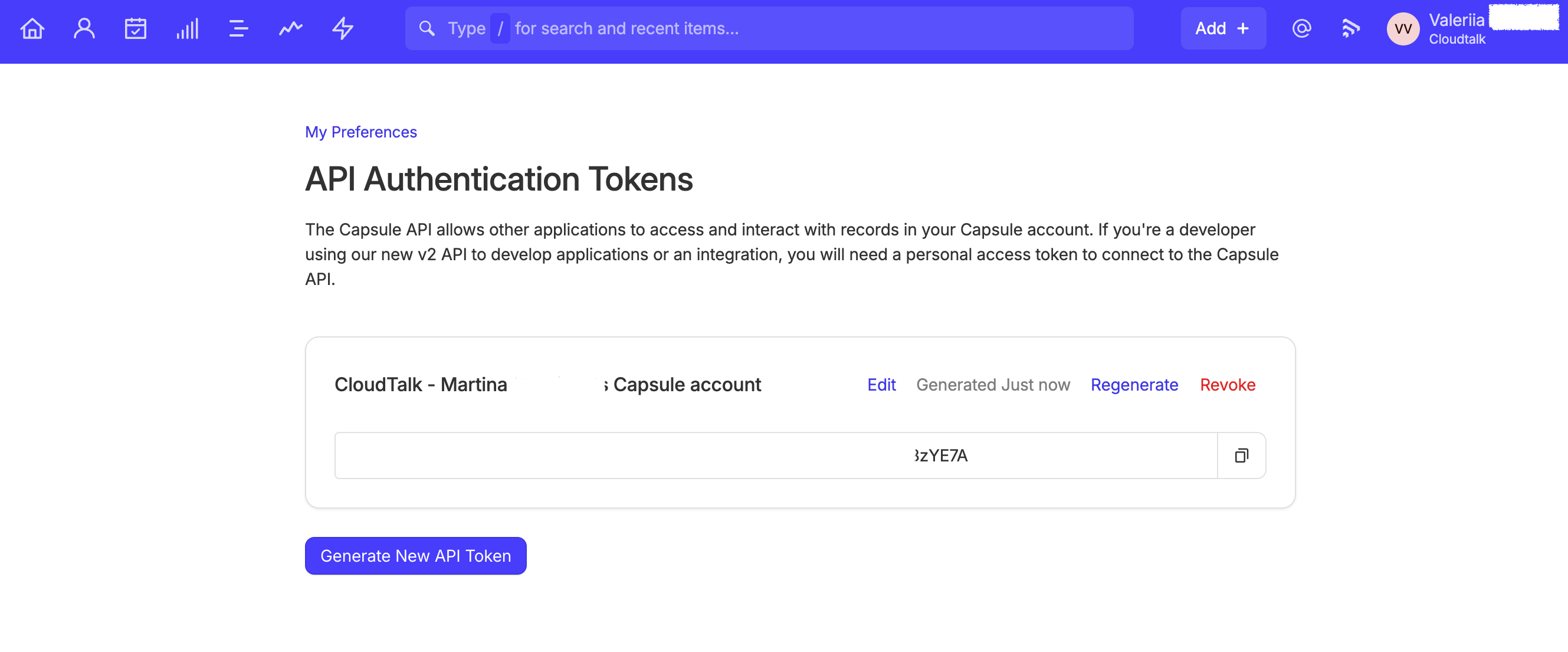
Waar u uw Capsule API-token vindt
1. Log in op uw **Capsule-account**.
2. Klik rechtsboven op uw avatar en kies **My Preferences**.
3. Scroll naar beneden naar **API Authentication Tokens**.
4. Genereer een nieuw token of kopieer een bestaand token.
 ***
*Heeft u hulp nodig of een vraag?* Neem gerust contact met ons op via ons [Supportportal](https://support.cloudtalk.io/hc/en-us/requests/new?ticket_form_id=26305535257884) — we staan voor u klaar.
## Related topics
- [CloudTalk gebruiken met Capsule CRM](/nl/articles/11196736-using-cloudtalk-with-capsule-crm.md)
- [Freshsales (Freshworks CRM) configureren](/nl/articles/14595190-configure-freshsales-freshworks-crm.md)
- [Odoo configureren](/nl/articles/11703488-configure-odoo.md)
This documentation is built and hosted on [Mintlify](https://mintlify.com), a developer documentation platform.
***
*Heeft u hulp nodig of een vraag?* Neem gerust contact met ons op via ons [Supportportal](https://support.cloudtalk.io/hc/en-us/requests/new?ticket_form_id=26305535257884) — we staan voor u klaar.
## Related topics
- [CloudTalk gebruiken met Capsule CRM](/nl/articles/11196736-using-cloudtalk-with-capsule-crm.md)
- [Freshsales (Freshworks CRM) configureren](/nl/articles/14595190-configure-freshsales-freshworks-crm.md)
- [Odoo configureren](/nl/articles/11703488-configure-odoo.md)
This documentation is built and hosted on [Mintlify](https://mintlify.com), a developer documentation platform.