> ## Documentation Index
> Fetch the complete documentation index at: https://help.cloudtalk.io/llms.txt
> Use this file to discover all available pages before exploring further.
# Configurar noCRM
> Configura el intercambio de datos entre CloudTalk y noCRM para mantener tus datos actualizados.
En este artículo, aprenderás a integrar noCRM con CloudTalk, activar el registro de llamadas y las notificaciones, y a gestionar o desconectar tu integración.
**Nivel de usuario:** Admin
***
Una vez conectado, descubre cómo se gestionan las llamadas y cómo se sincronizan los datos entre CloudTalk y noCRM en [Uso de CloudTalk con noCRM](/es/articles/11494280-using-cloudtalk-with-nocrm).
Requisitos previos
Para conectar CloudTalk con noCRM, necesitarás:
* **Acceso de administrador** en CloudTalk y noCRM.
* Una **Clave de API de noCRM**. [Consulta cómo generar tu clave de API.](#:~:text=%2C%20and%20confirm.-,API%20Key%20Retrieval,-If%20you%20don%E2%80%99t)
* Tu **URL de empresa** en el siguiente formato: [`https://yourworkspace.nocrm.io`](https://yourworkspace.nocrm.io)
* La dirección de correo electrónico que usas en CloudTalk debe coincidir exactamente con la dirección de correo electrónico de tu cuenta de noCRM. Si los correos electrónicos no coinciden, la sincronización no funcionará correctamente.
Configurar noCRM
1. Desde tu CloudTalk Dashboard, ve a **Cuenta > Integraciones** y busca **noCRM**.
2. Haz clic en **`➕ Add`**.
 3. Pega tu **Clave de API** e introduce tu **URL de noCRM** ([`https://yourworkspace.nocrm.io`](https://yourworkspace.nocrm.io)).
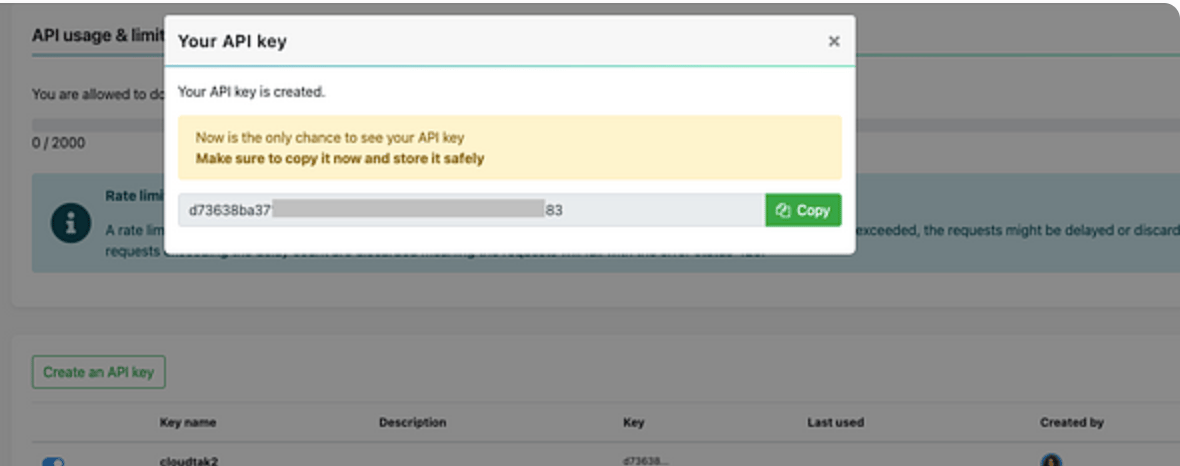
 Si todavía no tienes una clave de API, genera una en noCRM:
1. Inicia sesión en tu cuenta de **noCRM.io**.
2. Ve a **Admin Panel > Integrations > API > API Keys**.
3. Haz clic en **Create an API Key** y cópiala.
4. Usa esta clave al configurar la integración en CloudTalk.
Si todavía no tienes una clave de API, genera una en noCRM:
1. Inicia sesión en tu cuenta de **noCRM.io**.
2. Ve a **Admin Panel > Integrations > API > API Keys**.
3. Haz clic en **Create an API Key** y cópiala.
4. Usa esta clave al configurar la integración en CloudTalk.
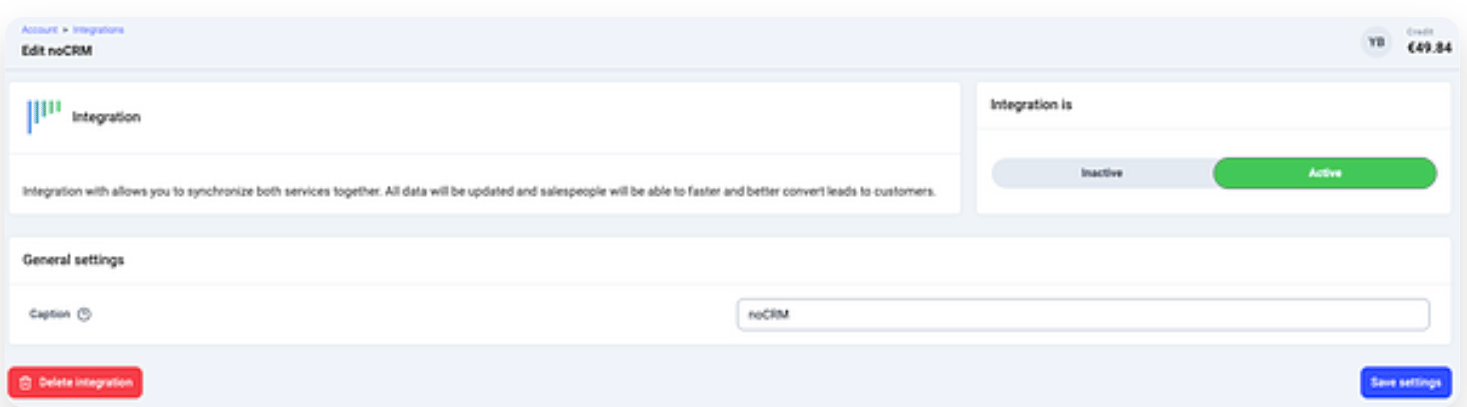
 4. Haz clic en **Guardar**, activa **Activar** y haz clic en **Guardar configuración.**
Activar el registro de llamadas y las notificaciones
Dentro de noCRM, puedes configurar cómo se registran las llamadas y cuándo se envían las notificaciones:
1. Ve a **Admin Panel > Phone App Settings** en noCRM.
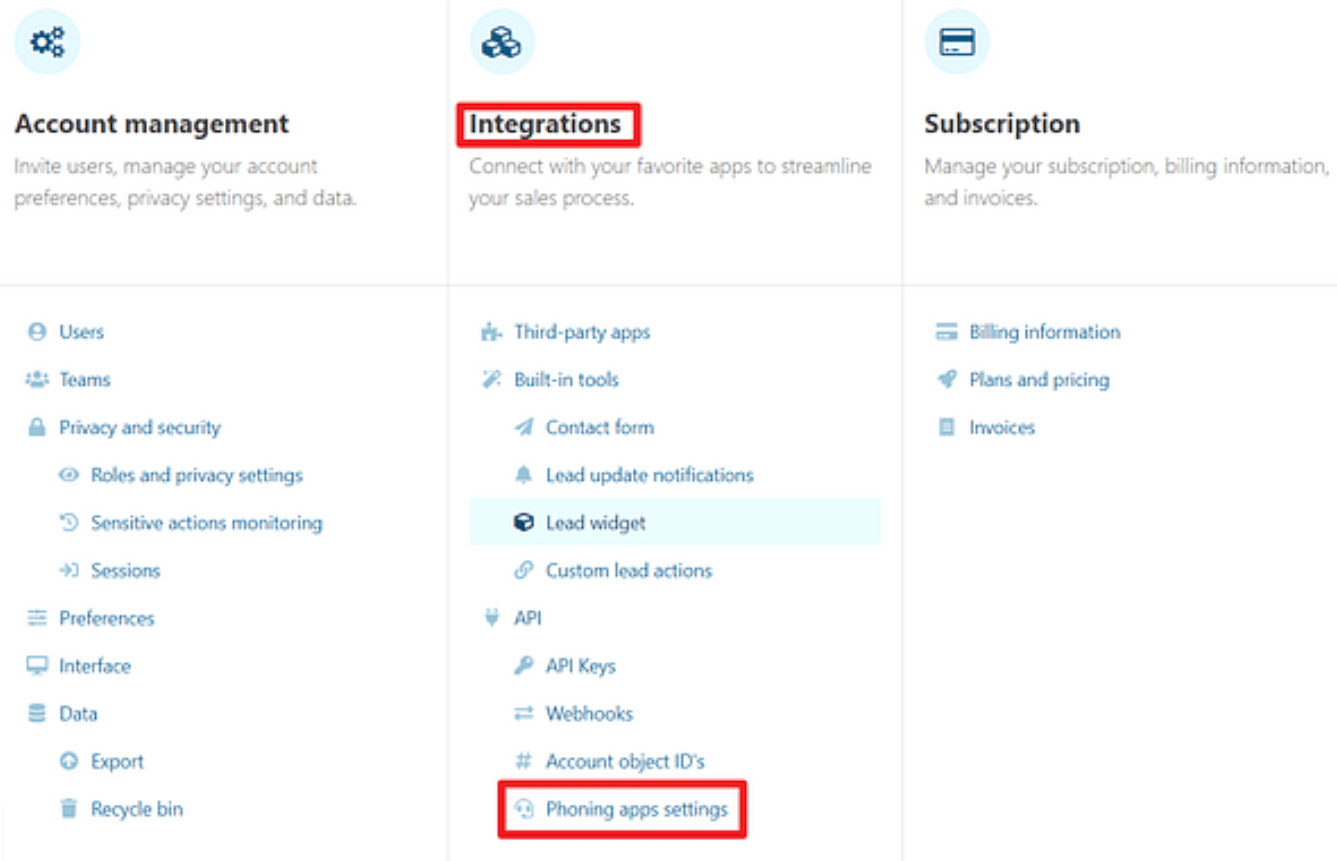 2. En **CloudTalk**, activa:
* **Call activity logging**: registra los eventos de llamada en el historial de actividad del lead.
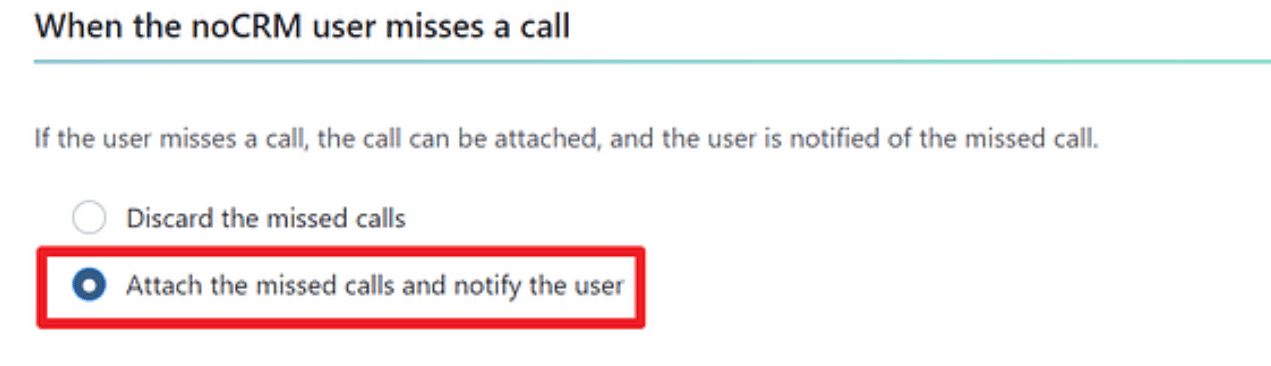
* **Missed call alerts**: activa **Attach missed calls and notify the user** para recibir notificaciones cuando se pierda una llamada.
2. En **CloudTalk**, activa:
* **Call activity logging**: registra los eventos de llamada en el historial de actividad del lead.
* **Missed call alerts**: activa **Attach missed calls and notify the user** para recibir notificaciones cuando se pierda una llamada.
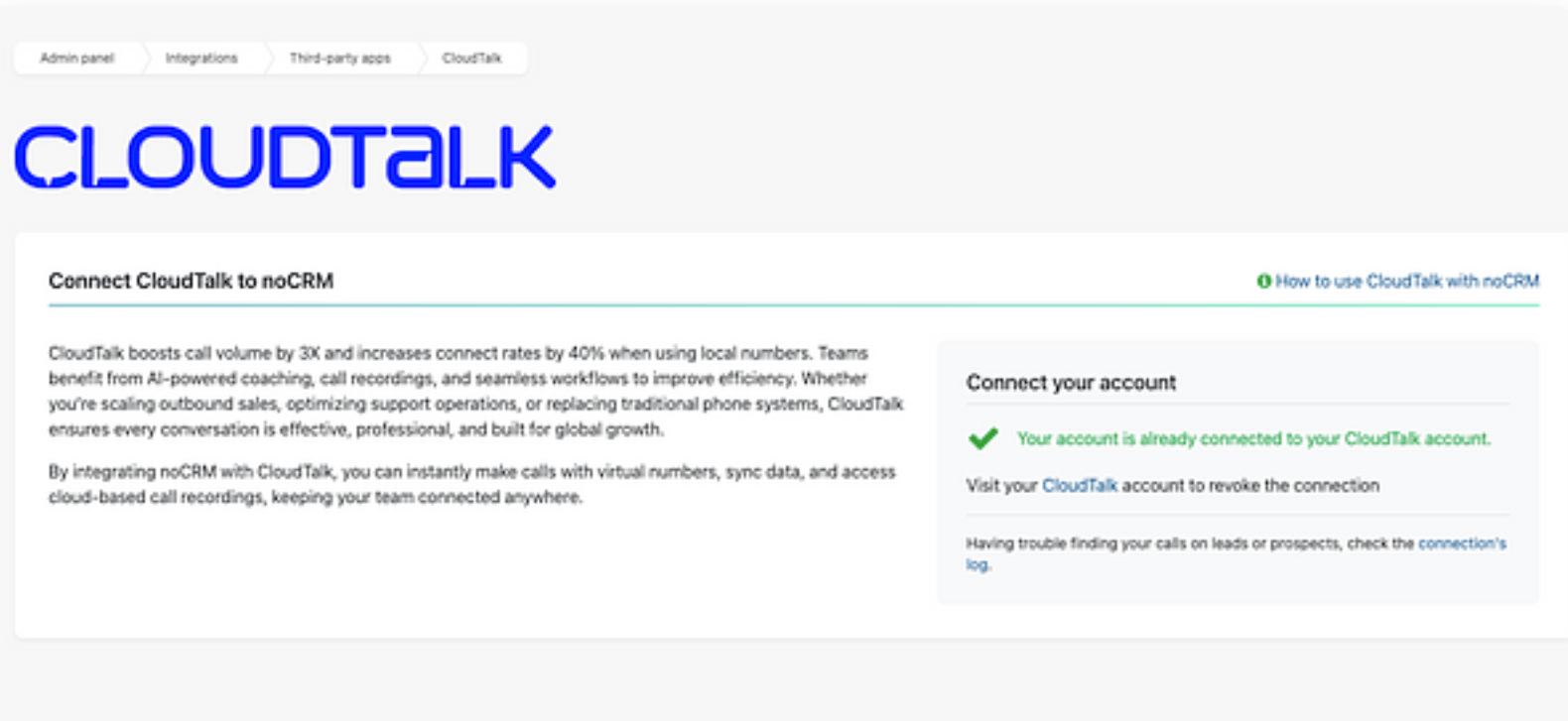
 Cuando termines, el estado de la integración estará visible en **Admin Panel > Integrations > CloudTalk**.
Desconectar o eliminar la integración
Tienes dos opciones si ya no quieres usar la integración:
* **Desactivar:** en tu CloudTalk Dashboard, ve a **Cuenta > Integraciones > noCRM** y cambia el estado a inactivo. Esto pausa la sincronización, pero conserva tu configuración.
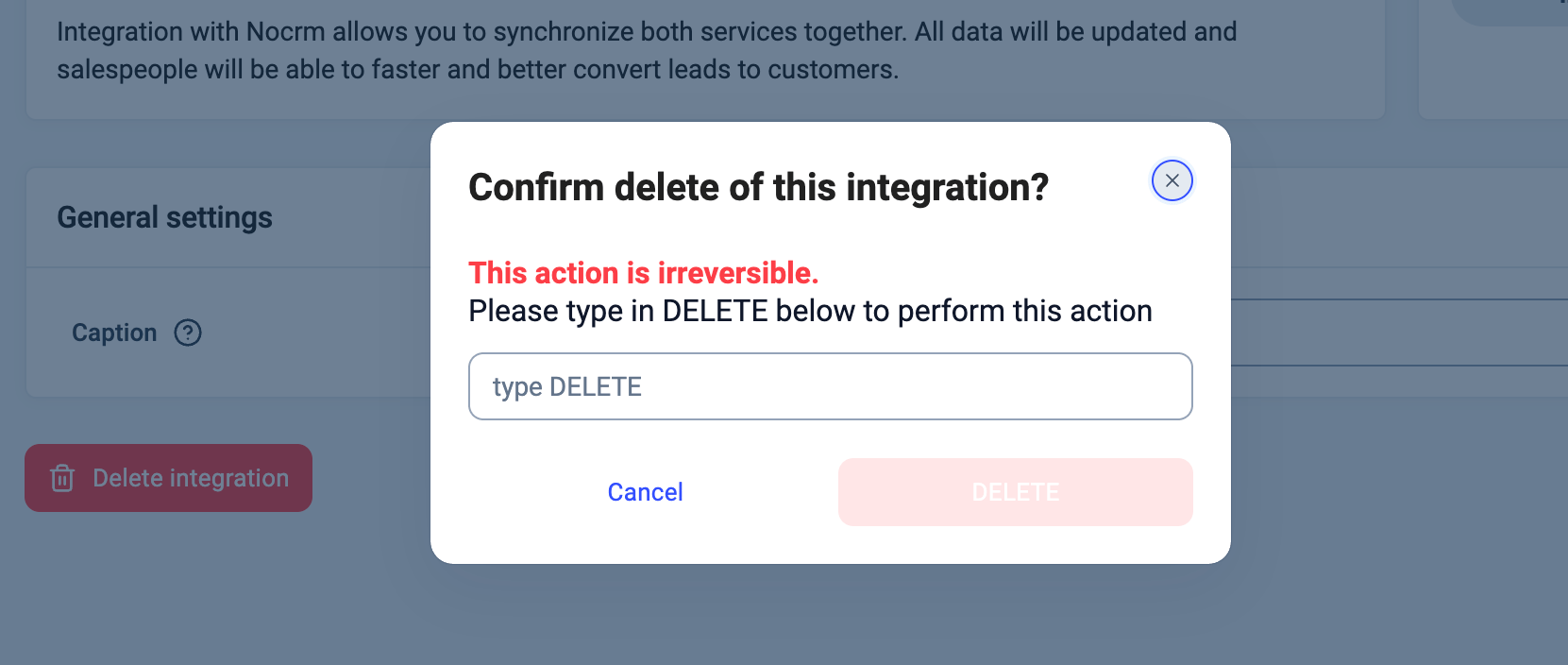
 * **Eliminar:** para eliminar la integración por completo, ve a **Configurar > Eliminar integración**, escribe **DELETE** y confirma.
 ***
*¿Necesitas ayuda o tienes alguna pregunta?* Ponte en contacto a través de nuestro [Portal de atención al cliente](https://support.cloudtalk.io/hc/en-us/requests/new?ticket_form_id=26305535257884) — estamos aquí para ayudarte.
## Related topics
- [Usar CloudTalk con noCRM](/es/articles/11494280-using-cloudtalk-with-nocrm.md)
- [Conversation Intelligence](/es/articles/9128167-conversation-intelligence.md)
- [Guía de integraciones](/es/articles/10570091-integrations-guide.md)
This documentation is built and hosted on [Mintlify](https://mintlify.com), a developer documentation platform.
***
*¿Necesitas ayuda o tienes alguna pregunta?* Ponte en contacto a través de nuestro [Portal de atención al cliente](https://support.cloudtalk.io/hc/en-us/requests/new?ticket_form_id=26305535257884) — estamos aquí para ayudarte.
## Related topics
- [Usar CloudTalk con noCRM](/es/articles/11494280-using-cloudtalk-with-nocrm.md)
- [Conversation Intelligence](/es/articles/9128167-conversation-intelligence.md)
- [Guía de integraciones](/es/articles/10570091-integrations-guide.md)
This documentation is built and hosted on [Mintlify](https://mintlify.com), a developer documentation platform.