> ## Documentation Index
> Fetch the complete documentation index at: https://help.cloudtalk.io/llms.txt
> Use this file to discover all available pages before exploring further.
# Your New CloudTalk Menu and Where Everything Moved
> The CloudTalk Dashboard has a new menu. Here's how it works and where every page moved.
On 19 October 2026, the CloudTalk Dashboard gets a new menu. Every page you use today is still there. The menu around it is simpler: one column on the left with everything in it, and a second column that opens with the pages of the area you're in.
**User level:** Admin, Supervisor
***
Nothing changes in how calls, numbers, agents, or integrations work. Your settings stay exactly as they are. Only where they sit in the menu has changed.
## The new menu in 30 seconds
* **Main menu on the left.** Dashboard, AI Voice Agents, Dialer, AI Dialer, Analytics, and Call Monitor at the top. Users, Groups, Contacts, and Numbers below, under **Operations**.
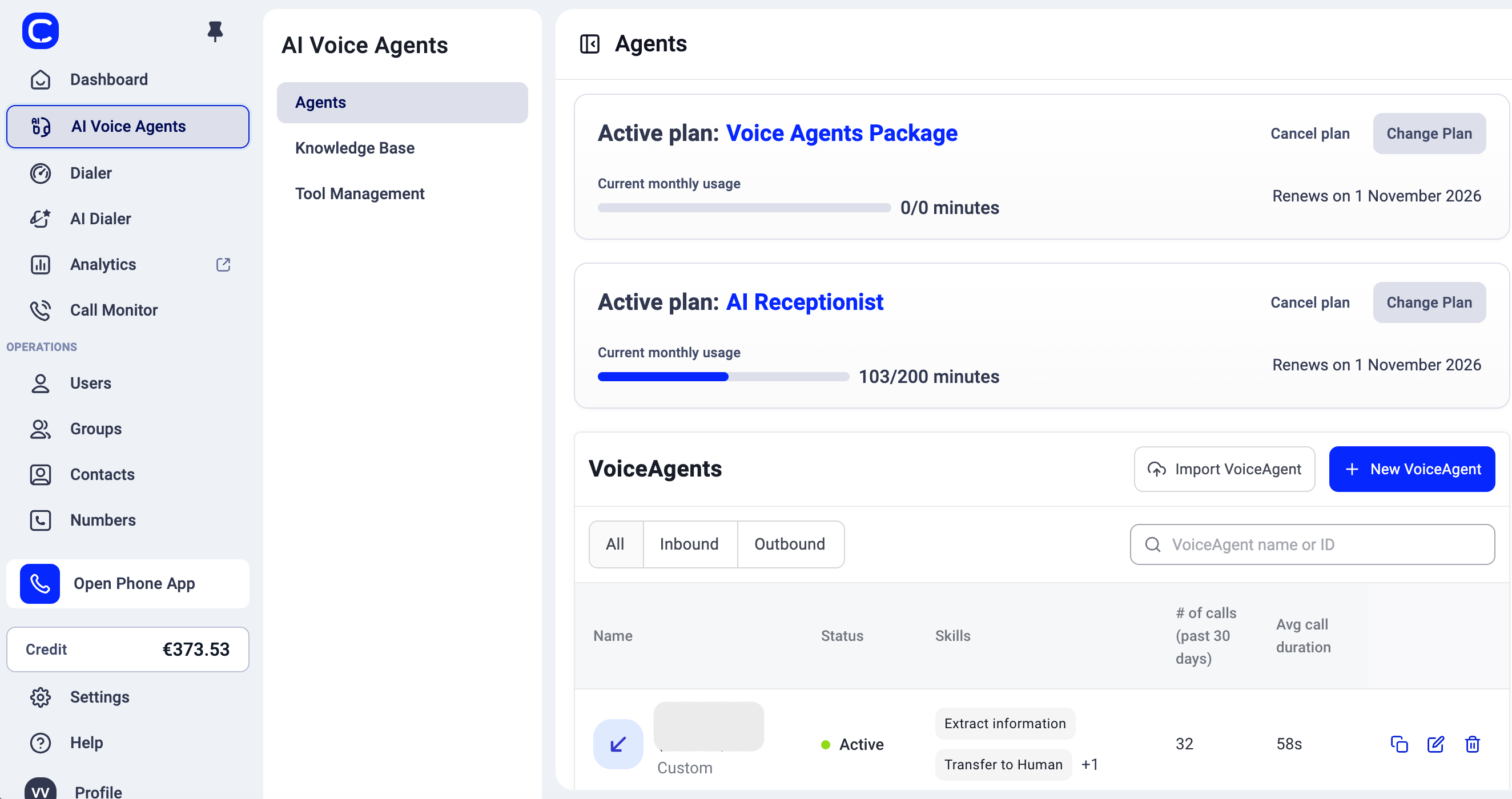
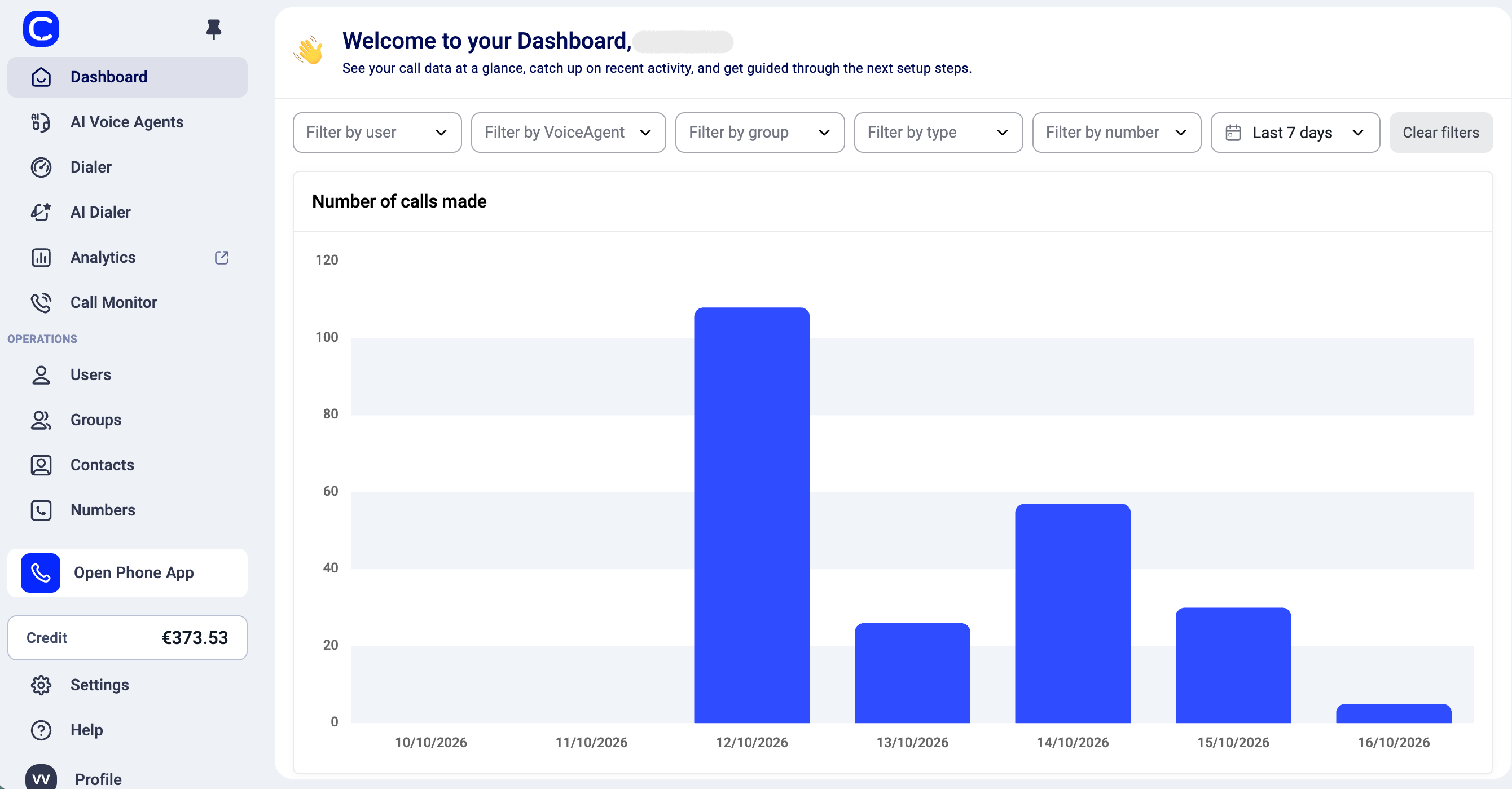 * **A second column per area.** Click **AI Voice Agents** and its pages open next to the menu: Agents, Knowledge Base, and Tool Management.
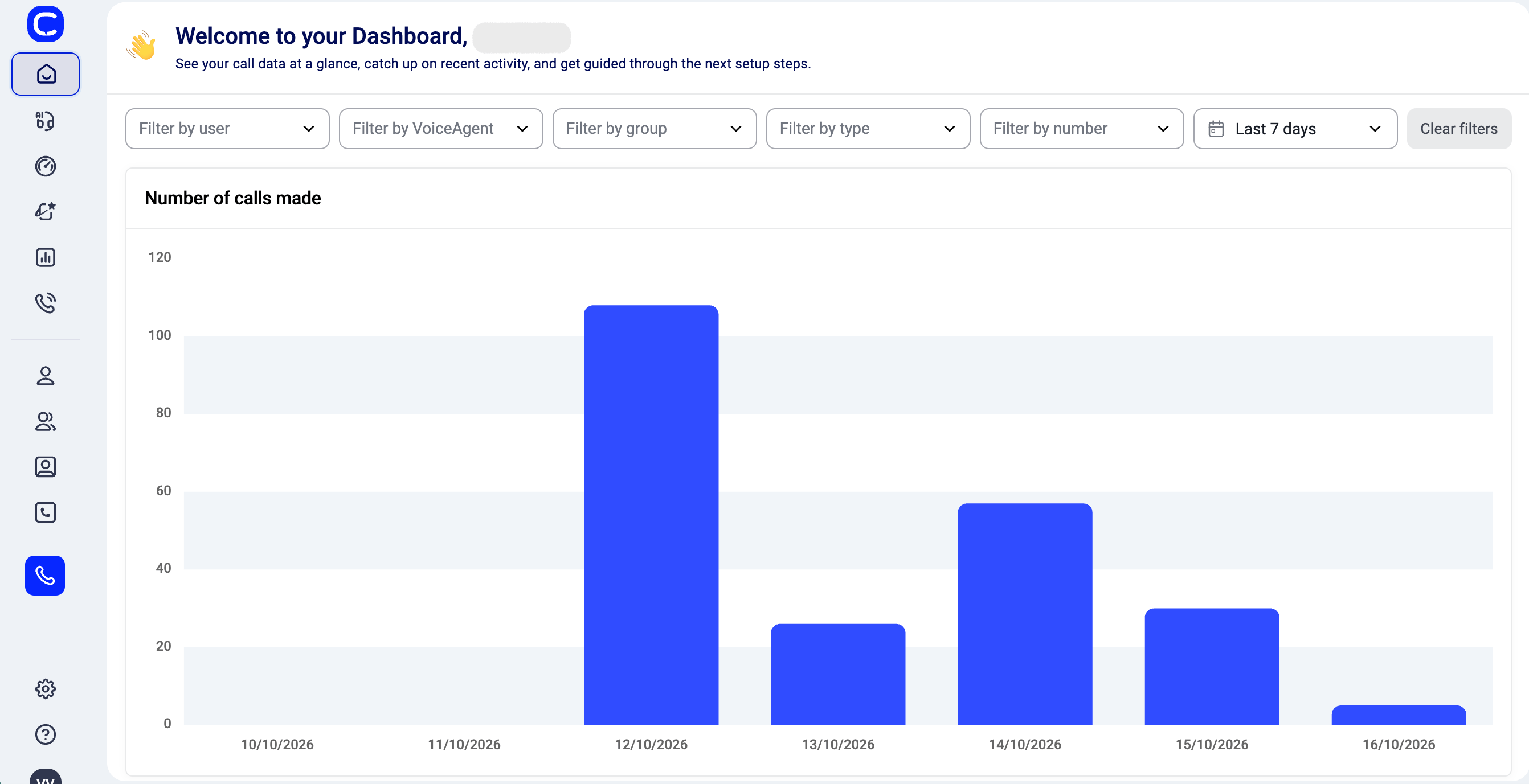
 * **Pin or unpin the menu.** Use the pin icon at the top. Unpinned, the menu shrinks to icons and opens when you hover over it.
 * **Hide the second column.** Use the button next to the page title when you need more room.
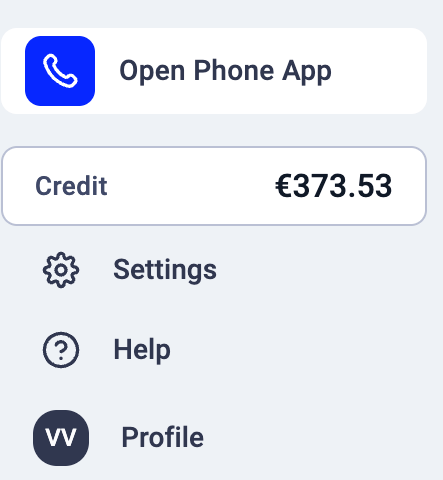
* **Everything from the top right now sits at the bottom of the menu:** Open Phone App, Credit, Settings, Help, and your Profile.
* **Hide the second column.** Use the button next to the page title when you need more room.
* **Everything from the top right now sits at the bottom of the menu:** Open Phone App, Credit, Settings, Help, and your Profile.
 ## Where everything moved
| You used to find it | Now it is |
| - | - |
| Phone button, top right | **Open Phone App**, bottom of the menu |
| Credit, top right | **Credit**, bottom of the menu. Click it to open Billing. |
| Your avatar, top right (Profile, Legacy Dashboard, Log out) | **Profile**, last item in the menu. Same options, plus Refer & Earn. |
| Refer & Earn button, top right | Inside the **Profile** menu |
| **Account**, in the menu | **Settings**, bottom of the menu. It opens on a Home page with every setting as a card, plus search. |
| **Account > Settings** tabs (General, Conversation Intelligence, International calls, Sounds, Business hours, Callback, Single sign on, Skill based routing, API keys, Blacklist) | **Settings**, one page per tab, listed in the second column and as cards on Settings Home |
| **Account > Integrations**, **Workflow Automations**, **Webhooks** | **Settings > Integrations**, **Settings > Workflow Automations**, **Settings > Webhooks** |
| **Account > Billing**, **Invoices** | **Settings > Billing** (Billing, Payment details) and **Settings > Invoices**. Also one click from **Credit**. |
| **Account > Call quality** | **Settings > Call quality** |
| AI Voice Agents, expanding in the menu | **AI Voice Agents** opens a second column: Agents, Knowledge Base, Tool Management |
| Dialer, expanding in the menu | **Dialer** (Campaigns) and **AI Dialer** (Campaigns, Call Scripts, Surveys), each with its own second column |
| Contacts, expanding in the menu | **Contacts** opens a second column: List, Imported files |
| Users, Groups, Numbers, under **Company** | Same pages, now under **Operations** |
| Call flow for a number | Unchanged: **Numbers**, then **Configure** in the Call Flow column |
| Dashboard, Analytics, Call Monitor | Unchanged, top of the menu. Analytics still opens in its own tab. |
| Help | **Help**, bottom of the menu: Call us, Help guides, Onboarding portal, Submit a ticket, Chat with us, Book a 1-1 onboarding call |
## Finding a setting fast
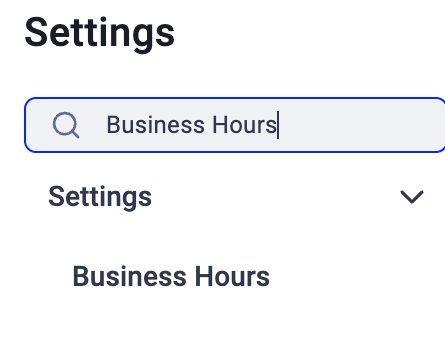
Open **Settings** and type in the search box at the top of the second column. Settings Home also lists every setting as a card, with one line on what it does.
## Where everything moved
| You used to find it | Now it is |
| - | - |
| Phone button, top right | **Open Phone App**, bottom of the menu |
| Credit, top right | **Credit**, bottom of the menu. Click it to open Billing. |
| Your avatar, top right (Profile, Legacy Dashboard, Log out) | **Profile**, last item in the menu. Same options, plus Refer & Earn. |
| Refer & Earn button, top right | Inside the **Profile** menu |
| **Account**, in the menu | **Settings**, bottom of the menu. It opens on a Home page with every setting as a card, plus search. |
| **Account > Settings** tabs (General, Conversation Intelligence, International calls, Sounds, Business hours, Callback, Single sign on, Skill based routing, API keys, Blacklist) | **Settings**, one page per tab, listed in the second column and as cards on Settings Home |
| **Account > Integrations**, **Workflow Automations**, **Webhooks** | **Settings > Integrations**, **Settings > Workflow Automations**, **Settings > Webhooks** |
| **Account > Billing**, **Invoices** | **Settings > Billing** (Billing, Payment details) and **Settings > Invoices**. Also one click from **Credit**. |
| **Account > Call quality** | **Settings > Call quality** |
| AI Voice Agents, expanding in the menu | **AI Voice Agents** opens a second column: Agents, Knowledge Base, Tool Management |
| Dialer, expanding in the menu | **Dialer** (Campaigns) and **AI Dialer** (Campaigns, Call Scripts, Surveys), each with its own second column |
| Contacts, expanding in the menu | **Contacts** opens a second column: List, Imported files |
| Users, Groups, Numbers, under **Company** | Same pages, now under **Operations** |
| Call flow for a number | Unchanged: **Numbers**, then **Configure** in the Call Flow column |
| Dashboard, Analytics, Call Monitor | Unchanged, top of the menu. Analytics still opens in its own tab. |
| Help | **Help**, bottom of the menu: Call us, Help guides, Onboarding portal, Submit a ticket, Chat with us, Book a 1-1 onboarding call |
## Finding a setting fast
Open **Settings** and type in the search box at the top of the second column. Settings Home also lists every setting as a card, with one line on what it does.
 ## Saving changes in Settings
When you change something on a settings page, a bar appears at the bottom with **Discard** and **Save changes**. It replaces the Save button.
## Saving changes in Settings
When you change something on a settings page, a bar appears at the bottom with **Discard** and **Save changes**. It replaces the Save button.
 ## FAQ
* **Can I switch back to the old menu?**
## FAQ
* **Can I switch back to the old menu?**
No. The new menu replaces the old one for everyone.
* **Did any of my settings change?**
No. Only where they sit in the menu changed.
* **Does the CloudTalk Phone app change?**
No. Only the Dashboard menu changes.
* **Can't find something?**
Use the search in **Settings**, or ask us through **Help > Chat with us**.
***
*Need help or have a question?* Just reach out through our [Support portal](https://support.cloudtalk.io/hc/en-us/requests/new?ticket_form_id=26305535257884). We're here for you.
## Related topics
- [Add and Edit Contacts in CloudTalk Go](/en/articles/7320811-add-and-edit-contacts-in-cloudtalk-go.md)
- [How to Import Contacts into CloudTalk](/en/articles/2145547-how-to-import-contacts-into-cloudtalk.md)
- [Porting Your Numbers Away From CloudTalk](/en/articles/8937766-porting-your-numbers-away-from-cloudtalk.md)
This documentation is built and hosted on [Mintlify](https://mintlify.com), a developer documentation platform.