> ## Documentation Index
> Fetch the complete documentation index at: https://help.cloudtalk.io/llms.txt
> Use this file to discover all available pages before exploring further.
# Salesforce Cadences
> Set up your CloudTalk + Salesforce integration to work with the Salesforce Engagement platform
Learn the extra setup steps required for using the CloudTalk CTI within Salesforce Engagement cadences, and see how your CloudTalk Phone works with cadence branching in Salesforce (SF).
**User level:** Admin
***
Before setting up your Salesforce Engagement integration, make sure your **standard [Salesforce integration](/en/articles/5370420-using-cloudtalk-with-salesforce)** is in place. This ensures proper data sync and call exports.
Our integration with Salesforce Engagement features is an extension of [our Salesforce integration](/en/articles/5370420-using-cloudtalk-with-salesforce). Salesforce users with access to SF Engagement can now use their CloudTalk CTI to get the full benefits offered by Engagement features, such as cadence branching based on call disposition.
Prerequisites
* **Custom** CloudTalk plan
* Salesforce **Unlimited**, **Performance**, or other plan with added licenses to Sales Engagement features
* **[Configured CloudTalk + Salesforce](/en/articles/3368501-configure-salesforce) integration within both CloudTalk and Salesforce Setup platforms**
Salesforce Setup
If you are new to using the Salesforce Engagements dashboard, you'll want to follow Salesforce guidelines to make sure you have assigned the [necessary permission sets](https://help.salesforce.com/s/articleView?id=sf.hvs_setup_assign.htm\&type=5) for all intended users of Sales Engagement features. This can be done within Salesforce Setup.
Turn on Engagement Features
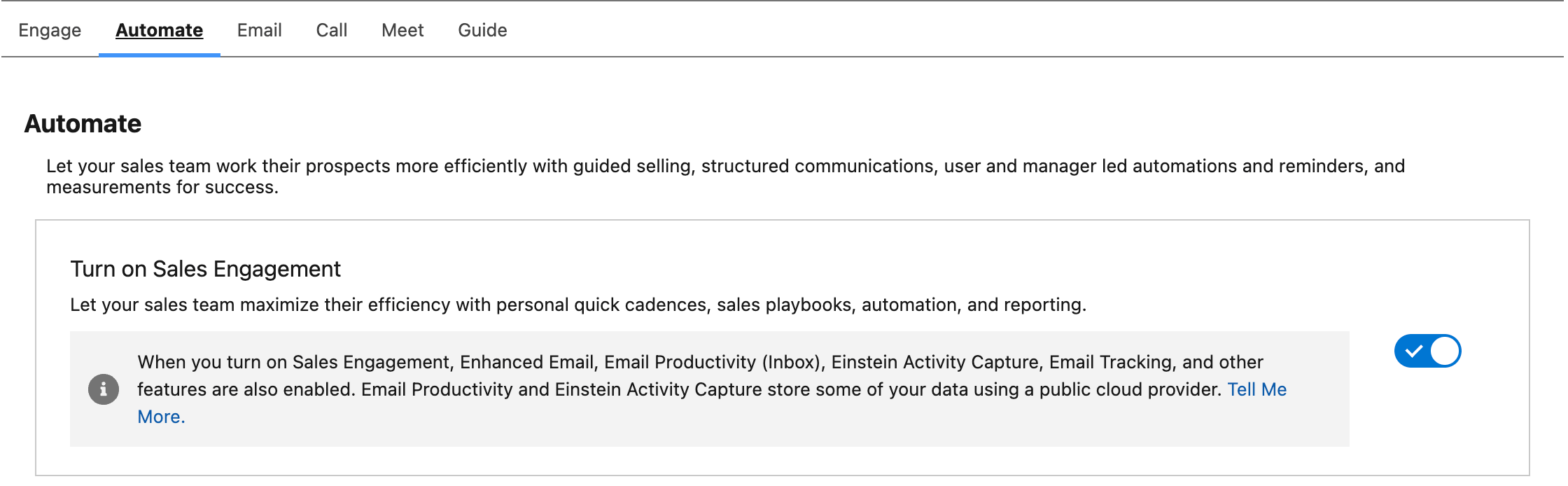
To ensure you can access all features in the Salesforce Engagement dashboard, these must be enabled within Salesforce Setup. To save time, Salesforce recommends enabling all features to start, and individually disabling those that aren't needed:
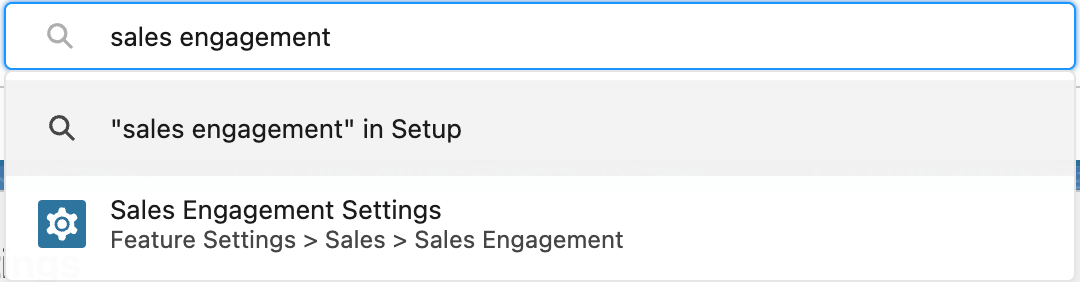
1. Within Setup, start typing `sales engagement` in the search.
2. Select **Sales Engagement Settings**.
 3. Navigate to the *Automate* tab and toggle on **Turn on Sales Engagement**.
1. *Refer to the Salesforce [guide on Engagement settings](https://help.salesforce.com/s/articleView?id=sf.hvs_setup_enable.htm\&type=5) for more information about what each setting does.*
3. Navigate to the *Automate* tab and toggle on **Turn on Sales Engagement**.
1. *Refer to the Salesforce [guide on Engagement settings](https://help.salesforce.com/s/articleView?id=sf.hvs_setup_enable.htm\&type=5) for more information about what each setting does.*
Turn on Disposition Branching
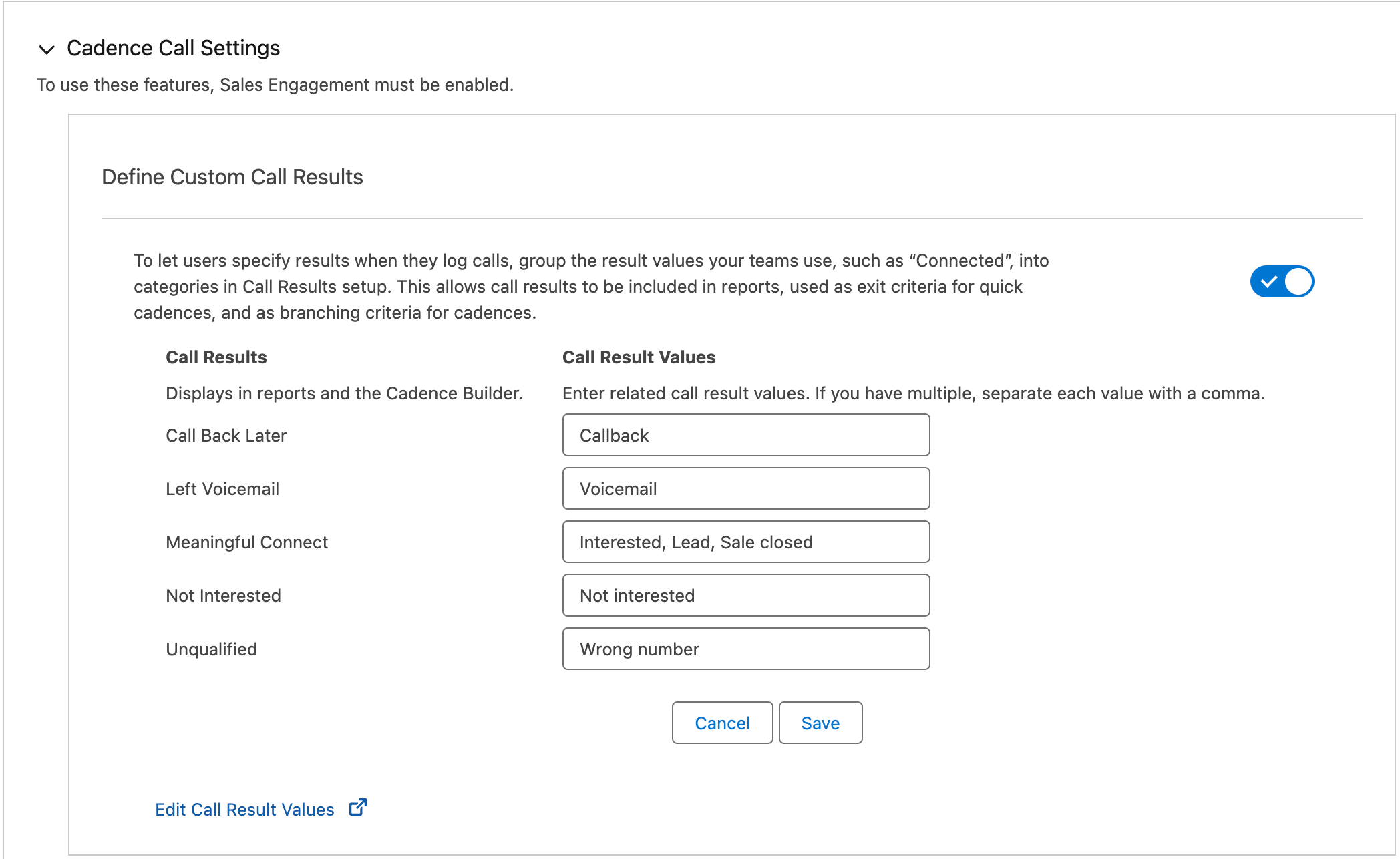
1. From **Sales Engagement Settings**, navigate to the *Call* tab.
2. Toggle on **Define Custom Call Results** to enable cadence branching.
Currently, it is not important what **Call Result Values** you enter here, as we do not yet offer results mapping into CloudTalk for this feature.
Add CloudTalk Utility to Engagements
As with other Salesforce applications, CloudTalk's CTI softphone must be added as a utility to Salesforce Engagements.
1. Within Salesforce Setup, start typing `app manager` into the search.
2. Select **App Manager**.
3. From the list of applications, find the **Sales Engagement** app.
4. Select the arrow **> Edit.**
 5. Go to **Utility Items** in the app settings.
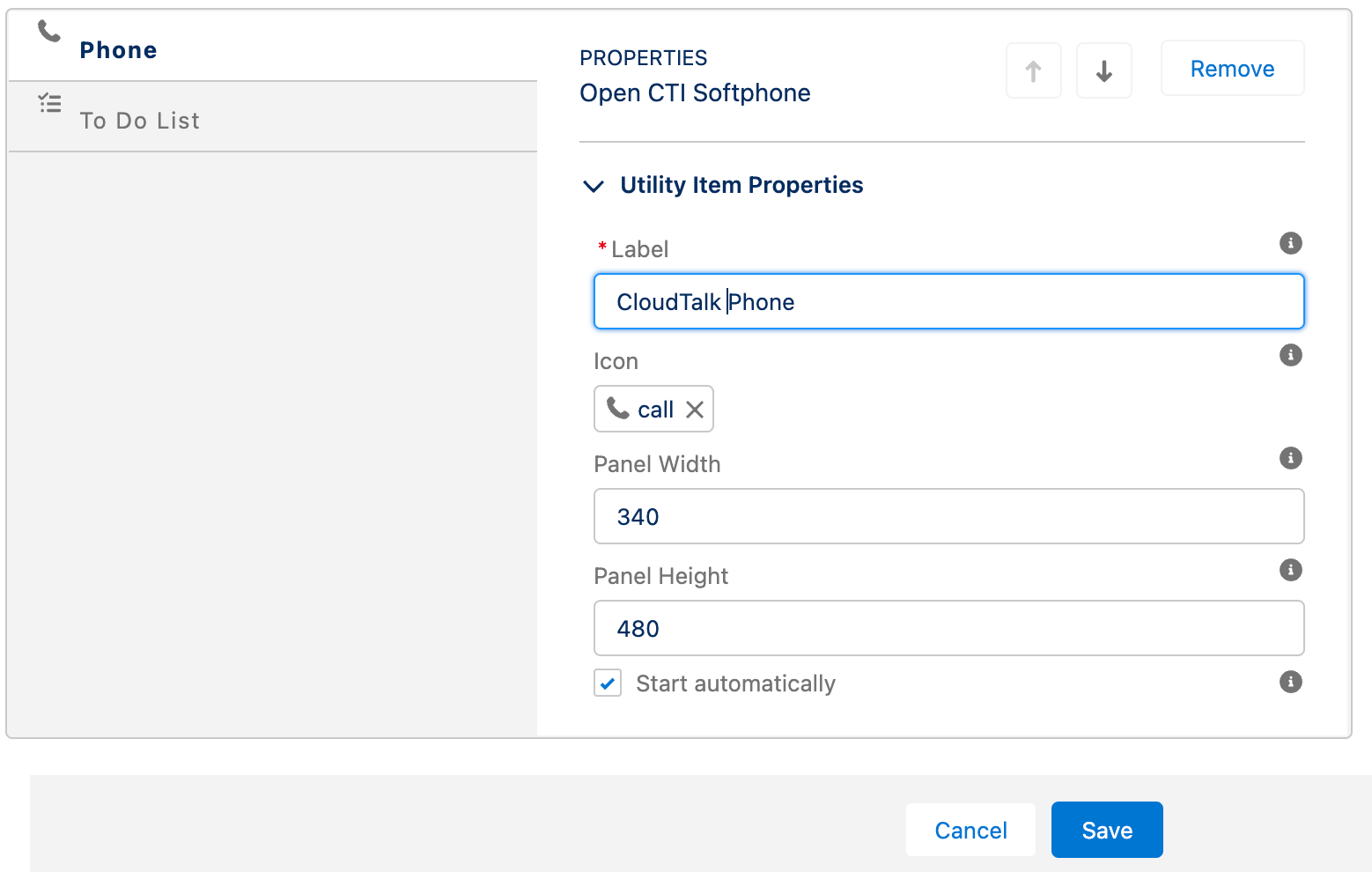
 6. Select **`Add Utility Item`** and choose **Open CTI Softphone**.
7. These softphone settings will apply to your CloudTalk phone in the Sales Engagement app. You can rename the **Label** field to `CloudTalk`.
6. Select **`Add Utility Item`** and choose **Open CTI Softphone**.
7. These softphone settings will apply to your CloudTalk phone in the Sales Engagement app. You can rename the **Label** field to `CloudTalk`.
 ***
***
Cadences
[Cadences](https://help.salesforce.com/s/articleView?id=sf.hvs_cadences.htm\&type=5) are one of the key features of Sales Engagement. These branching workflows can be assigned to your sales representatives for targeting prospects who meet particular criteria.
When you have integrated your CloudTalk and Salesforce accounts and configured the additional requirements outlined above, your agents will be able to use cadence branching by call disposition using their CloudTalk phone in Salesforce.
Design a Cadence
You can design private cadences with branching call steps for your team. Once a cadence is active, you can [add prospects](https://help.salesforce.com/s/articleView?id=sf.hvs_cadences_add_targets.htm\&type=5) to it.
1. From the Sales Engagement dashboard, select the new tab arrow **ˇ** and navigate to **Cadences**.
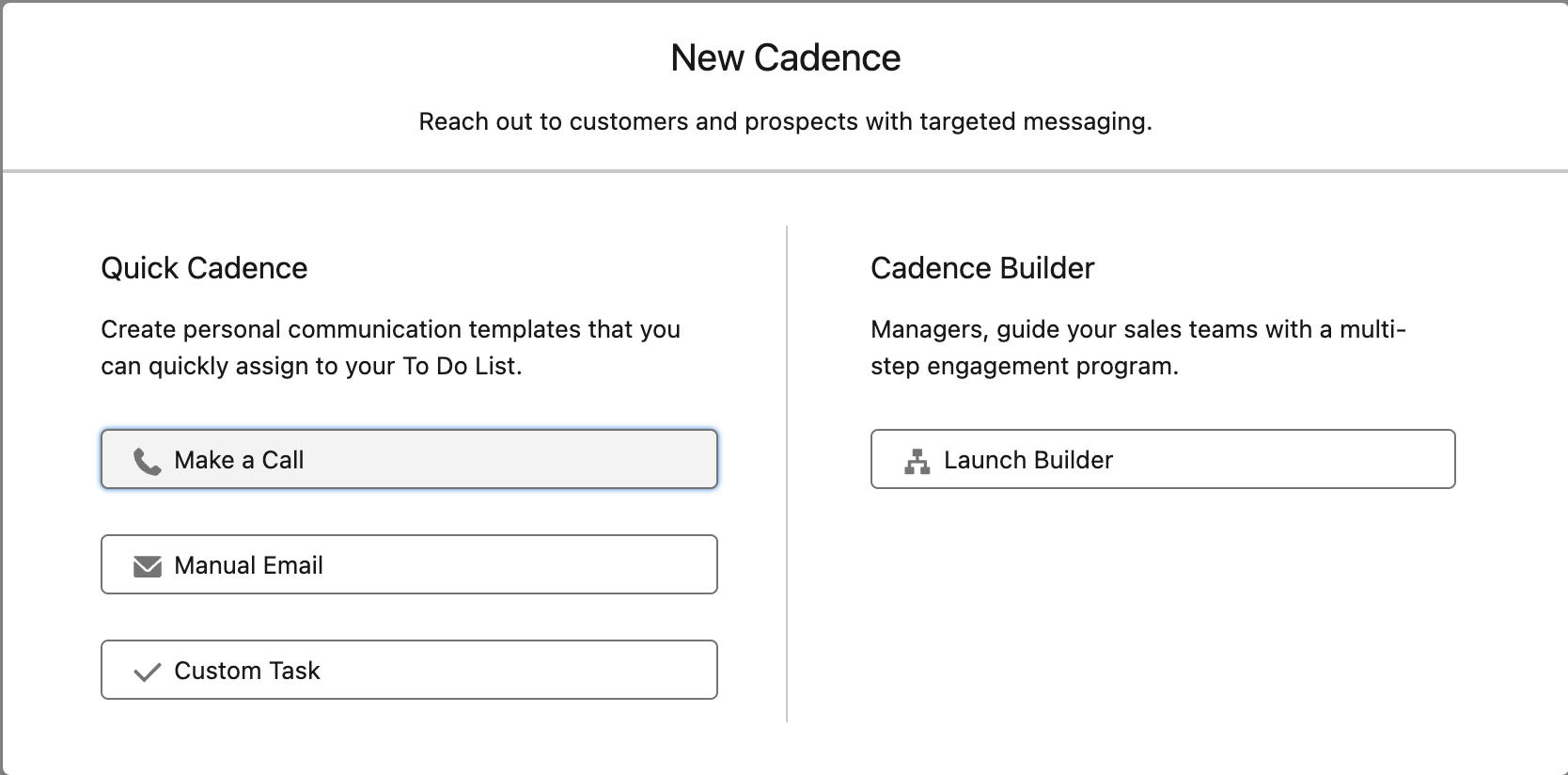
2. Select **New Cadence > Launch Builder**.
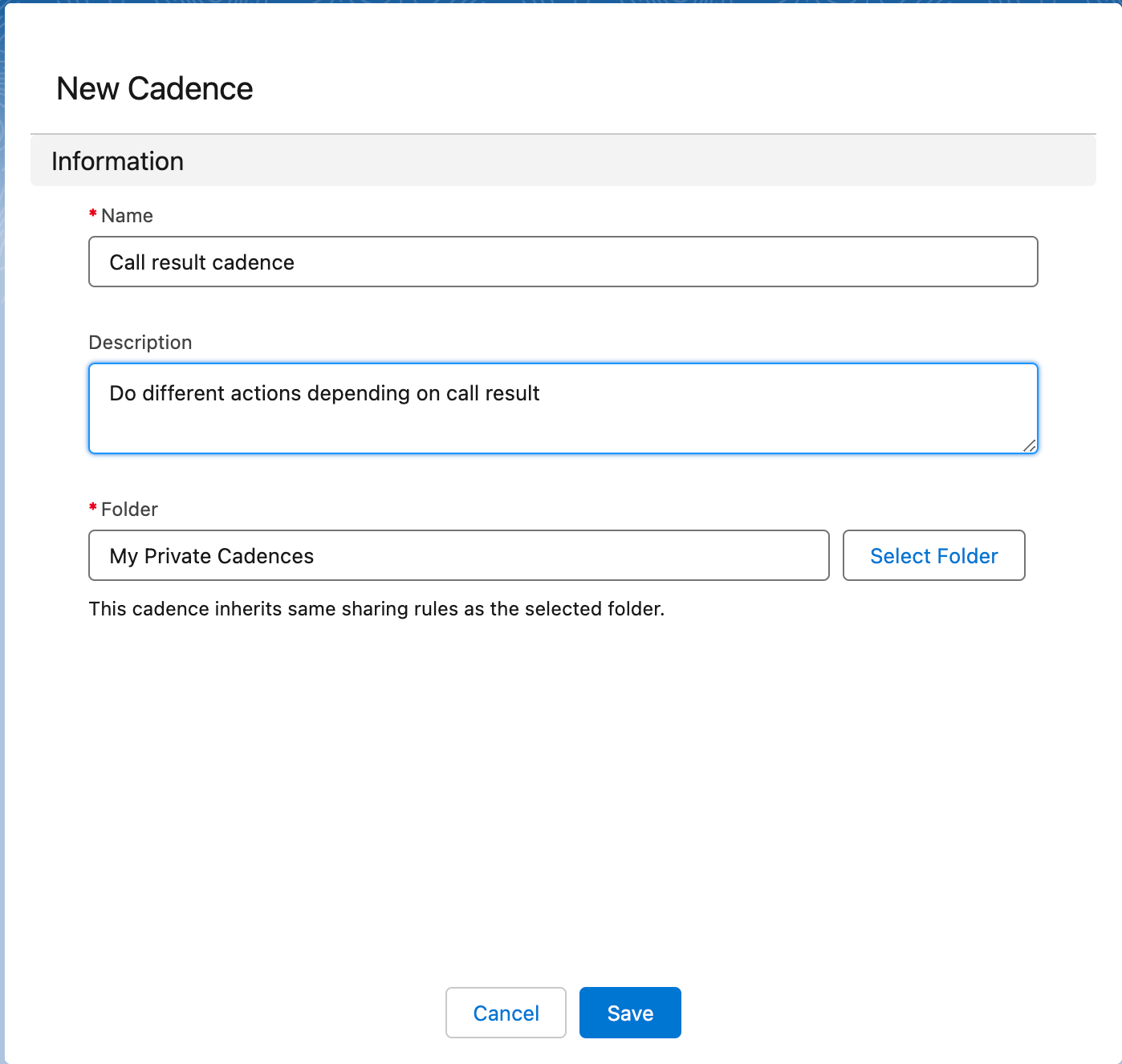
 3. Set up and **Save** your cadence details.
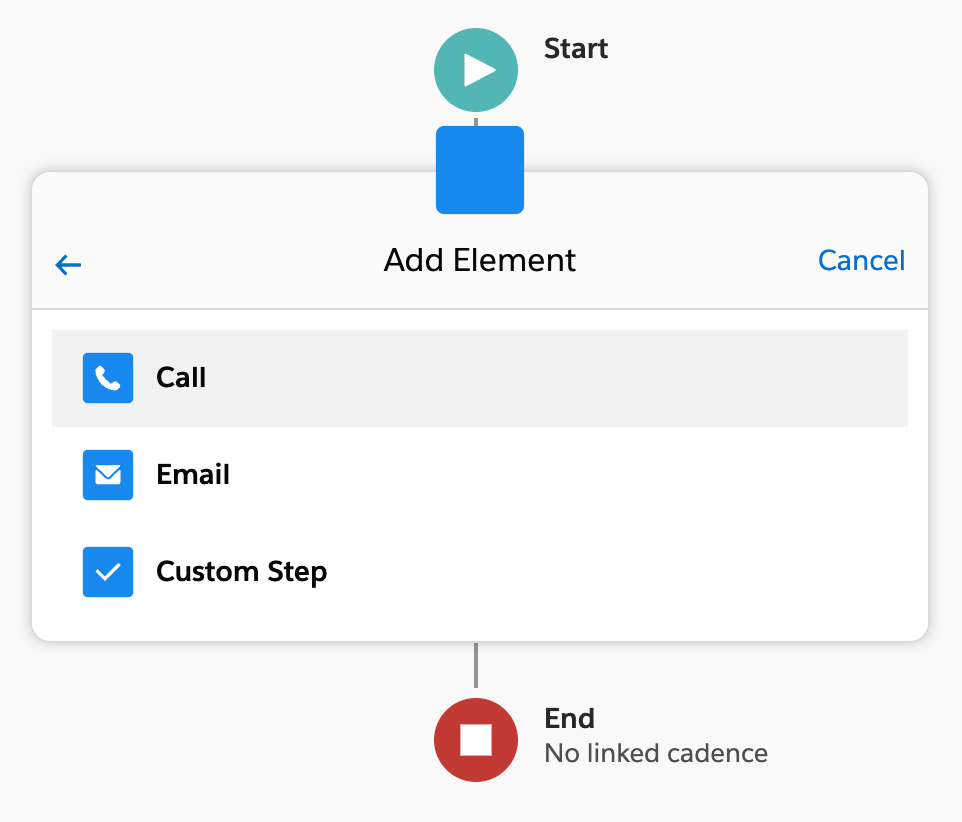
 4. Select the plus **+** icon to add a new cadence step.
1. For a call step, select **Action > Call**. Configure step details and **Save**.
4. Select the plus **+** icon to add a new cadence step.
1. For a call step, select **Action > Call**. Configure step details and **Save**.
 2. To branch based on call disposition, add a cadence step right after your call step. Select **Rule > Call Result**. Select a call result and **Save**.
 3. A `Yes` branch and a `No` branch will be created from your disposition step.
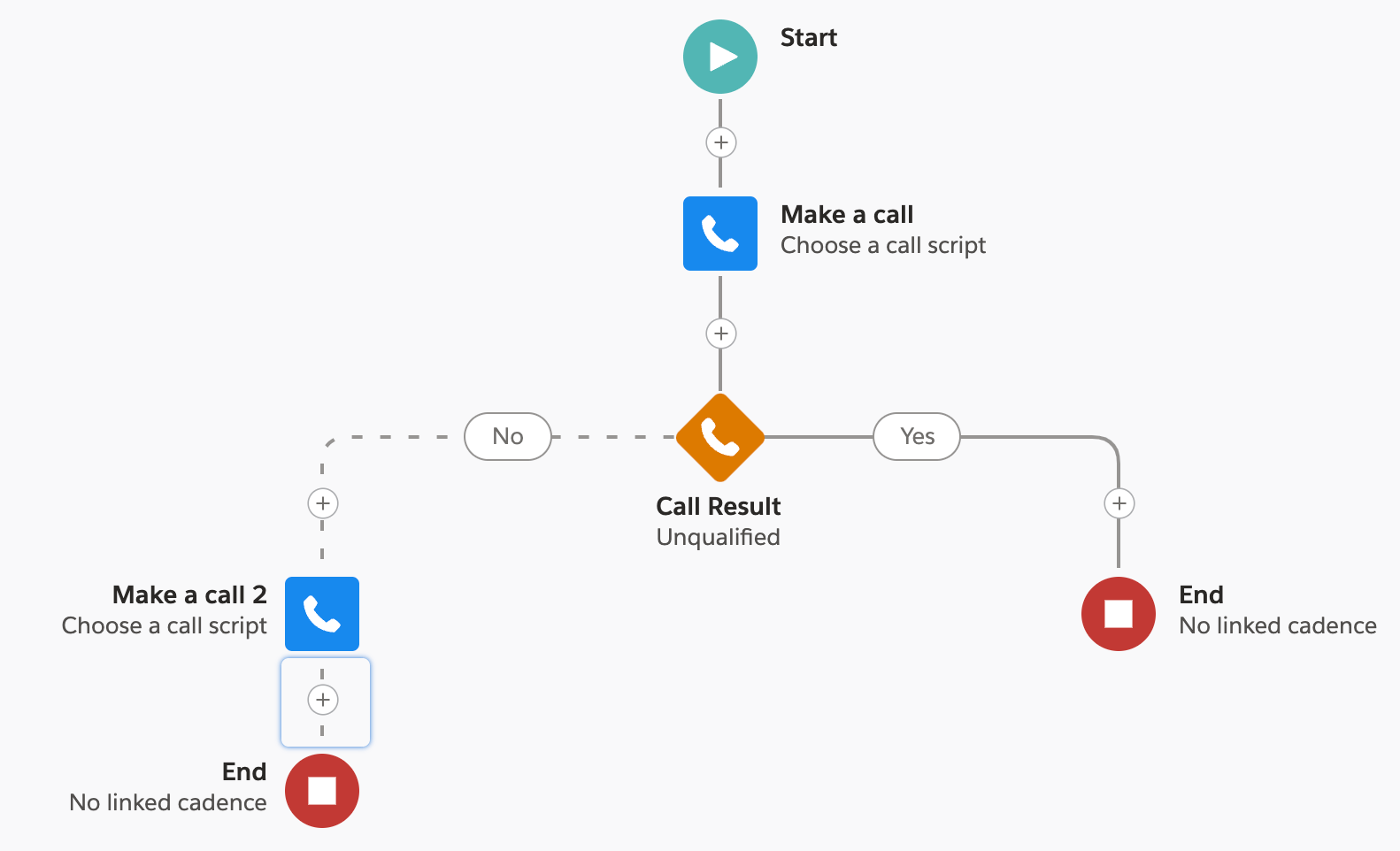 1. Create a new step within the `Yes` branch to make something happen if the agent chooses the selected call disposition.
2. Create a new step within the `No` branch to make something happen if the agent chooses any other disposition except for the selected one.
5. Build as many branches as desired before **End** points are reached.
1. *You can also select an **End** point to exit the current cadence to a linked cadence.*
6. When your cadence is ready, select **Activate**.
***
1. Create a new step within the `Yes` branch to make something happen if the agent chooses the selected call disposition.
2. Create a new step within the `No` branch to make something happen if the agent chooses any other disposition except for the selected one.
5. Build as many branches as desired before **End** points are reached.
1. *You can also select an **End** point to exit the current cadence to a linked cadence.*
6. When your cadence is ready, select **Activate**.
***
Agent View
Agents who have been assigned to an engagement will see associated cadences within their work queue and tasks. They can initiate their next upcoming call right from the work queue by selecting the phone icon next to the call info.
When the call is started, the page will load the **Contact** card so your agent can view case details.
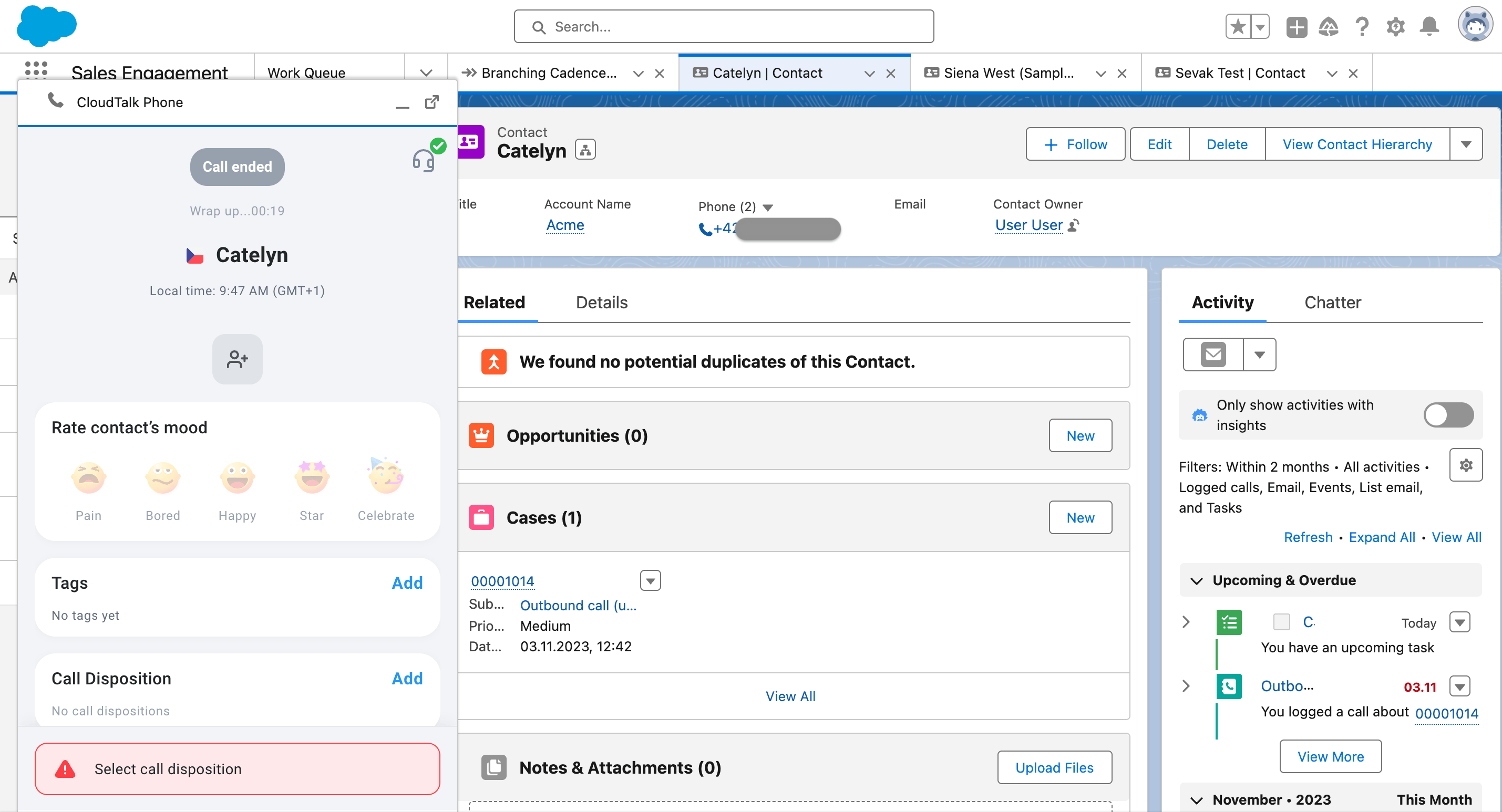 **Agents will be required to choose a call disposition** at the conclusion of a call in order for disposition branching to work as intended. This will be done from the familiar interface of their CloudTalk Phone *After-Call Work* screen.
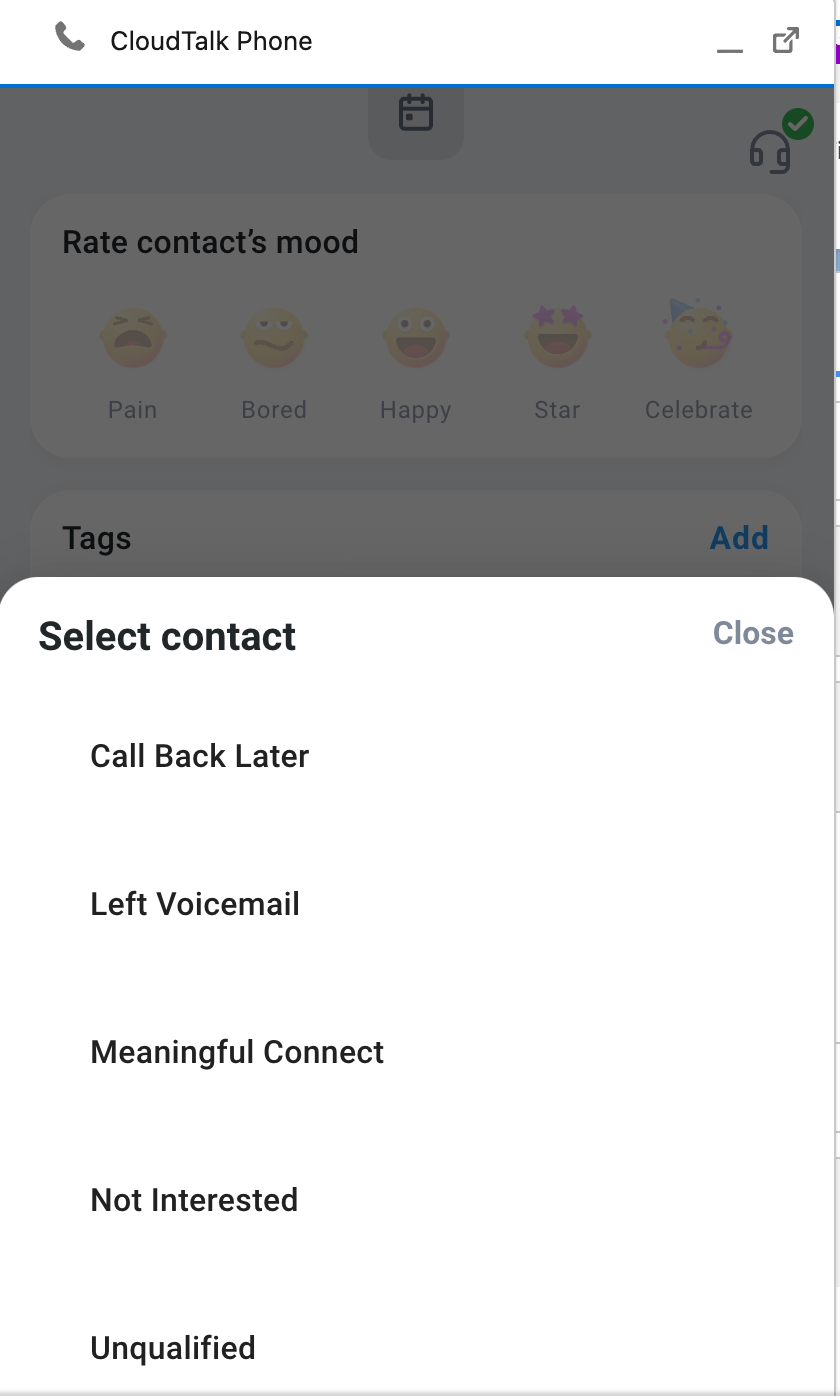 Once the agent selects **`Done`** and the call is finished, the cadence step will be resolved and removed from the work queue.
Engagement Data
Reference the detail page of a cadence to see the number of runs and other success metrics of that cadence. Cadence **Engagement Rates** can be found within the *Engagement* tab.
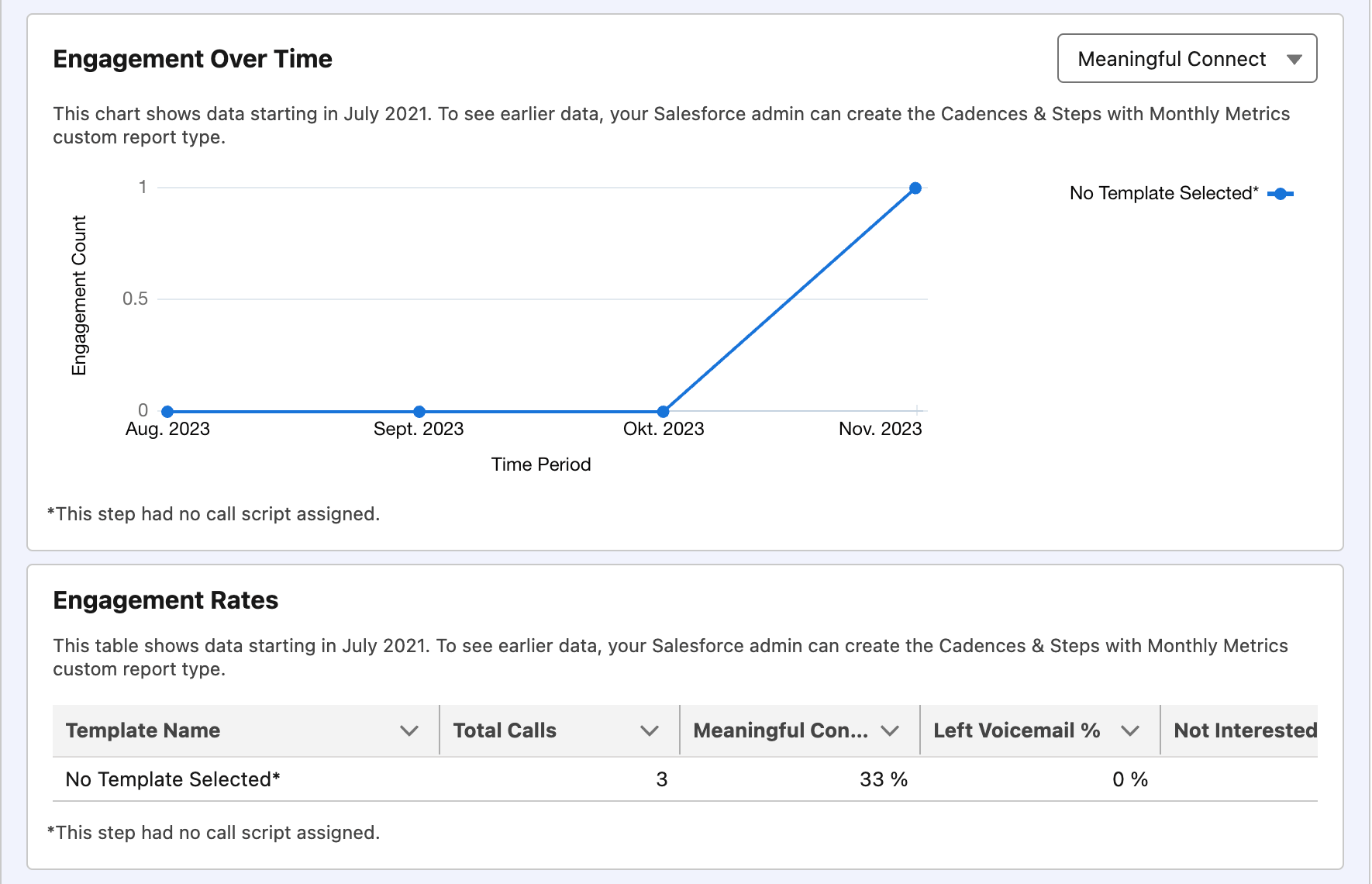 The numbers reflected in Engagement reports may take a few minutes to update after each call.
***
*Need help or have a question?* Just reach out through our [Support portal](https://support.cloudtalk.io/hc/en-us/requests/new?ticket_form_id=26305535257884) — we’re here for you.
## Related topics
- [Integrations guide](/en/articles/10570091-integrations-guide.md)
- [Configure Salesforce](/en/articles/3368501-configure-salesforce.md)
- [Salesforce Actions](/en/articles/9394264-salesforce-actions.md)
This documentation is built and hosted on [Mintlify](https://mintlify.com), a developer documentation platform.
The numbers reflected in Engagement reports may take a few minutes to update after each call.
***
*Need help or have a question?* Just reach out through our [Support portal](https://support.cloudtalk.io/hc/en-us/requests/new?ticket_form_id=26305535257884) — we’re here for you.
## Related topics
- [Integrations guide](/en/articles/10570091-integrations-guide.md)
- [Configure Salesforce](/en/articles/3368501-configure-salesforce.md)
- [Salesforce Actions](/en/articles/9394264-salesforce-actions.md)
This documentation is built and hosted on [Mintlify](https://mintlify.com), a developer documentation platform.