> ## Documentation Index
> Fetch the complete documentation index at: https://help.cloudtalk.io/llms.txt
> Use this file to discover all available pages before exploring further.
# Pause Mobile Notifications
> Set times for pausing your CloudTalk Go app notifications without having to log out
Learn how to pause notifications on your mobile app for daily or onetime periods when you know you won't be available.
User Level:
* Agent
***
Pause Notifications
In addition to allowing or blocking all mobile notifications, you can set timers to "pause" notifications within a certain period. Pause notifications for incoming calls during your daily out of office hours with night silence. Alternatively, set up a onetime pause period with scheduled pausing.
**Pause notifications settings will not affect** your company settings or desktop app behavior, meaning if you are logged into your desktop app, you can still receive calls there during a pause. Notification pausing was designed specifically for mobile users to have more control in setting their availability.
Locate Pause Settings
Notification settings on our CloudTalk Go mobile app can be found in your user profile.
1. Select the profile icon (bottom right).
2. Select **Notifications**.
3. **Note:** Switching off the **Notifications** toggle stops all incoming notifications indefinitely.
1. Select **Night silence** or **Scheduled pausing** to set timers.
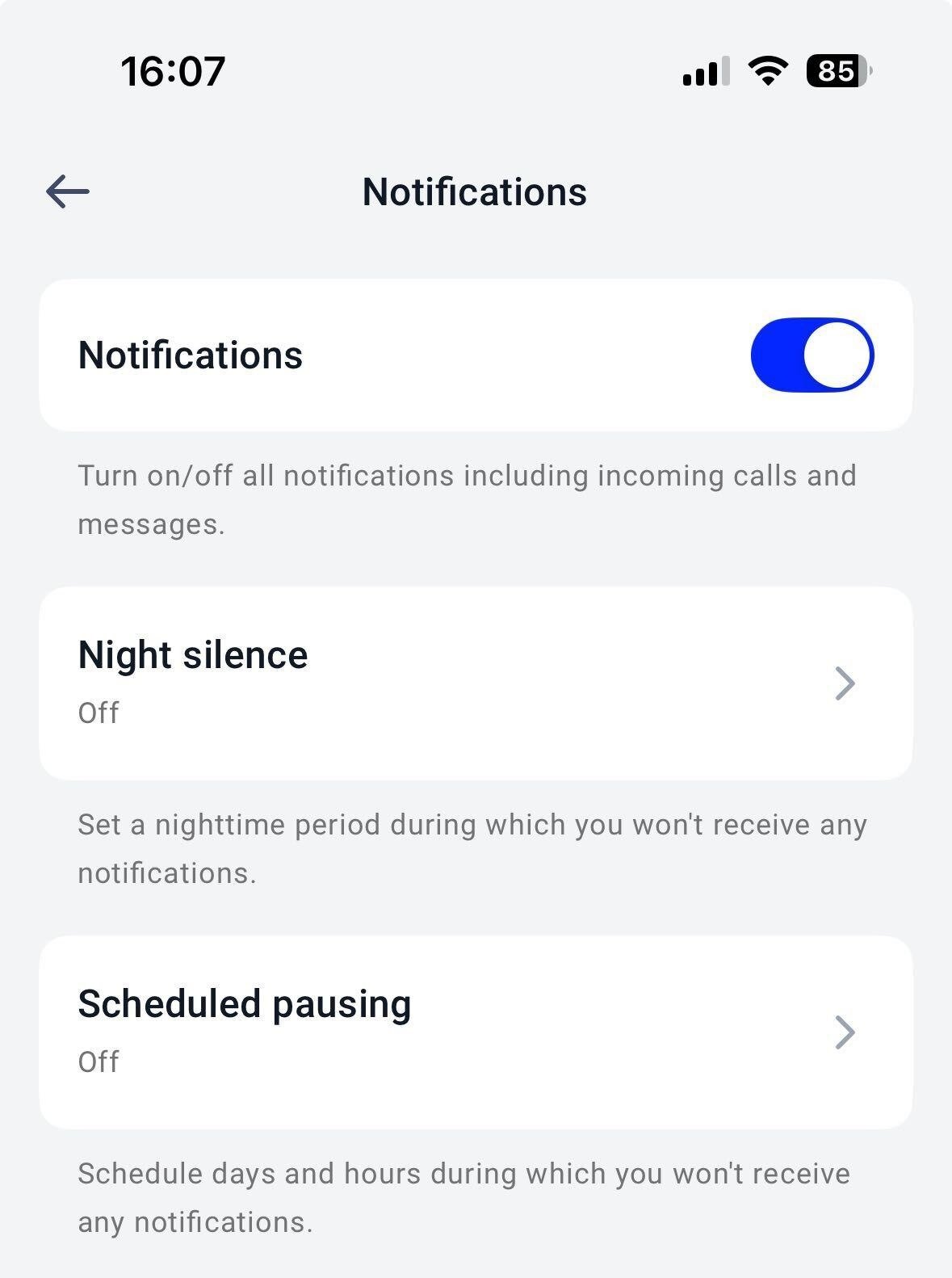 4. Confirmed setting changes are effective immediately.
Night silence
Night silence is ideal for setting repeating off hours or bedtime hours. Mobile notifications will be paused every day within the time period chosen.
1. Within **Notifications**, select **Night silence**.
2. Toggle on.
3. Select a **From** and **To** time for night silence to take place.
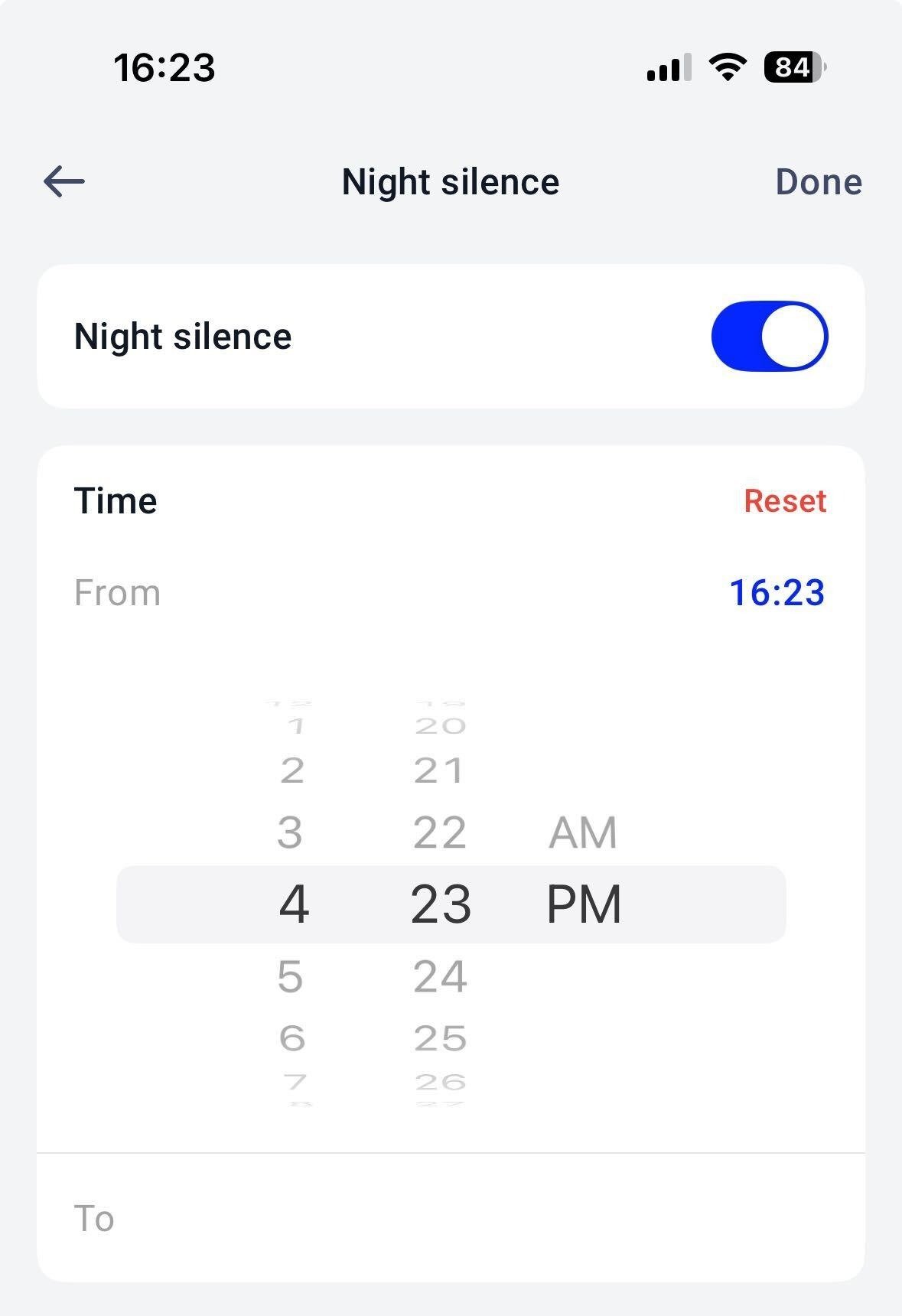 4. Select **Done** to apply changes.
Scheduled pausing
Scheduled pausing is ideal for upcoming vacations, appointments, out of office hours, or personal holidays not covered by your company’s **Business Hours** settings. Mobile notifications will be paused between the start and end dates and times chosen here.
1. Within **Notifications**, select **Scheduled pausing**.
2. Toggle on.
3. Select a **From** and **To** time for the notifications pause to take place.
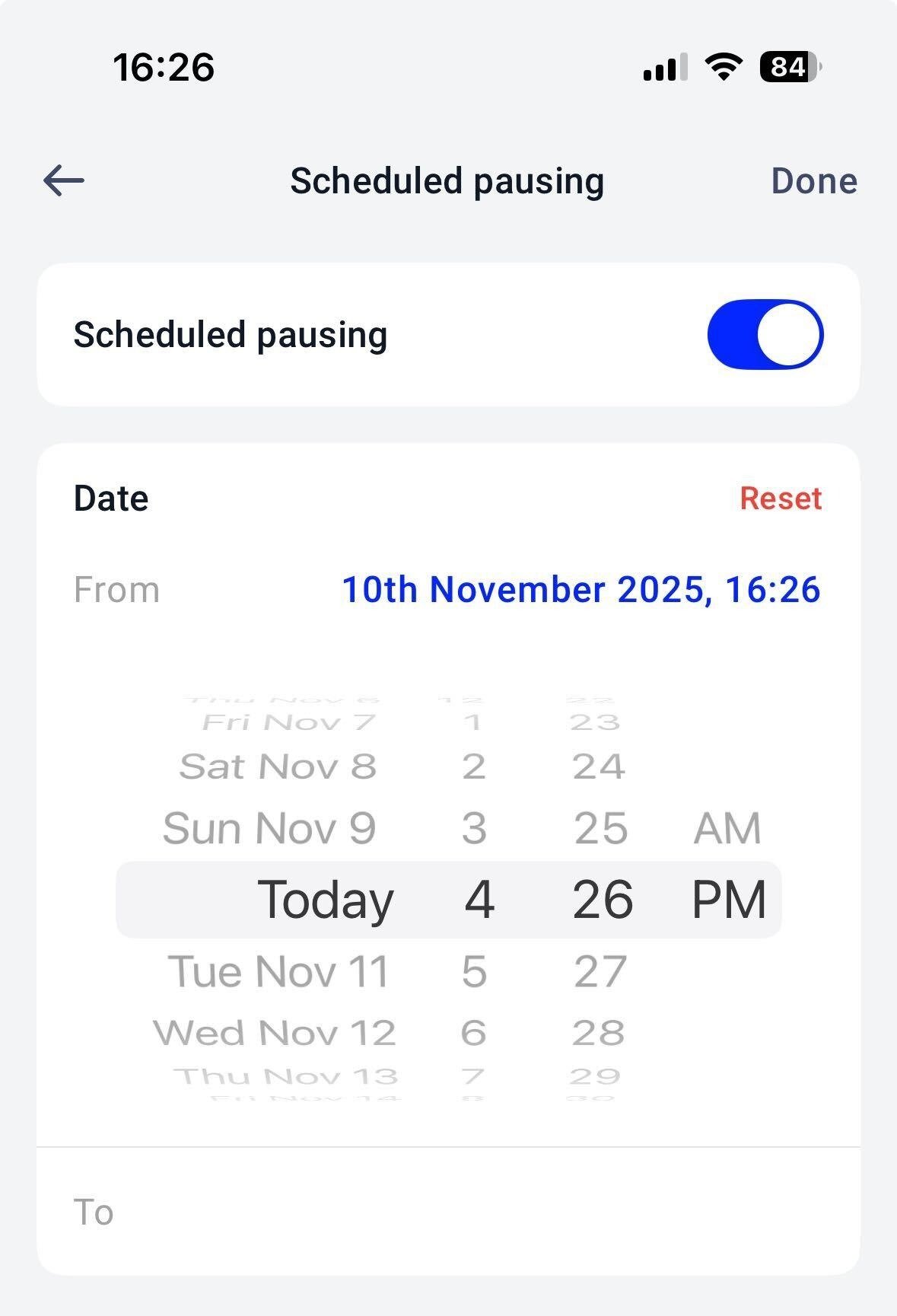 4. Select **Done** to apply changes.
***
*Need help or have a question?* Just reach out through our [Support portal](https://support.cloudtalk.io/hc/en-us/requests/new?ticket_form_id=26305535257884) — we’re here for you.
## Related topics
- [Mobile App Not Receiving Calls](/en/articles/13130761-mobile-app-not-receiving-calls.md)
- [Using CloudTalk Go (Mobile App)](/en/articles/13741994-using-cloudtalk-go-mobile-app.md)
- [CloudTalk Phone guide](/en/articles/10559000-cloudtalk-phone-guide.md)
This documentation is built and hosted on [Mintlify](https://mintlify.com), a developer documentation platform.
4. Select **Done** to apply changes.
***
*Need help or have a question?* Just reach out through our [Support portal](https://support.cloudtalk.io/hc/en-us/requests/new?ticket_form_id=26305535257884) — we’re here for you.
## Related topics
- [Mobile App Not Receiving Calls](/en/articles/13130761-mobile-app-not-receiving-calls.md)
- [Using CloudTalk Go (Mobile App)](/en/articles/13741994-using-cloudtalk-go-mobile-app.md)
- [CloudTalk Phone guide](/en/articles/10559000-cloudtalk-phone-guide.md)
This documentation is built and hosted on [Mintlify](https://mintlify.com), a developer documentation platform.