> ## Documentation Index
> Fetch the complete documentation index at: https://help.cloudtalk.io/llms.txt
> Use this file to discover all available pages before exploring further.
# HTTP Request Step
> Configure data exchange in CFD to power smarter, data-driven call routing.
The **HTTP Request** step lets you connect your CloudTalk call flows with external systems and APIs. In this guide, you’ll learn how to configure and use the HTTP Request step to send requests, handle responses, and integrate external data directly into your call flows.
**User level:** Admin
***
Using an HTTP Request Step
The **HTTP Request** step lets you extend your call flows beyond CloudTalk by connecting to external systems and APIs. It enables data exchange, automation, and real-time decision-making during a call.
Whether you're enriching call data, updating external records, or personalizing customer experiences, the HTTP Request step gives you the flexibility to build smarter, more connected workflows.
Add an HTTP Request to Your Call Flow
1. From the **Dashboard**, click **Numbers**.
2. In the **My numbers** tab, find the number you want to configure.
3. Click **+ Configure** (or the flow name, if one exists) in the **Call Flow** column.
4. On the canvas, click the **`+`** button where you want the step.
5. In the step library, under **Automation**, select **HTTP Request**.
Configuring HTTP Requests
6\. Click the HTTP Request step on the canvas to open its config panel. The following elements are available:
Endpoint
The endpoint defines the URL to be called. Communication requires HTTPS.
Method
The HTTP Request Method, or the type of action the endpoint receiver is being asked to perform. Available options: **GET**, **POST**, **PUT**, **PATCH**, **DELETE**.
Request Headers (optional)
Request headers provide meta-information about the request, such as the format of the request body or authorization credentials.
Click **Add new** to define additional headers. The type of headers depends on the external API you're connecting to.
Request Body
The request body is the payload sent with the request. Click **Add new** to define key-value pairs as data attributes. You can also click **Add contact custom field** to insert contact data directly.
The request body is sent in JSON format (for example: `{"key1":"value1", "key2":"value2"}`).
Apart from constant values, you can use the following dynamic variables:
**Call Attributes:**
| **Variable** | **Description** |
| - | - |
| `#{{call.external_number}}` | Caller's number in E.164 format (e.g., +10005555555) |
| `#{{call.waiting_time}}` | Time in seconds between call start and agent pickup |
| `#{{call.uuid}}` | Unique call identifier |
| `#{{call.agent_id}}` | Agent ID (only on an answered branch, otherwise returns null) |
| `#{{call.agent_email}}` | Agent email (only on an answered branch, otherwise returns null) |
**Contact Attributes:**
| **Variable** | **Description** |
| - | - |
| `#{{contact.name}}` | Contact name |
| `#{{contact.id}}` | Contact ID |
| `#{{contact.title}}` | Contact title |
| `#{{contact.company}}` | Contact company |
| `#{{contact.industry}}` | Contact industry |
| `#{{contact.address}}` | Contact address |
| `#{{contact.city}}` | Contact city |
| `#{{contact.zip}}` | Contact ZIP code |
| `#{{contact.state}}` | Contact state |
| `#{{contact.type}}` | Returns "contact" or "lead" |
| `#{{contact.tags}}` | Returns array of assigned tags (e.g., `["Vip", "CampaignA"]`) |
| `#{{contact.custom_fields["field_name"]}}` | Value of a custom field (e.g., `#{{contact.custom_fields["MRR"]}}`) |
| `#{{contact.emails}}` | Returns array of contact emails |
| `#{{contact.emails[0]}}` | Returns the first email from the array |
**Collect Input:**
| **Variable** | **Description** |
| - | - |
| `#{{input[step_id].value}}` | Value entered by the caller during a Collect Input step. Replace *step\_id* with the Step ID of the Collect Input step (e.g., `#{{input[389008].value}}`). |
**Tip:** Save your flow before referencing a Step ID. Before saving, steps have temporary negative IDs that may not work correctly. After saving, the Step ID becomes a permanent positive number.
**Note:** Collect Input can return empty if the caller didn't enter a value. During initial creation, you can use the temporary ID; it will be replaced after the flow is saved.
Nesting Options
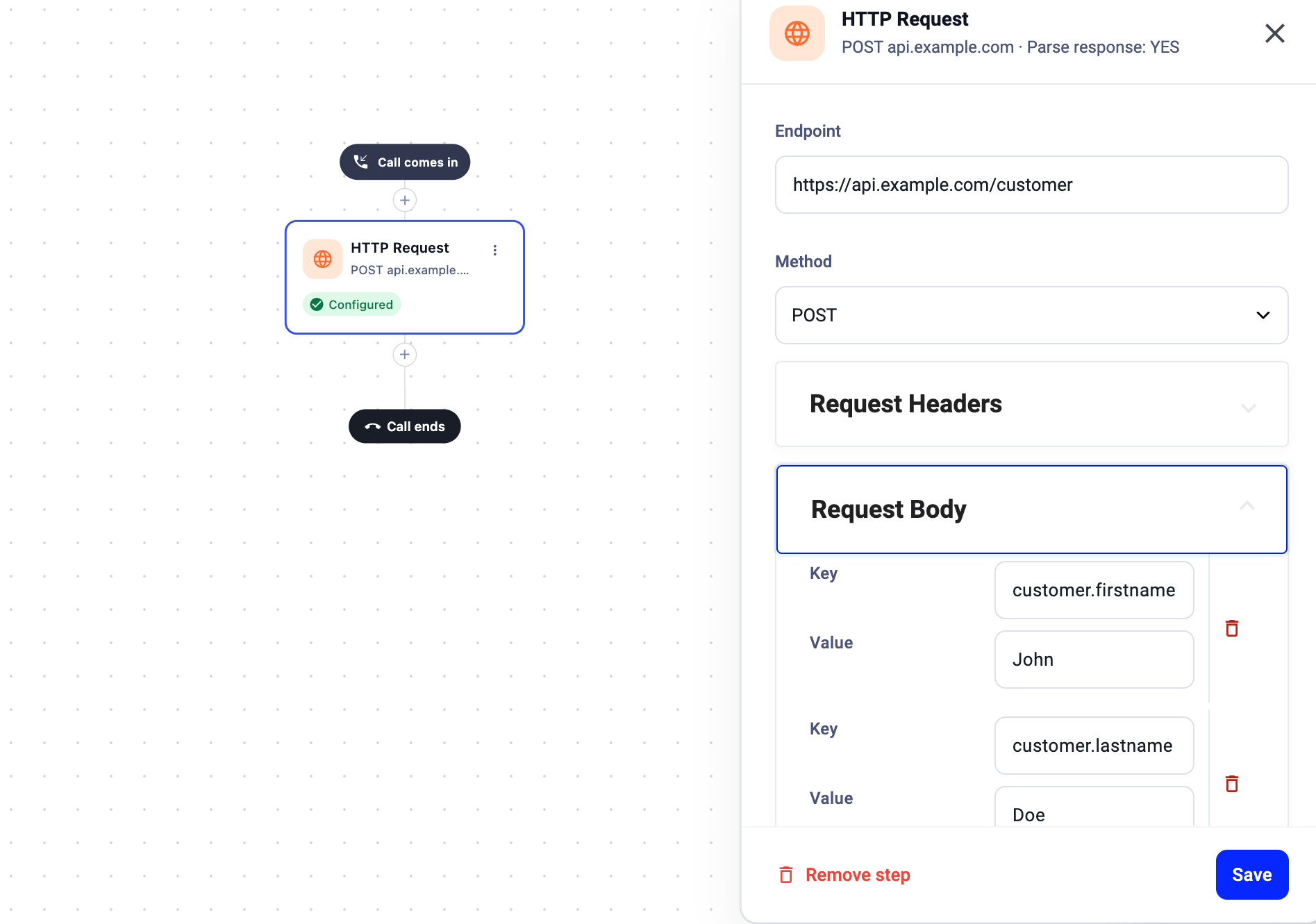
If an external endpoint requires nested objects, use dot notation in the Key field: `key.subkey`.
For example:
* `customer.firstname` = John
* `customer.lastname` = Doe
Results in: `{ "customer": { "firstname": "John", "lastname": "Doe" }}`
 ***
***
Parse Response
The **Parse response** checkbox defines how CloudTalk handles data received from the external system.
* **When disabled**
The call flow continues immediately after sending the request, without waiting for a response. Useful for fire-and-forget requests where the response data is not needed.
- **When enabled**
The call flow waits for the HTTP response before proceeding. The returned data is then available for use in subsequent steps.
Retain Data After Call
Check **Retain data after call** to keep the HTTP response data available after the call ends. This is useful if you need the data for post-call processing or reporting.
***
Using the Response in Later Steps
When Parse response is enabled, the response body can be used in a [Condition Splitter](/en/articles/5763009-caller-based-routing-with-conditions) to route calls based on the returned data.
In the Condition Splitter config:
1\. Select **HTTP Response** from the **Property** dropdown. It will show the endpoint URL of the HTTP Request step (e.g., "HTTP Response - [https://api.example.com/customer](https://api.example.com/customer)") so you know which request it references.
2\. Enter the **JSON path** to the response property using dot notation.
**Example:** If the response looks like:
```json theme={"system"}
{
"status": "success",
"error": {
"code": 200,
"message": "OK"
}
}
```
* To reference the top-level property *status*, use: `status`
* To reference the nested property *error code*, use: `error.code`
* For indexed (list or array) properties, use dot notation with the index number: `status.0` for the first item, `status.1` for the second, and so on.
3\. Define the desired condition (**Operand** and **Value**) based on what you need to match.
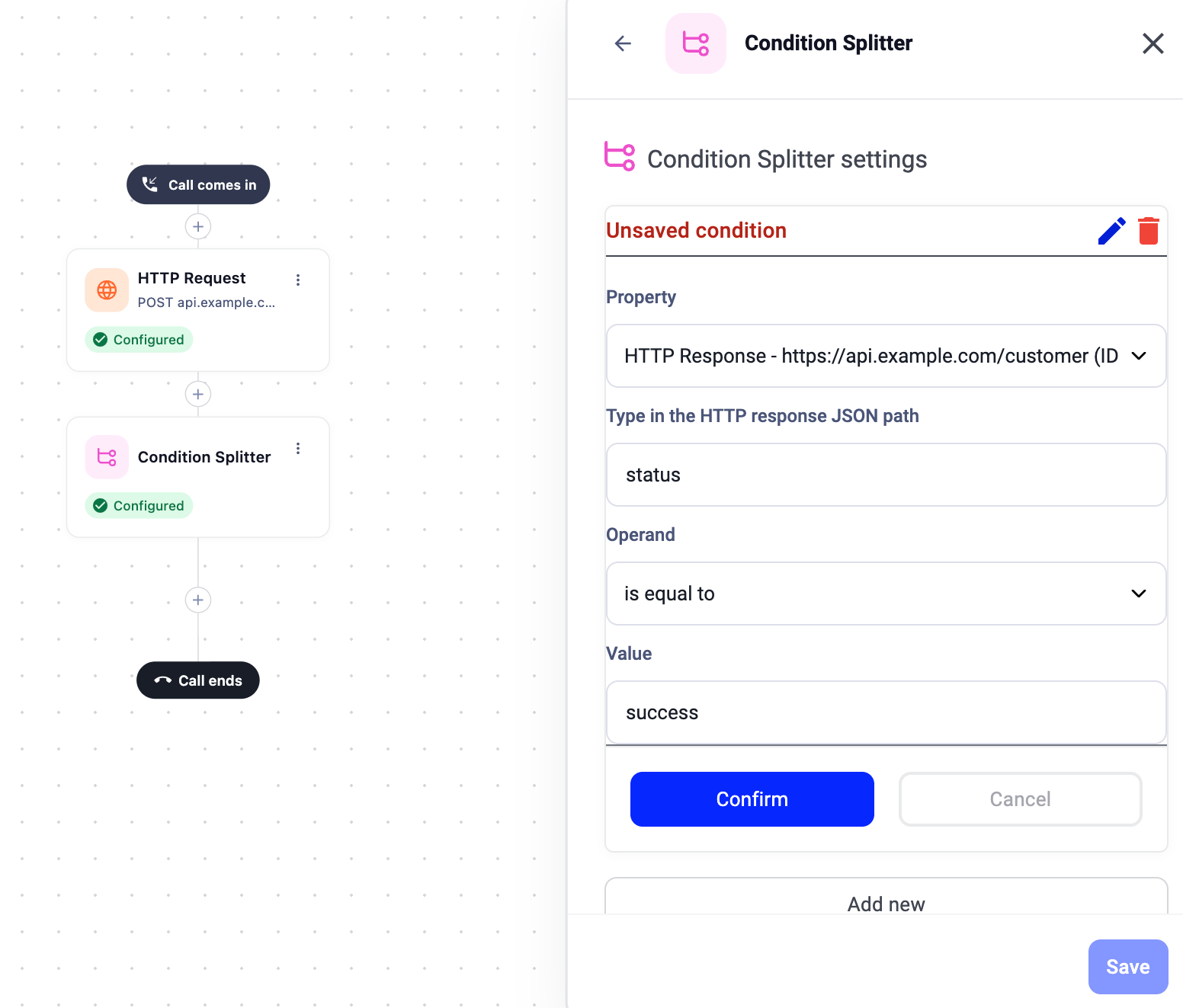 With this setup, every time a call reaches the HTTP Request step, it sends a request to the external system. The response data then determines the call's next routing path, allowing each call to be handled dynamically using the most up-to-date information.
***
*Need help or have a question?* Just reach out through our [Support portal](https://support.cloudtalk.io/hc/en-us/requests/new?ticket_form_id=26305535257884) — we’re here for you.
## Related topics
- [Collect Input from Caller Step](/en/articles/5878950-collect-input-from-caller-step.md)
- [Using Your Salesforce Integration in Call Flow HTTP Requests](/en/articles/16941452-using-your-salesforce-integration-in-call-flow-http-requests.md)
- [Post-Call Survey](/en/articles/8200861-post-call-survey.md)
This documentation is built and hosted on [Mintlify](https://mintlify.com), a developer documentation platform.
With this setup, every time a call reaches the HTTP Request step, it sends a request to the external system. The response data then determines the call's next routing path, allowing each call to be handled dynamically using the most up-to-date information.
***
*Need help or have a question?* Just reach out through our [Support portal](https://support.cloudtalk.io/hc/en-us/requests/new?ticket_form_id=26305535257884) — we’re here for you.
## Related topics
- [Collect Input from Caller Step](/en/articles/5878950-collect-input-from-caller-step.md)
- [Using Your Salesforce Integration in Call Flow HTTP Requests](/en/articles/16941452-using-your-salesforce-integration-in-call-flow-http-requests.md)
- [Post-Call Survey](/en/articles/8200861-post-call-survey.md)
This documentation is built and hosted on [Mintlify](https://mintlify.com), a developer documentation platform.