> ## Documentation Index
> Fetch the complete documentation index at: https://help.cloudtalk.io/llms.txt
> Use this file to discover all available pages before exploring further.
# Copy Call Flow
> Use the copy call flow feature and save anything from one step to an entire number branch for use elsewhere
The **Copy call flow** step makes number routing easier when the **Go to** step is not an option. Businesses which need multiple numbers that follow the same or similar routes can speed up the call flow design process by copying existing call flows.
**User level:** Admin
***
When to use Copy Call Flow
The **Copy call flow** feature speeds up the call flow design process when you need multiple numbers that follow the same or similar routes. Instead of building the same flow from scratch for each number, you can copy steps from one number and paste them into another.
This is useful when the [Jump to](/en/articles/3669429-call-flow-designer-guide) step is not an option (for example, when you need independent copies rather than a shared reference).
Copy Steps from a Call Flow
1\. From the **Dashboard**, click **Numbers**.
2\. In the **My numbers** tab, find the number you want to copy from.
3\. Click the flow name in the **Call Flow** column to open the editor.
 4\. In the left-side toolbar, choose one of two options:
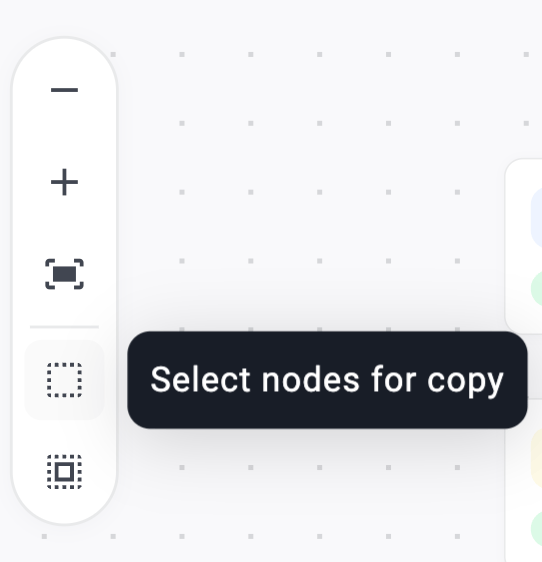
* **Select nodes for copy** (dotted-square icon): lets you click individual steps one by one. When you select a step, any connected steps will highlight, giving you the option to add them to your copy as well.
4\. In the left-side toolbar, choose one of two options:
* **Select nodes for copy** (dotted-square icon): lets you click individual steps one by one. When you select a step, any connected steps will highlight, giving you the option to add them to your copy as well.
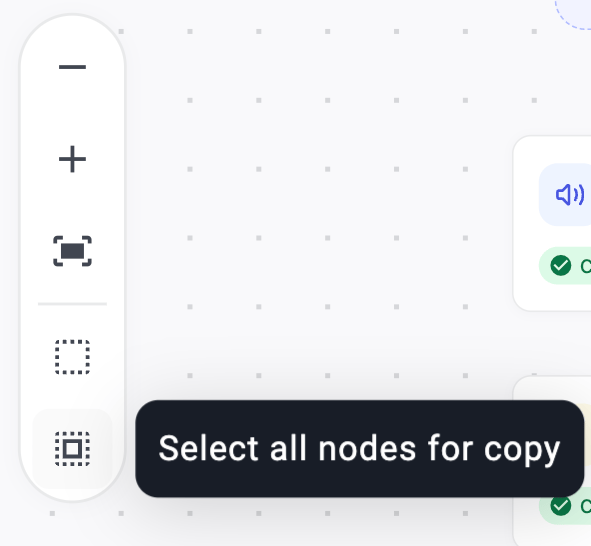
 * **Select all nodes for copy** (grid icon below it): automatically selects every step in the flow. From here, you can deselect steps you don't want to include.
 5\. Selected steps are highlighted with a blue border. Click a step to select or deselect it.
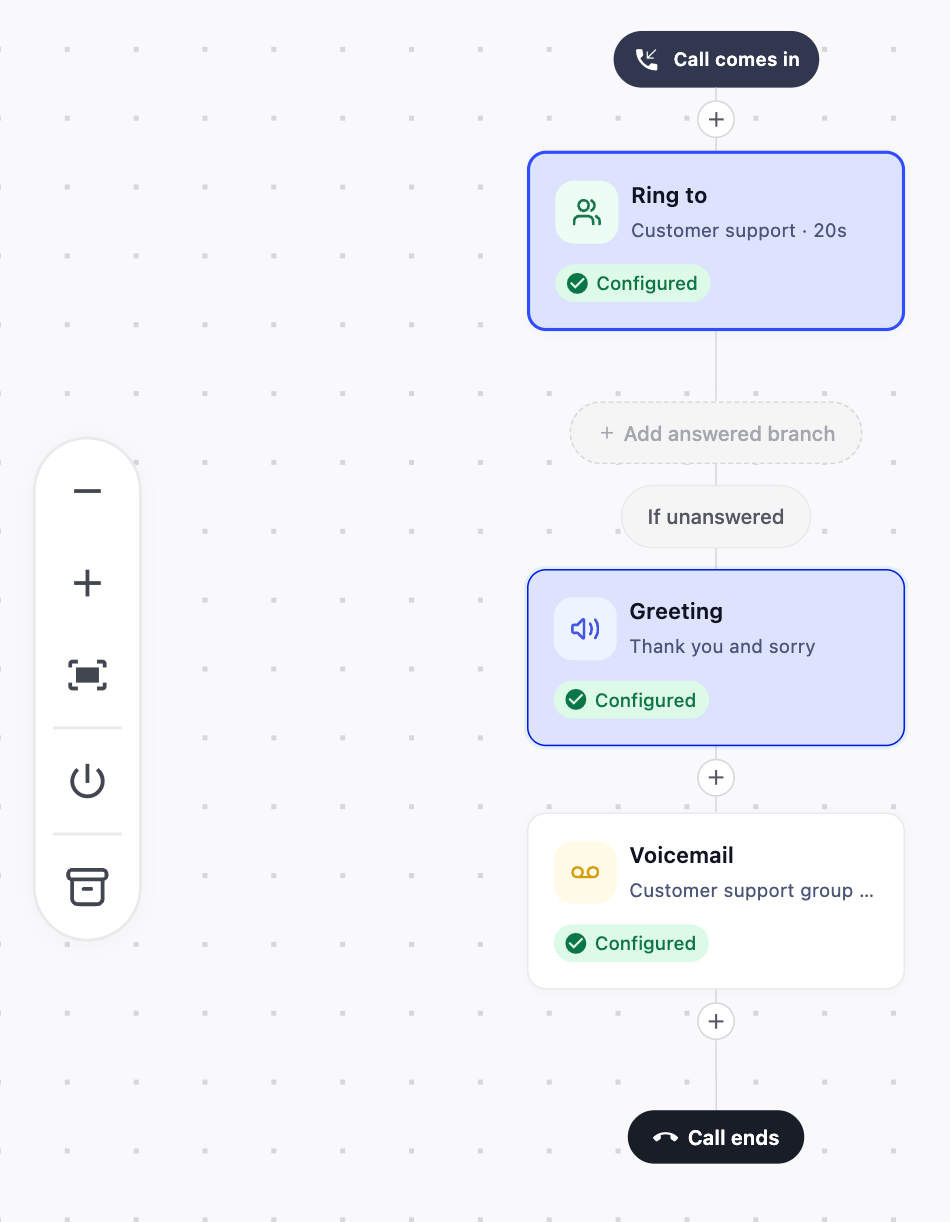 **Note:** Selecting two or more steps that are branches of the same parent step will cause the parent step to be automatically selected. Similarly, deselecting a step that has connected follow-up steps (child branches) will automatically deselect those child branches.
6\. After selecting the steps you want, click **Save workflow copy** in the left-side toolbar. To exit copy mode without saving, click **Stop copying** in the left-side toolbar.
***
**Note:** Selecting two or more steps that are branches of the same parent step will cause the parent step to be automatically selected. Similarly, deselecting a step that has connected follow-up steps (child branches) will automatically deselect those child branches.
6\. After selecting the steps you want, click **Save workflow copy** in the left-side toolbar. To exit copy mode without saving, click **Stop copying** in the left-side toolbar.
***
Paste a Saved Copy into a Call Flow
You can paste your saved copy into the same number you copied from, or into the call flow of a different number.
1. Open the call flow where you want to paste the copy.
2. Click the **`+`** button on the branch where you want to insert the steps.
3. In the step library, select **Add saved flow** (at the top of the list).
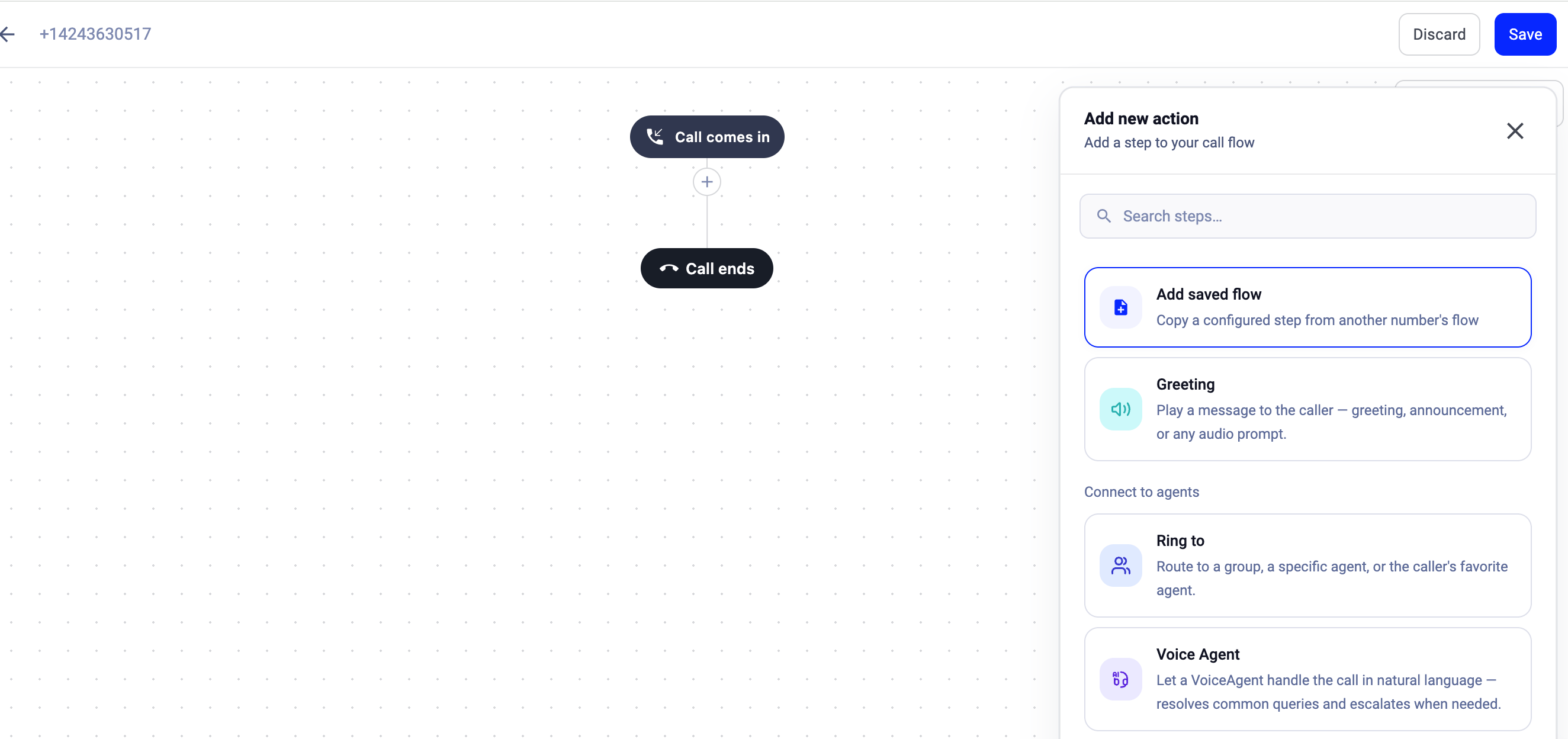 4\. Your most recent copy will be applied to that branch.
5\. Click **Save** in the top-right corner to make the changes live.
If you run into problems pasting your copy into a certain branch, this could be due to an action type conflict. Some step types cannot logically follow others.
***
*Need help or have a question?* Just reach out through our [Support portal](https://support.cloudtalk.io/hc/en-us/requests/new?ticket_form_id=26305535257884) — we’re here for you.
## Related topics
- [Routing & Call Flow Design guide](/en/articles/10559796-routing-call-flow-design-guide.md)
- [Call Flow Designer Guide](/en/articles/3669429-call-flow-designer-guide.md)
- [Post-Call Survey](/en/articles/8200861-post-call-survey.md)
This documentation is built and hosted on [Mintlify](https://mintlify.com), a developer documentation platform.
4\. Your most recent copy will be applied to that branch.
5\. Click **Save** in the top-right corner to make the changes live.
If you run into problems pasting your copy into a certain branch, this could be due to an action type conflict. Some step types cannot logically follow others.
***
*Need help or have a question?* Just reach out through our [Support portal](https://support.cloudtalk.io/hc/en-us/requests/new?ticket_form_id=26305535257884) — we’re here for you.
## Related topics
- [Routing & Call Flow Design guide](/en/articles/10559796-routing-call-flow-design-guide.md)
- [Call Flow Designer Guide](/en/articles/3669429-call-flow-designer-guide.md)
- [Post-Call Survey](/en/articles/8200861-post-call-survey.md)
This documentation is built and hosted on [Mintlify](https://mintlify.com), a developer documentation platform.