> ## Documentation Index
> Fetch the complete documentation index at: https://help.cloudtalk.io/llms.txt
> Use this file to discover all available pages before exploring further.
# Okta SSO Setup
> Find necessary values for Okta SSO setup via your Okta developer account
**Why should you use Okta SSO?**
Consistently ranking among leading identity and access management (IAM) providers, Okta can provide both security and ease of use through its SSO functionality. Setting up Okta SSO through the Dashboard will allow CloudTalk admin users to continue streamlined administration tasks, better control of user privileges, and the provision of an equally accessible and secure way for employees to launch their CloudTalk applications.
***
Set Up Okta SSO on your Dashboard
In order to ensure a proper setup process, please make sure you have the following:
* **Admin** privileges for a **CloudTalk** account
* **Admin** privileges for an **Okta developer** account
Steps for CloudTalk Dashboard
1. Settings for SSO must be adjusted by an admin through the Dashboard. From the left sidebar, click into **Account -> Settings**. By choosing the *Single Sign-on* header, you will be able to see available options for SSO in the form of toggle buttons.
 2. Admins can toggle *On/Off* to enable or enforce:
* **Google SSO**
* **[Azure SSO](/en/articles/5912324-microsoft-azure-sso-setup)**
* **Okta SSO**
* **Keycloak SSO**
* **Onelogin SSO**
2. Admins can toggle *On/Off* to enable or enforce:
* **Google SSO**
* **[Azure SSO](/en/articles/5912324-microsoft-azure-sso-setup)**
* **Okta SSO**
* **Keycloak SSO**
* **Onelogin SSO**
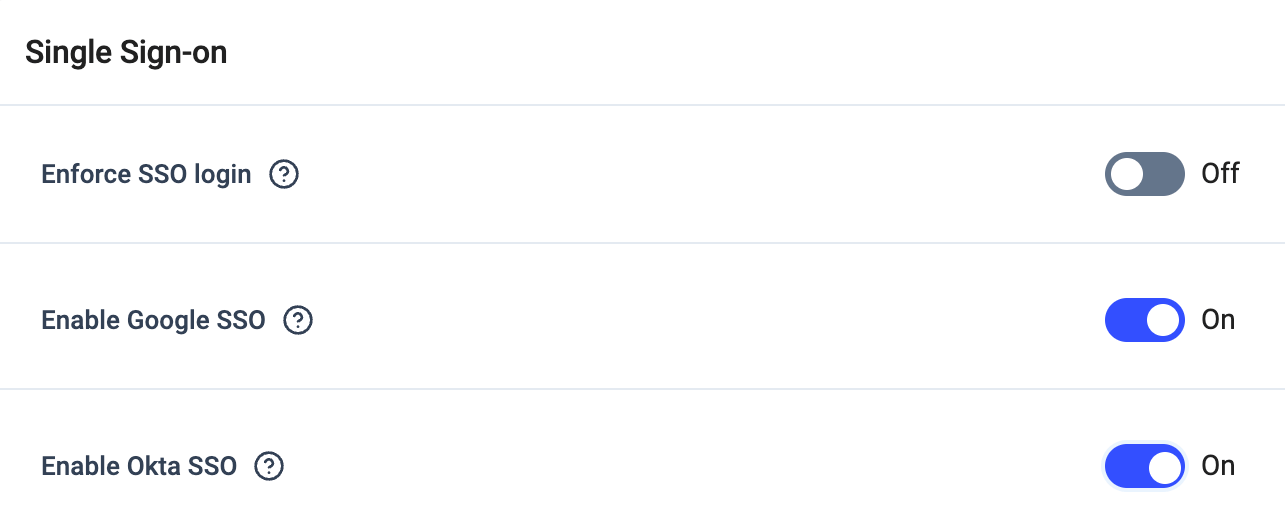 Click the toggle button to **`Enable Okta SSO`**.
3. Once Okta SSO has been enabled, admin will be asked to fill in the following values:
* **Client ID**
* **Client Secret**
* **Discovery URL** (sometimes called a "Resource/Issuer URL")
```
For Okta, the Discovery URL format will be:
https://{yourOktaDomain}.okta.com/
Where {yourOktaDomain} is to be replaced with the admin user's actual Okta domain, which can be found via the Okta Developer Portal
```
* **Method** (**GET** or **POST**)
Click the toggle button to **`Enable Okta SSO`**.
3. Once Okta SSO has been enabled, admin will be asked to fill in the following values:
* **Client ID**
* **Client Secret**
* **Discovery URL** (sometimes called a "Resource/Issuer URL")
```
For Okta, the Discovery URL format will be:
https://{yourOktaDomain}.okta.com/
Where {yourOktaDomain} is to be replaced with the admin user's actual Okta domain, which can be found via the Okta Developer Portal
```
* **Method** (**GET** or **POST**)
 4. Additionally, it will be necessary to input a "**redirect URI**" into an appropriate field on the interface of the respective identity provider—in this case, Okta. In the following steps, users will be required to login to their **Okta developer account** from a separate tab in order to obtain the above value references and to input the **redirect URI**, which is necessary for authorization to work properly.
```
For all identity providers, including Okta, the redirect URIs will be the following:
https://authsso.cloudtalk.io/oauth2/idpresponse
https://cloudtalk-prod.auth.eu-central-1.amazoncognito.com/oauth2/idpresponse
```
4. Additionally, it will be necessary to input a "**redirect URI**" into an appropriate field on the interface of the respective identity provider—in this case, Okta. In the following steps, users will be required to login to their **Okta developer account** from a separate tab in order to obtain the above value references and to input the **redirect URI**, which is necessary for authorization to work properly.
```
For all identity providers, including Okta, the redirect URIs will be the following:
https://authsso.cloudtalk.io/oauth2/idpresponse
https://cloudtalk-prod.auth.eu-central-1.amazoncognito.com/oauth2/idpresponse
```
Steps for Okta Developer Portal
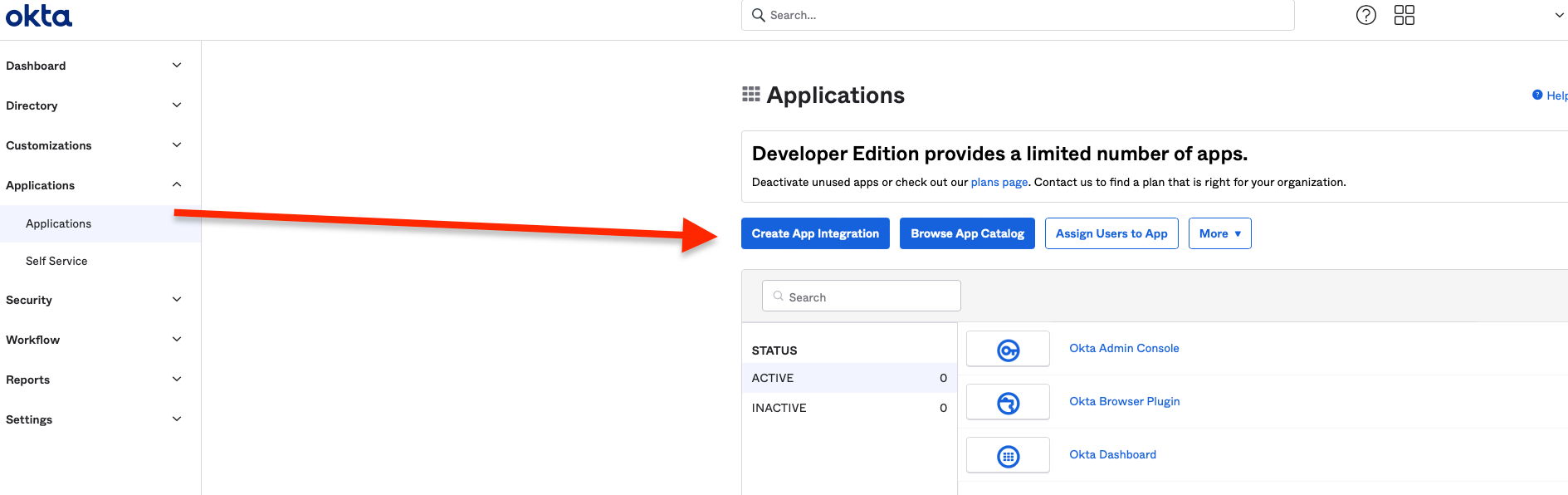
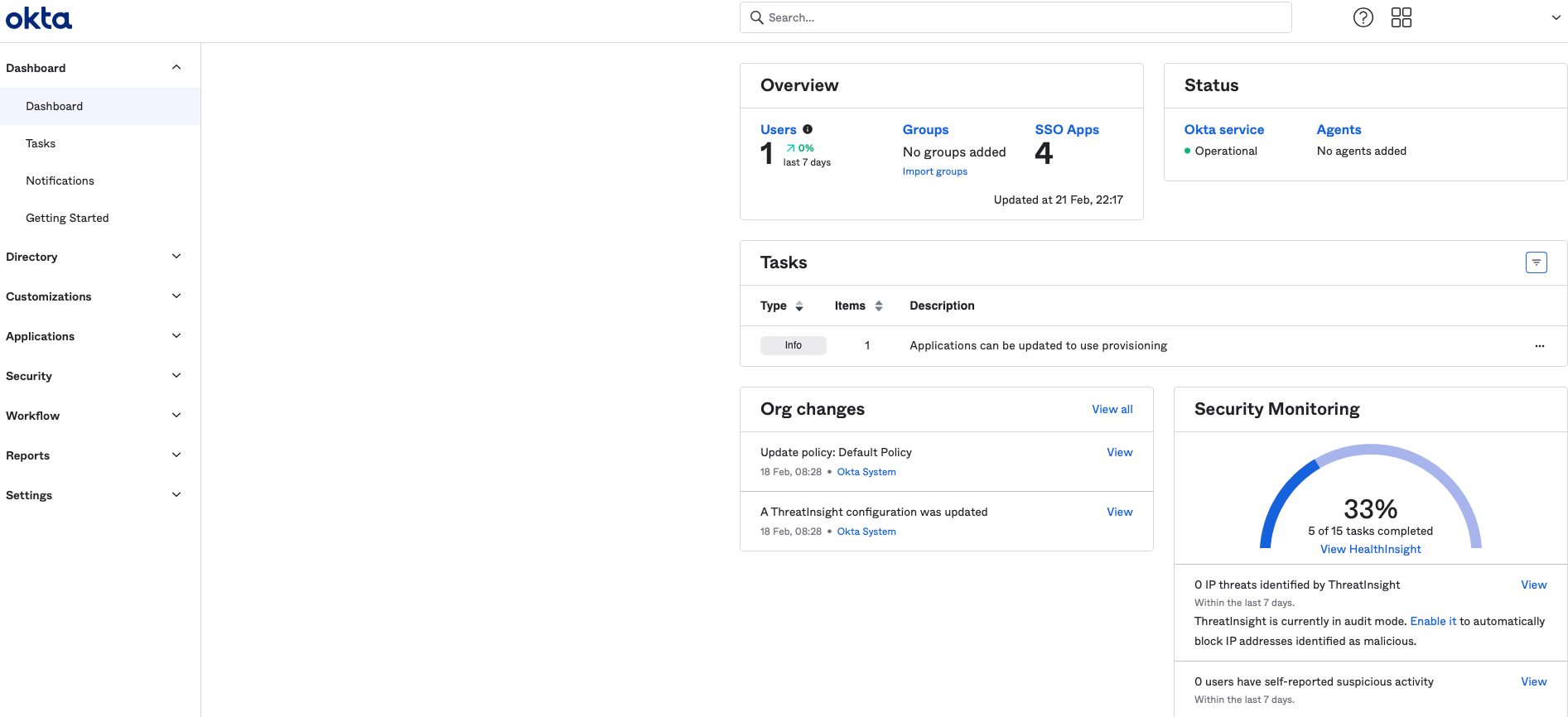 1. Okta-dev users who already have an established application running on OpenId protocol may be able to skip to steps 4-8 for inputing the redirect URI to their existing app and obtaining necessary values. If no OpenId protocol application has yet been created, we will need to make a new one. This can be done by clicking the **Applications->Applications** tab from the left sidebar, then clicking to **`Create App Integration`**.
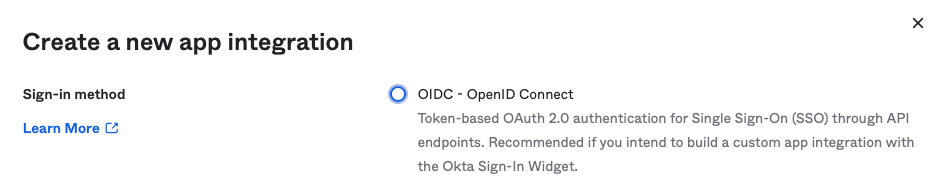
 2. We will be presented with four choices of sign-in protocols, from which we should select the first option: **OIDC - OpenID Connect**.
 3. For **Application Type**, we should choose **Web Application** and hit the **`Next`** button.
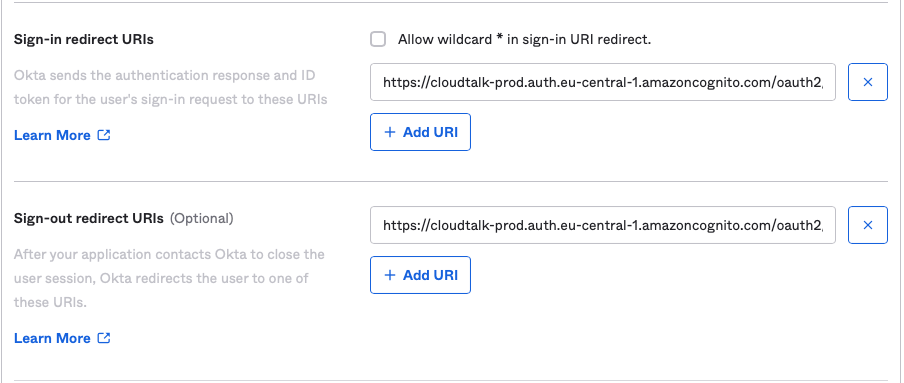
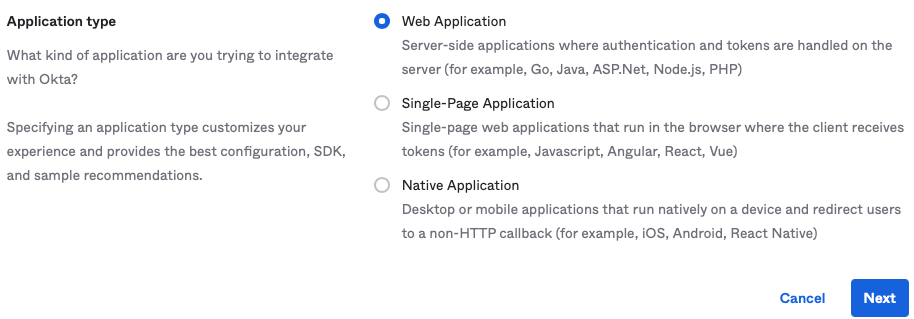 4. We can now change our **App integration name** and adjust other settings if desired. Two important settings we must change here are the **Sign-in Redirect URIs** and **Sign-out Redirect URIs**. In both of these boxes, we will enter the aforementioned Redirect URIs:
```
https://authsso.cloudtalk.io/oauth2/idpresponse
https://cloudtalk-prod.auth.eu-central-1.amazoncognito.com/oauth2/idpresponse
```
4. We can now change our **App integration name** and adjust other settings if desired. Two important settings we must change here are the **Sign-in Redirect URIs** and **Sign-out Redirect URIs**. In both of these boxes, we will enter the aforementioned Redirect URIs:
```
https://authsso.cloudtalk.io/oauth2/idpresponse
https://cloudtalk-prod.auth.eu-central-1.amazoncognito.com/oauth2/idpresponse
```
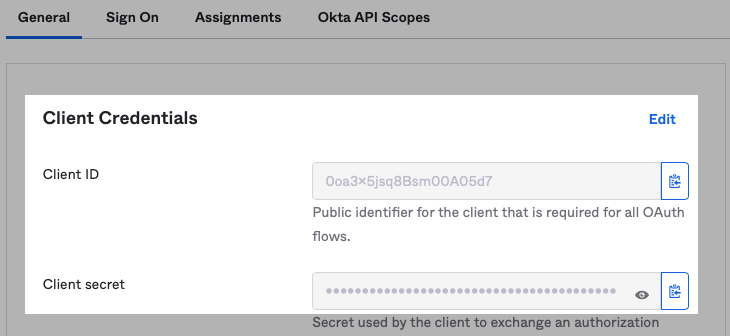
 5. Once we have finalized the initial settings of our new app integration, we will be able to see the Client ID and Client Secret values. We can copy/paste these at any time from the **Applications->Applications** tab by clicking on the name of the application we created and looking under the *General* header.
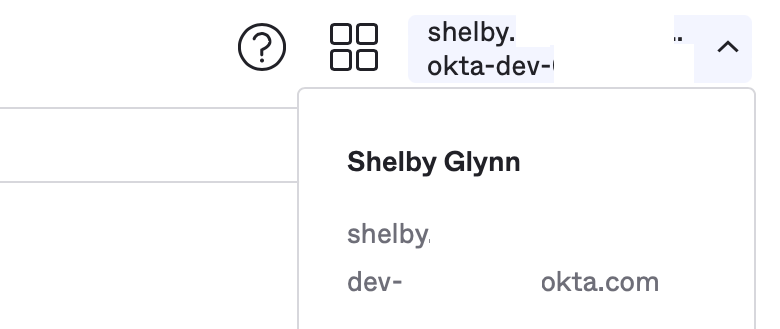
 6. Lastly, we need to copy or save a reference of the **Okta domain** for the admin account being used. This is located in the top right corner of the webpage, where there should be a **dropdown arrow** next to the `account username`. Click the **arrow** to expand. The Okta domain is the line underneath the username, starting with "`dev-`", containing a serial number in the middle, and ending with "`.okta.com`" .
 7. Having obtained the necessary values, we will switch back to our **CloudTalk Dashboard tab** to copy and paste the **Client ID**, **Client Secret**, and **Discovery URL** into their appropriate boxes. Remember to replace `{yourOktaDomain}` with the real domain reference obtained in step 6 for the **Discovery URL**: [`https://{yourOktaDomain}.okta.com/`](https://%7ByourOktaDomain%7D.okta.com/)
8. For the method, **GET** should work. Try **POST** if not.
7. Having obtained the necessary values, we will switch back to our **CloudTalk Dashboard tab** to copy and paste the **Client ID**, **Client Secret**, and **Discovery URL** into their appropriate boxes. Remember to replace `{yourOktaDomain}` with the real domain reference obtained in step 6 for the **Discovery URL**: [`https://{yourOktaDomain}.okta.com/`](https://%7ByourOktaDomain%7D.okta.com/)
8. For the method, **GET** should work. Try **POST** if not.
Enabling Okta SSO on CloudTalk Phone
The settings chosen through the Dashboard will affect what users see on all CloudTalk login screens. When enabled, a button labeled **`Continue with SSO`** should be viewable on login screens*.*
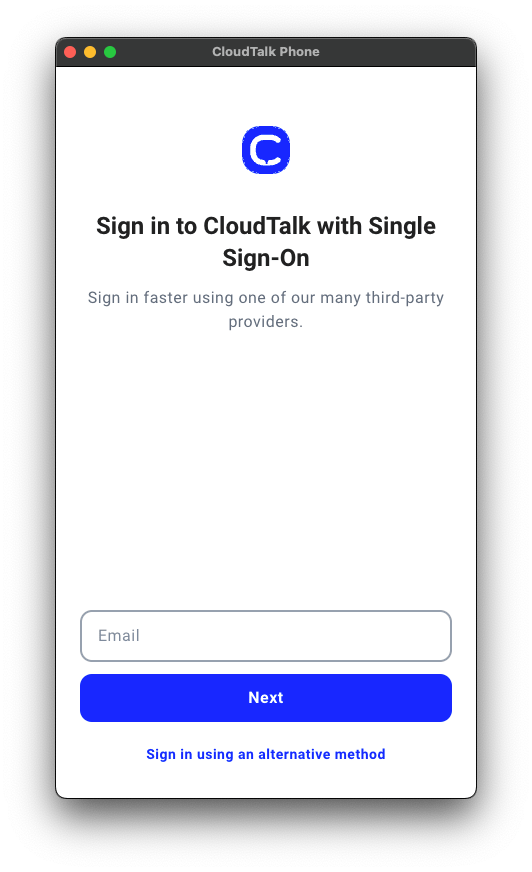
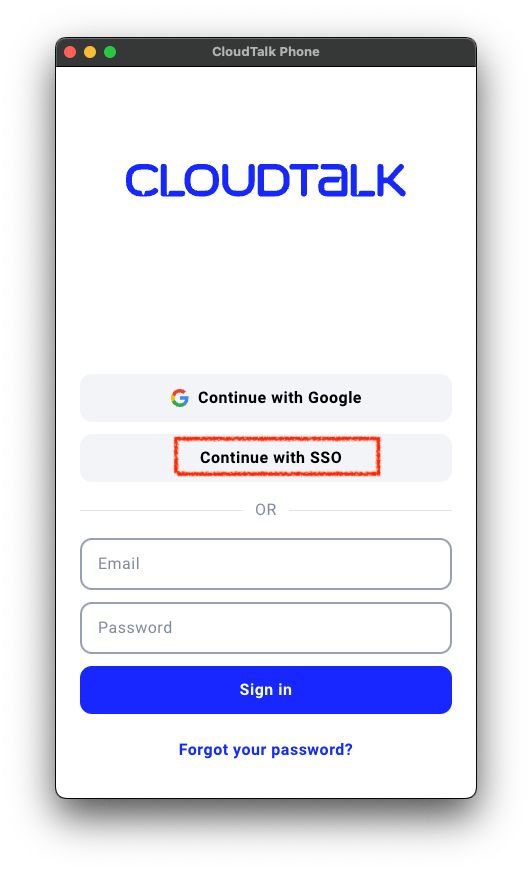 Selecting this option, users will be prompted to enter their CloudTalk email.
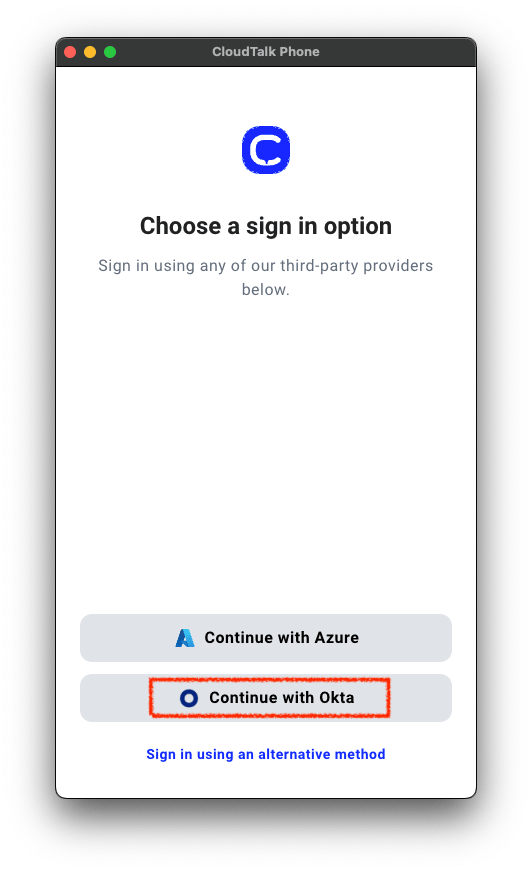
 Choose which available SSO you would like to login with.
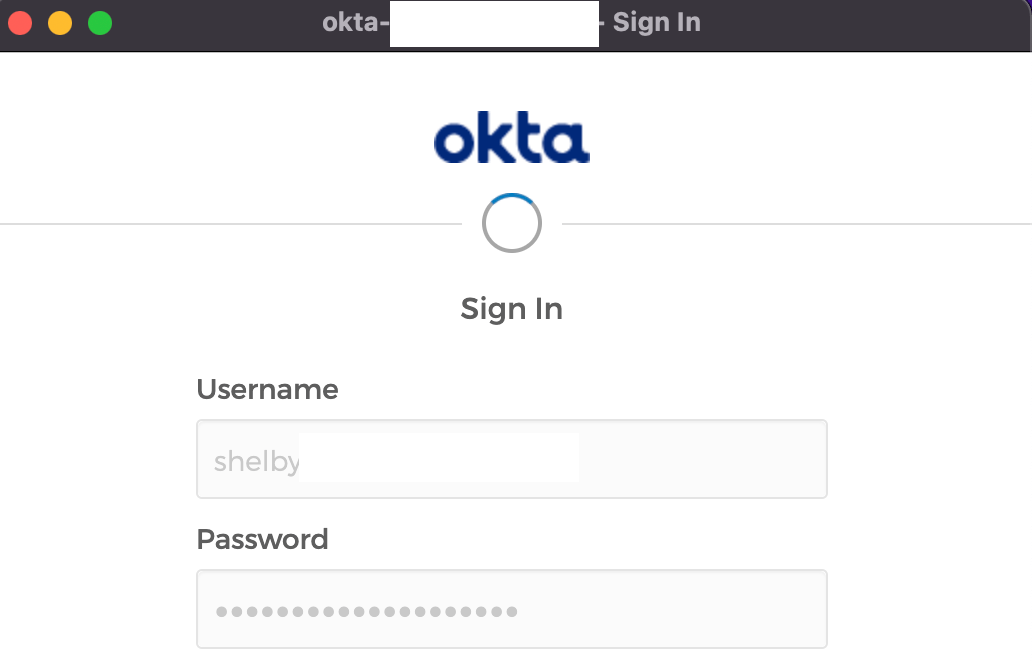
 Signing in with Okta for the first time, a popup login screen will appear, where you can enter your Okta username and password.
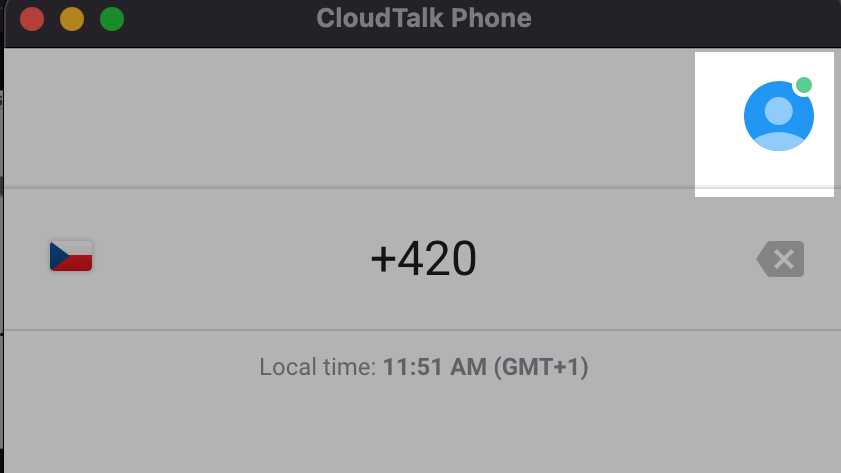
 After a successful login, you should see the regular dialer appear along with the green dot next to the user, indicating the user is online and active.
 ***
*Need help or have a question?* Just reach out through our [Support portal](https://support.cloudtalk.io/hc/en-us/requests/new?ticket_form_id=26305535257884) — we’re here for you.
## Related topics
- [Account Settings Guide](/en/articles/10550593-account-settings-guide.md)
- [Microsoft Azure SSO Setup](/en/articles/5912324-microsoft-azure-sso-setup.md)
- [How to Use SSO](/en/articles/5784952-how-to-use-sso.md)
This documentation is built and hosted on [Mintlify](https://mintlify.com), a developer documentation platform.
***
*Need help or have a question?* Just reach out through our [Support portal](https://support.cloudtalk.io/hc/en-us/requests/new?ticket_form_id=26305535257884) — we’re here for you.
## Related topics
- [Account Settings Guide](/en/articles/10550593-account-settings-guide.md)
- [Microsoft Azure SSO Setup](/en/articles/5912324-microsoft-azure-sso-setup.md)
- [How to Use SSO](/en/articles/5784952-how-to-use-sso.md)
This documentation is built and hosted on [Mintlify](https://mintlify.com), a developer documentation platform.