> ## Documentation Index
> Fetch the complete documentation index at: https://help.cloudtalk.io/llms.txt
> Use this file to discover all available pages before exploring further.
# Dashboard Overview
> See call activity highlights on the dashboard’s initial page.
Discover the features on the CloudTalk dashboard’s initial page, where you can filter call statistics, view call history, and customize the data displayed on the page.
**User level:** All levels
***
By default, the Dashboard opens to display the Call history section, giving you a comprehensive overview of stats for all calls made during the specified period set by your filter.
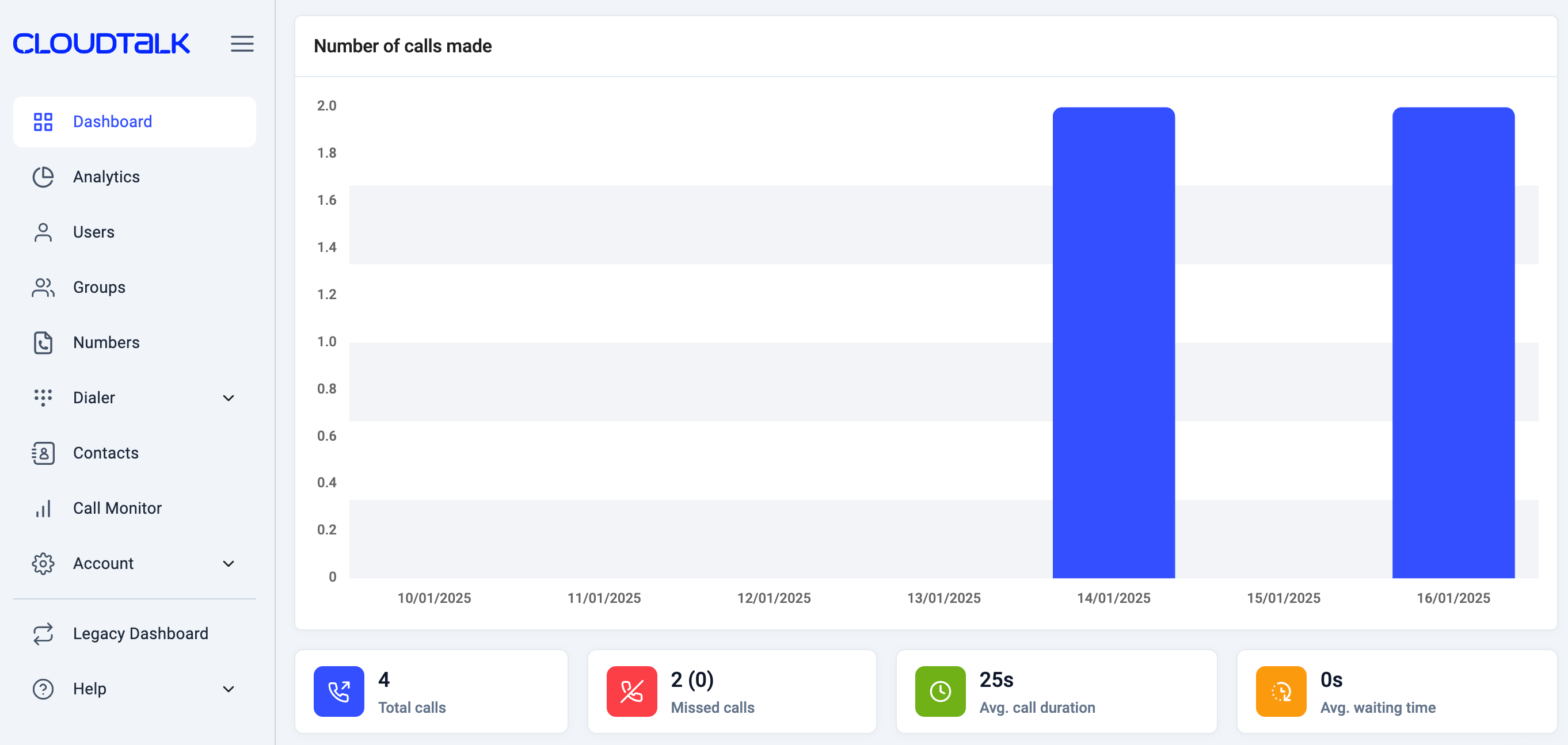 At the top of the page, you’ll find filters that allow you to narrow down the call history by **user**, **group**, **type**, and **date**. Filters can be used in any combination and should not cancel each other out.
 The selected filters will impact all the data displayed on the page, including the graph, the call history, and the stats, such as `Total Calls`, `Missed Calls`, `Avg. Call Duration`, and `Avg. Waiting Time`.
Filters
Filter by user
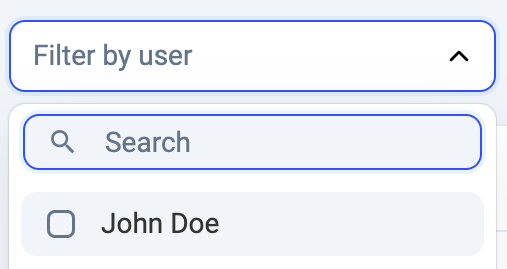 Filter by agent name via the dropdown list or search function. This filter provides the benefit of tracking the productivity of a particular agent within a chosen scope of time.
Filter by group
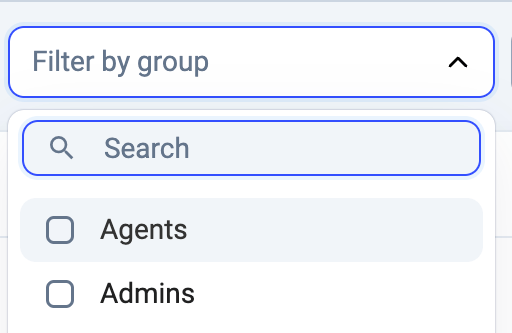 Filter based on groups. This feature works best when making use of the **Groups** feature found in the left main sidebar of your CloudTalk account, where larger networks can benefit from setting Groups for different branches of call management.
Filter by type
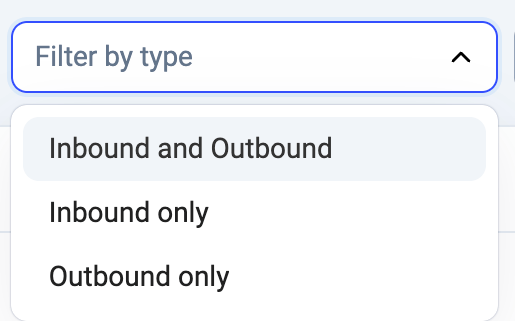 Filter by call type to easily track and analyze specific call activities. This filter allows you to focus on inbound calls only, outbound calls only, or view both types together, providing greater flexibility in monitoring call trends and performance within a selected time period.
Filter by time
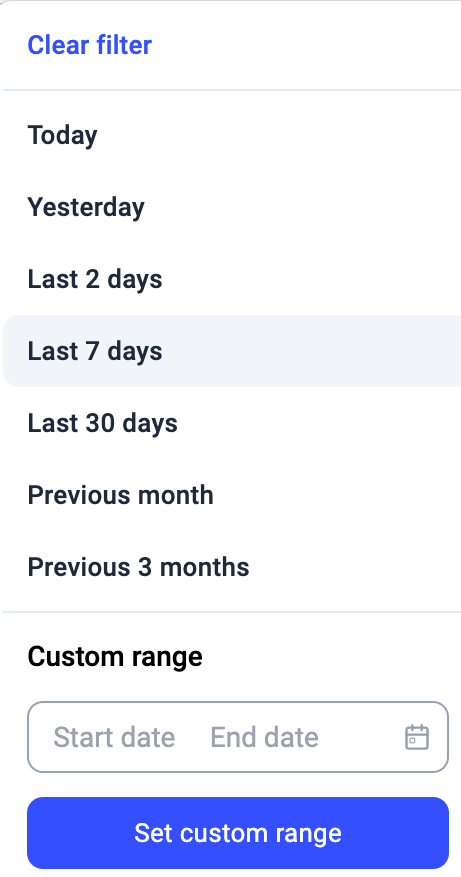 This time filter can be adjusted to one of the preset options or a custom range by clicking the small dropdown arrow in the filter. Please note that the Dashboard displays only data from the past **12 months**.
Once you’ve applied the filters, the relevant data will be reflected in the graph, showing the number of calls made based on your selected criteria. The stat cards below the graph will update to display key metrics, such as `Total calls`, `Missed calls`, `Avg. call duration`, and `Avg. waiting time`, ensuring you have a clear and accurate overview of the filtered call data.
This time filter can be adjusted to one of the preset options or a custom range by clicking the small dropdown arrow in the filter. Please note that the Dashboard displays only data from the past **12 months**.
Once you’ve applied the filters, the relevant data will be reflected in the graph, showing the number of calls made based on your selected criteria. The stat cards below the graph will update to display key metrics, such as `Total calls`, `Missed calls`, `Avg. call duration`, and `Avg. waiting time`, ensuring you have a clear and accurate overview of the filtered call data.

Call history
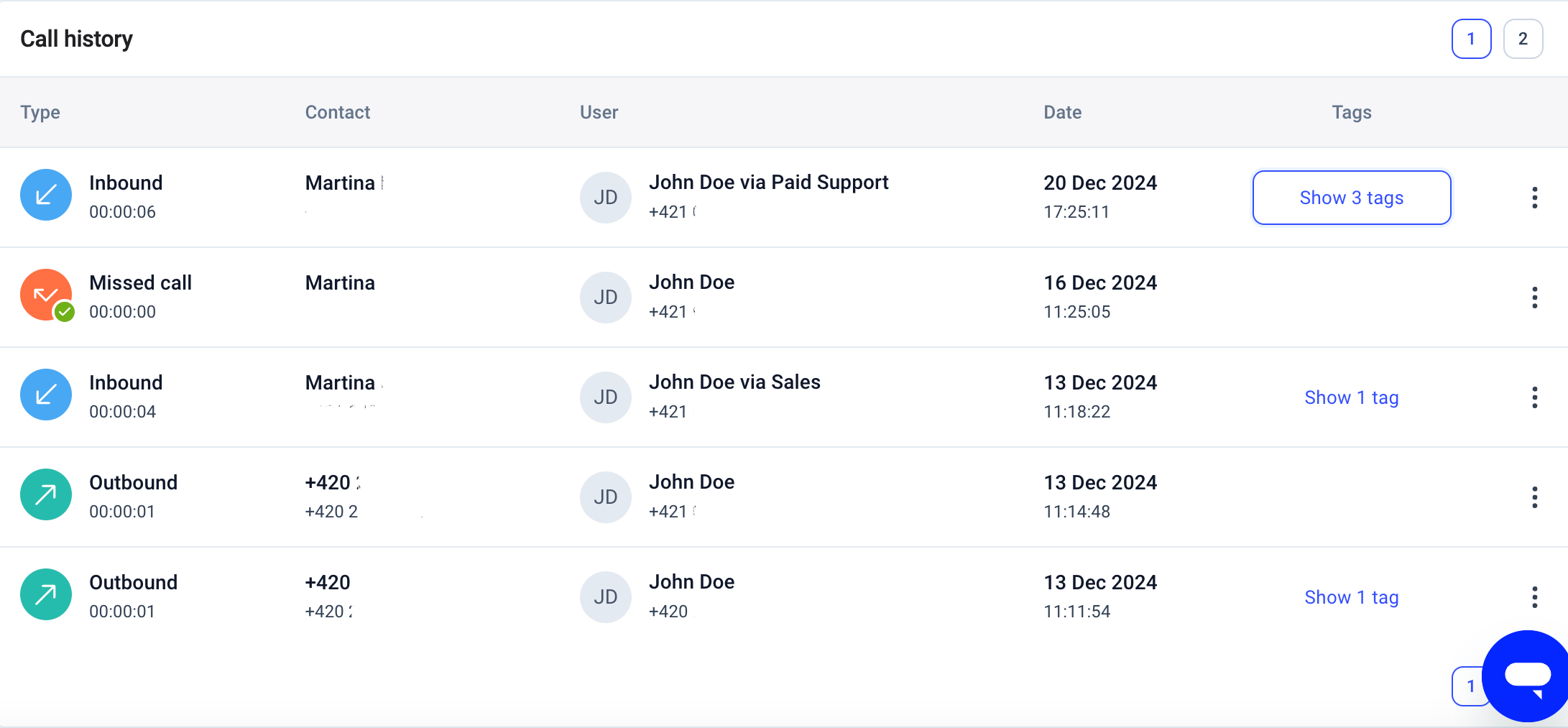
The **Call History** section offers a clear overview of your team's recent call activity. You can view key details such as the **call type**, **contact name**, **agent**, **date and time**, and any **tags** added to the call.
The search functionality in Call History currently supports **internal number lookup only** (e.g., CloudTalk agent numbers). To search by **external phone numbers**, deeper filtering, or detailed call tracking, we recommend using **[Call Log](/en/articles/10682286-call-log)** instead.
Exporting call history via the API
If you need call records in another system on an ongoing basis, you can pull them programmatically instead of exporting manually.
You'll need an API key, which requires the **Admin** role and an **Essential** plan or above. See [How to access and generate your CloudTalk API keys](/en/articles/15272380-how-to-access-and-generate-your-cloudtalk-api-keys).
Call records come from the **Call history** endpoint (`GET /calls/index.json`). Results are paginated, so use the `limit` and `page` parameters for larger result sets. The [CloudTalk API Reference](/developers) is the source of truth for query parameters and response fields.
Two things to keep in mind:
* [Transcripts](/en/articles/9214668-call-transcripts) and AI summaries exist only for calls where both call recording and [Conversation Intelligence](/en/articles/9128167-conversation-intelligence) are enabled.
* Call steps for redirected calls are not available through the Analytics API, and are not shown in the Call Steps view in Analytics. See [Call Details in Analytics](/en/articles/9596675-call-details-in-analytics).
***
*Need help or have a question?* Just reach out through our [Support portal](https://support.cloudtalk.io/hc/en-us/requests/new?ticket_form_id=26305535257884) — we’re here for you.
## Related topics
- [Welcome to CloudTalk](/en/index.md)
- [Billing page overview](/en/articles/5591834-billing-page-overview.md)
- [AI Sales Dialer overview](/en/articles/17025655-ai-sales-dialer-overview.md)
This documentation is built and hosted on [Mintlify](https://mintlify.com), a developer documentation platform.