> ## Documentation Index
> Fetch the complete documentation index at: https://help.cloudtalk.io/llms.txt
> Use this file to discover all available pages before exploring further.
# Configure Adobe Commerce (Magento)
> Configure data exchange between CloudTalk and Adobe Commerce (Magento) to ensure your data stays up to date.
This guide covers how to configure the CloudTalk + Adobe Commerce (Magento) integration. You'll learn the prerequisites, required authentication details, and step-by-step setup process.
**User level**: Admin
***
**Looking for instructions on how to use CloudTalk with Adobe Commerce (Magento)?**\
See [Using CloudTalk with Adobe Commerce (Magento)](/en/articles/5775968-using-cloudtalk-with-adobe-commerce-magento).
Prerequisites
Before you begin, ensure that:
* Your CloudTalk account is on [Essential, Expert, or Custom plan](https://www.cloudtalk.io/pricing)
* You have an active [Adobe Commerce account](https://account.magento.com/customer/account/login)
* You have admin access in both Adobe Commerce and CloudTalk
* The email address you use in CloudTalk must match exactly with the email address in your Adobe Commerce account. If the emails do not match, synchronization will not work correctly.
Configure Adobe Commerce
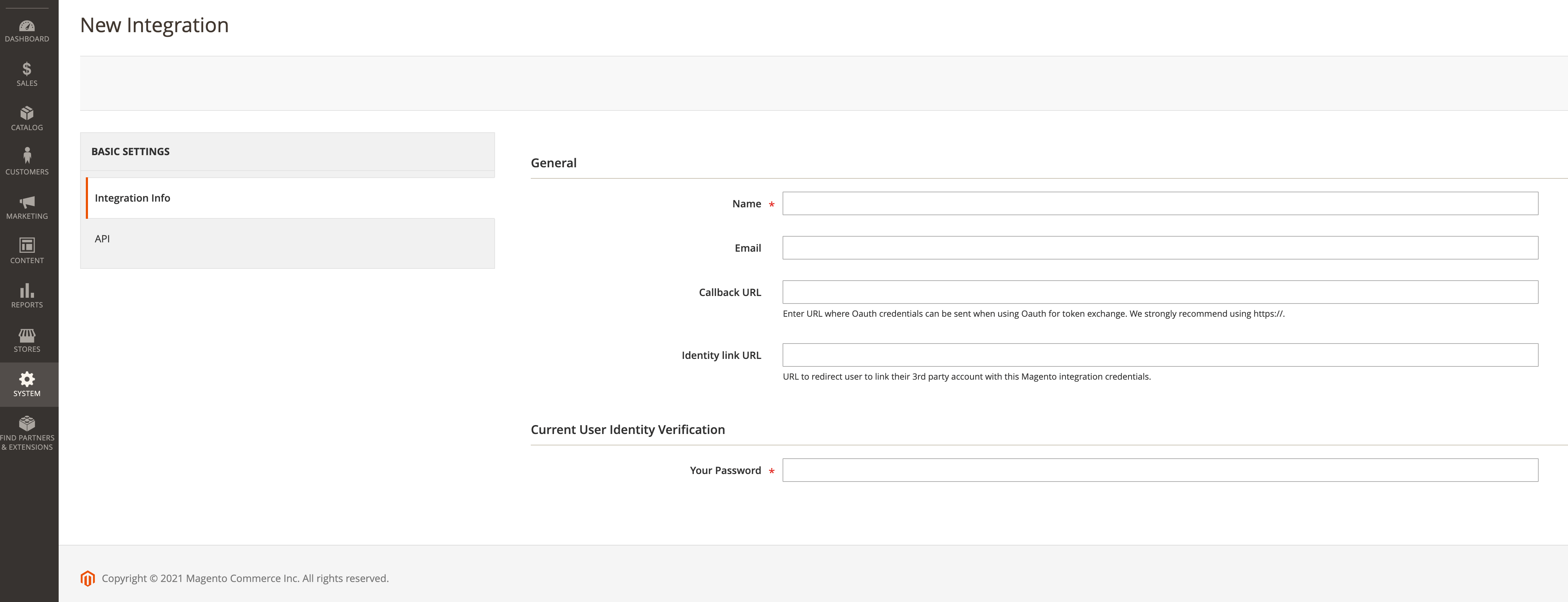 1. If you have not yet added CloudTalk as an integration within your Adobe Commerce account, you'll need to do so first by [following this guide](https://docs.magento.com/user-guide/system/integrations.html). Prepare to fill your name and password, as well as *allow minimal Orders and Customers* via the **API** tab. From the CloudTalk integration on your Adobe Commerce account, prepare to collect the following authentication information:
1. **Store View ID.** From the admin console, click the icon labeled **Stores** in the left sidebar and navigate to *All Stores*\*\*.\*\* Click **Edit Store** to view**.**
2. **Website ID**. From the admin console, click the icon labeled **Stores** in the left sidebar and navigate to *All Stores*\*\*.\*\* Click **Edit Website** to view**.**
3. **Consumer Key, Consumer Secret, Access Token & Access Token Secret.** From the admin console, click the icon labeled **System** in the left sidebar and navigate to *Integrations*\*\*.\*\* Click **Edit Integration** to view *Integration Details*\*\*.\*\*
4. **URL address.** Address of your Adobe Commerce installation, like: [`https://yourstore.com/`](https://yourstore.com/)
5. **Contact Detail URL Pattern.** This should be a domain followed by an ID number, like: [`https://myDomain.com/magento/contact/123`](https://myDomain.com/magento/contact/123)
6. **Order Detail URL Pattern.** This should be a domain followed by an order number, like: [`https://myDomain.com/magento/order/4567`](https://myDomain.com/magento/order/4567)
2. Having acquired the necessary information, you can open a new tab and log into your **CloudTalk Dashboard.**
3. Go to **Account > Integrations.**
4. In the *Add Integration* section, find **Adobe Commerce** and click **`+ Add`.**
1. If you have not yet added CloudTalk as an integration within your Adobe Commerce account, you'll need to do so first by [following this guide](https://docs.magento.com/user-guide/system/integrations.html). Prepare to fill your name and password, as well as *allow minimal Orders and Customers* via the **API** tab. From the CloudTalk integration on your Adobe Commerce account, prepare to collect the following authentication information:
1. **Store View ID.** From the admin console, click the icon labeled **Stores** in the left sidebar and navigate to *All Stores*\*\*.\*\* Click **Edit Store** to view**.**
2. **Website ID**. From the admin console, click the icon labeled **Stores** in the left sidebar and navigate to *All Stores*\*\*.\*\* Click **Edit Website** to view**.**
3. **Consumer Key, Consumer Secret, Access Token & Access Token Secret.** From the admin console, click the icon labeled **System** in the left sidebar and navigate to *Integrations*\*\*.\*\* Click **Edit Integration** to view *Integration Details*\*\*.\*\*
4. **URL address.** Address of your Adobe Commerce installation, like: [`https://yourstore.com/`](https://yourstore.com/)
5. **Contact Detail URL Pattern.** This should be a domain followed by an ID number, like: [`https://myDomain.com/magento/contact/123`](https://myDomain.com/magento/contact/123)
6. **Order Detail URL Pattern.** This should be a domain followed by an order number, like: [`https://myDomain.com/magento/order/4567`](https://myDomain.com/magento/order/4567)
2. Having acquired the necessary information, you can open a new tab and log into your **CloudTalk Dashboard.**
3. Go to **Account > Integrations.**
4. In the *Add Integration* section, find **Adobe Commerce** and click **`+ Add`.**
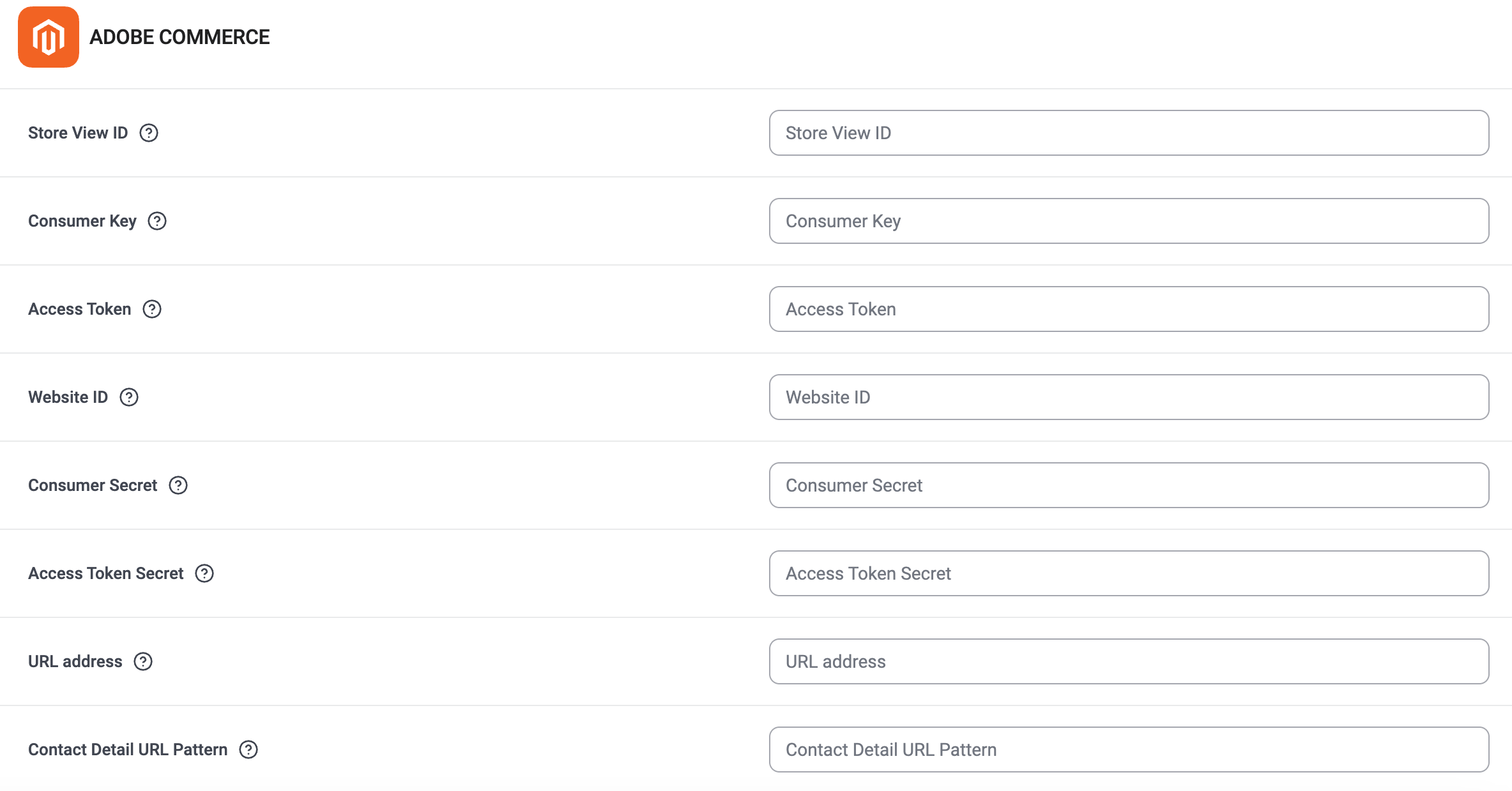
 5. Enter the required information obtained from your Adobe Commerce account in step one: **Storeview & Website IDs, Consumer Key & Secret, Access Token & Secret, URL address, Contact & Order Detail URL Pattern.**
 6. Make sure the integration is set to *Active* at the top of the page and that you click the green bar at the bottom of the page to **Save** changes.
Disconnect or Remove Integration
You have two options if you no longer want to use the integration:
* **Deactivate:** In your CloudTalk Dashboard, go to **Account > Integrations > Adobe Commerce** and toggle the status to inactive. This pauses syncing but keeps your settings.
- **Remove:** To remove the integration completely, go to **Configure > Delete Integration**, type **DELETE**, and confirm.
***
*Need help or have a question?* Just reach out through our [Support portal](https://support.cloudtalk.io/hc/en-us/requests/new?ticket_form_id=26305535257884) — we're here for you.
## Related topics
- [Using CloudTalk with Adobe Commerce (Magento)](/en/articles/5775968-using-cloudtalk-with-adobe-commerce-magento.md)
- [Integrations guide](/en/articles/10570091-integrations-guide.md)
- [Configure Shopify](/en/articles/11722533-configure-shopify.md)
This documentation is built and hosted on [Mintlify](https://mintlify.com), a developer documentation platform.