> ## Documentation Index
> Fetch the complete documentation index at: https://help.cloudtalk.io/llms.txt
> Use this file to discover all available pages before exploring further.
# Agent Report
> Keep track of the success of your agents using the features offered through Analytics.
Track agent productivity with ease using our [Analytics](/en/articles/6655462-introduction-to-cloudtalk-analytics).
**User level**: Admin, Agent, Supervisor
***
Understanding agent performance is essential for improving efficiency and delivering excellent customer service. With the Analytics tools available, you can easily analyze agent activity based on your desired success metrics.
Agent Statistics
You can view a chart representing the call logs for a single agent or select multiple agents in the filter to view their call statistics all at once.
1. Go to Analytics and choose **Agent report** on the top sidebar.
 2. From the filter options on the top of the page, click **Select agent**. Search for or select the name of the agent whose stats you want to view.
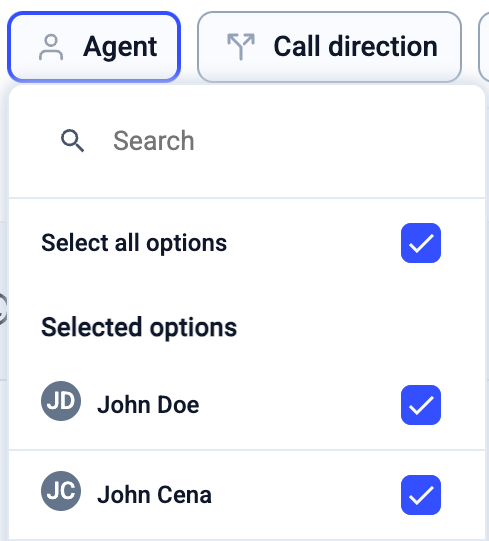
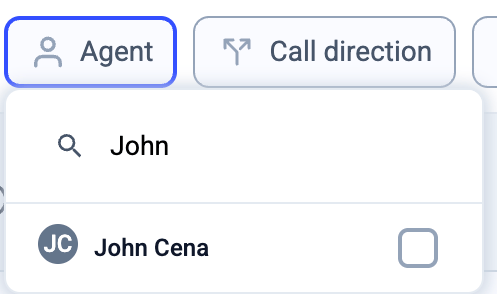 To display the statistics for all agents, simply click the *Select All* *options* in the Agent filter.
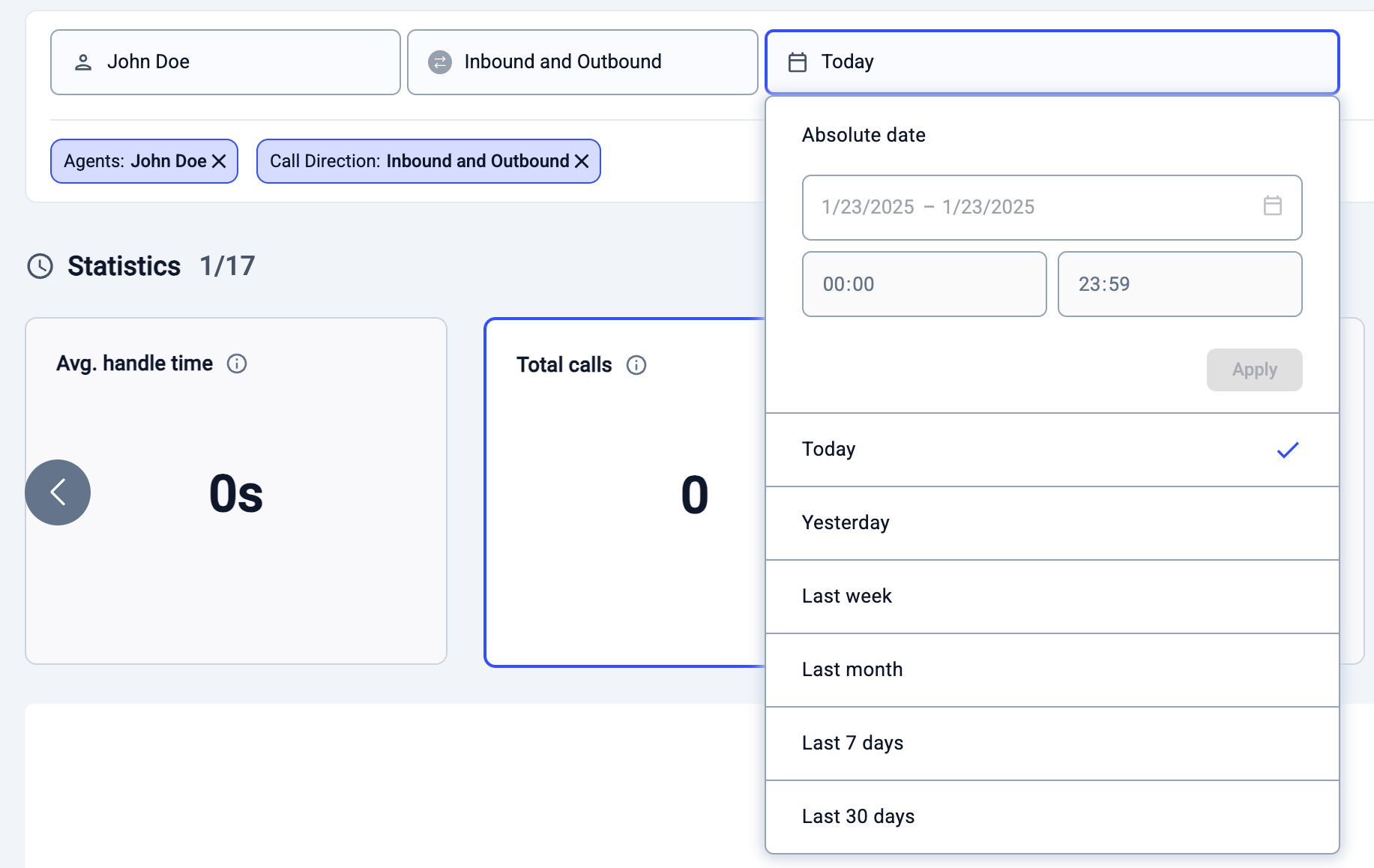
 3. Choose call direction (Inbound, outbound, or both) and adjust the time parameters in the top right corner of the page. Please note that Analytics displays data only from the past 12 months.
4. **Note on filters**: When applying multiple filters (e.g., Agent + Group + Call Direction), results will only appear if all selected conditions are true.
For more details and examples, see [Analytics Reports – How filters are applied](/en/articles/6241287-analytics-reports#:~:text=How%20filters%20are%20applied).
3. Choose call direction (Inbound, outbound, or both) and adjust the time parameters in the top right corner of the page. Please note that Analytics displays data only from the past 12 months.
4. **Note on filters**: When applying multiple filters (e.g., Agent + Group + Call Direction), results will only appear if all selected conditions are true.
For more details and examples, see [Analytics Reports – How filters are applied](/en/articles/6241287-analytics-reports#:~:text=How%20filters%20are%20applied).
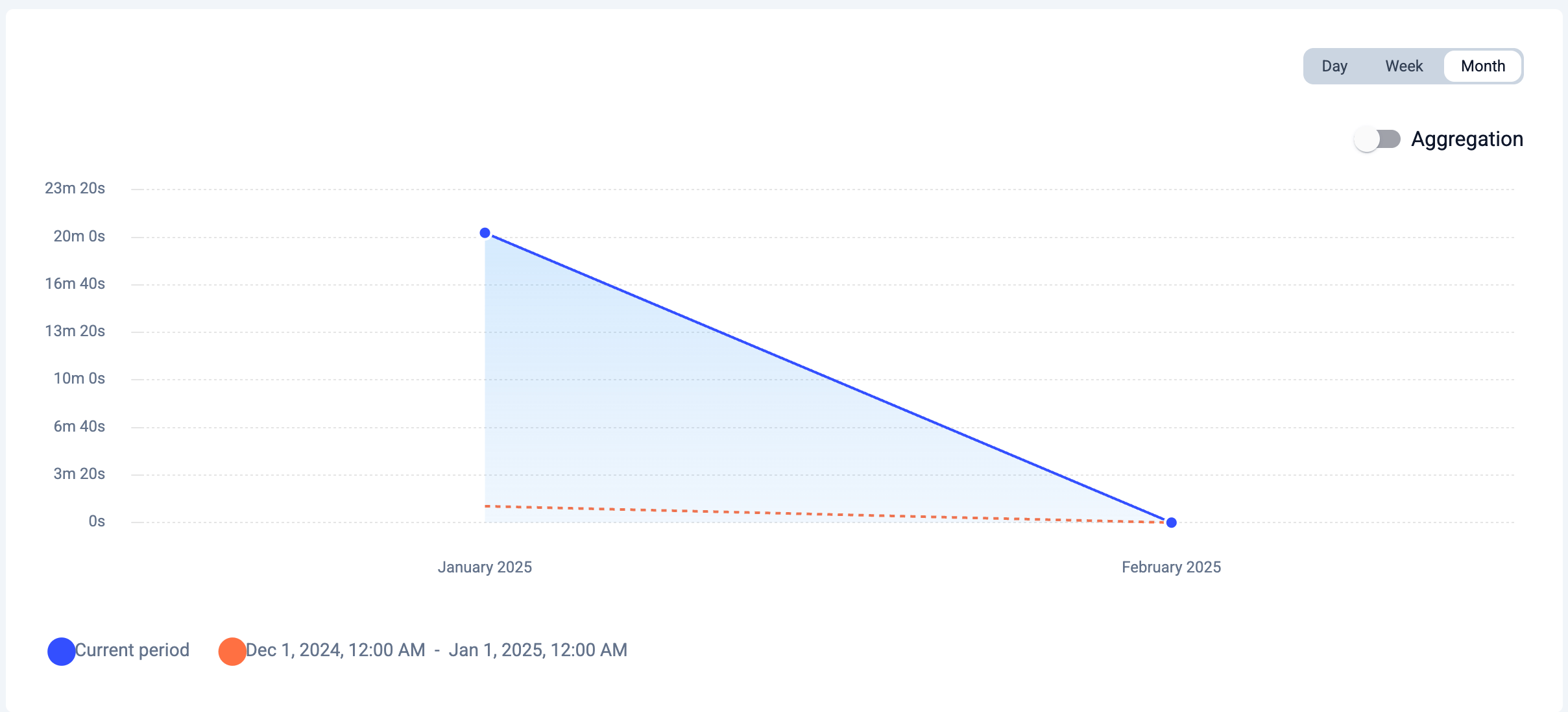
 5. After applying your search criteria, you'll see the data displayed in stat cards and a graph. You can learn more about them in our article [here](/en/articles/6655462-introduction-to-cloudtalk-analytics#h_9813f78f97). Clicking on a stat card will show a detailed breakdown of the information below.
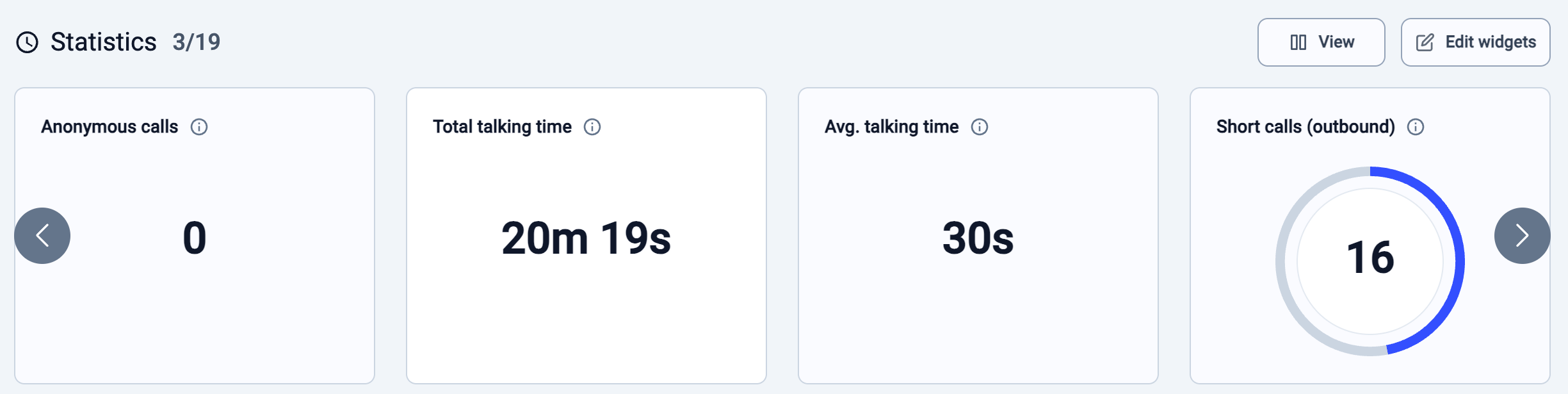
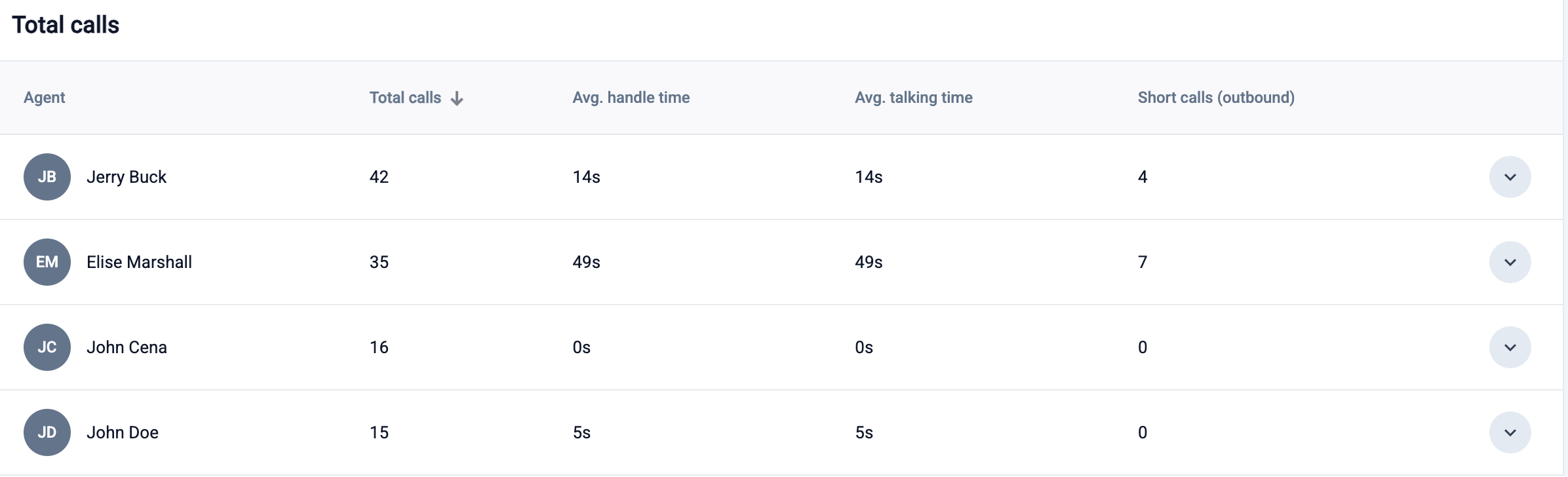
 5\. Scroll down to the bottom of the page to view the **Total calls** summary. You can compare the number of **Total calls** made, **Avg, handle time**, **Avg. talking time**, **Avg. Call Duration**, and outbound **Short calls**.
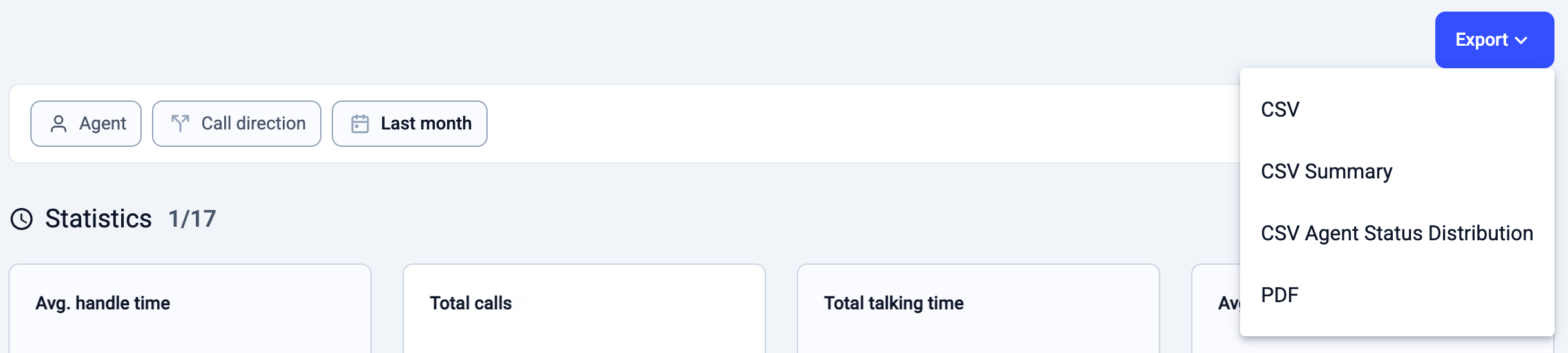
 6\. Logs can be saved as a file in CSV or PDF format by clicking the **Export** button.
Exporting Agent Report Data
CloudTalk provides three types of exports for agent reports:
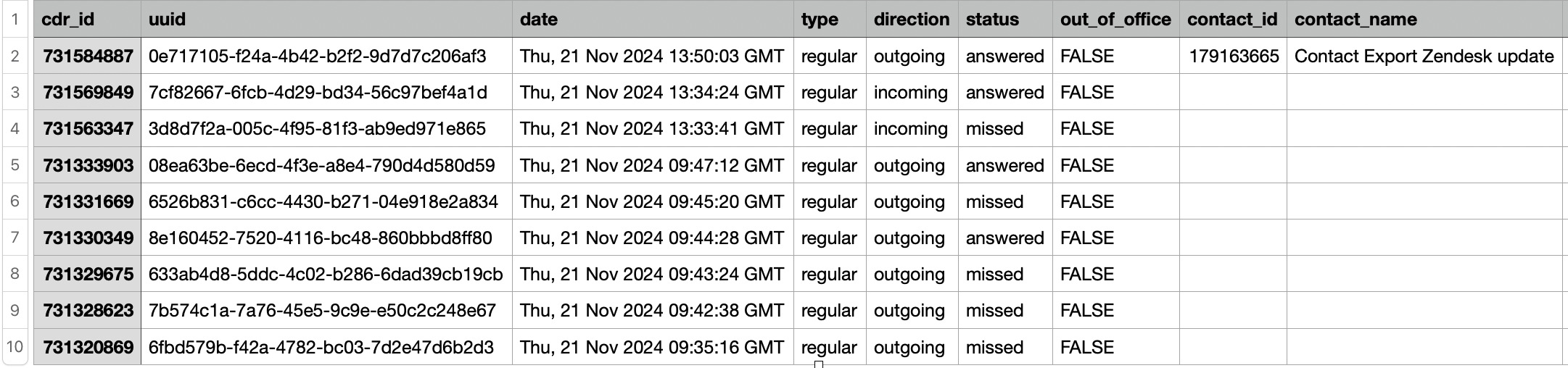
**1. Call Logs Export (CSV)**
* Exports a list of all calls made by agents.
* Includes detailed call records for tracking purposes.
 **2. Agent Activity Report Export (CSV Summary)**
* Exports a comprehensive report containing agent performance data.
* Provides insights into agent productivity beyond just call logs.
**2. Agent Activity Report Export (CSV Summary)**
* Exports a comprehensive report containing agent performance data.
* Provides insights into agent productivity beyond just call logs.
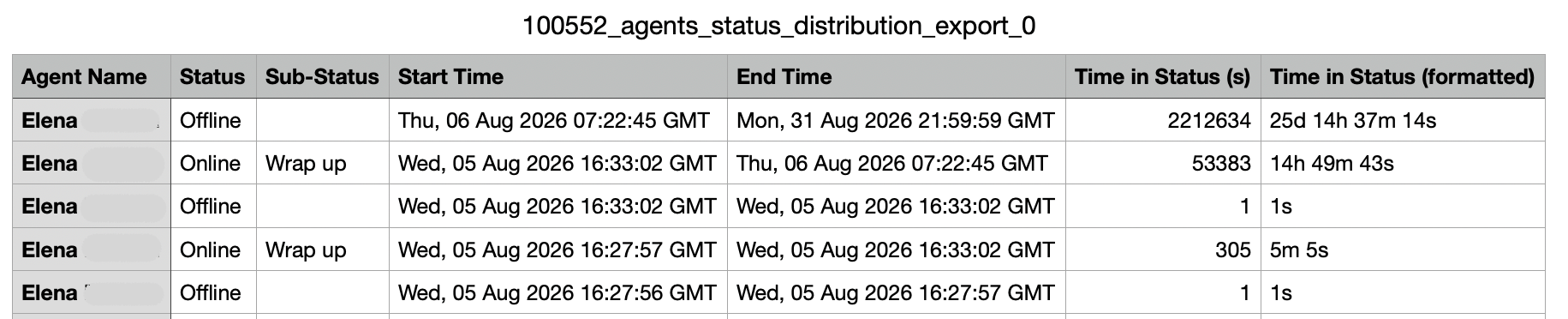
 **3. Agent Status Distribution Export (CSV)**
* Exports a time-based breakdown of each agent's statuses (including sub-statuses) within the selected timeframe.
* Each row represents a single status interval for one agent, showing exactly when they entered and left each status.
The CSV includes the following columns:
| **Column** | **Description** |
| - | - |
| Agent Name | The agent's display name |
| Status | Online, Idle, or Offline |
| Sub-Status | The sub-status label if one was set (e.g. Wrap up, On call, Lunch, or a custom label). Blank when no sub-status applies. |
| Start Time | When the agent entered this status, clipped to the start of your selected timeframe |
| End Time | When the agent left this status, clipped to the end of your selected timeframe |
| Time in Status (s) | Duration of the interval in seconds |
| Time in Status (formatted) | Duration in a human-readable format (e.g. 5m 5s, 2h 26m 30s, 25d 14h 37m 14s) |
Rows are sorted by agent, with the most recent intervals first. Agents with no data in the selected window are not included in the file.
**Data availability:** This export contains data from **6 July 2026** onwards only. If your selected timeframe starts before that date, the export option will be greyed out. Hover over it to see a tooltip confirming the data availability date.
**3. Agent Status Distribution Export (CSV)**
* Exports a time-based breakdown of each agent's statuses (including sub-statuses) within the selected timeframe.
* Each row represents a single status interval for one agent, showing exactly when they entered and left each status.
The CSV includes the following columns:
| **Column** | **Description** |
| - | - |
| Agent Name | The agent's display name |
| Status | Online, Idle, or Offline |
| Sub-Status | The sub-status label if one was set (e.g. Wrap up, On call, Lunch, or a custom label). Blank when no sub-status applies. |
| Start Time | When the agent entered this status, clipped to the start of your selected timeframe |
| End Time | When the agent left this status, clipped to the end of your selected timeframe |
| Time in Status (s) | Duration of the interval in seconds |
| Time in Status (formatted) | Duration in a human-readable format (e.g. 5m 5s, 2h 26m 30s, 25d 14h 37m 14s) |
Rows are sorted by agent, with the most recent intervals first. Agents with no data in the selected window are not included in the file.
**Data availability:** This export contains data from **6 July 2026** onwards only. If your selected timeframe starts before that date, the export option will be greyed out. Hover over it to see a tooltip confirming the data availability date.
Understanding the Agent Activity Report (CSV Summary)
The columns in the CSV Summary fall into three groups.
* **Status time (shown in seconds):** how long the agent spent in each status during the selected period. This group includes **Login Time, Idle Time, Ringing Time, Talking Time, and Wrap-up Time**.
* **Login Time:** total time the agent was logged in and available. This includes time on calls (Ringing, Talking, and Wrap-up) and time the agent was Online but not on a call. The Online-but-not-on-a-call time is not shown as its own column in the report, so the individual call-time columns will not add up to Login Time on their own. Idle Time is separate and is not included in Login Time.
* **Ringing Time:** time calls were alerting the agent before being answered.
* **Talking Time:** time spent on active calls, including time on hold.
* **Wrap-up Time:** time spent on after-call work once a call ended.
* **Idle Time:** time the agent was logged in but not available, tracked separately from Login Time.
- **Idle sub-statuses (shown in seconds):** a breakdown of Idle Time into the individual statuses an agent selected, such as **Busy, Break, Meeting, Training, and Custom idle statuses**. Note that **Busy is an idle sub-status, not a call outcome**. It reflects time the agent set themselves to Busy, not calls that failed to connect.
* **Call counts:** the number of calls in each category for the period, including **Outbound, Inbound, Answered, and Missed**.
Idle Breakdown in Agent Report
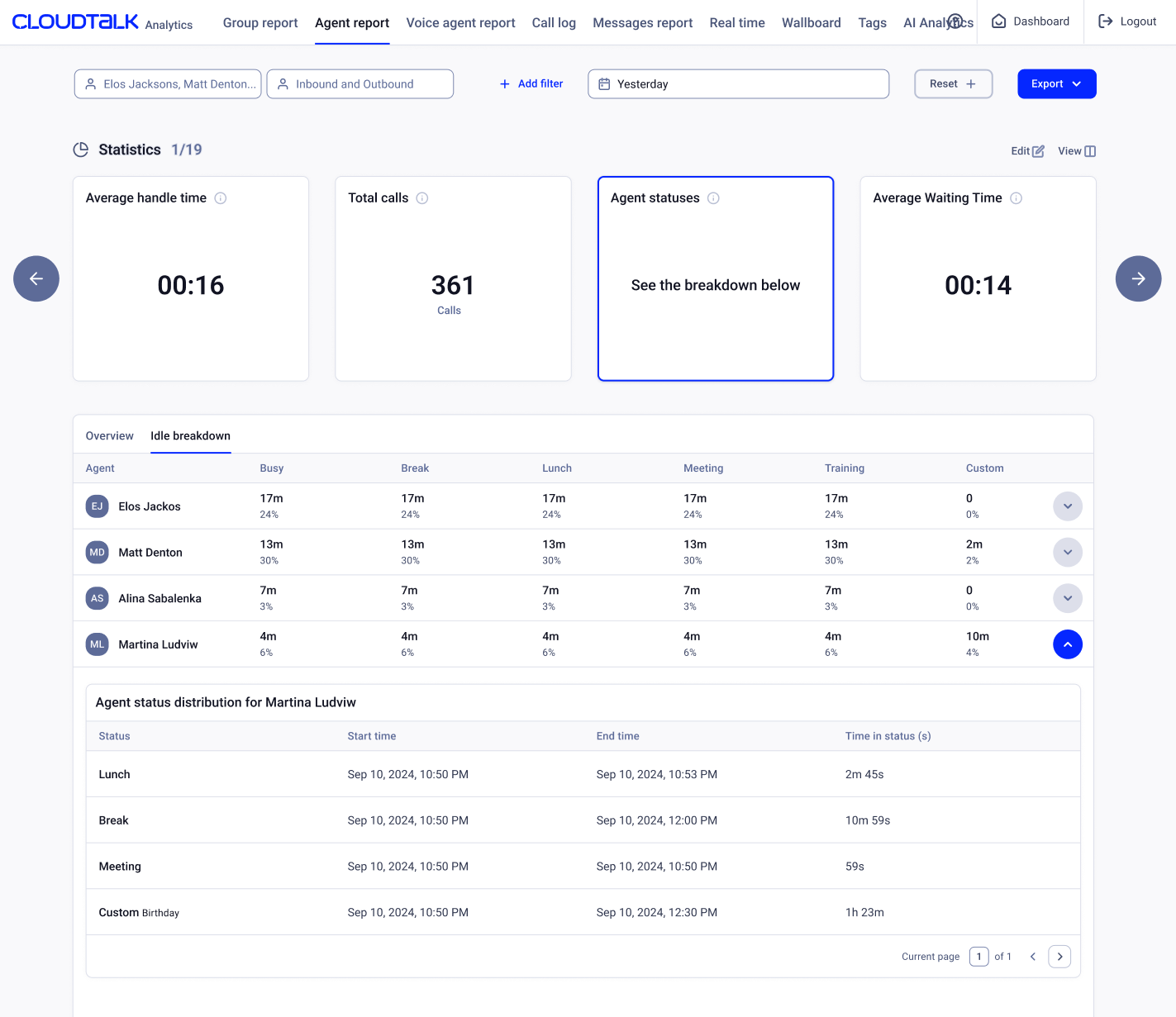
At the bottom of the Agent report, the **Agent statuses** widget includes an **Idle breakdown** tab.
This view provides deeper insight into how agents spend their **[Idle time](/en/articles/7826891-user-status-in-cloudtalk-phone#:~:text=until%20you%20reconnect.-,Custom%20Idle%20Status,-Idle%20status%20lets)** by separating it into individual Idle sub-statuses, such as **Break, Lunch, Meeting, Training, and**
**Custom statuses**. For each sub-status, the report shows both **time and percentage** of the agent's total Idle time for the selected period.
By switching from **Overview** to **Idle breakdown**, you can see how each agent's Idle time is distributed across these sub-statuses. This helps identify patterns in availability, breaks, and non-calling activities, and gives managers better context when evaluating agent productivity and workload.
You can also expand an agent's row to review detailed **Idle status changes over time**, including when the agent entered Idle, switched between Idle sub-statuses, and returned to an active status.
 ***
*Need help or have a question?* Just reach out through our [Support portal](https://support.cloudtalk.io/hc/en-us/requests/new?ticket_form_id=26305535257884) — we're here for you.
## Related topics
- [Introduction to CloudTalk Analytics](/en/articles/6655462-introduction-to-cloudtalk-analytics.md)
- [Analytics Reports](/en/articles/6241287-analytics-reports.md)
- [Group Report](/en/articles/10701550-group-report.md)
This documentation is built and hosted on [Mintlify](https://mintlify.com), a developer documentation platform.
***
*Need help or have a question?* Just reach out through our [Support portal](https://support.cloudtalk.io/hc/en-us/requests/new?ticket_form_id=26305535257884) — we're here for you.
## Related topics
- [Introduction to CloudTalk Analytics](/en/articles/6655462-introduction-to-cloudtalk-analytics.md)
- [Analytics Reports](/en/articles/6241287-analytics-reports.md)
- [Group Report](/en/articles/10701550-group-report.md)
This documentation is built and hosted on [Mintlify](https://mintlify.com), a developer documentation platform.