> ## Documentation Index
> Fetch the complete documentation index at: https://help.cloudtalk.io/llms.txt
> Use this file to discover all available pages before exploring further.
# Track Team Participation in Real Time
> Use CloudTalk's dashboard statistics pages to track team involvement
Track team participation with ease using [dashboard statistics](/en/articles/5652222-dashboard-statistics).
User Level:
* Admin
***
*This article describes functionality available in the **CloudTalk Legacy Dashboard**. Some features and options outlined here may not align with the functionality of the newer version of the dashboard. For detailed insights into the statistics and features available in the updated dashboard, please refer to the **[Analytics Documentation](/en/articles/6655462-introduction-to-cloudtalk-analytics)**[.](/en/articles/6655462-introduction-to-cloudtalk-analytics)*
Monitor Operator Statistics
**Wallboards are an available feature for [Expert and Custom plans](https://www.cloudtalk.io/pricing)**, while the Realtime dashboard is available for [Essential, Expert, and Custom](https://www.cloudtalk.io/pricing) users.
**Statistics** are the default display of your [CloudTalk dashboard](https://my.cloudtalk.io/login). We can monitor the participation of current operators in real-time using **Wallboards** or the **Realtime dashboard.**
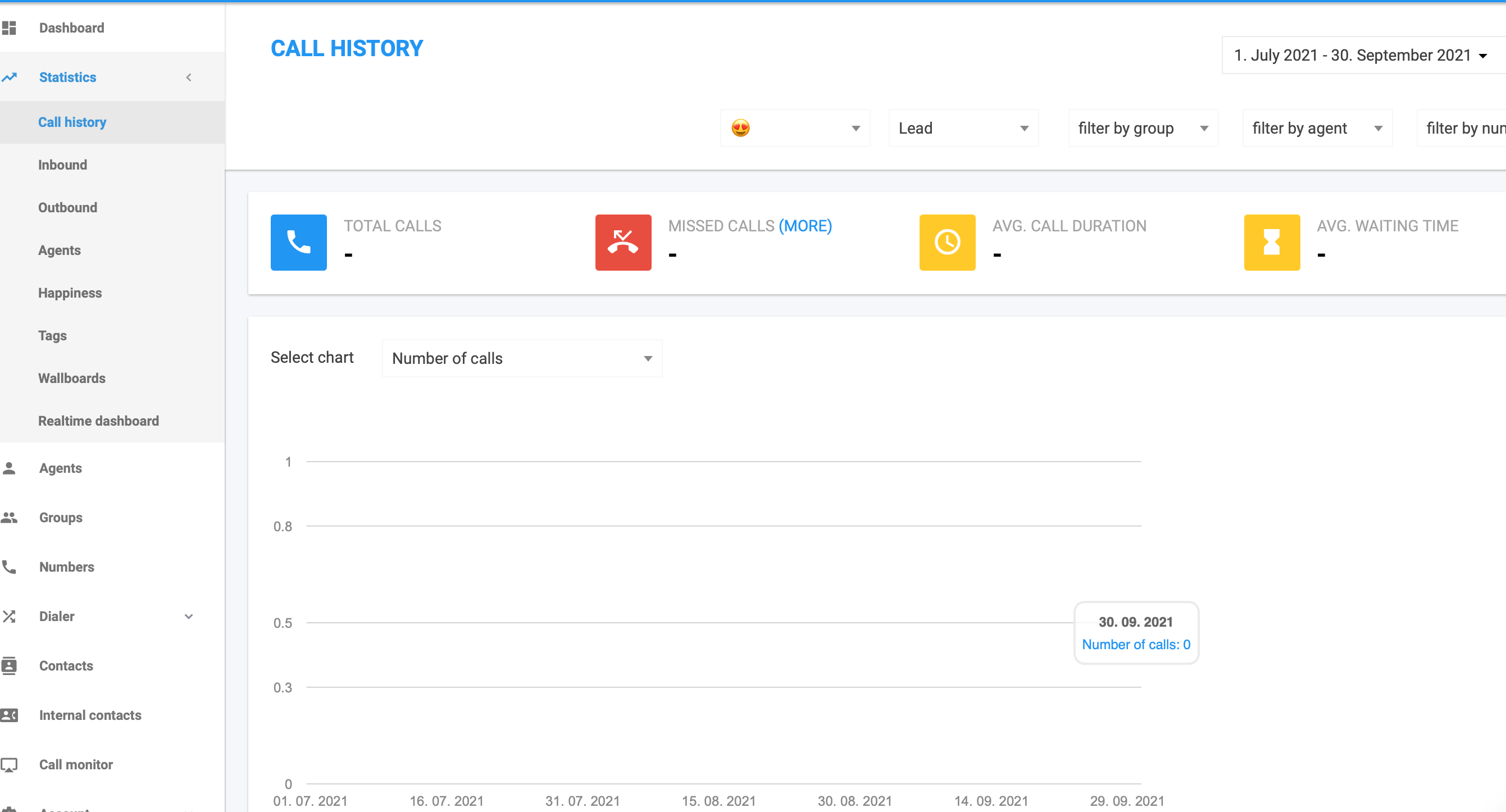
Number of Calls Taken
Monitor the number of calls an operator has taken for the given period and check the current call of a designated operator.
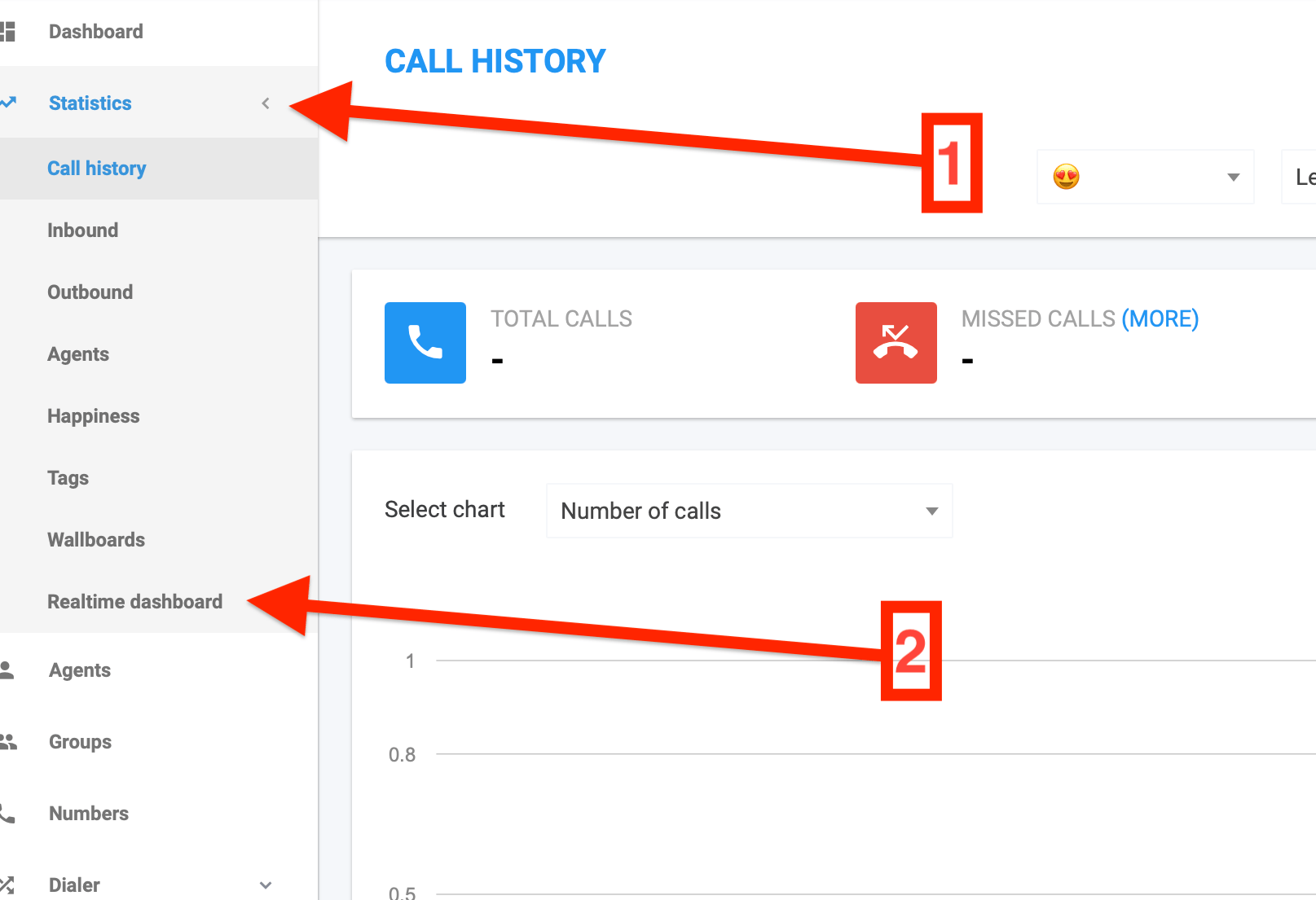
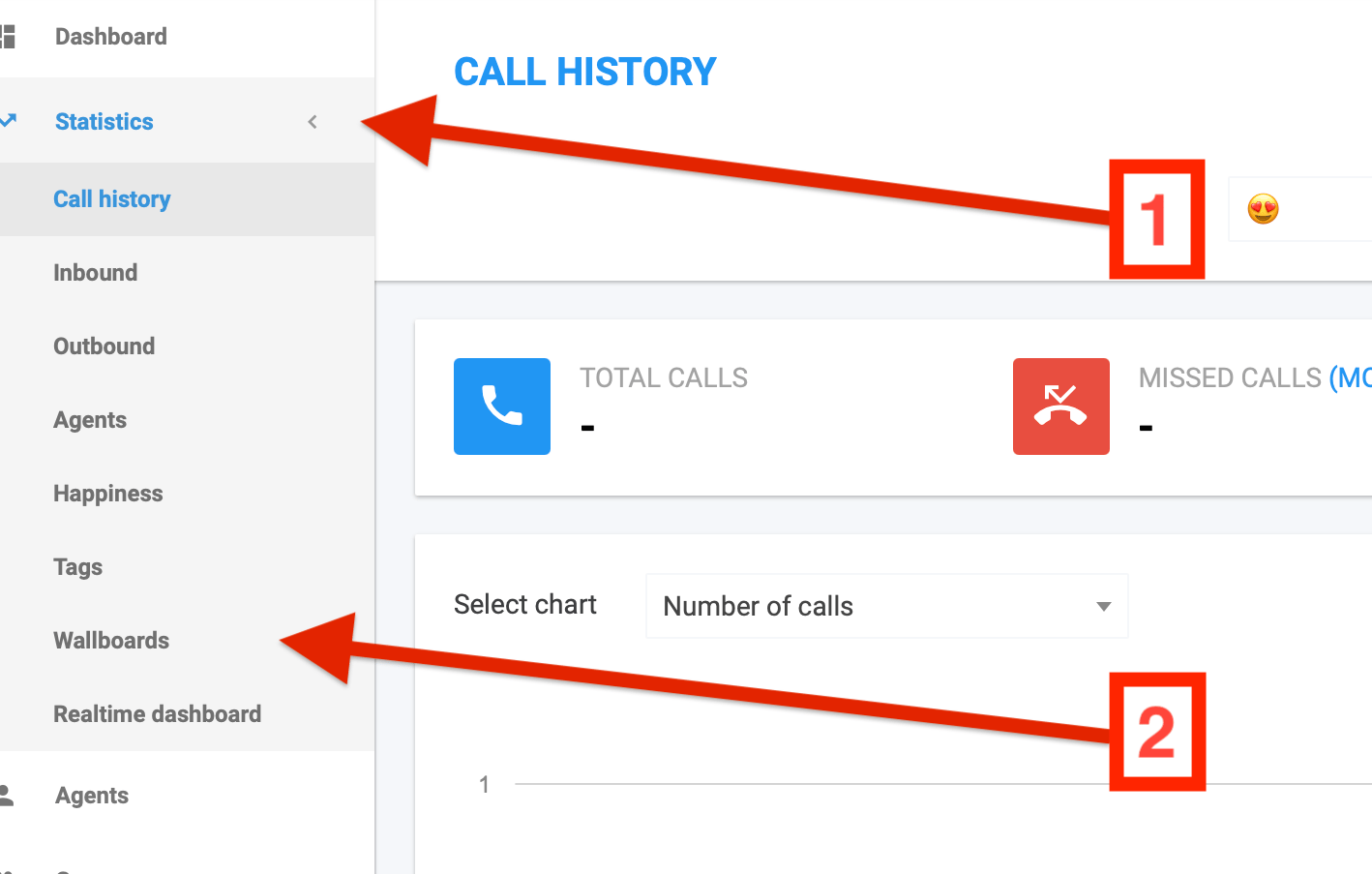 1. Click the dropdown arrow next to **Statistics**. Select **Wallboards**.
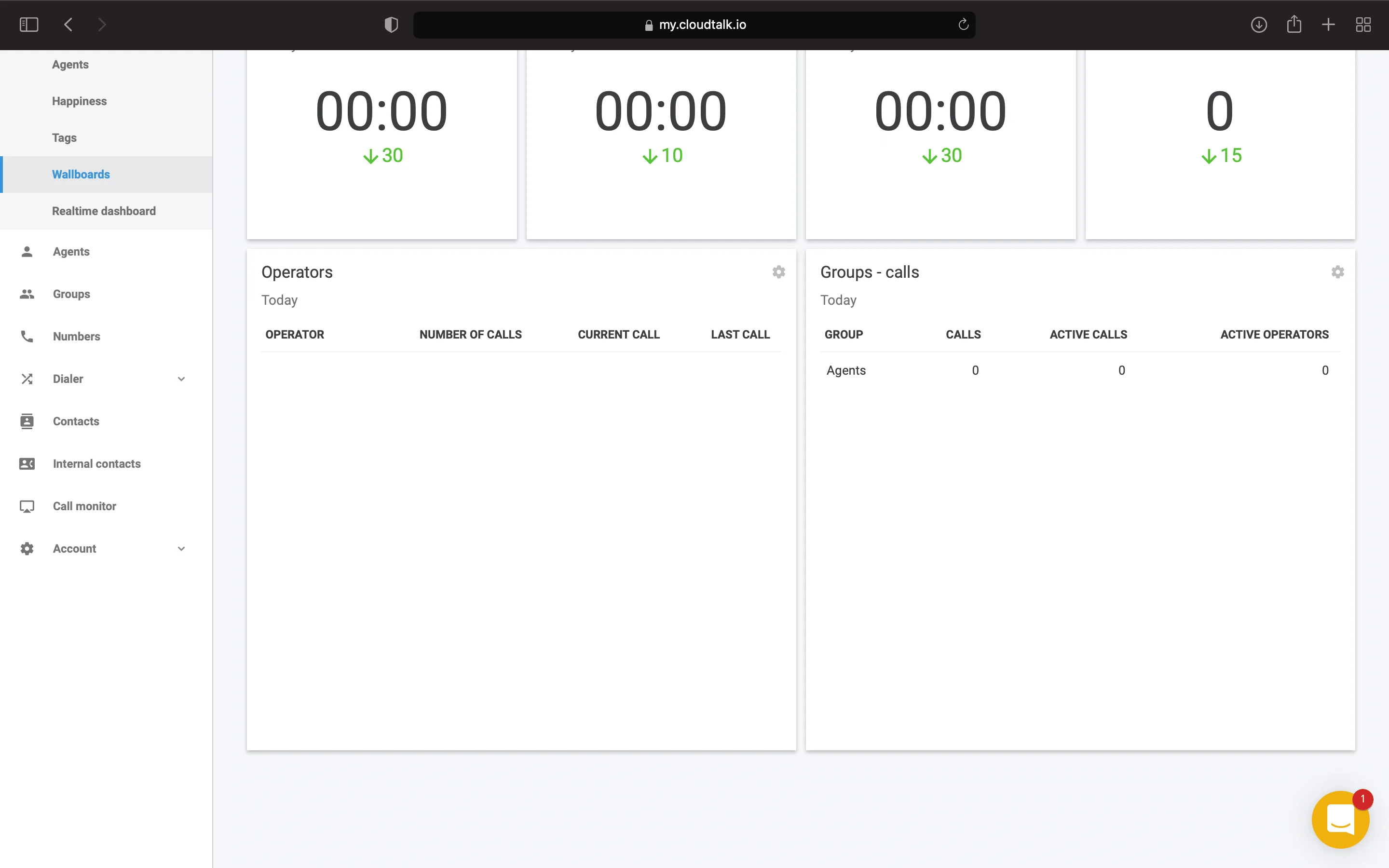
2. **Wallboards** allow you to view all current **Operators** and group calls. In either of these two boxes of information, you can click the **cog icon** to open **Settings**.
1. Click the dropdown arrow next to **Statistics**. Select **Wallboards**.
2. **Wallboards** allow you to view all current **Operators** and group calls. In either of these two boxes of information, you can click the **cog icon** to open **Settings**.
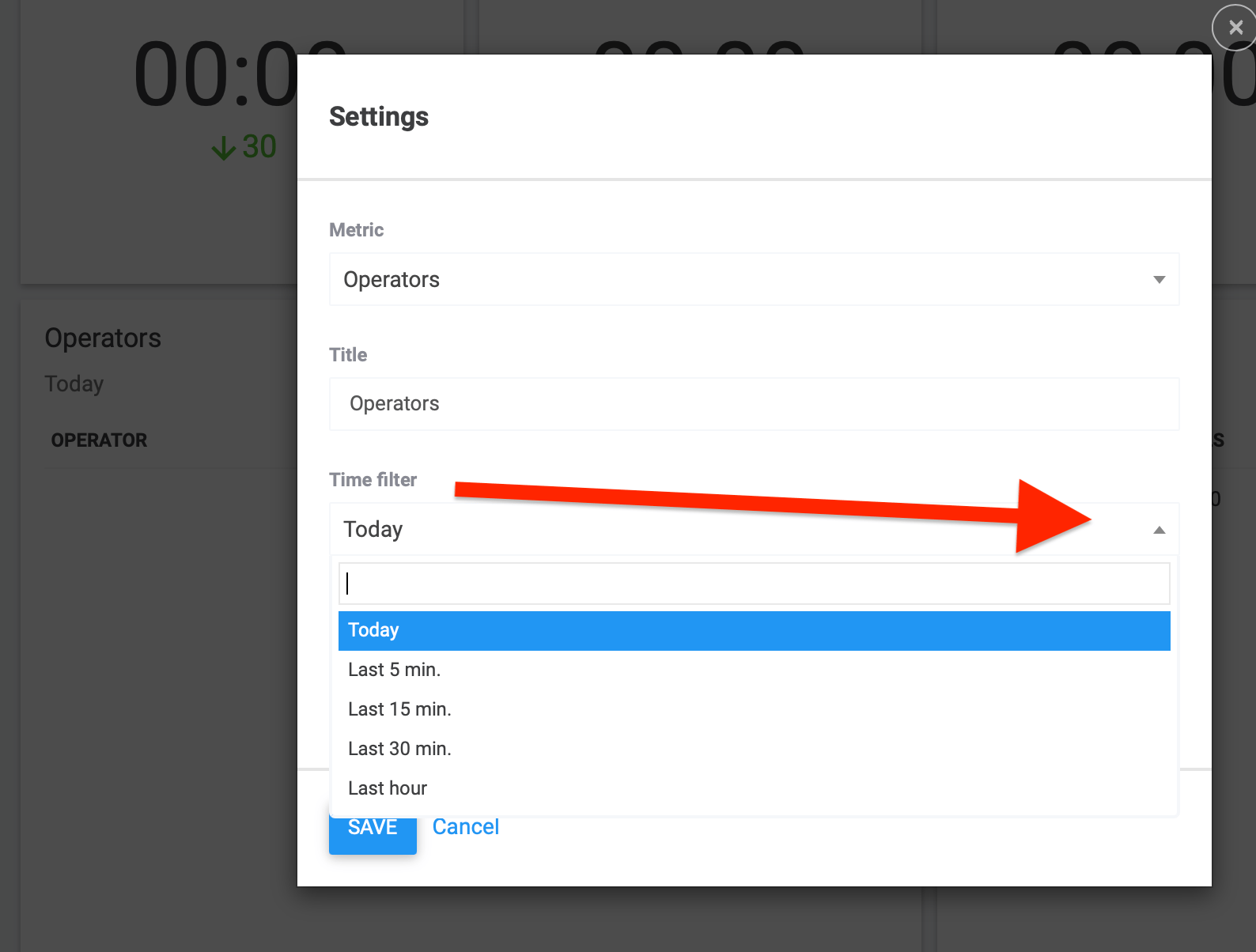
 Choose the **Time filter** for the time period you want to focus on, from the last hour up until the last five minutes.
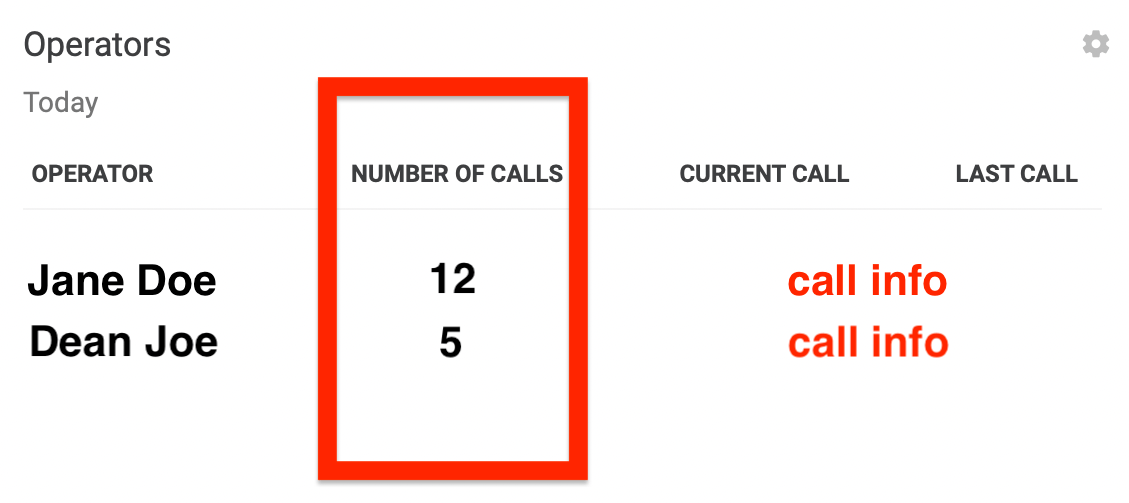
 3. In the **Operators** box, you can check the **Number of Calls** column to compare the number of calls taken by operators listed.
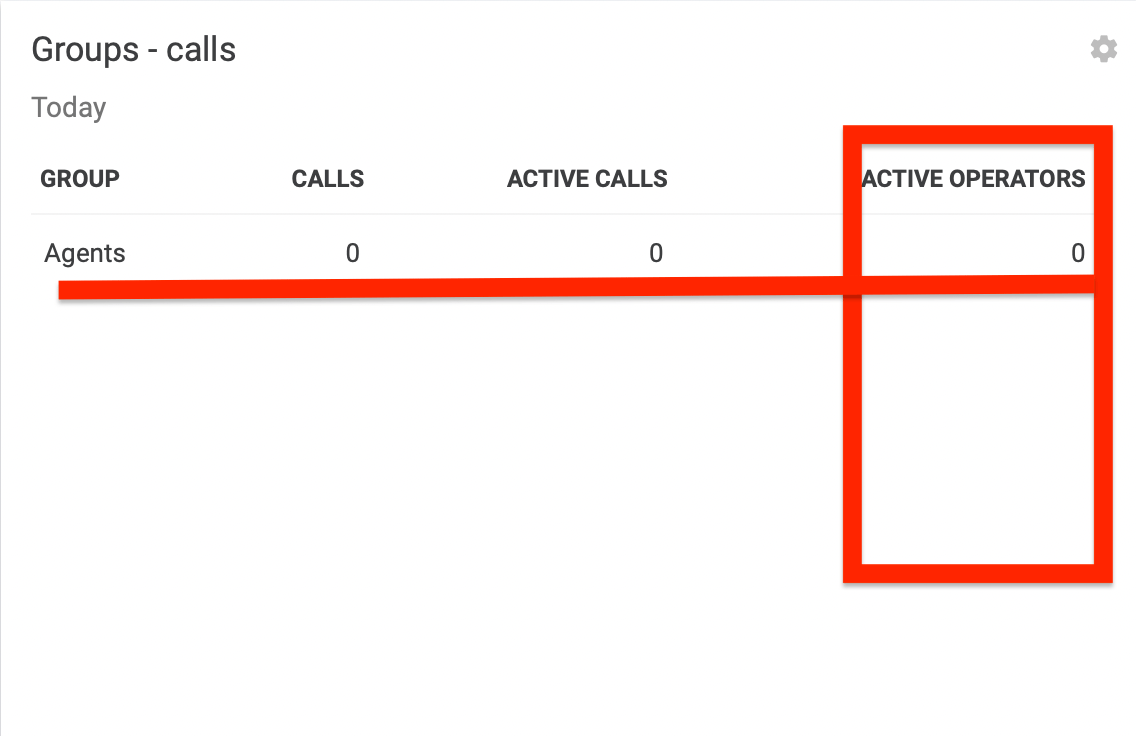
 4. You can confirm the number of **Active Operators** in each group in the **Groups - calls** box.
Group Success Summary and Operator Status
Analyze the call success rates of different groups in real time and view the list of operator statuses on the **Realtime dashboard**.
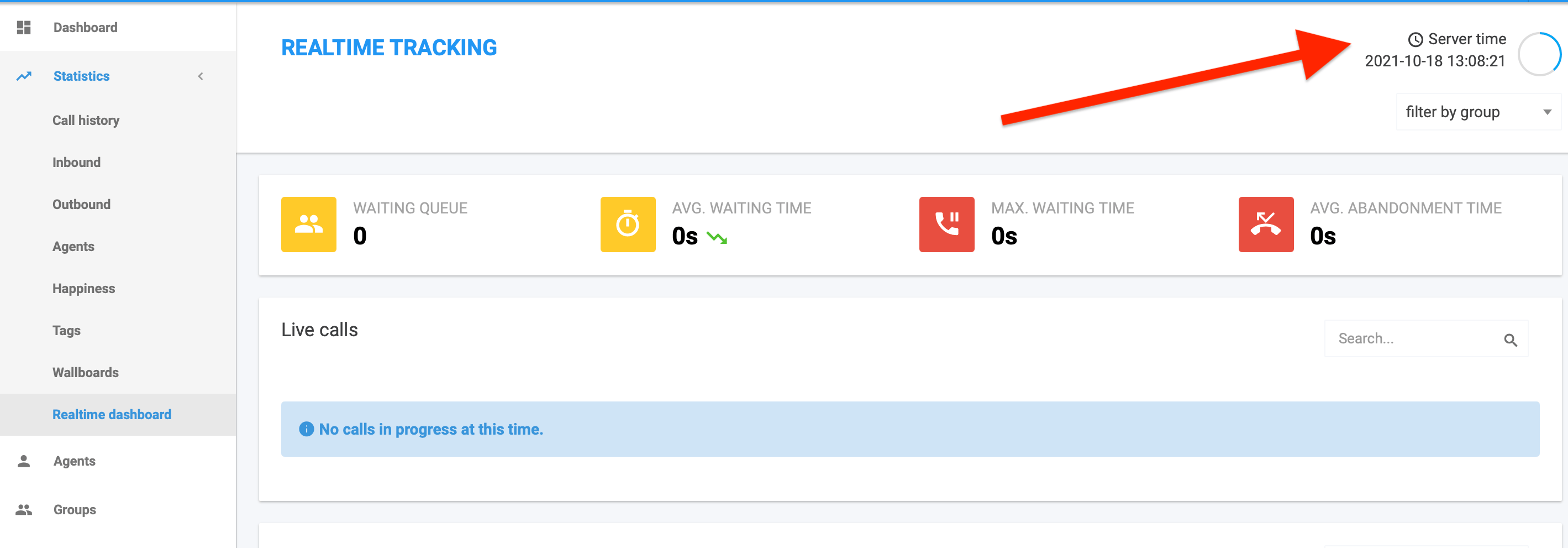
 The current **Server time** is shown in the upper right corner. Stats update automatically based on a time interval which can be adjusted under *Realtime dashboard* settings in **Settings > General**.
The blue ring represents this time as it elapses.
The current **Server time** is shown in the upper right corner. Stats update automatically based on a time interval which can be adjusted under *Realtime dashboard* settings in **Settings > General**.
The blue ring represents this time as it elapses.
 1. Scroll down to view the **Group summary**. Here you can check the number of **Operators** per group and observe the **Abandon. Rate** and **Avg. Waiting Time** which callers being queued to this group are experiencing.
 *This information provides helpful feedback for needed adjustments to incoming call routes.*
2. Scroll down to **Operator status** to view the **Status** of an individual operator and the number of **Calls** that operator has made or received.
*This information provides helpful feedback for needed adjustments to incoming call routes.*
2. Scroll down to **Operator status** to view the **Status** of an individual operator and the number of **Calls** that operator has made or received.
 ***
*Need help or have a question?* Just reach out through our [Support portal](https://support.cloudtalk.io/hc/en-us/requests/new?ticket_form_id=26305535257884) — we’re here for you.
## Related topics
- [Real Time Report](/en/articles/9324083-real-time-report.md)
- [Introducing the New and Improved Dashboard](/en/articles/10516696-introducing-the-new-and-improved-dashboard.md)
- [Wallboards](/en/articles/11514994-wallboards.md)
This documentation is built and hosted on [Mintlify](https://mintlify.com), a developer documentation platform.
***
*Need help or have a question?* Just reach out through our [Support portal](https://support.cloudtalk.io/hc/en-us/requests/new?ticket_form_id=26305535257884) — we’re here for you.
## Related topics
- [Real Time Report](/en/articles/9324083-real-time-report.md)
- [Introducing the New and Improved Dashboard](/en/articles/10516696-introducing-the-new-and-improved-dashboard.md)
- [Wallboards](/en/articles/11514994-wallboards.md)
This documentation is built and hosted on [Mintlify](https://mintlify.com), a developer documentation platform.