> ## Documentation Index
> Fetch the complete documentation index at: https://help.cloudtalk.io/llms.txt
> Use this file to discover all available pages before exploring further.
# Dashboard Statistics
> Maximize productivity with the help of monitors and filtering tools our dashboard statistics provide
Here's an overview of the functionality and uses of our dashboard statistics.
User Level:
* Admin
***
*This article describes functionality available in the **CloudTalk Legacy Dashboard**. Some features and options outlined here may not align with the functionality of the newer version of the dashboard. For detailed insights into the statistics and features available in the updated dashboard, please refer to the **[Analytics Documentation](/en/articles/6655462-introduction-to-cloudtalk-analytics)**[.](/en/articles/6655462-introduction-to-cloudtalk-analytics)*
Video Overview
If you're new to using statistics, you may find the following video guide helpful. You can also check out our [dedicated YouTube channel](https://www.youtube.com/@cloudtalk7726) for guides on all the other features of CloudTalk!
Where are my statistics?
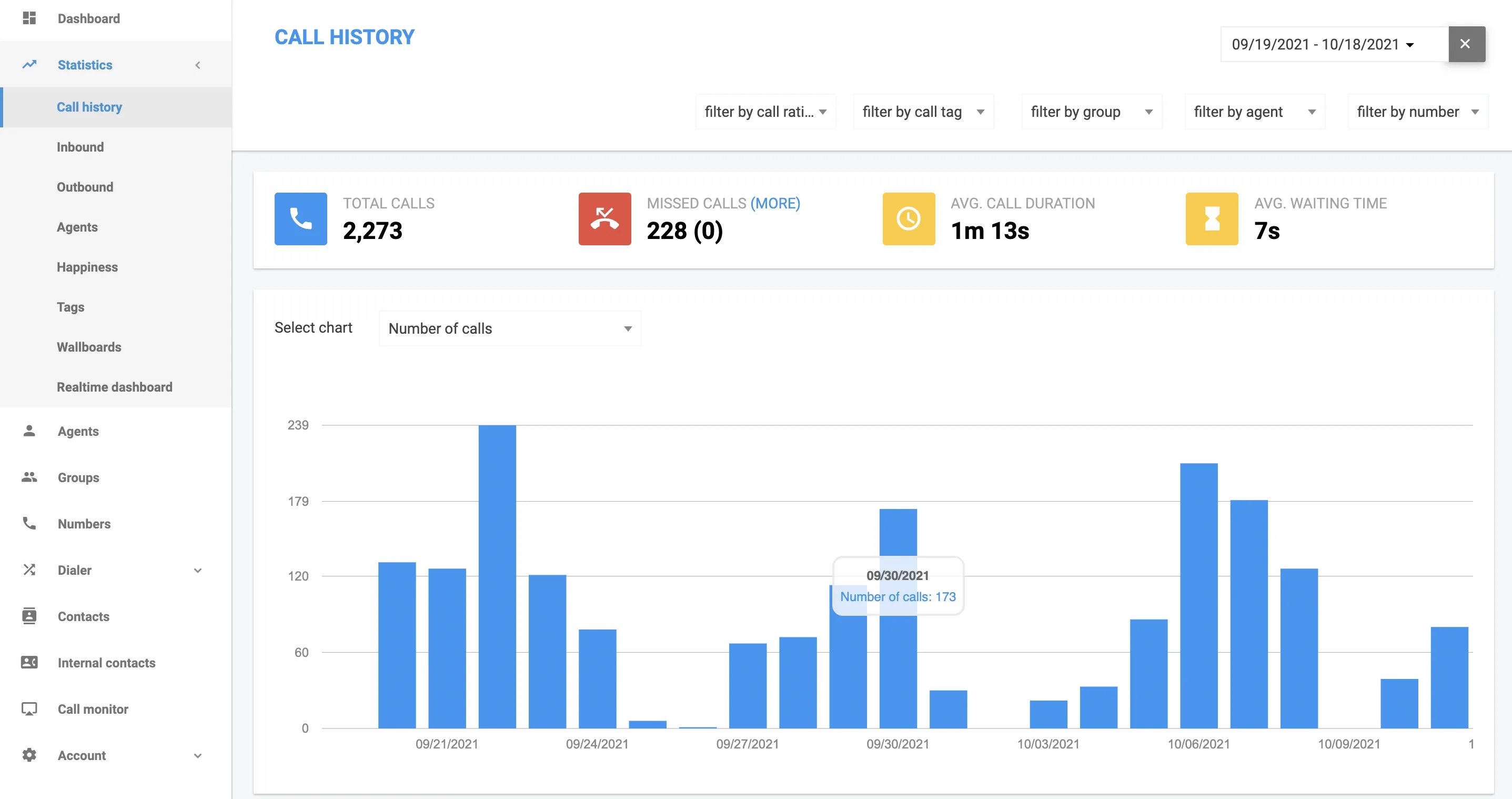
Your **Statistics** display is the first thing you see after logging into your [CloudTalk Dashboard](https://my.cloudtalk.io/login). On the sidebar to the left, you will see a tab under **Dashboard** labeled **Statistics**. Clicking here opens up a dropdown menu of more options. There are eight tabs to choose from, which we will explore more in depth:
* **Call History**
* **Inbound**
* **Outbound**
* **Agents**
* **Happiness**
* **Tags**
* **Wallboards ()**
* **RealTime Dashboard ()**
Statistics Filters and Functions
Call History
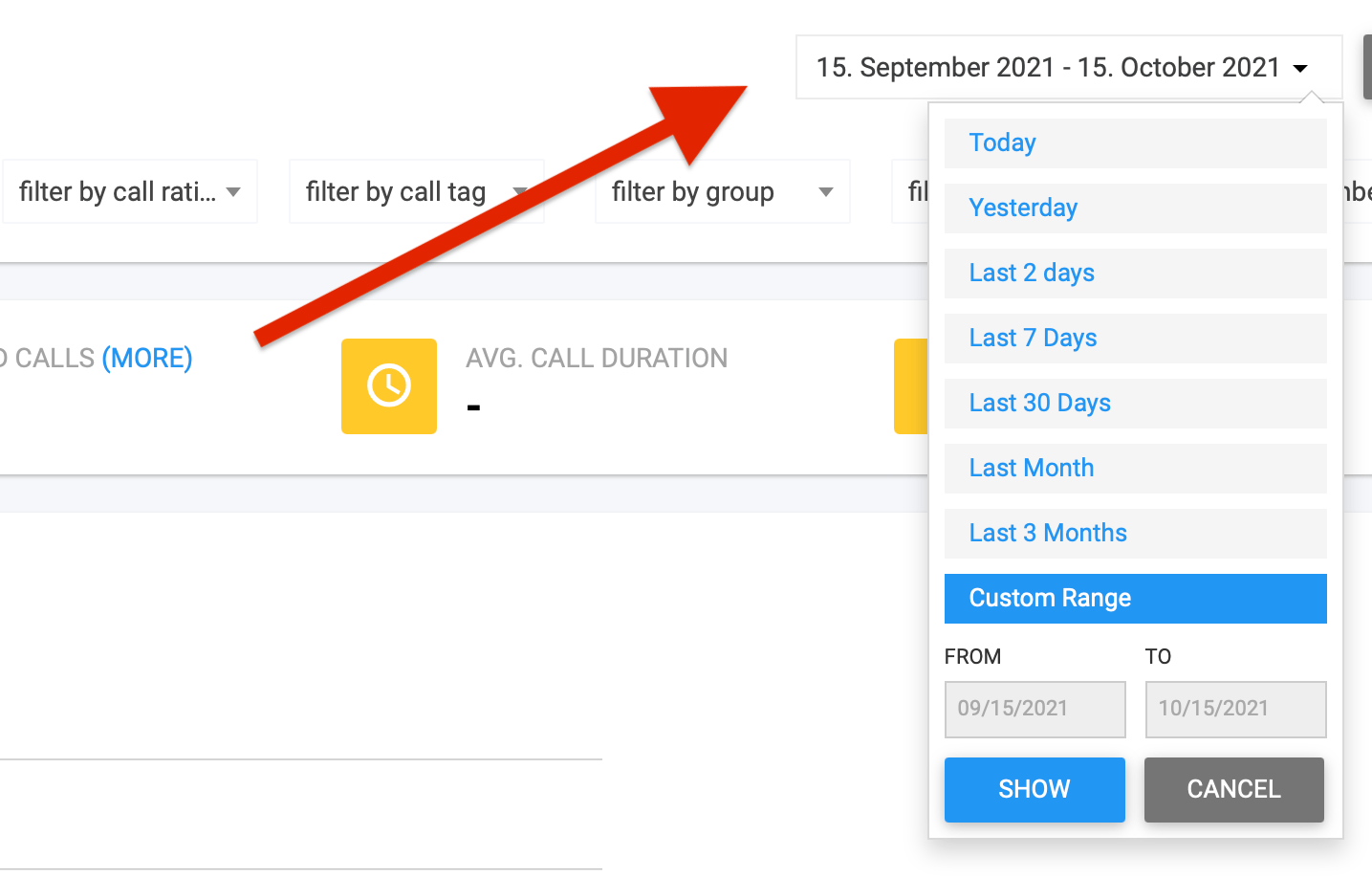
In its unfiltered state, the graph displayed on this page will show the entire call history from within the period of time specified in the upper right hand corner. This time window can be changed to one of the preset options or a custom range by clicking the little dropdown arrow next to the dates shown.
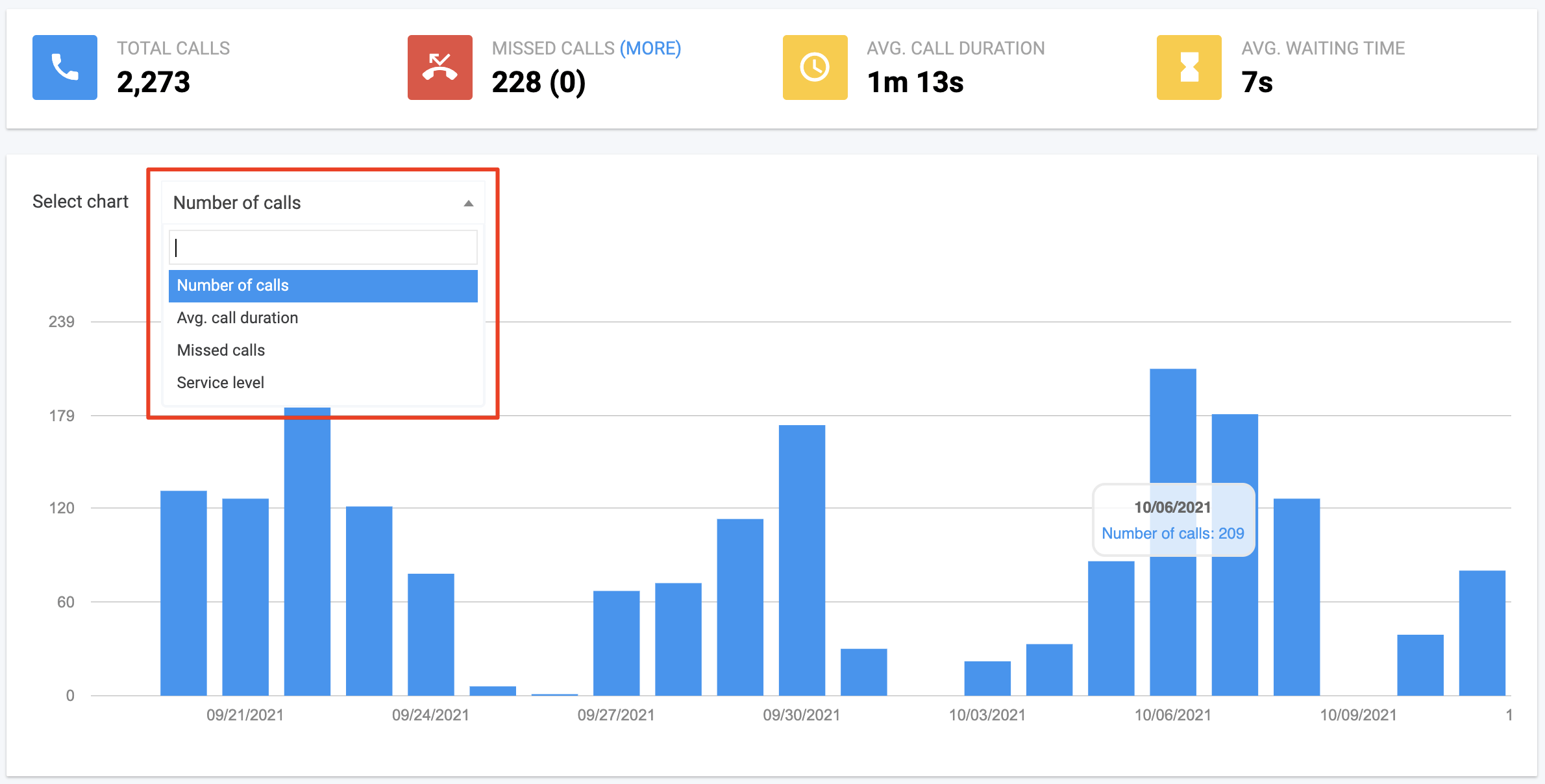
The wide bar above our graph calculates the call data shown in terms of **Total Calls, Missed Calls, Avg. Call Duration**, and **Avg. Waiting Time**.
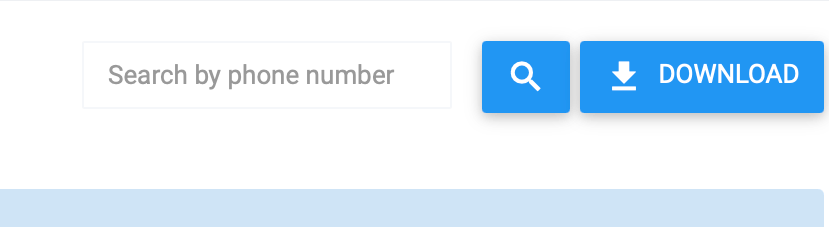
Scrolling to the bottom of the page under the statistics graph, we can download call history logs for record keeping, or search them by phone number. If it is only necessary to check a past record without the need to export it, remember that the custom range functionality at the top of the page can be used to set a particular date range from the past.
**Missed Calls**
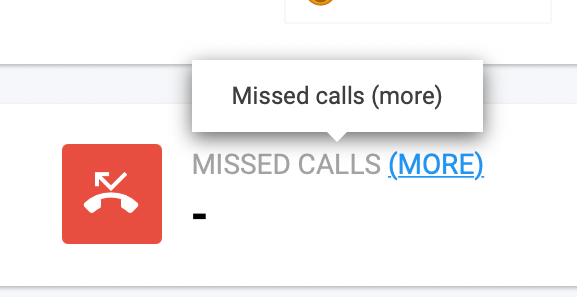
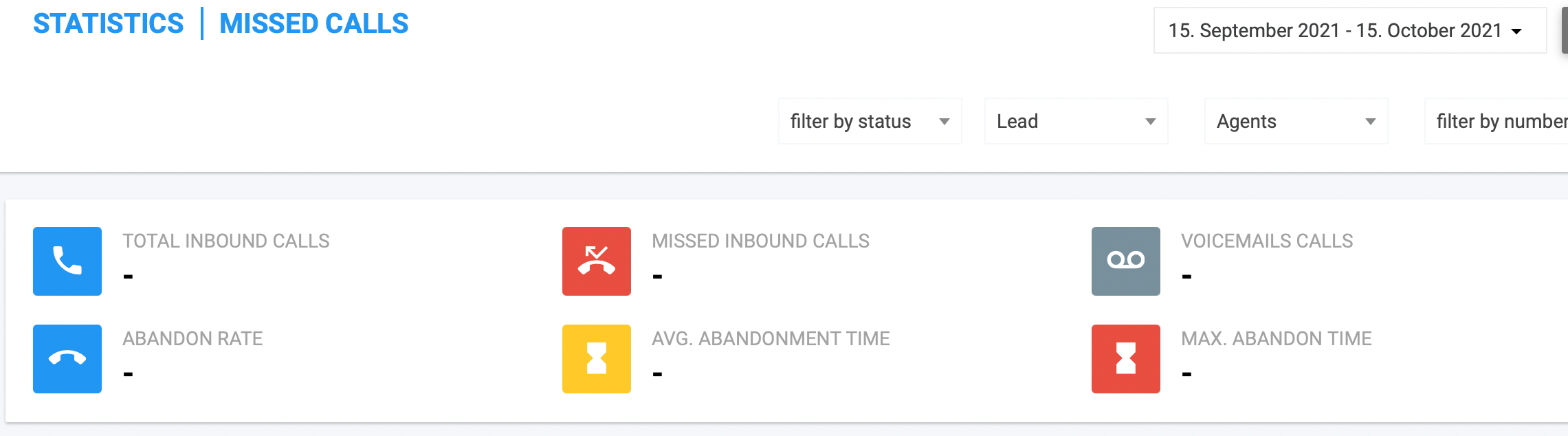
To get more detailed [information about Missed Calls](/en/articles/6737082-missed-calls-in-analytics), click the blue text which reads (MORE) next to the Missed Calls header. This page will provide a new bar of calculated statistics, including **Total Inbound Calls, Abandon Rate, Missed Inbound Calls, Avg. Abandonment Time, Voicemails Calls**, and **Max. Abandon Time**. This is a great place to look to assess the stats for calls which have dropped or been "abandoned" before reaching an agent.
To redirect back to the main data, simply click back into Call History on the left main sidebar of the page.
Specifying Data with Filters
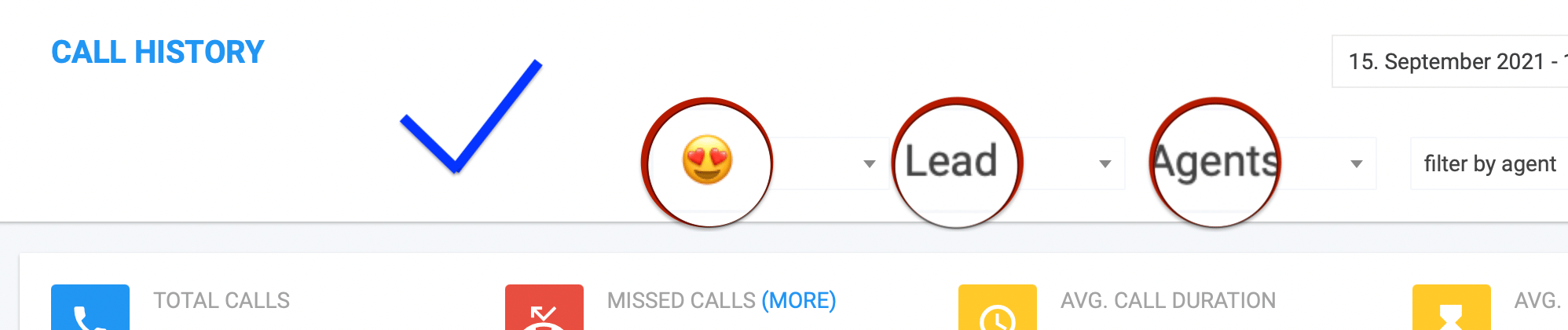
Under the date range and above the calculated stat bar, there are five additional filters we can utilize to specify what information we want displayed on our graph. Filters can be used in any combination and should not cancel each other out. For example, it is possible to set the filters so that the graph maps only data from extremely satisfied callers tagged with "Lead" who went through the Agents group.
| filter by call rating |
| - |
Filter based on the customer happiness emoji tag. If your team is consistent about using the rating tag functionality, this filter can be a great way to compare call stats with different levels of support satisfaction from customers.
| filter by call tag |
| - |
Filter by call followup tags. This allows you to filter out irrelevant data when you only want to view the statistics of certain call types. For example, if you have a tag for *Interested*, you can filter data to only view stats from *Interested* clients.
```
Note: Options here will depend on what tags you have included in the
Tags/Call Dispositions section of your CloudTalk account. You can add,
edit, and delete tag possibilities by going to Account>Settings and
clicking into the Tags/Call Dispositions section.
```
| filter by group |
| - |
Filter based on groups. This feature works best when making use of the **Groups** feature found in the left main sidebar of your CloudTalk account, where larger networks can benefit from setting Groups for different branches of call management.
| filter by call agent |
| - |
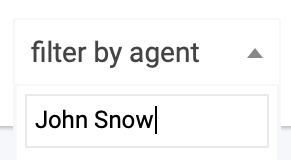
Filter by agent name via the dropdown list or search function. This filter provides the benefit of tracking the productivity of a particular agent within a chosen scope of time.
| filter by call number (CloudTalk number only) |
| - |
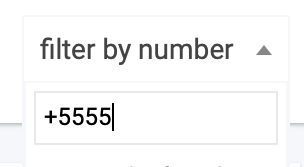
Filter by CloudTalk number via the dropdown list or search function. This filter may be especially useful when narrowing the view to inbound or outbound calls in the lefthand sidebar in order to track activity from a particular client.
**Graph Filters**
In addition to the filters provided at the top of the page, the **Select chart** dropdown box above our graph allows us to change how the data is visually mapped. The default option is by Number of calls, and additional options are:
* Avg. Call Duration - *mapped in seconds*
* Missed Calls - *number of missed calls*
* Service Level - *tracks amount of time caller waited in queue*
```
Note: For more detailed calculations on missed calls, you can select
the (MORE) blue text beside the Missed Calls header in the calculated
stats box
```
Inbound
While clicking this tab narrows the data to inbound calls only, all of the previously covered functionality mostly remains unchanged.
One area of difference comes with the stats calculations, which are now split into two bars with the chart in between, and also provide some additional cumulative data: **Calls Duration** (total), **Max. Call Duration, Missed Inbound Calls, Abandon Rate, Max. Waiting Time, Voicemails Calls,** and **Avg. Abandonment Time**.
Chart display now has new and slightly altered options, including:
* Number of Calls
* Avg. Call Duration
* Avg. Waiting Time
* Missed Calls
* Number of Calls - Hourly
* Avg. Call Duration - Hourly
* Avg. Waiting Time - Hourly
* Missed Calls - Hourly
Outbound
This tab narrows data to outbound calls only. Therefore, the option to click onto a page for Missed Call data is removed. The **Outbound** tab can prove useful in scanning the rate and performance of teams tasked with outbound calling, such as for lead tracking. Calculated stats include **Total Calls, Calls Duration, Avg. Call Duration** and **Max. Call Duration**. Display options for **Select chart** include:
* Number of Calls
* Avg. Call Duration
* Number of Calls - Hourly
* Avg. Call Duration - Hourly
Agents
The **Agents** tab within the **Statistics** dropdown is great for tracking and comparing the productivity of all agents side by side. Calculated stats on this page include **Total Calls, Avg. Call Duration, Inbound Calls,** and **Outbound Calls**. Chart selection has two options for mapping:
* Activity - *SIP Login time, Calling time, and Idle time*
* Calls - *Successful inbound and Successful outbound*
At the bottom of the page, there is also a bar labeled **Statistics for Agents** which tracks some of the calculated stats in stacked rows. Clicking **Download** emails an xlsx (Excel) file of this data to the email of the agent who downloaded the report.
Happiness
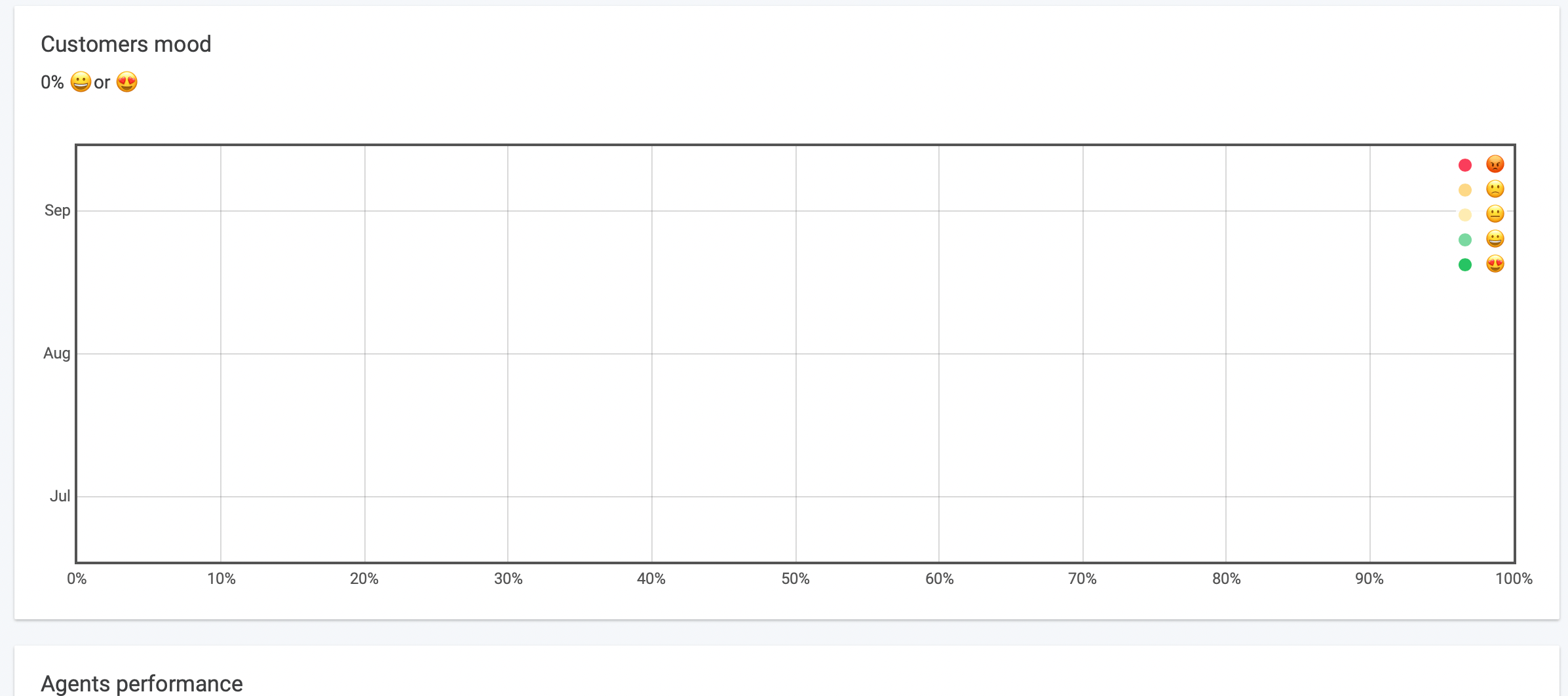
This tab provides a more isolated mapping of customer happiness ratings using the emoji system, with an additional bar underneath tracking **Agents Performance**. The usefulness of this graph option requires consistent implementation of the happiness rating system by agents.
Tags
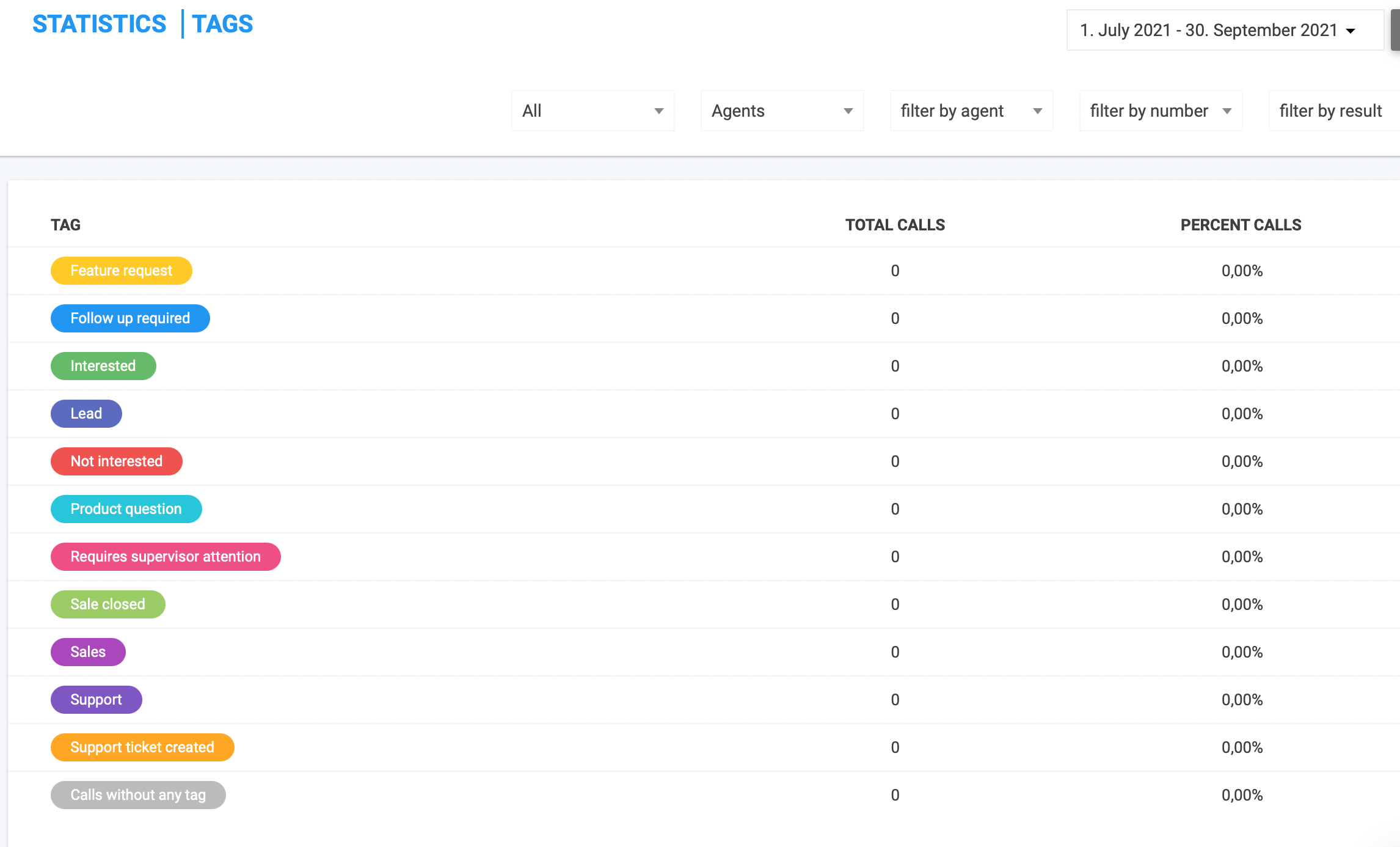
Here is a good place to analyze what percentage of callers are filling up queues from various categories of service. The ability to filter by type of call (incoming or outgoing) is added to the filter section at the top of the page. Instead of a graph, statistics will be calculated in the form of percentages which track the frequency of a tag being selected. A *Calls without any tag* section is included to mitigate skewed results.
```
Remember: Available Tags can be added, edited, or deleted from the
Tags/Call Dispositions section of your CloudTalk account. Go to
Account>Settings>Tags/Call Dispositions.
```
Wallboards
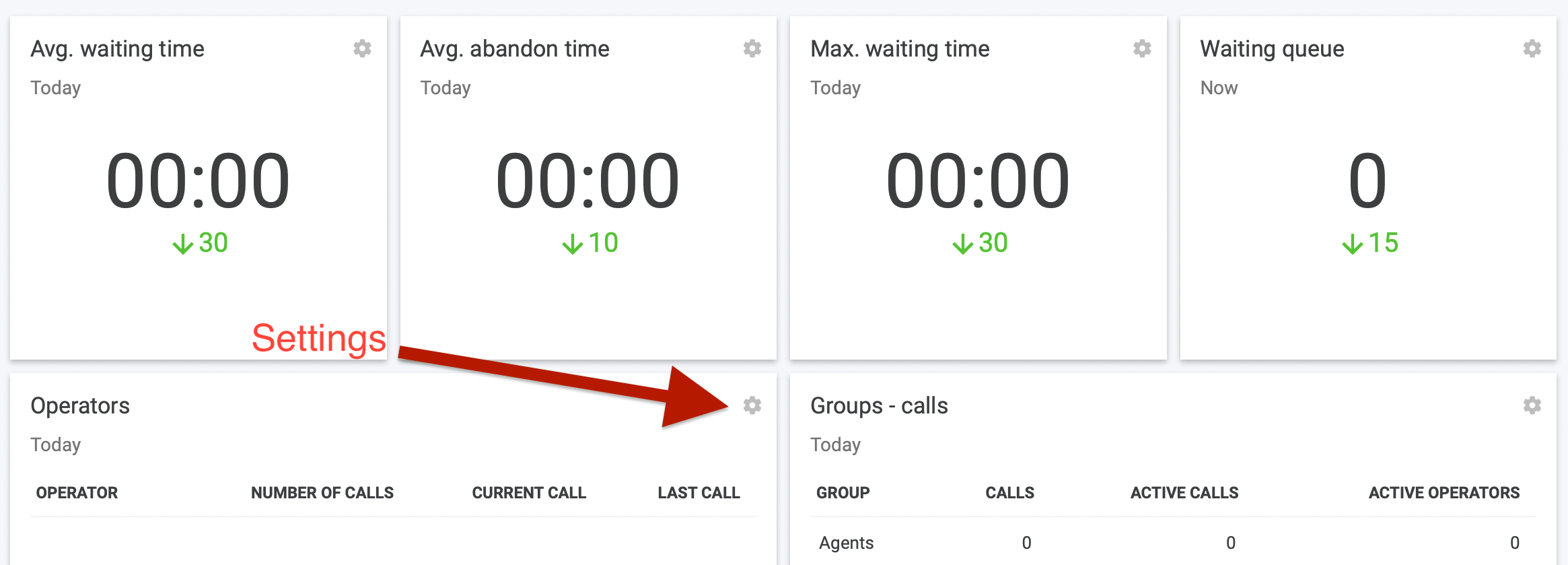
View a snapshot of current activity as it is tracked in realtime. Calls going through **Operators** and **Groups** are tracked in the lower two boxes. The top four boxes track the **Avg. waiting time, Avg. abandon time, Max. waiting time,** and the **Waiting queue**. An up or down arrow beside a number appears in each of these boxes under the running stats, and this is generated by comparing a threshold value (entered in **Account>Settings**) with the activity shown. Clicking the cog icon in the top right of these boxes will open the respective visibility settings, allowing you to alter what information is shown.
*Note: Wallboards are an available feature for [Expert and Custom plans](https://www.cloudtalk.io/pricing).*
Realtime Tracking
As the name suggests, this tab displays a realtime snapshot of current ongoing calls, queues, and operator statuses. The Server time in the upper right hand corner of the page will elapse in one minute (time can be adjusted via **Account>Settings**), refreshing the data. Underneath this, there is a dropdown box to filter the data by group.
Calculated stats focus on the **Waiting Queue, Avg. Waiting Time, Max. Waiting Time**, and **Avg. Abandonment Time** for a broader look at current activity. Live calls can be viewed and specific ones searched for if there are many happening simultaneously.
The **Group summary** also has a search function and allows an overview of group activity, highlighting if abandoned calls or wait time are increasing or decreasing. The status of all operators can be viewed in one place here for monitoring and management purposes, (link coming soon) with a search functionality in this box as well.
*Note: Realtime dashboard is available for [Essential, Expert, and Custom](https://www.cloudtalk.io/pricing) users.*
***
*Need help or have a question?* Just reach out through our [Support portal](https://support.cloudtalk.io/hc/en-us/requests/new?ticket_form_id=26305535257884) — we’re here for you.
## Related topics
- [Onboarding for New Users](/en/articles/8065091-onboarding-for-new-users.md)
- [Track Team Participation in Real Time](/en/articles/5657269-track-team-participation-in-real-time.md)
- [Group statistics](/api-reference/calls/group-statistics.md)
This documentation is built and hosted on [Mintlify](https://mintlify.com), a developer documentation platform.
 Your **Statistics** display is the first thing you see after logging into your [CloudTalk Dashboard](https://my.cloudtalk.io/login). On the sidebar to the left, you will see a tab under **Dashboard** labeled **Statistics**. Clicking here opens up a dropdown menu of more options. There are eight tabs to choose from, which we will explore more in depth:
* **Call History**
* **Inbound**
* **Outbound**
* **Agents**
* **Happiness**
* **Tags**
* **Wallboards ()**
* **RealTime Dashboard ()**
Your **Statistics** display is the first thing you see after logging into your [CloudTalk Dashboard](https://my.cloudtalk.io/login). On the sidebar to the left, you will see a tab under **Dashboard** labeled **Statistics**. Clicking here opens up a dropdown menu of more options. There are eight tabs to choose from, which we will explore more in depth:
* **Call History**
* **Inbound**
* **Outbound**
* **Agents**
* **Happiness**
* **Tags**
* **Wallboards ()**
* **RealTime Dashboard ()**
 The wide bar above our graph calculates the call data shown in terms of **Total Calls, Missed Calls, Avg. Call Duration**, and **Avg. Waiting Time**.
Scrolling to the bottom of the page under the statistics graph, we can download call history logs for record keeping, or search them by phone number. If it is only necessary to check a past record without the need to export it, remember that the custom range functionality at the top of the page can be used to set a particular date range from the past.
The wide bar above our graph calculates the call data shown in terms of **Total Calls, Missed Calls, Avg. Call Duration**, and **Avg. Waiting Time**.
Scrolling to the bottom of the page under the statistics graph, we can download call history logs for record keeping, or search them by phone number. If it is only necessary to check a past record without the need to export it, remember that the custom range functionality at the top of the page can be used to set a particular date range from the past.
 **Missed Calls**
 To get more detailed [information about Missed Calls](/en/articles/6737082-missed-calls-in-analytics), click the blue text which reads (MORE) next to the Missed Calls header. This page will provide a new bar of calculated statistics, including **Total Inbound Calls, Abandon Rate, Missed Inbound Calls, Avg. Abandonment Time, Voicemails Calls**, and **Max. Abandon Time**. This is a great place to look to assess the stats for calls which have dropped or been "abandoned" before reaching an agent.
 To redirect back to the main data, simply click back into Call History on the left main sidebar of the page.
 | filter by call rating |
| - |
Filter based on the customer happiness emoji tag. If your team is consistent about using the rating tag functionality, this filter can be a great way to compare call stats with different levels of support satisfaction from customers.
| filter by call tag |
| - |
Filter by call followup tags. This allows you to filter out irrelevant data when you only want to view the statistics of certain call types. For example, if you have a tag for *Interested*, you can filter data to only view stats from *Interested* clients.
```
Note: Options here will depend on what tags you have included in the
Tags/Call Dispositions section of your CloudTalk account. You can add,
edit, and delete tag possibilities by going to Account>Settings and
clicking into the Tags/Call Dispositions section.
```
| filter by group |
| - |
Filter based on groups. This feature works best when making use of the **Groups** feature found in the left main sidebar of your CloudTalk account, where larger networks can benefit from setting Groups for different branches of call management.
| filter by call agent |
| - |
| filter by call rating |
| - |
Filter based on the customer happiness emoji tag. If your team is consistent about using the rating tag functionality, this filter can be a great way to compare call stats with different levels of support satisfaction from customers.
| filter by call tag |
| - |
Filter by call followup tags. This allows you to filter out irrelevant data when you only want to view the statistics of certain call types. For example, if you have a tag for *Interested*, you can filter data to only view stats from *Interested* clients.
```
Note: Options here will depend on what tags you have included in the
Tags/Call Dispositions section of your CloudTalk account. You can add,
edit, and delete tag possibilities by going to Account>Settings and
clicking into the Tags/Call Dispositions section.
```
| filter by group |
| - |
Filter based on groups. This feature works best when making use of the **Groups** feature found in the left main sidebar of your CloudTalk account, where larger networks can benefit from setting Groups for different branches of call management.
| filter by call agent |
| - |
 Filter by agent name via the dropdown list or search function. This filter provides the benefit of tracking the productivity of a particular agent within a chosen scope of time.
| filter by call number (CloudTalk number only) |
| - |
Filter by agent name via the dropdown list or search function. This filter provides the benefit of tracking the productivity of a particular agent within a chosen scope of time.
| filter by call number (CloudTalk number only) |
| - |
 Filter by CloudTalk number via the dropdown list or search function. This filter may be especially useful when narrowing the view to inbound or outbound calls in the lefthand sidebar in order to track activity from a particular client.
 ```
Note: For more detailed calculations on missed calls, you can select
the (MORE) blue text beside the Missed Calls header in the calculated
stats box
```
```
Note: For more detailed calculations on missed calls, you can select
the (MORE) blue text beside the Missed Calls header in the calculated
stats box
```
 Chart display now has new and slightly altered options, including:
* Number of Calls
* Avg. Call Duration
* Avg. Waiting Time
* Missed Calls
* Number of Calls - Hourly
* Avg. Call Duration - Hourly
* Avg. Waiting Time - Hourly
* Missed Calls - Hourly
Chart display now has new and slightly altered options, including:
* Number of Calls
* Avg. Call Duration
* Avg. Waiting Time
* Missed Calls
* Number of Calls - Hourly
* Avg. Call Duration - Hourly
* Avg. Waiting Time - Hourly
* Missed Calls - Hourly

 ```
Remember: Available Tags can be added, edited, or deleted from the
Tags/Call Dispositions section of your CloudTalk account. Go to
Account>Settings>Tags/Call Dispositions.
```
```
Remember: Available Tags can be added, edited, or deleted from the
Tags/Call Dispositions section of your CloudTalk account. Go to
Account>Settings>Tags/Call Dispositions.
```
 *Note: Wallboards are an available feature for [Expert and Custom plans](https://www.cloudtalk.io/pricing).*
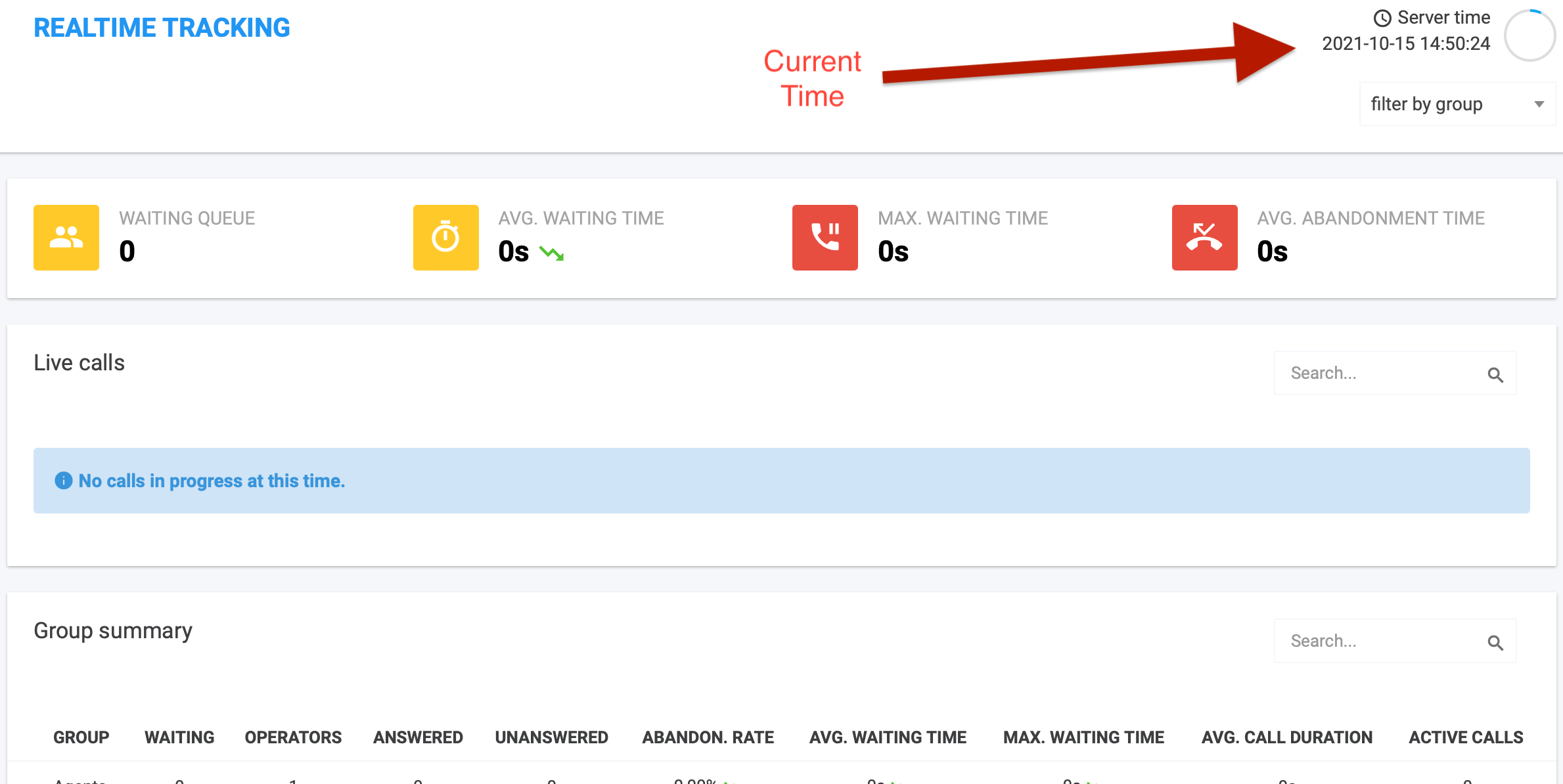 Calculated stats focus on the **Waiting Queue, Avg. Waiting Time, Max. Waiting Time**, and **Avg. Abandonment Time** for a broader look at current activity. Live calls can be viewed and specific ones searched for if there are many happening simultaneously.
The **Group summary** also has a search function and allows an overview of group activity, highlighting if abandoned calls or wait time are increasing or decreasing. The status of all operators can be viewed in one place here for monitoring and management purposes, (link coming soon) with a search functionality in this box as well.
*Note: Realtime dashboard is available for [Essential, Expert, and Custom](https://www.cloudtalk.io/pricing) users.*
***
*Need help or have a question?* Just reach out through our [Support portal](https://support.cloudtalk.io/hc/en-us/requests/new?ticket_form_id=26305535257884) — we’re here for you.
## Related topics
- [Onboarding for New Users](/en/articles/8065091-onboarding-for-new-users.md)
- [Track Team Participation in Real Time](/en/articles/5657269-track-team-participation-in-real-time.md)
- [Group statistics](/api-reference/calls/group-statistics.md)
This documentation is built and hosted on [Mintlify](https://mintlify.com), a developer documentation platform.
Calculated stats focus on the **Waiting Queue, Avg. Waiting Time, Max. Waiting Time**, and **Avg. Abandonment Time** for a broader look at current activity. Live calls can be viewed and specific ones searched for if there are many happening simultaneously.
The **Group summary** also has a search function and allows an overview of group activity, highlighting if abandoned calls or wait time are increasing or decreasing. The status of all operators can be viewed in one place here for monitoring and management purposes, (link coming soon) with a search functionality in this box as well.
*Note: Realtime dashboard is available for [Essential, Expert, and Custom](https://www.cloudtalk.io/pricing) users.*
***
*Need help or have a question?* Just reach out through our [Support portal](https://support.cloudtalk.io/hc/en-us/requests/new?ticket_form_id=26305535257884) — we’re here for you.
## Related topics
- [Onboarding for New Users](/en/articles/8065091-onboarding-for-new-users.md)
- [Track Team Participation in Real Time](/en/articles/5657269-track-team-participation-in-real-time.md)
- [Group statistics](/api-reference/calls/group-statistics.md)
This documentation is built and hosted on [Mintlify](https://mintlify.com), a developer documentation platform.