> ## Documentation Index
> Fetch the complete documentation index at: https://help.cloudtalk.io/llms.txt
> Use this file to discover all available pages before exploring further.
# Triggers
> Learn how to use Triggers in your Workflow Automations
*Workflow Automations* are designed to make the job of an agent easier by automating processes such as sending a follow-up text, transcribing certain calls, or automatically posting call summaries to Slack.
A *trigger* is the first step in this automation process, the event which triggers\_,\_ or sets in motion, an automation.
**User level:** Admin
***
Workflow Automations in CloudTalk start when a specific Trigger Object performs a defined Object Action.
A trigger answers two questions:
* What object should be monitored?
* What event on that object should start the automation?
Currently, CloudTalk supports seven Trigger Objects:
* [Call](#h_cbf5d90df3)
* [Message](#h_336ec4adba)
* [Contact](#h_6396d54739)
* [User](#h_f351562838)
* [Recording](#h_28d46c5960)
* [Transcription](#h_ff0d6dbddf)
* [VoiceAgent](#h_c1fbf56be3)
Each object includes one or more actions you can select. Details for each trigger type are explained below.
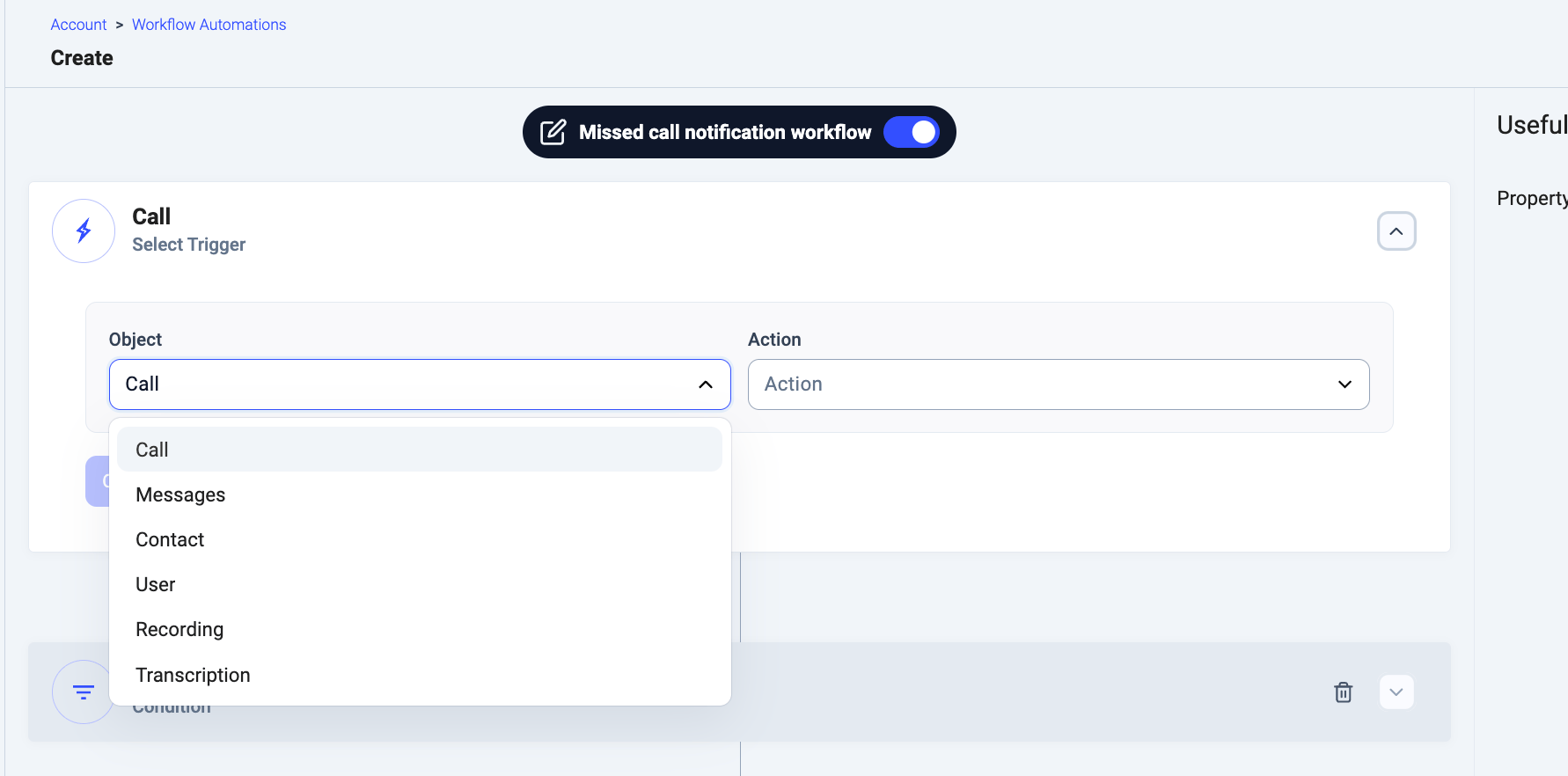
Call Triggers
Use Call triggers to start automations based on call activity.
| **Action** | **When the automation is triggered** |
| - | - |
| Started | When an inbound or outbound call starts ringing. |
| Ringing on Agent | Each time a call rings for a specific agent while being distributed to an agent group. If the same call rings to five agents, the automation is triggered five times. |
| Answered | When an agent answers an inbound call, or when a contact answers an outbound call. |
| Modified | When Call Tags or Notes are updated: - during an active call
- after the customer hangs up and the agent completes wrap-up
- when a call is edited in Call History
|
| Ended | After the call ends and wrap-up time is completed. |
| Raised Hand | When an agent invites an administrator to supervise the call using Raise Hand. |
Call Object Attributes
When Call is selected as the trigger, call-related data attributes appear on the right side of the workflow builder. These can be used in conditions and action steps.
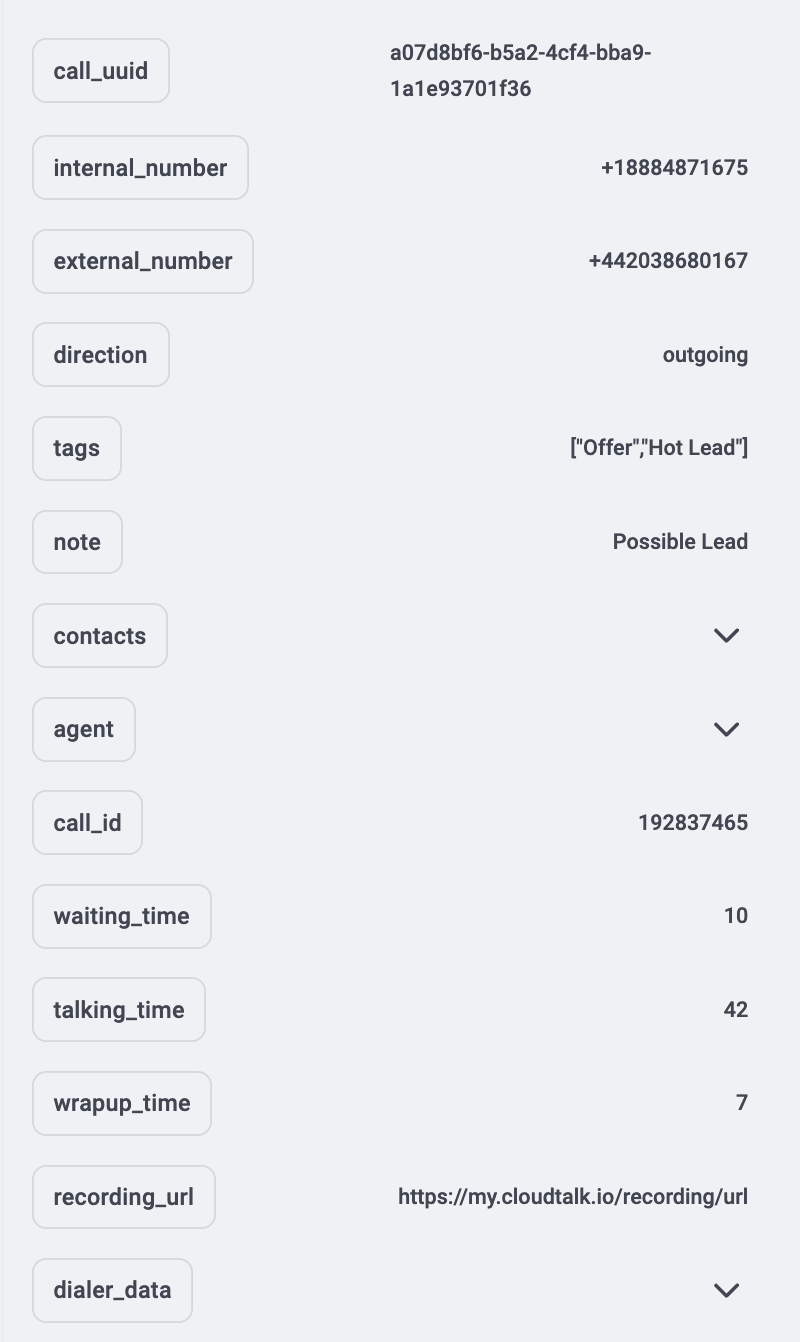 [Conversation Intelligence](/en/articles/9128167-conversation-intelligence) actions also provide a specific data structure containing outputs for each [Conversation Intelligence](/en/articles/9128167-conversation-intelligence) feature.
⚠️ The `dialer_data` property is generated only for calls made through [Power Dialer.](/en/articles/5782017-using-campaigns-with-power-dialer) It is not created for calls made through [Sequential](/en/articles/17025671-sequential-mode-1-line) or [Parallel Dialer](/en/articles/17025675-parallel-mode-2-lines) at the moment.
To reference these data properties, place the cursor in the desired input field within the workflow and click on the name of the data property you want to use.
[Conversation Intelligence](/en/articles/9128167-conversation-intelligence) actions also provide a specific data structure containing outputs for each [Conversation Intelligence](/en/articles/9128167-conversation-intelligence) feature.
⚠️ The `dialer_data` property is generated only for calls made through [Power Dialer.](/en/articles/5782017-using-campaigns-with-power-dialer) It is not created for calls made through [Sequential](/en/articles/17025671-sequential-mode-1-line) or [Parallel Dialer](/en/articles/17025675-parallel-mode-2-lines) at the moment.
To reference these data properties, place the cursor in the desired input field within the workflow and click on the name of the data property you want to use.
Conversation Intelligence Actions
Enabling the [Conversation Intelligence](/en/articles/9128167-conversation-intelligence) package unlocks these additional actions:
| **Action** | **When the automation is triggered** |
| - | - |
| Topic extracted | Triggers the moment topics for a call are calculated using [Topic Extraction.](/en/articles/9220291-topics-extraction) |
| Topic sentiment extracted | Triggers the moment per-topic sentiment for a call is calculated using [Sentiment Analysis.](/en/articles/9214658-sentiment-analysis) |
| Topic trend computed | Triggers the moment topic trend scores for a call are computed using [Trending topics.](/en/articles/9875523-trending-topics) |
| Overall sentiment extracted | Triggers the moment overall call sentiment is calculated using [Sentiment Analysis.](/en/articles/9214658-sentiment-analysis) |
| Summary extracted | Triggers the moment the AI call summary and smart notes are generated via [Notes & Tagging.](/en/articles/9155454-notes-tagging) |
| Overall call score extracted | Triggers the moment the AI call score is calculated via [Call Scoring.](/en/articles/12353357-call-scoring) |
| Transcription extracted | Triggers the moment the [Call Transcript](/en/articles/9214668-call-transcripts) for a call is ready. (Includes recording length and participants, but excludes transcript text.) |
| Talk/listen ratio extracted | Triggers the moment speaker data is calculated using [Talk/Listen Ratio.](/en/articles/9214999-talk-listen-ratio) |
These triggers deliver AI analysis results along with key call identifiers (`call_uuid` and `cdr_id`). Standard call attributes, such as numbers, direction, tags, note, contacts, and agent, are not populated for these events. Each trigger fires once per call.
Message Triggers
Use Message triggers to automate workflows based on messaging activity.
| **Action** | **When the automation is triggered** |
| - | - |
| Sent | When a message is sent from your CloudTalk account. This includes SMS, MMS, and WhatsApp messages. |
| Received | When a message is received by your CloudTalk account. |
Message Object Attributes
After selecting Message as the trigger, message-related data attributes become available on the right side of the workflow builder. You can use these attributes in conditions and action steps.
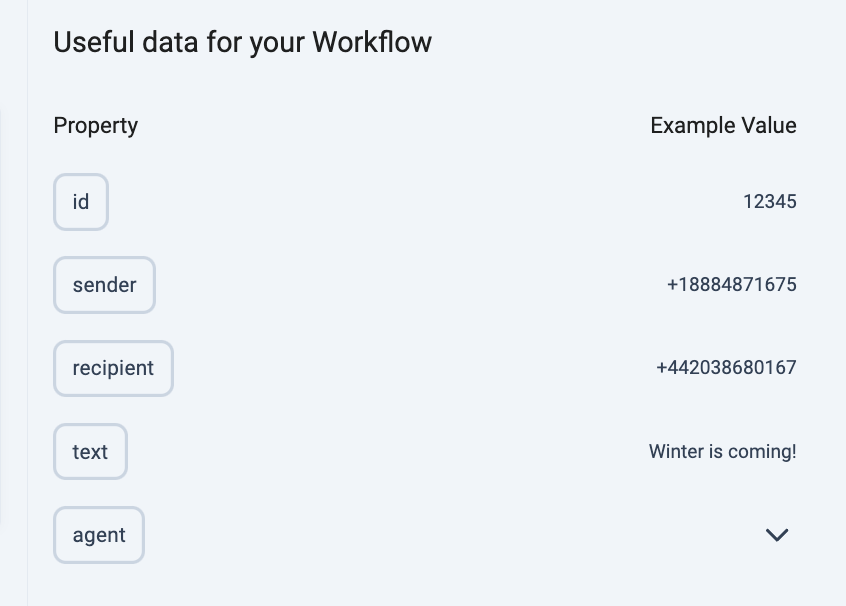 To reference these data properties, place the cursor in the desired input field within the workflow and click on the name of the data property you want to use.
Contact Triggers
Use Contact triggers to automate workflows related to your CloudTalk contact list.
| **Action** | **When the automation is triggered** |
| - | - |
| Created | When a new contact is created in your CloudTalk contact list. |
| Updated | When an existing contact is updated in your CloudTalk contact list. |
| Deleted | When a contact is deleted from your CloudTalk contact list. |
Contact Object Attributes
After selecting Contact as the trigger, contact-related data attributes become available on the right side of the workflow builder. You can use these attributes in conditions and action steps.
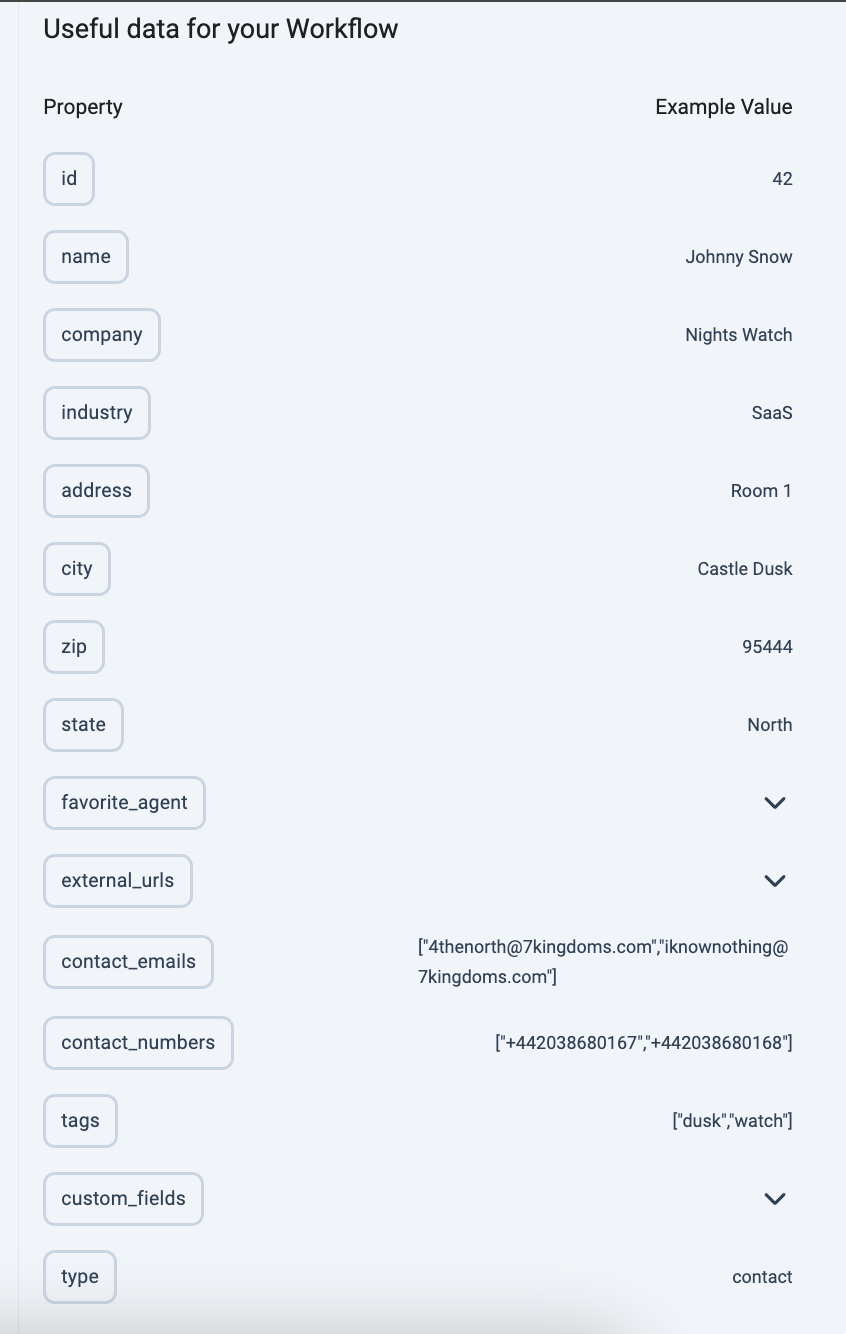 To reference these data properties, place the cursor in the desired input field within the workflow and click on the name of the data property you want to use.
User Triggers
Use User triggers to automate workflows related to CloudTalk users and agents.
| **Action** | **When the automation is triggered** |
| - | - |
| Created | When a new user is created in your CloudTalk account. |
| Updated | When an existing user is updated in your CloudTalk account. |
| Deleted | When a user is deleted from your CloudTalk account. |
| Status Changed | When an agent’s status changes. |
Status Changed
The **Status Changed** trigger activates when:
* an agent manually changes their status in the CloudTalk app (Online, Offline, Idle)
* an agent logs in (status changes to Online)
* an agent logs out using the Log out button (status changes to Offline)
The trigger does NOT activate if the agent exits the application without logging out. However, reopening the app will activate the trigger and send *“Online.”*
User Object Attributes
After selecting User as the trigger, user-related data attributes become available on the right side of the workflow builder and can be used in conditions and action steps.
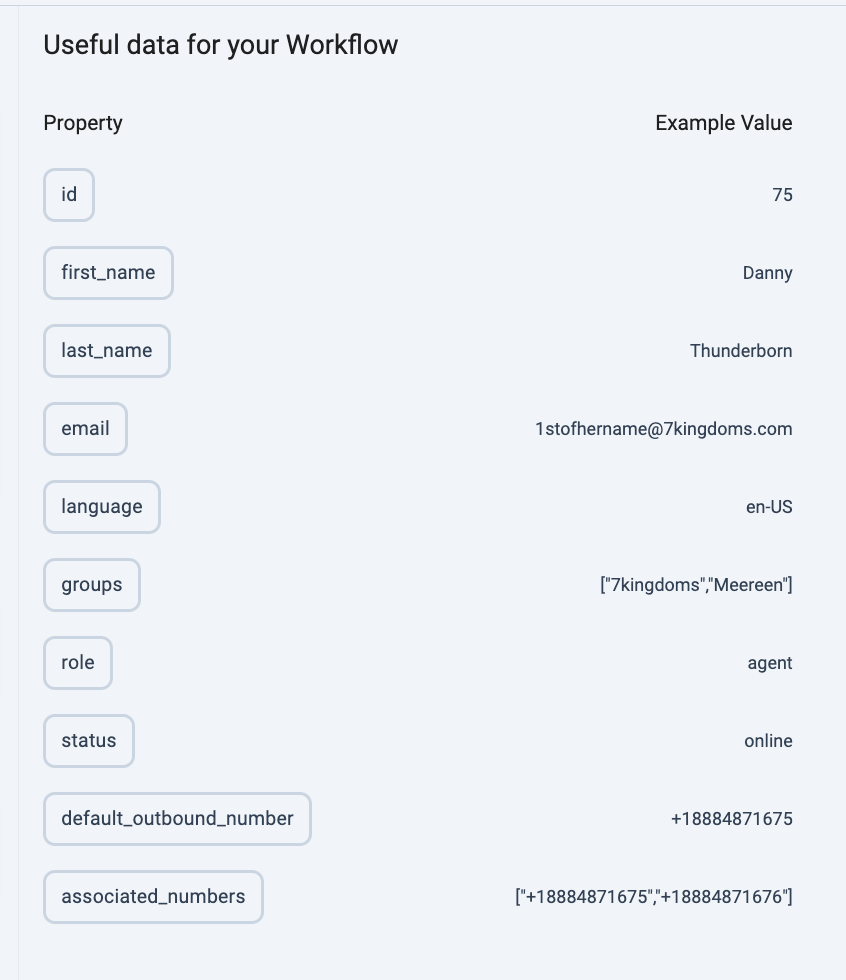 To reference these data properties, place the cursor in the desired input field within the workflow and click on the name of the data property you want to use.
Recording Triggers
Use Recording triggers to automate workflows based on call recordings.
| **Action** | **When the automation is triggered** |
| - | - |
| Uploaded | When a new call recording is uploaded to your CloudTalk account. |
This trigger can only be used to start Speech-to-Text automations.
Recording Object Attributes
After selecting Recording as the trigger, recording-related data attributes become available on the right side of the workflow builder. You can use these attributes in conditions and action steps.
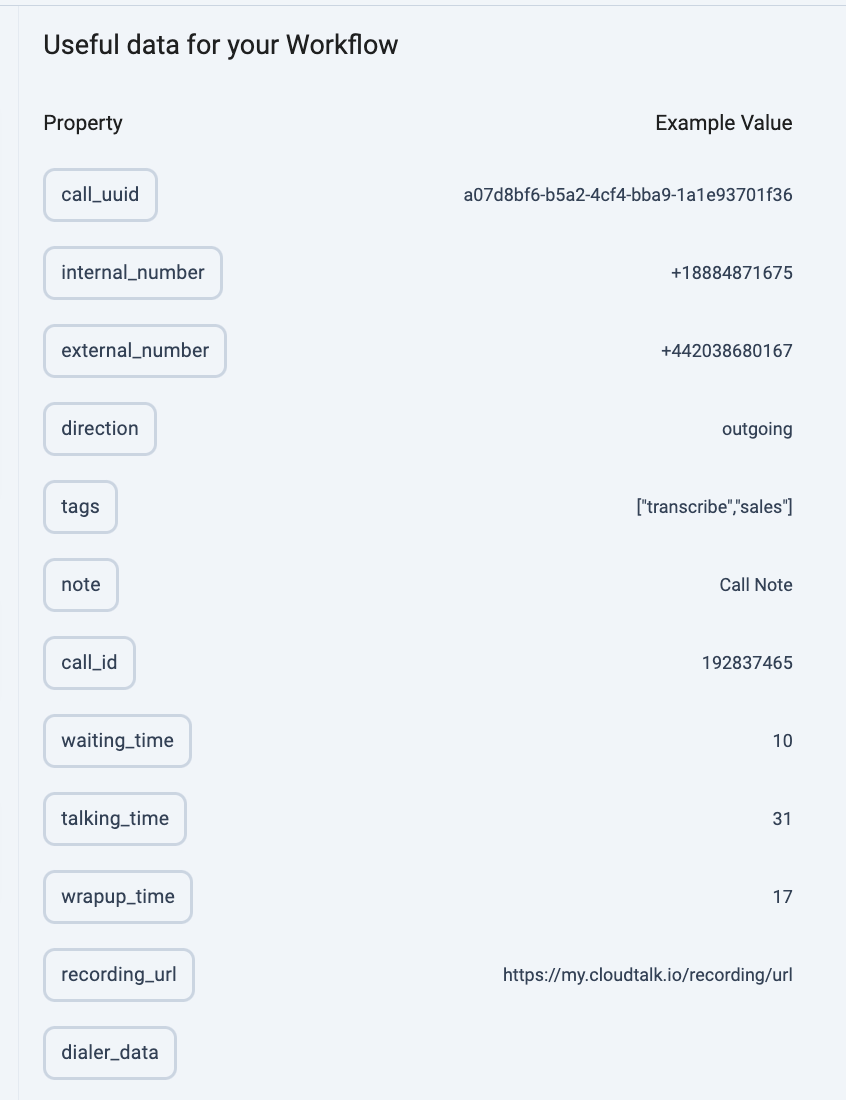 To reference these data properties, place the cursor in the desired input field within the workflow and click on the name of the data property you want to use.
Transcription Triggers (legacy)
Use Transcription triggers to automate workflows based on call transcriptions.
⚠️ This trigger is associated with the legacy Google Speech-to-Text transcription. Transcriptions generated by Conversation Intelligence do not activate this trigger. If you use Conversation Intelligence, select the Call trigger with the Transcription extracted action instead.
Your Workflow Automation will be triggered when a new transcription has been successfully created for a given recording.
Transcription Object Attributes
After selecting Transcription as the trigger, transcription-related data attributes become available on the right side of the workflow builder and can be used in conditions and action steps.
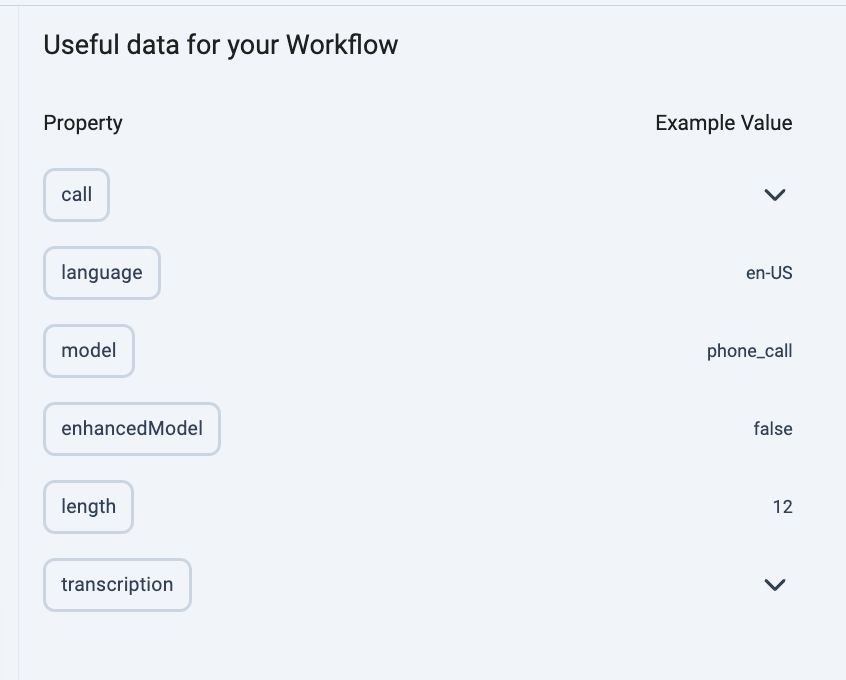 To reference these data properties, place the cursor in the desired input field within the workflow and click on the name of the data property you want to use.
VoiceAgent Analysis Triggers
Use [Voice Agent](/en/articles/11053795-getting-started-with-voiceagents) Analysis triggers to automate workflows based on the post-call analysis of a Voice Agent call.
| **Action** | **When the automation is triggered** |
| - | - |
| Created | Triggers the moment the results of extract information skill for a VoiceAgent call are ready. |
VoiceAgent Analysis Object Attributes
When you select the Voice Agent Analysis trigger, the following data attributes become available for use in your workflow:
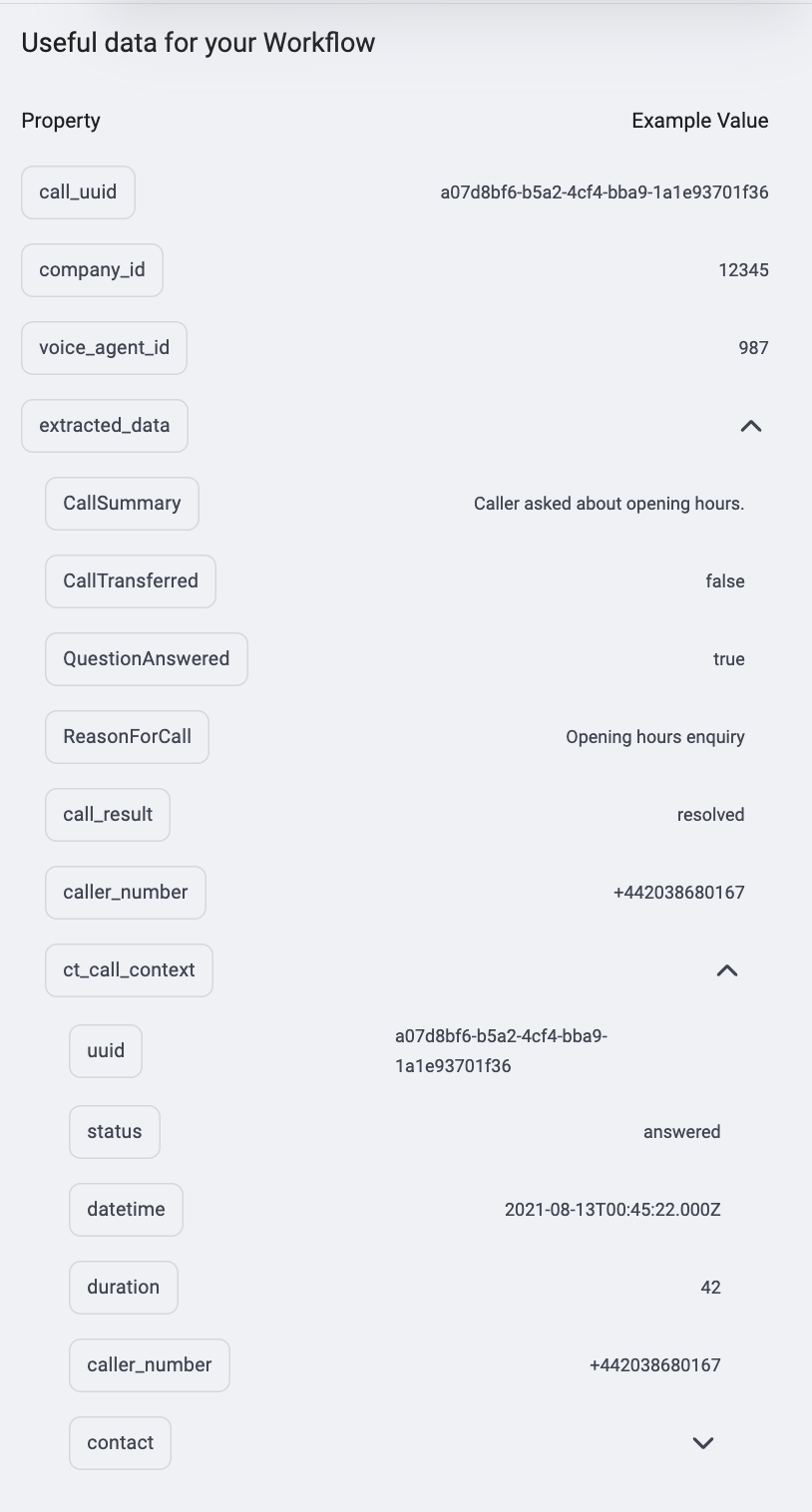 In addition to these standard attributes, any custom properties defined in your **[Extract Information](/en/articles/14072758-voiceagent-skills#h_d5557cb8f7)** VoiceAgent skill will be appended to the `extracted_data` object.
To reference them in your workflow, use dot notation:
`#{{ event.properties.extracted_data.[custom_property_name] }}`
***Example:*** If your [Extract Information skill](/en/articles/14072758-voiceagent-skills#h_d5557cb8f7) includes a custom property named `longDescription`, reference it in your workflow as:
`#{{ event.properties.extracted_data.longDescription }}`
***
*Need help or have a question?* Just reach out through our [Support portal](https://support.cloudtalk.io/hc/en-us/requests/new?ticket_form_id=26305535257884) — we’re here for you.
## Related topics
- [Contact Webhook Events: Payloads for the contact.* Triggers](/guides/webhooks/events/contacts.md)
- [Message Webhook Events: Payloads for the message.* Triggers](/guides/webhooks/events/messages.md)
- [User Webhook Events: Payloads for the user.* Triggers](/guides/webhooks/events/users.md)
This documentation is built and hosted on [Mintlify](https://mintlify.com), a developer documentation platform.
In addition to these standard attributes, any custom properties defined in your **[Extract Information](/en/articles/14072758-voiceagent-skills#h_d5557cb8f7)** VoiceAgent skill will be appended to the `extracted_data` object.
To reference them in your workflow, use dot notation:
`#{{ event.properties.extracted_data.[custom_property_name] }}`
***Example:*** If your [Extract Information skill](/en/articles/14072758-voiceagent-skills#h_d5557cb8f7) includes a custom property named `longDescription`, reference it in your workflow as:
`#{{ event.properties.extracted_data.longDescription }}`
***
*Need help or have a question?* Just reach out through our [Support portal](https://support.cloudtalk.io/hc/en-us/requests/new?ticket_form_id=26305535257884) — we’re here for you.
## Related topics
- [Contact Webhook Events: Payloads for the contact.* Triggers](/guides/webhooks/events/contacts.md)
- [Message Webhook Events: Payloads for the message.* Triggers](/guides/webhooks/events/messages.md)
- [User Webhook Events: Payloads for the user.* Triggers](/guides/webhooks/events/users.md)
This documentation is built and hosted on [Mintlify](https://mintlify.com), a developer documentation platform.