> ## Documentation Index
> Fetch the complete documentation index at: https://help.cloudtalk.io/llms.txt
> Use this file to discover all available pages before exploring further.
# Contact Tags
> Apply customized tags to help you search and sort contacts into categories to be used for campaigns or data analysis
This article covers how to create contact tags, as well as common use cases for tagging contacts.
***
How to Use Tags
Identify Contacts
By labelling contacts with tags, your agents can easily identify callers. Here are some example tags you could use to distinguish between clients:
* `VIP`
* `IT skills`
* `regular shopper`
* `prospect`
Contact tags help to expand agent knowledge and optimize the customer experience.
Filter Contacts
In CloudTalk, you can filter all of your contacts by tags. This feature enables you to quickly find the right contacts. For example, if you label your VIP clients with a `VIP` tag, you could see the full list of your VIP clients by using **Filter by tag** on the **Contacts** tab of the dashboard.

Use in Campaigns
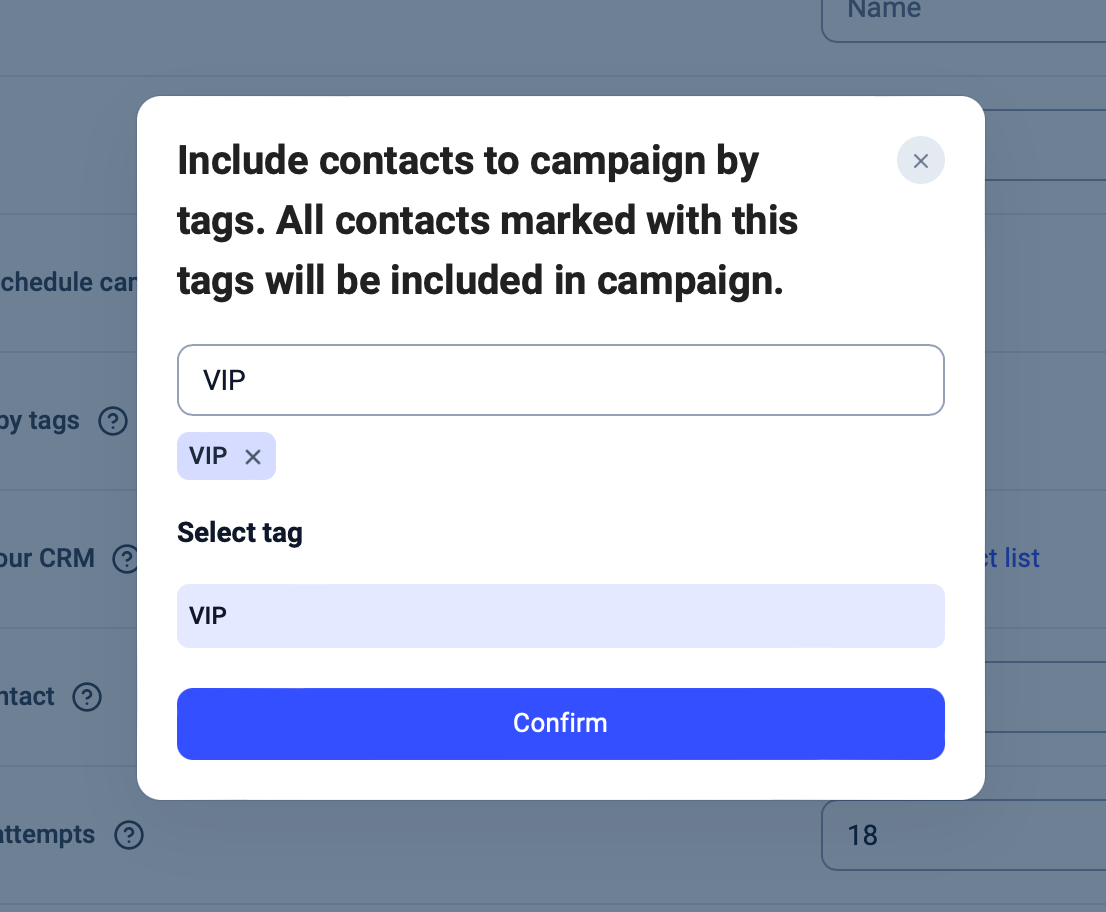
Tags are necessary to add contacts into a campaign calling list. When you navigate to **Dialer > Campaigns >** `+ Add Campaign`, you will need to specify a campaign tag. This is the tag associated with your campaign which the dialer will select contacts with.
Click or start typing in the **Select contacts by tags** field to choose your campaign tag.
Use in Conditions
In workflow automations, tags can be referenced within condition statements to make sure your workflow only runs for particular contacts. For example, if you wanted your automation to trigger only for contacts with a `VIP` tag, you could make a condition statement:
* **event.properties.contacts\[0].tags > contains >** `["VIP"]`
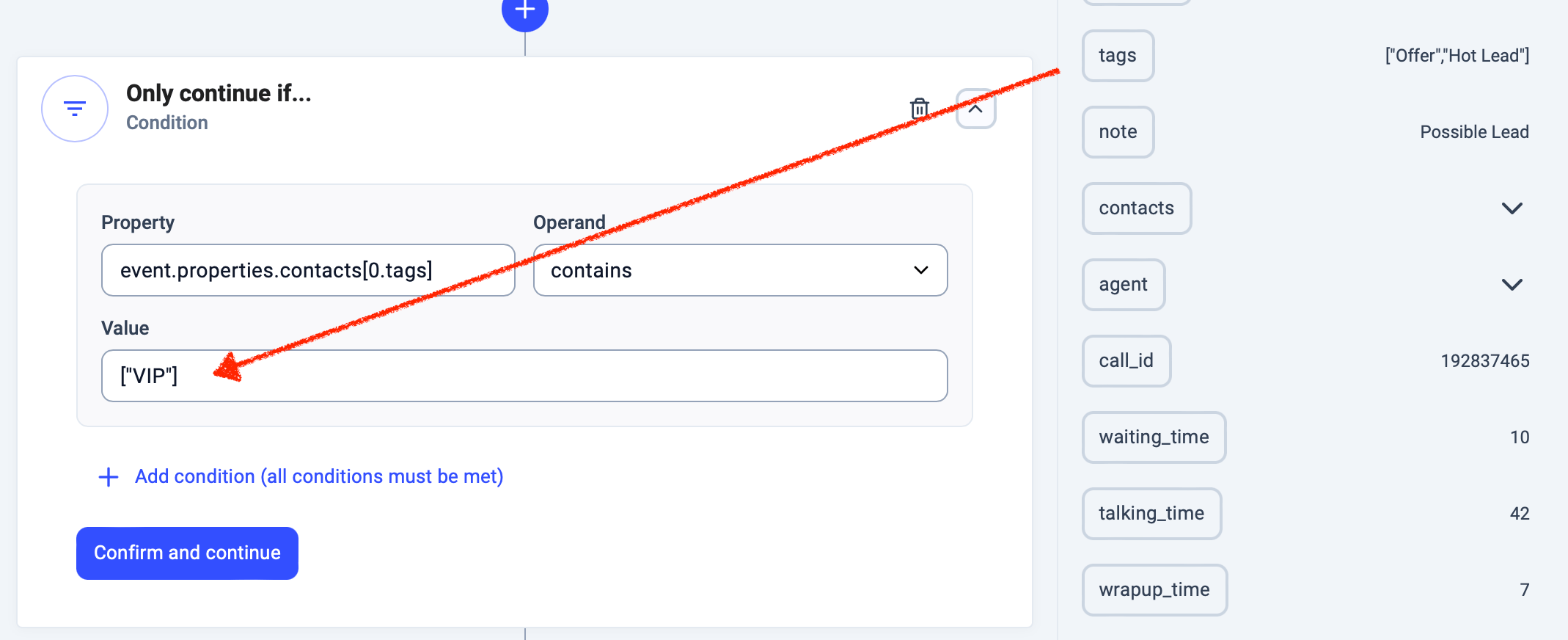 This condition statement uses the **Operand** *contains* because tags are stored as a list which can contain multiple entries.
***
This condition statement uses the **Operand** *contains* because tags are stored as a list which can contain multiple entries.
***
Creating Contact Tags
From the Dashboard
To tag or untag a contact, you can go to the **Contacts** tab on dashboard.
1. Click the pencil icon to edit the contact info.
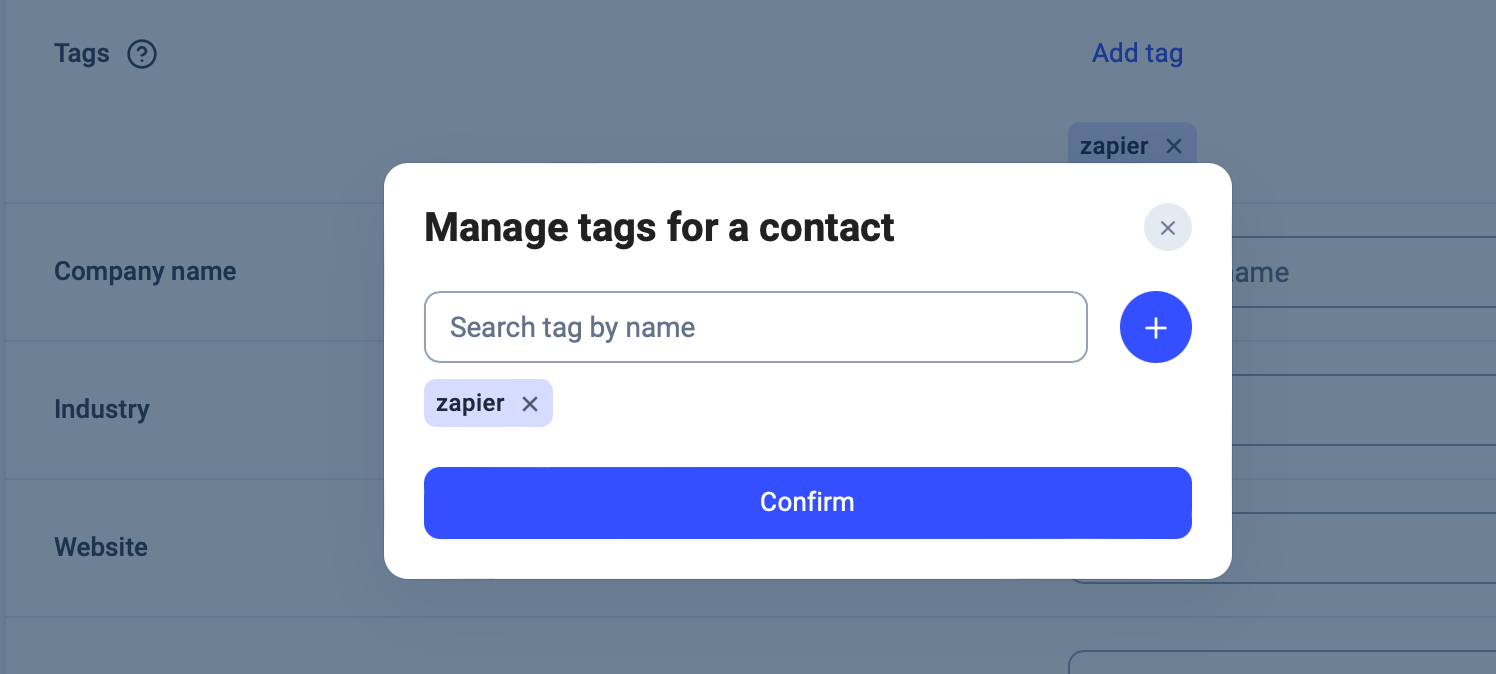
 2. Add or edit existing contact tags in the **Tags** field. To add a new tag, type in the desired name and it will appear as a dropdown option to select. Click `Confirm`.
 3. `Save contact `to finalize your settings.
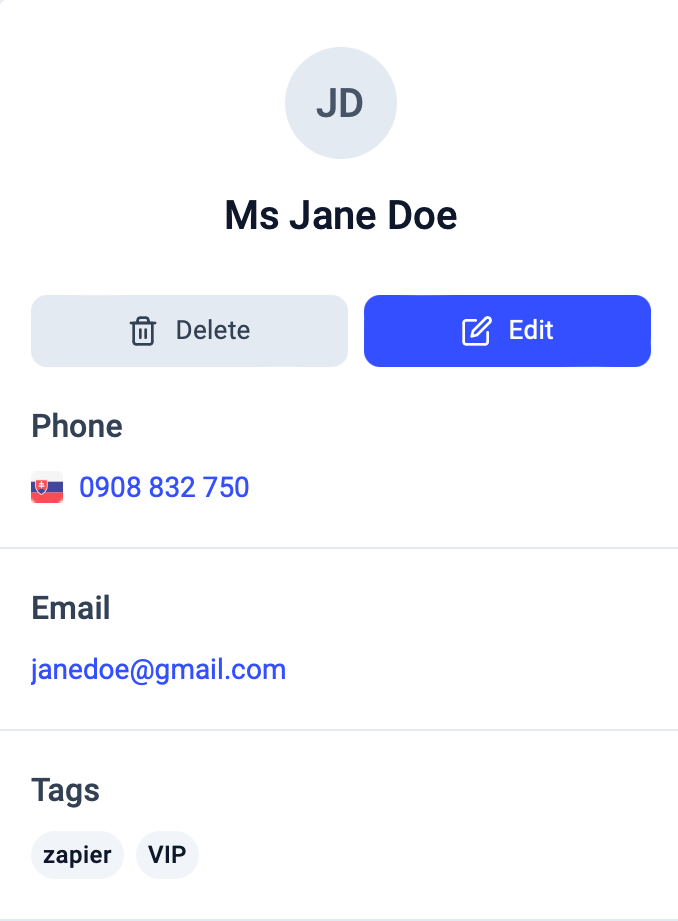
Once a new tag has been added, it will be visible on the contact's profile.
3. `Save contact `to finalize your settings.
Once a new tag has been added, it will be visible on the contact's profile.
From CloudTalk Phone
While using CloudTalk Phone, tags can be altered within **Add / Edit Contact** screens, just as on the dashboard.
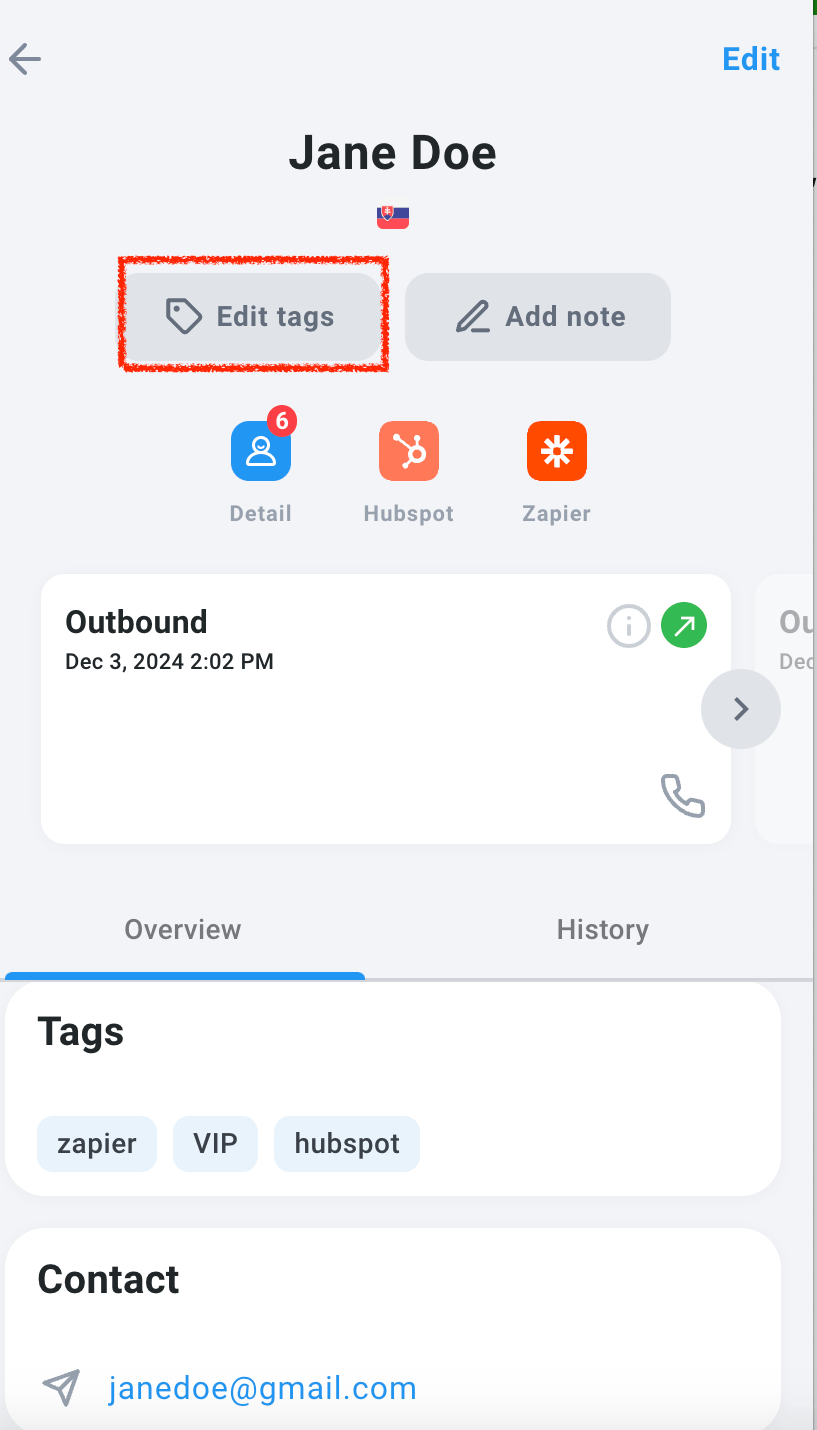
1. Navigate to the **Contacts** list and select your desired contact.
2. Select **Edit tags**.
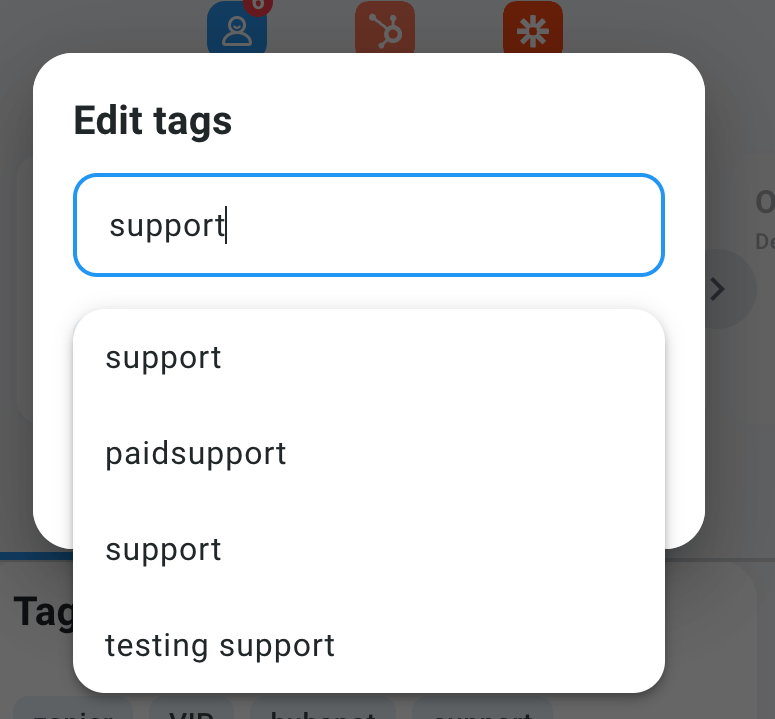
 3. Start typing a new or existing tag. Select the option you would like to add.
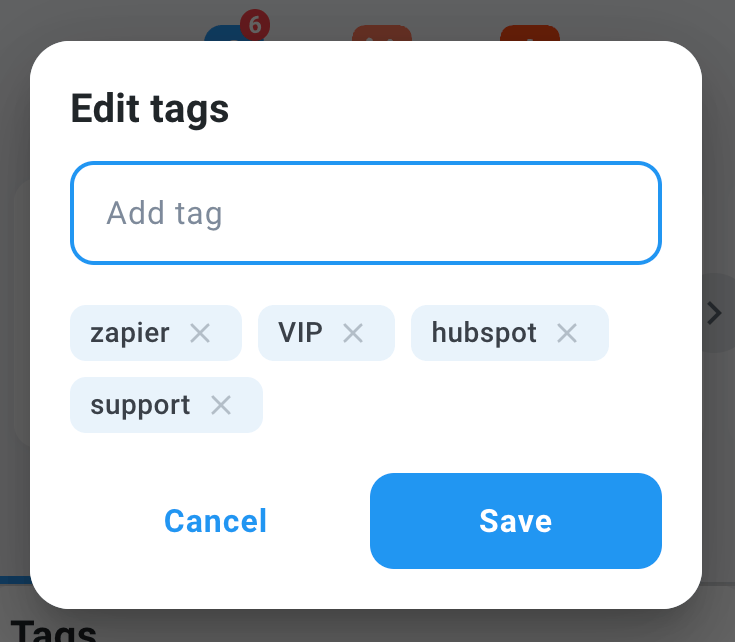
 4. When you're done adding or deleting tags, **Save**.
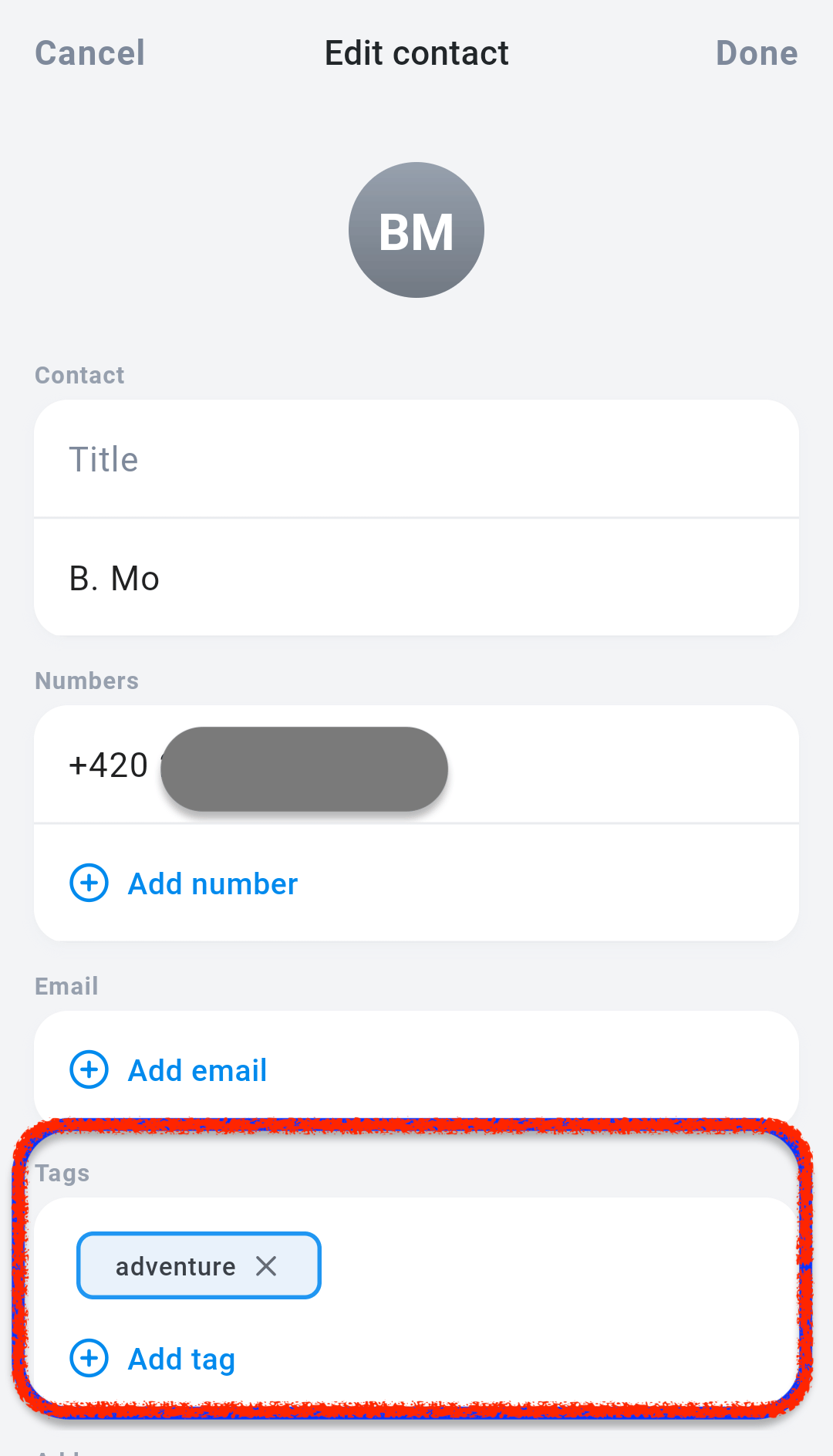
From CloudTalk Go (mobile app)
CloudTalk Go users can add or edit contact tags too.
1. Navigate to the **Contacts** list and select your desired contact.
2. Select `Edit` in the top corner.
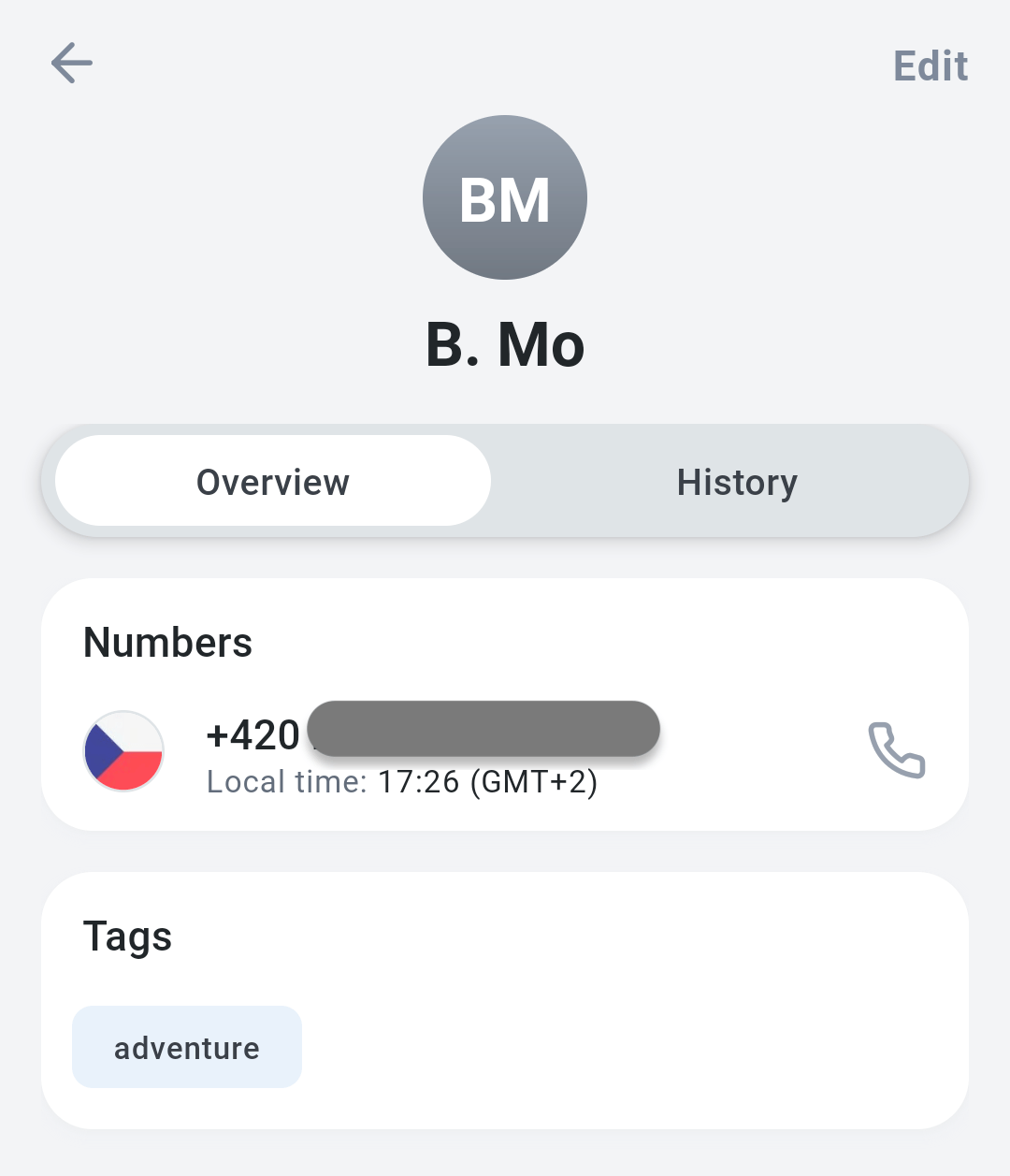 3. Add or delete tags, and select `Done` to save your changes.
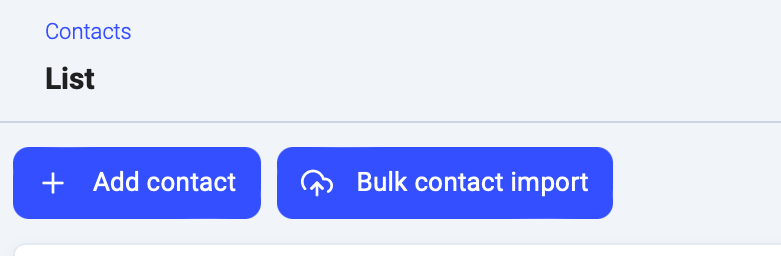
During a Bulk Import
Dashboard users can specify a tag to be added to all imported contacts during a **Bulk contact import**. Go to **Contacts > Bulk Contact Import**, and upload the file.
 Once the file is uploaded, you’ll have the option to assign a tag to all the imported contacts.
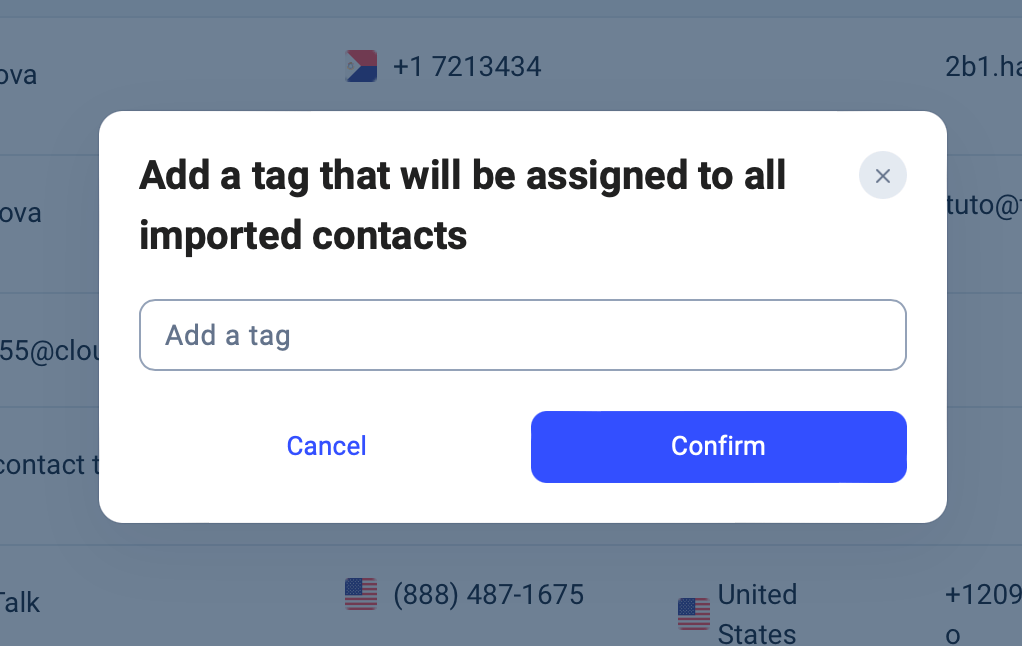 **Tip: Using the Contacts' tag option in a bulk import** is a great way to set up a campaign tag for a large amount of contacts at once.
Automatic Tagging with Integrations
When synchronizing contacts from an integration besides CSV import, CloudTalk automatically applies a tag to each contact with the name of the integration they are sourced from. This makes it easier to track the source of your contacts.
Contacts coming from an integration will be given the associated tag in all lowercase letters with no spaces. For example, say you integrate your CloudTalk account with **[LiveAgent](https://www.cloudtalk.io/liveagent)**. Each time you create a new contact in LiveAgent, the new contact will be automatically imported to CloudTalk labelled with a `liveagent` tag.
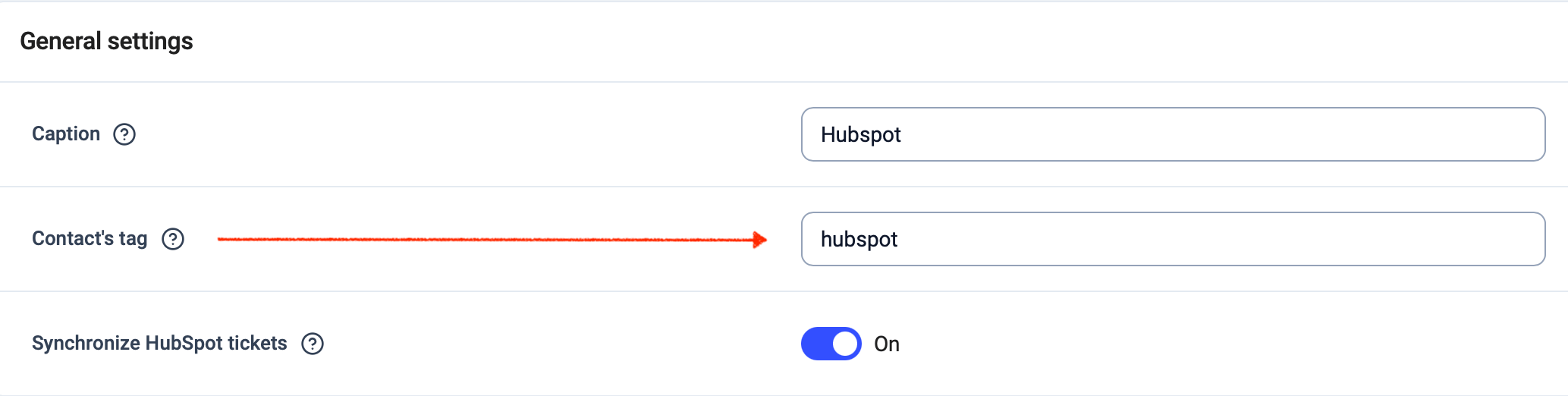
Edit / Remove Integration Tag
The automatic integration tag can be edited or removed in **Settings > Integrations**.
1. From the dropdown, go to **Integrations**.
2. Find the integration of the tag you need to edit and select `Configure`.
 3. In *General settings*, find the **Contacts' tag** to edit. **Save settings**. This change will be applied to all contacts associated with this integration.
 Tags can also be created and managed through the [CloudTalk API](/developers#tag/Tags). This option is intended for Admins and developers who want to automate tagging or integrate CloudTalk with other tools.
***
*Need help or have a question?* Just reach out through our [Support portal](https://support.cloudtalk.io/hc/en-us/requests/new?ticket_form_id=26305535257884) — we’re here for you.
## Related topics
- [Managing Contacts](/en/articles/7056354-managing-contacts.md)
- [Users](/en/articles/9241618-users.md)
- [Assign contact tags](/api-reference/contacts/assign-contact-tags.md)
This documentation is built and hosted on [Mintlify](https://mintlify.com), a developer documentation platform.
Tags can also be created and managed through the [CloudTalk API](/developers#tag/Tags). This option is intended for Admins and developers who want to automate tagging or integrate CloudTalk with other tools.
***
*Need help or have a question?* Just reach out through our [Support portal](https://support.cloudtalk.io/hc/en-us/requests/new?ticket_form_id=26305535257884) — we’re here for you.
## Related topics
- [Managing Contacts](/en/articles/7056354-managing-contacts.md)
- [Users](/en/articles/9241618-users.md)
- [Assign contact tags](/api-reference/contacts/assign-contact-tags.md)
This documentation is built and hosted on [Mintlify](https://mintlify.com), a developer documentation platform.