> ## Documentation Index
> Fetch the complete documentation index at: https://help.cloudtalk.io/llms.txt
> Use this file to discover all available pages before exploring further.
# Configure Gong
> Configure data exchange between CloudTalk and Gong to ensure your data stays up to date.
In this article, you’ll learn how to set up and configure the Gong integration in CloudTalk, including how to connect your account, customize call logging and transcription settings, and control which numbers are synced.
**User level:** Admin
***
Prerequisites
* A CloudTalk account with admin access
* A Gong account with admin access
* Your Gong login credentials
* The email address you use in CloudTalk must match exactly with the email address in your Gong account. If the emails do not match, synchronization will not work correctly.
Configure Gong
1. From your [Dashboard](https://dashboard.cloudtalk.io), navigate to **Account** > **Integrations**.
2. From the list of integrations, hover over **Gong** and select **`+Add`**.
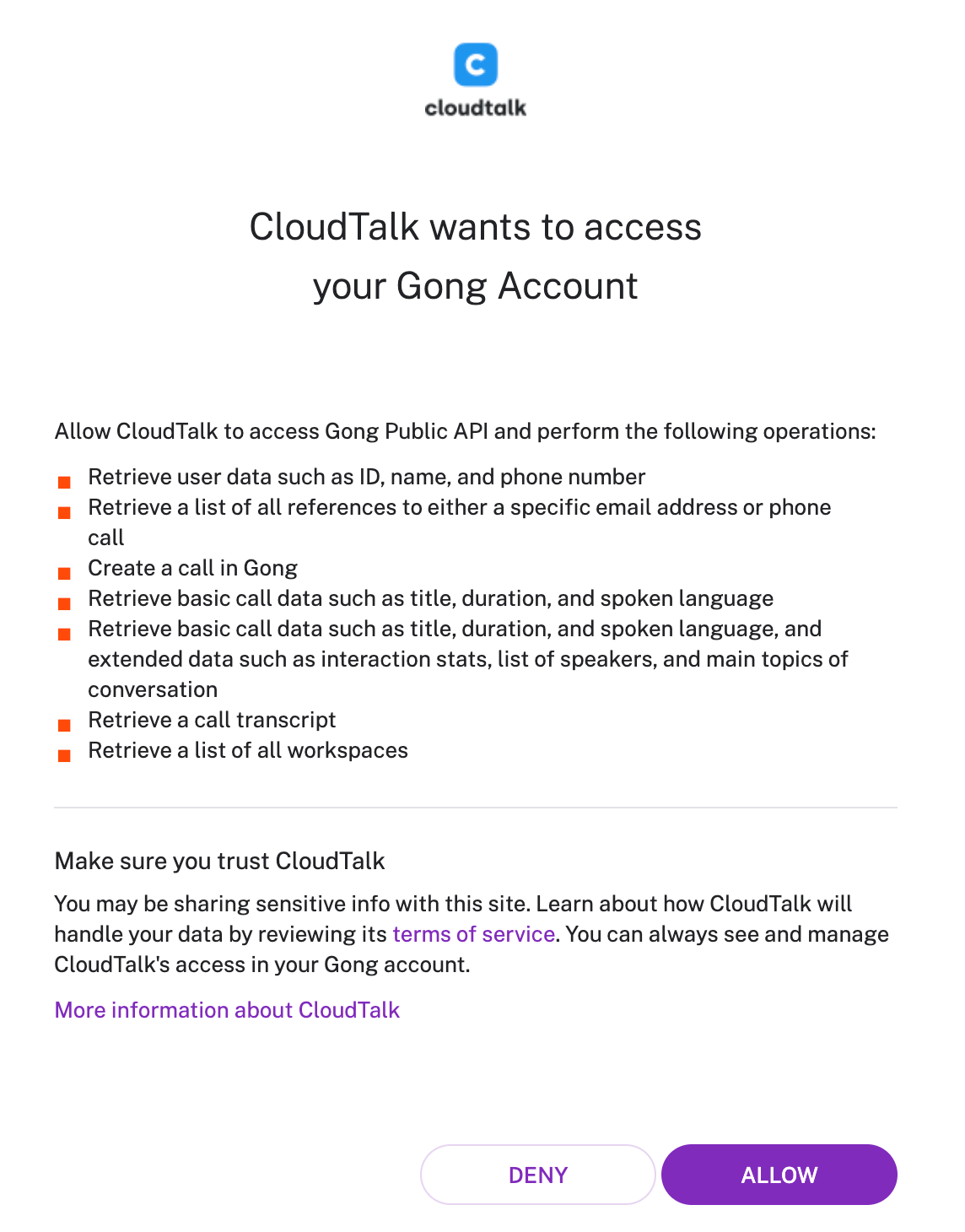
3. You will be redirected to a Gong login to enter your credentials. **Allow** to grant permissions and continue.
 4. After a successful authentication process, you will be redirected back to the CloudTalk dashboard, where you can customize your integration.
5. **Save** to enact these changes and activate the integration.
1. *You can set your integration to Inactive at any time using the toggle at the top.*
4. After a successful authentication process, you will be redirected back to the CloudTalk dashboard, where you can customize your integration.
5. **Save** to enact these changes and activate the integration.
1. *You can set your integration to Inactive at any time using the toggle at the top.*
Integration customization
All answered external calls are automatically sent to Gong for transcription and analysis.
* Choose whether internal calls are sent to Gong. By enabling this setting, internal calls will be included for Gong to analyze.
 * Decide whether calls should be logged in Gong for unassociated numbers.
 * Choose to only link activity from certain numbers to your Gong integration by using the **Connected Numbers** sections. If this section is left blank, data associated with all company numbers will be synched.

Disconnect or Remove Integration
You have two options if you no longer want to use the integration:
* **Deactivate:** In your CloudTalk Dashboard, go to **Settings > Integrations > Gong** and toggle the status to inactive. This pauses syncing but keeps your settings.
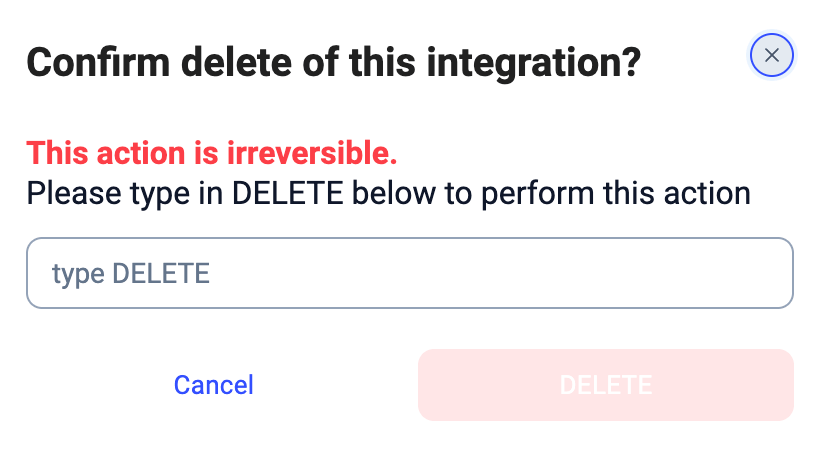
* **Remove:** To remove the integration completely, go to **Configure > Delete Integration**, type **DELETE**, and confirm.
 ***
*Need help or have a question?* Just reach out through our [Support portal](https://support.cloudtalk.io/hc/en-us/requests/new?ticket_form_id=26305535257884) — we’re here for you.
## Related topics
- [Using CloudTalk with Gong](/en/articles/15586874-using-cloudtalk-with-gong.md)
- [How CloudTalk syncs data with your CRM](/en/articles/14665732-how-cloudtalk-syncs-data-with-your-crm.md)
- [Configure Attio](/en/articles/16815852-configure-attio.md)
This documentation is built and hosted on [Mintlify](https://mintlify.com), a developer documentation platform.
***
*Need help or have a question?* Just reach out through our [Support portal](https://support.cloudtalk.io/hc/en-us/requests/new?ticket_form_id=26305535257884) — we’re here for you.
## Related topics
- [Using CloudTalk with Gong](/en/articles/15586874-using-cloudtalk-with-gong.md)
- [How CloudTalk syncs data with your CRM](/en/articles/14665732-how-cloudtalk-syncs-data-with-your-crm.md)
- [Configure Attio](/en/articles/16815852-configure-attio.md)
This documentation is built and hosted on [Mintlify](https://mintlify.com), a developer documentation platform.