> ## Documentation Index
> Fetch the complete documentation index at: https://help.cloudtalk.io/llms.txt
> Use this file to discover all available pages before exploring further.
# Report Call Issues
> Call ID and Log ID codes: where to find them and how to report issues with your calls
If you experience bad call quality or missing logs within your integration, it's important to provide the CloudTalk with the ID code for the particular call(s) involved.
**User level:** Admin
***
What is a Call ID Code
The Call ID should not be confused with [Caller ID](/en/articles/5726652-virtual-caller-id) or CNAM, which identifies incoming callers.\
In this context, a **Call ID** is a **unique code used to track the conditions of a specific call.**
Every call made through CloudTalk has its own Call ID. This ID is visible to all agents who have access to the call.
The Call ID is the most useful piece of information you can provide when contacting CloudTalk Support. It allows our team to quickly locate the call in the system and review details such as:
* call quality
* network connection
* integration logs
* technical conditions affecting the call
Where to Report a Call ID
If you experience an issue with a call, report the Call ID to CloudTalk Support using one of the following methods:
* Live chat, available directly from the Dashboard
* [Submit a request](https://support.cloudtalk.io/hc/en-us/requests/new?ticket_form_id=26305535257884) through our Support portal.
Important notes:
* Call IDs should not be older than **3 days**
* We are unable to access usable data for calls older than this
* For broader or recurring issues, Support may request **three or more Call ID examples**
Where to Find Call IDs
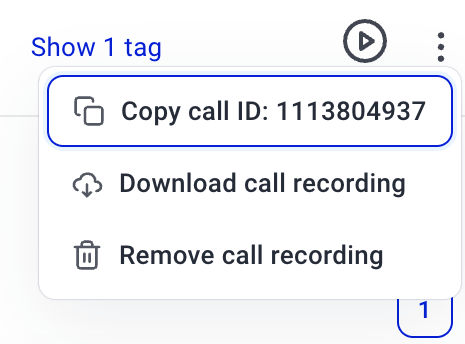
From the Dashboard
1. In the [Cloudtalk dashboard](https://dashboard.cloudtalk.io/) navigate to **Dashboard** and scroll down scroll down to see **Call history logs**.
2. Select the three dots menu to view the **Call ID** for that call.
 3. Select **`Copy call ID:`** option
From Desktop & Mobile Apps
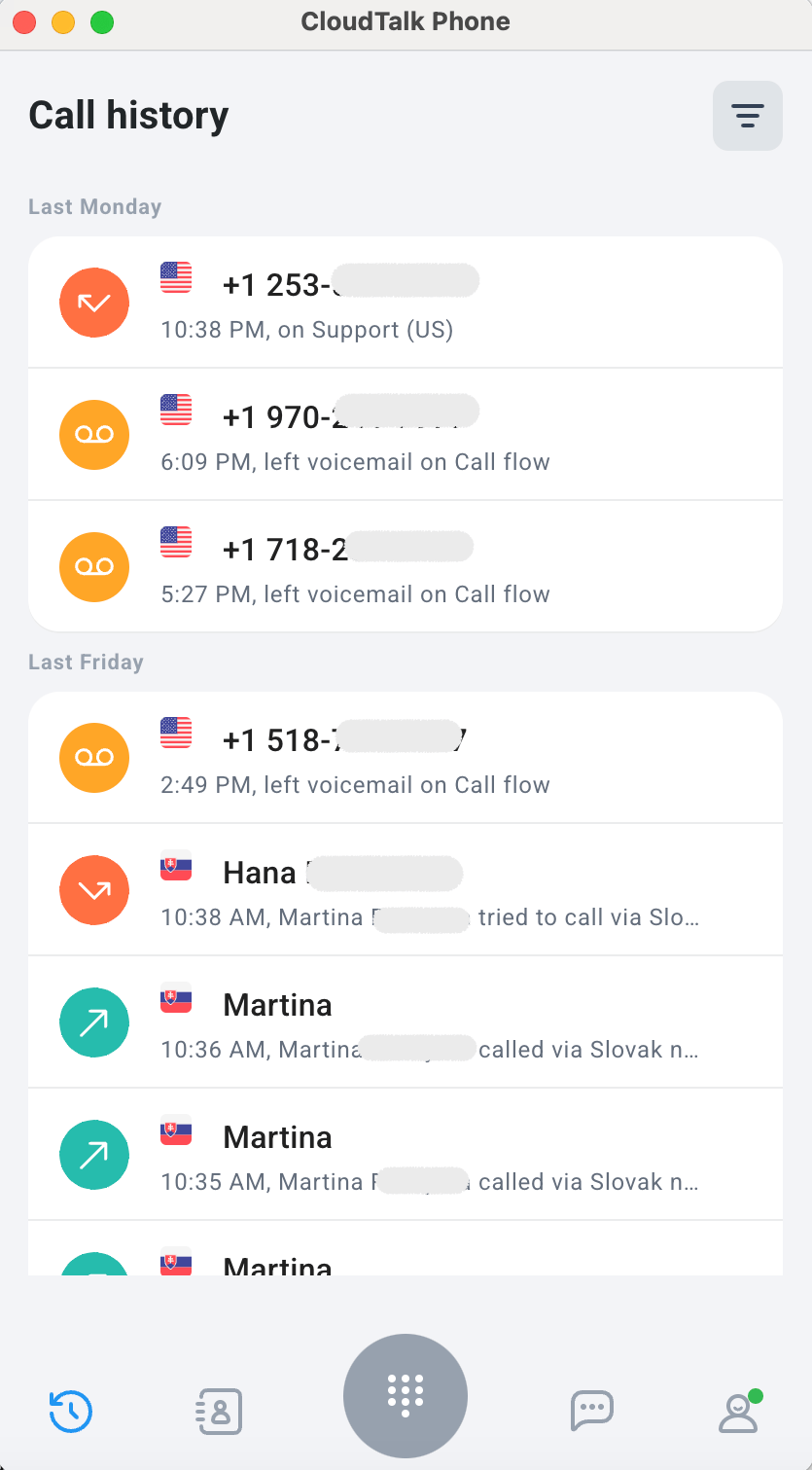
1. Select the clock icon on the bottom left to navigate to **Call history**.
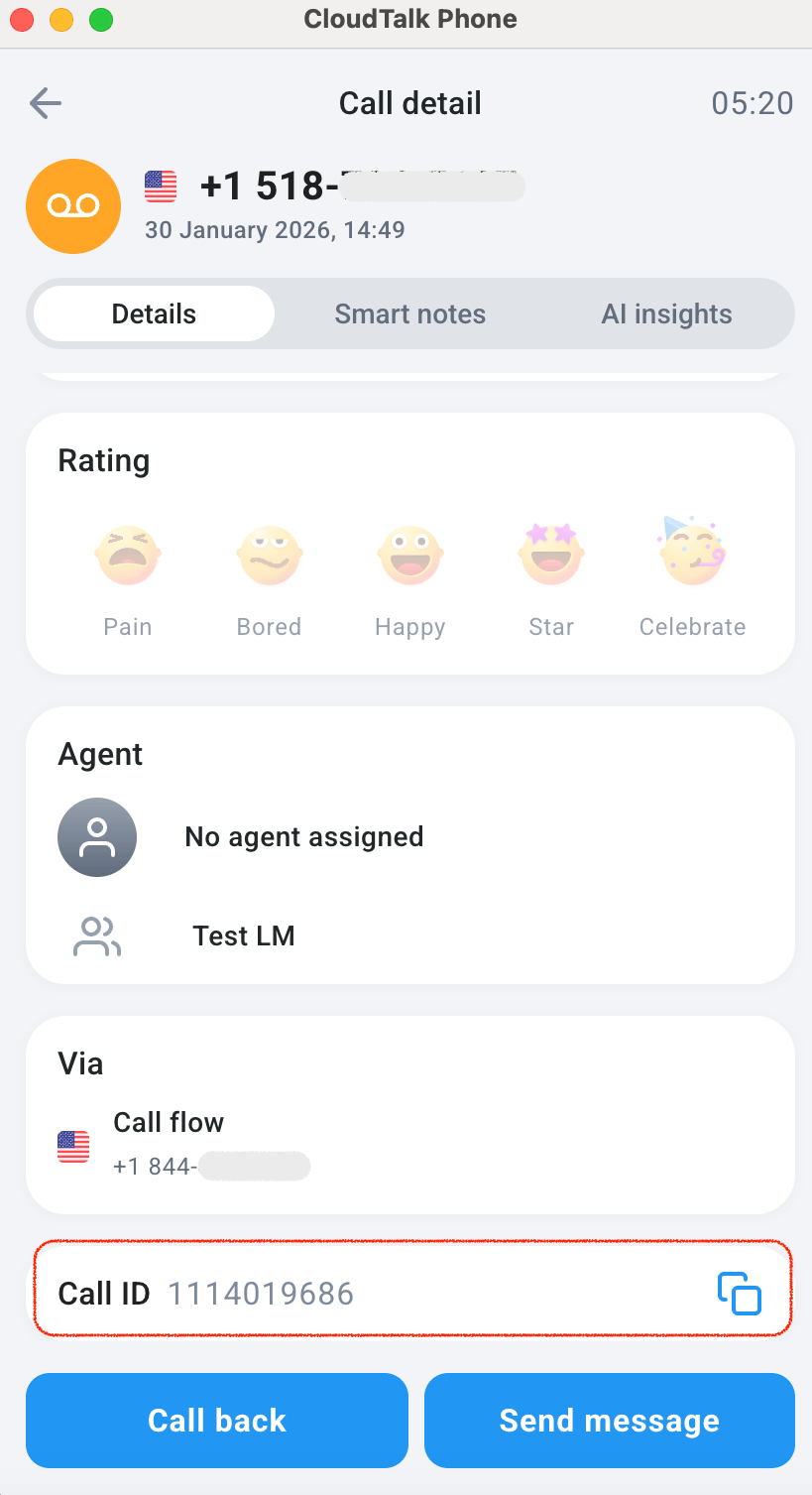
2. On the mobile app, select the `info (i)` icon. View or copy the **Call ID** from the call detail screen.
 3. From the desktop app, simply select the contact or number to go to call detail. View or copy the **Call ID**.
What is a Log ID Code
A Log ID works similarly to a Call ID, but serves a different purpose.
A Log ID is a **one-time code** that allows CloudTalk Support to replicate the technical conditions of your device environment. This helps with troubleshooting while keeping your personal and call data private.
Where to Find a Log ID
From CloudTalk Phone (Desktop and CTI only)
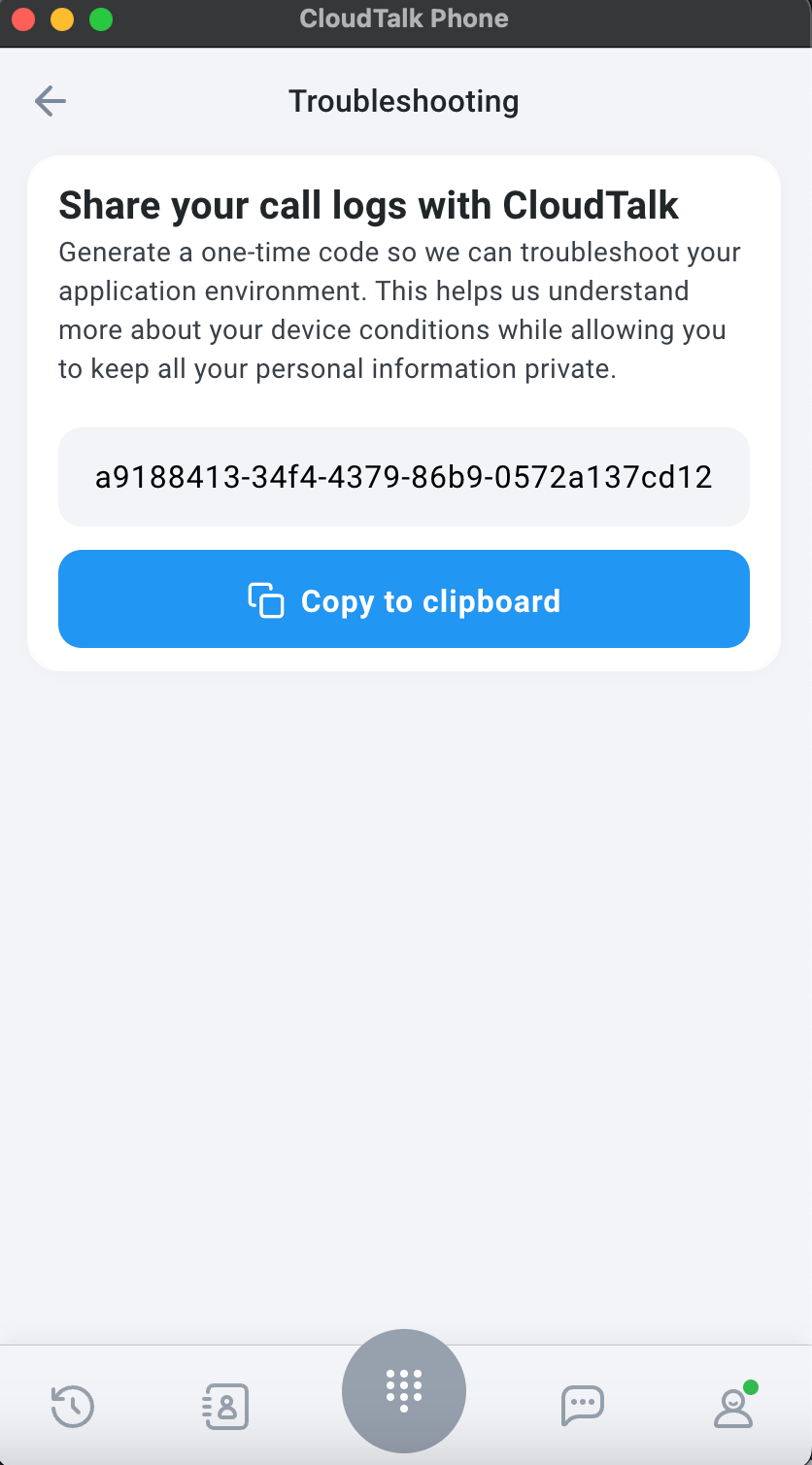
1. Select the user icon on the bottom right to view your user profile.
2. Select **Troubleshooting**. Here is where you can copy your one-time log id.
 ***
*Need help or have a question?* Just reach out through our [Support portal](https://support.cloudtalk.io/hc/en-us/requests/new?ticket_form_id=26305535257884) — we’re here for you.
## Related topics
- [Can’t Hear or Poor Audio During Calls](/en/articles/12008227-can-t-hear-or-poor-audio-during-calls.md)
- [Inbound Call Shows the Wrong Caller Number](/en/articles/15704305-inbound-call-shows-the-wrong-caller-number.md)
- [Call Quality Dashboard](/en/articles/16335949-call-quality-dashboard.md)
This documentation is built and hosted on [Mintlify](https://mintlify.com), a developer documentation platform.
***
*Need help or have a question?* Just reach out through our [Support portal](https://support.cloudtalk.io/hc/en-us/requests/new?ticket_form_id=26305535257884) — we’re here for you.
## Related topics
- [Can’t Hear or Poor Audio During Calls](/en/articles/12008227-can-t-hear-or-poor-audio-during-calls.md)
- [Inbound Call Shows the Wrong Caller Number](/en/articles/15704305-inbound-call-shows-the-wrong-caller-number.md)
- [Call Quality Dashboard](/en/articles/16335949-call-quality-dashboard.md)
This documentation is built and hosted on [Mintlify](https://mintlify.com), a developer documentation platform.