> ## Documentation Index
> Fetch the complete documentation index at: https://help.cloudtalk.io/llms.txt
> Use this file to discover all available pages before exploring further.
# Configure Pipedrive
> Configure data exchange and install the CloudTalk CTI to ensure your data stays up to date and your team can call directly from Pipedrive.
This article explains how to connect Pipedrive to CloudTalk, configure syncing and logging settings, set up CloudTalk calling inside Pipedrive (CTI or Click-to-Call), and disconnect the integration if needed.
**User level:** Admin
***
Prerequisites
Before you begin, make sure you have the following:
* Active CloudTalk account
* Active Pipedrive account
* Pipedrive Admin permissions to complete setup and configure fields used for syncing
* Access to the CloudTalk Dashboard
* Ability to authorize applications in Pipedrive
* The email address you use in CloudTalk must match exactly with the email address in your Pipedrive account. If the emails do not match, synchronization will not work correctly.
* Each agent must have a phone number added to their CloudTalk profile. If an agent has no phone number, their calls will not be logged to Pipedrive. The calls are skipped without any error message.
Connect Pipedrive to CloudTalk
1. In CloudTalk Dashboard, go to to **Account** > **Integrations**.
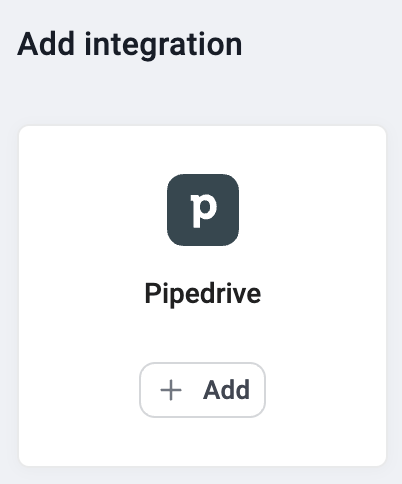
2. Hover over the **Pipedrive** integration and select **`+ Add`**.
 3\. In the Pipedrive authorization window, click **Allow and Install** to grant permissions..
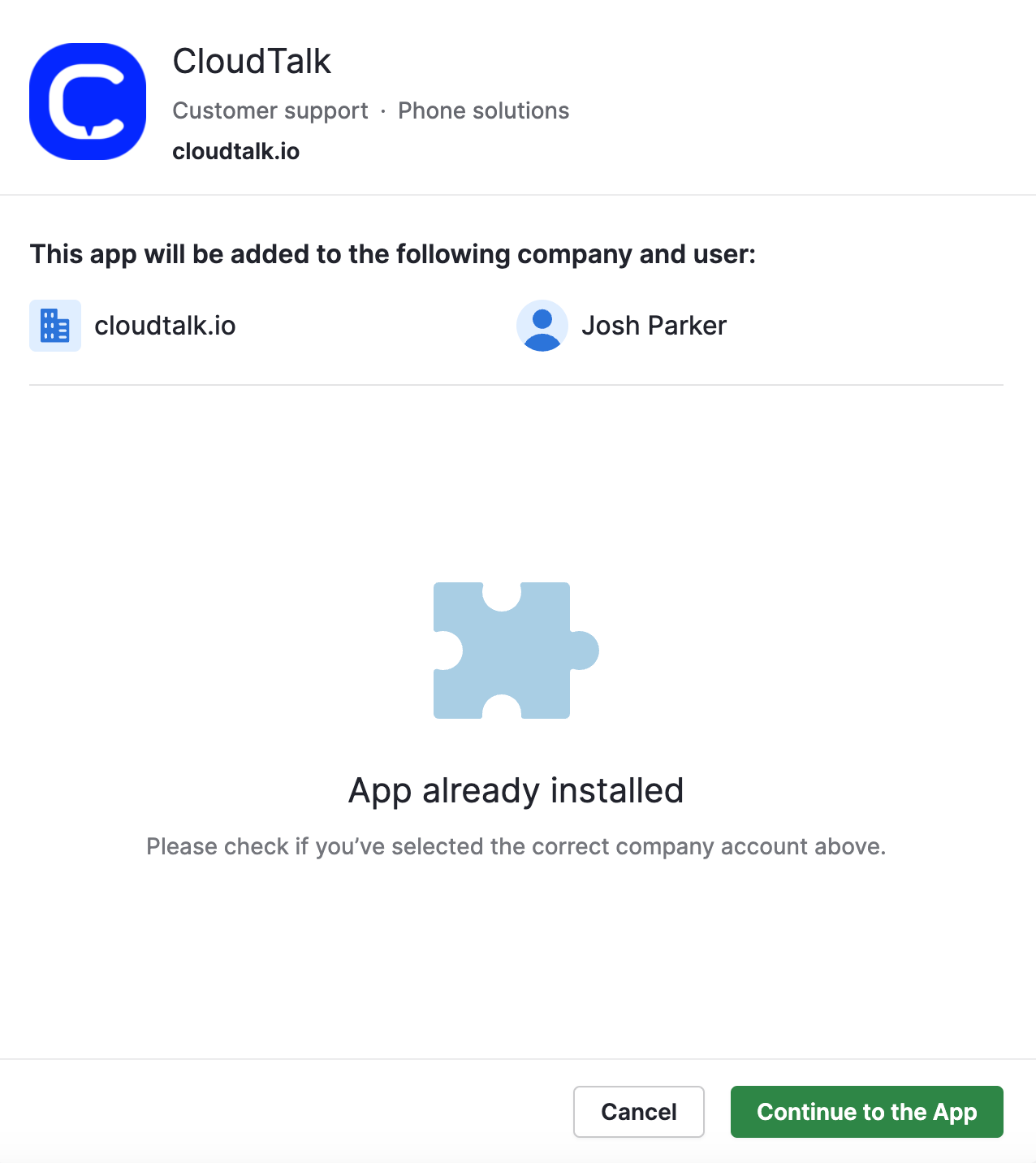 4\. After successful authentication, you'll be redirected back to CloudTalk.
5\. Click **Save** to activate the integration.
After activation, the initial sync starts.
4\. After successful authentication, you'll be redirected back to CloudTalk.
5\. Click **Save** to activate the integration.
After activation, the initial sync starts.
Integration Customization
Contact Sync with Pipedrive Organizations (Required for organization-based sync)
To create CloudTalk contacts from **Pipedrive Organizations**, Pipedrive must have organization fields available for phone numbers and emails during the initial setup.
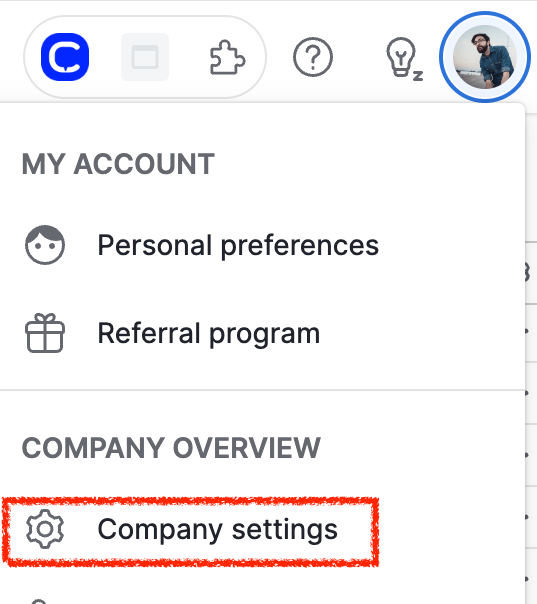
1. In Pipedrive, click your profile picture and go to **Company settings**.
 2. From the **Data fields** page, select **Organization**.
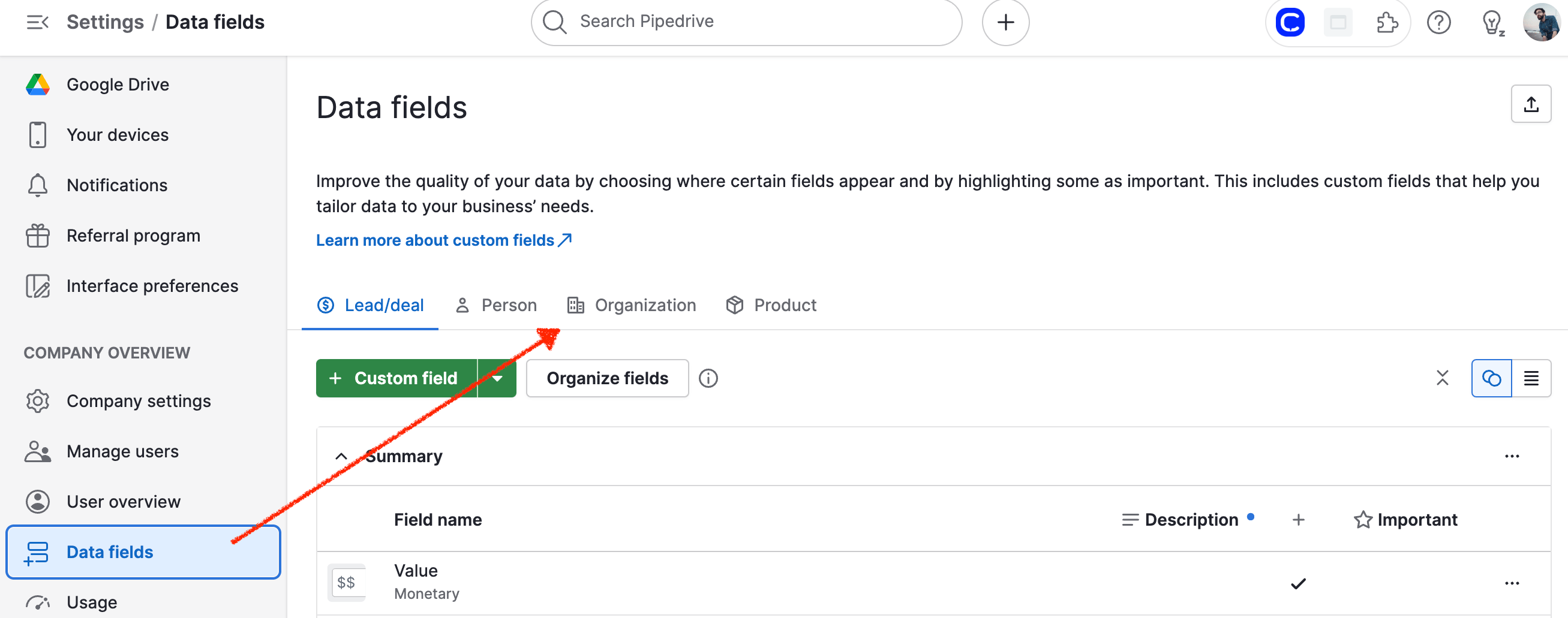 3. Select **`Add custom field`**.
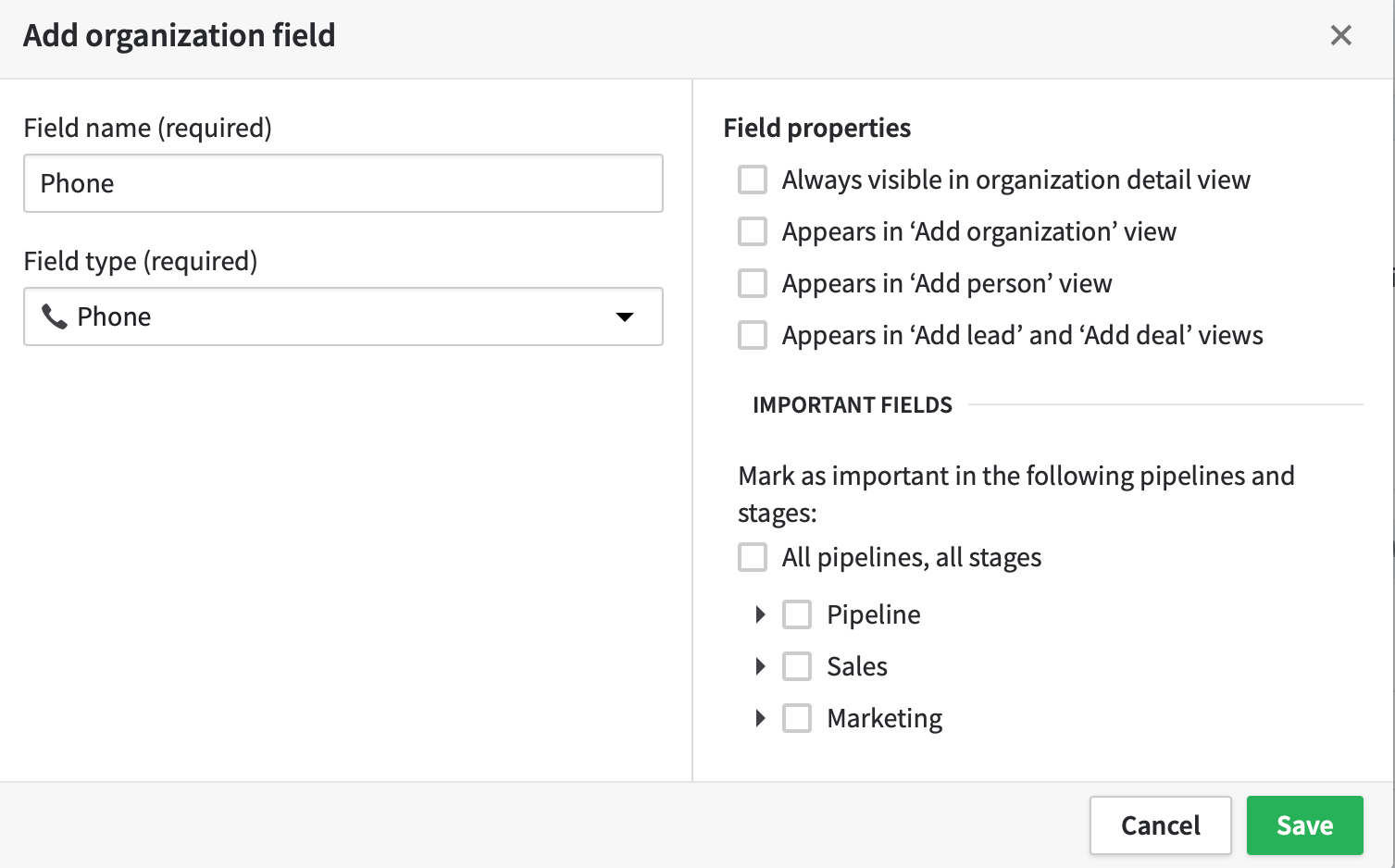
1. Within the box that pops up, choose your settings and name for a custom phone field, choosing **Phone** for **Field type (required)**. **`Save`**.
3. Select **`Add custom field`**.
1. Within the box that pops up, choose your settings and name for a custom phone field, choosing **Phone** for **Field type (required)**. **`Save`**.
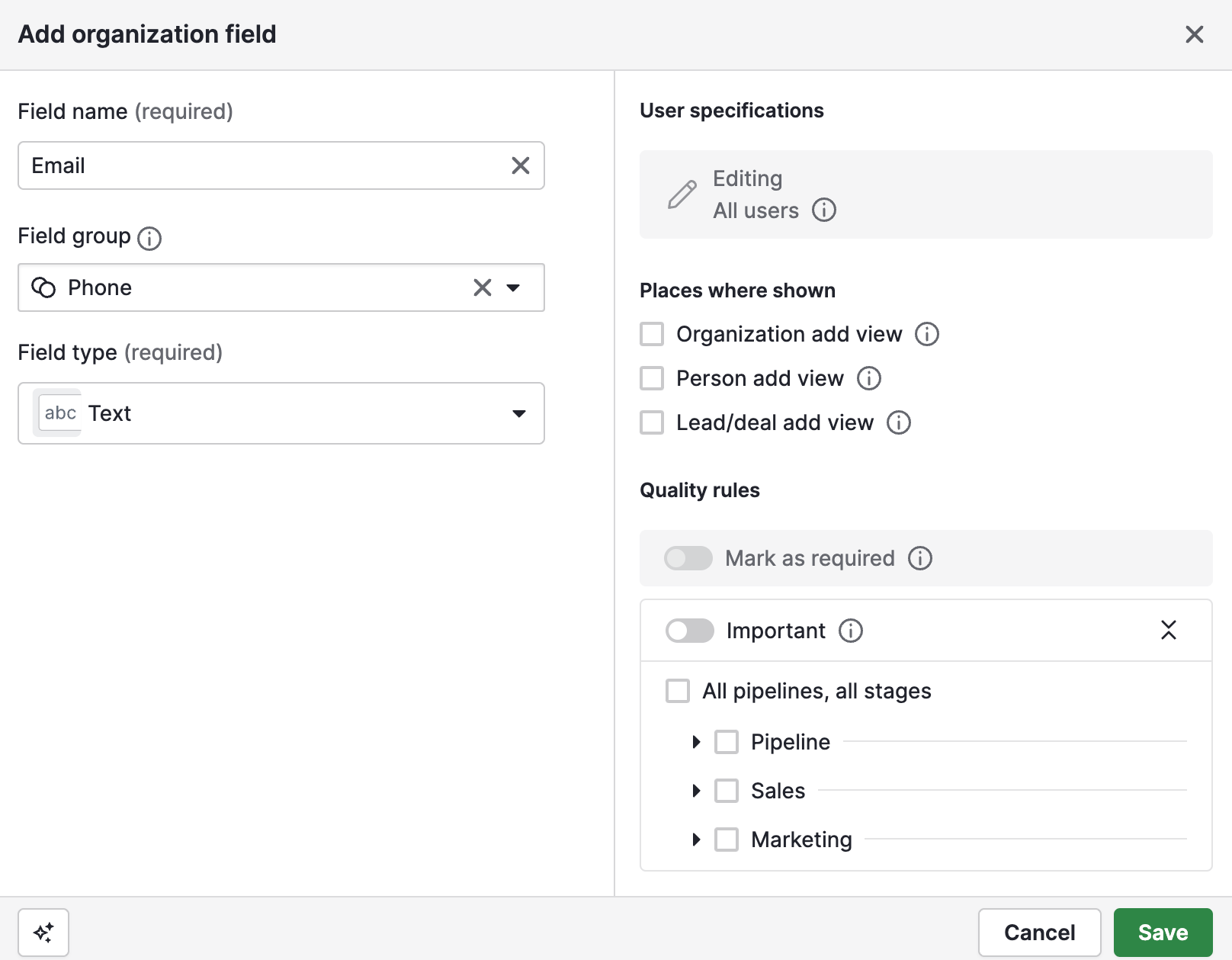
 4. Set up an email field by clicking the green button to add another **Organization field**, and this time set the field type to **Text**. **`Save`**.
 5. Open your CloudTalk Dashboard in a new tab. From **Account > Integrations**, select **Proceed** within your Pipedrive integration page if you have not yet done so.
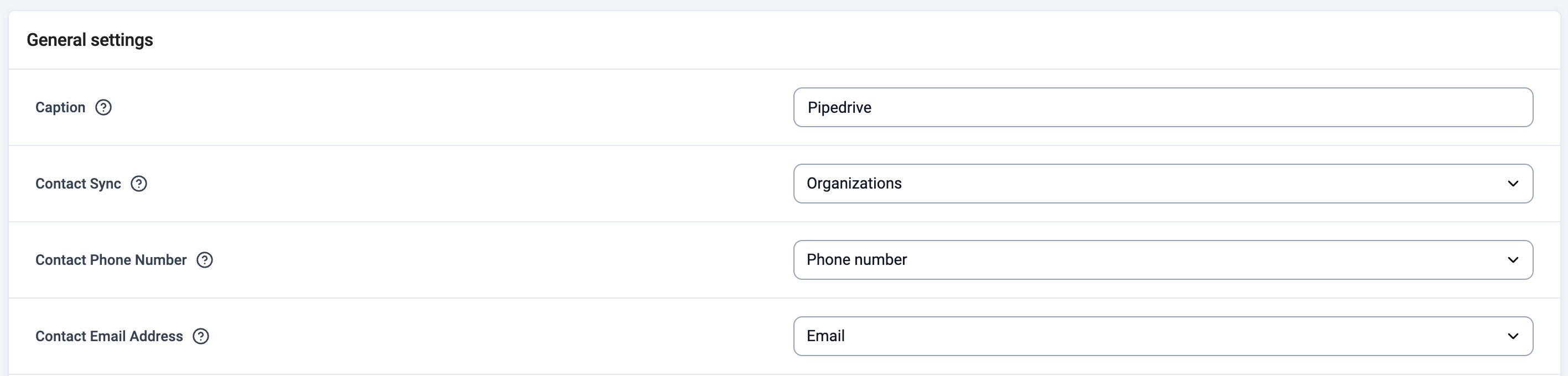
6. Under *General Settings*, you will see **Contact Sync**, **Contact Phone Number**, and **Contact Email Address** with dropdown box options. Here, you can select the Pipedrive Organization fields where the Phone Number & Email Address are stored.
5. Open your CloudTalk Dashboard in a new tab. From **Account > Integrations**, select **Proceed** within your Pipedrive integration page if you have not yet done so.
6. Under *General Settings*, you will see **Contact Sync**, **Contact Phone Number**, and **Contact Email Address** with dropdown box options. Here, you can select the Pipedrive Organization fields where the Phone Number & Email Address are stored.
 7. **Save** the integration settings.
Learn more about [custom fields in Pipedrive](https://support.pipedrive.com/en/article/custom-fields), or see an overview of [the field types](https://support.pipedrive.com/en/article/what-types-of-custom-fields-are-there) available.
7. **Save** the integration settings.
Learn more about [custom fields in Pipedrive](https://support.pipedrive.com/en/article/custom-fields), or see an overview of [the field types](https://support.pipedrive.com/en/article/what-types-of-custom-fields-are-there) available.
Call Logging Settings
In the **Workflow Settings** section of the Pipedrive integration, you can define how different call types are logged as activities in Pipedrive.
For each call type (such as outbound answered or outbound unanswered), you can:
* Enable or disable logging
* Choose how the call should be logged (for example, as a completed activity)
* Select the activity type that should be assigned in Pipedrive
These settings determine how calls appear and are categorized inside Pipedrive.
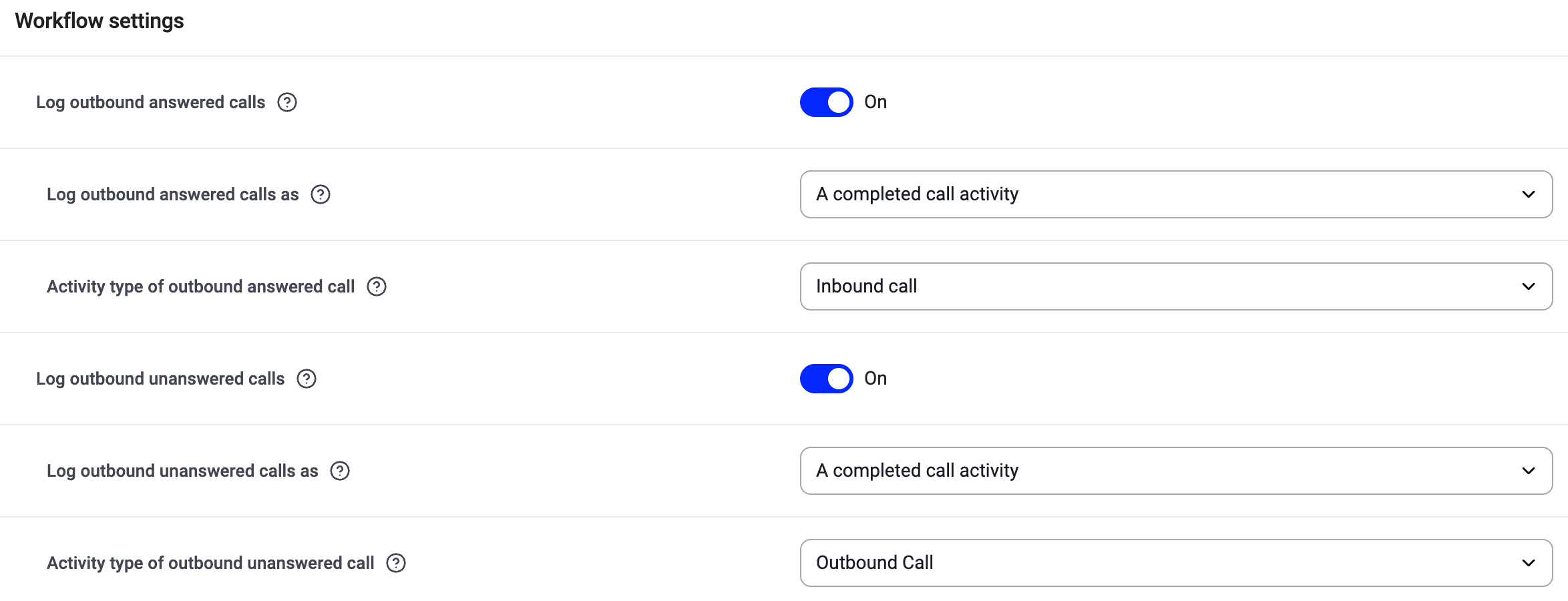 You can decide whether you want to **log all calls** or **only calls made during business hours**, and where to assign **missed calls** and customize how **new contacts are created for unassociated numbers**.
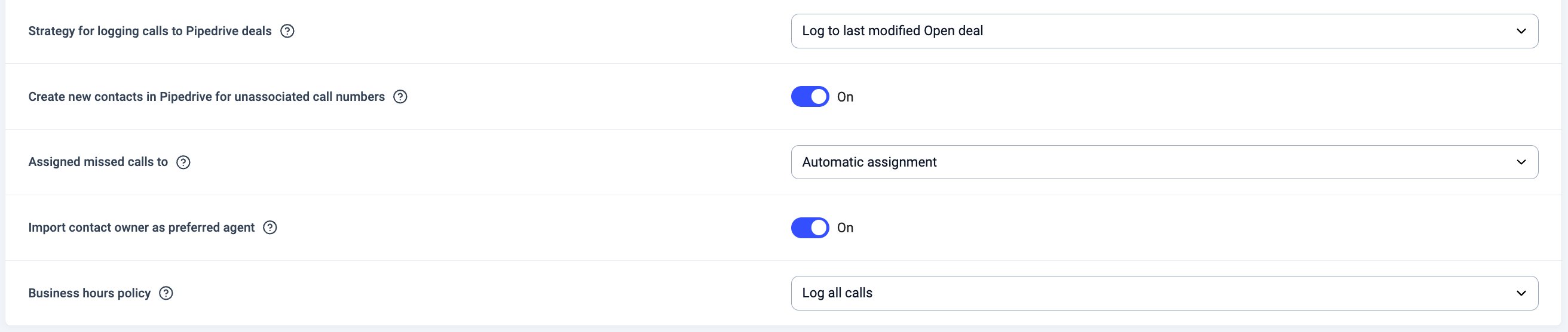 Enable **VoiceAgent call logging** to export VoiceAgent calls and captured data (like order numbers or selected plans) to Pipedrive. These calls will be labeled "Voice Agent Call".

Install CloudTalk Calling in Pipedrive
Pipedrive supports calling via:
* **[CloudTalk CTI](/en/articles/13385830-cloudtalk-cti) (recommended)** as the default calling app in Pipedrive, or
* **[CloudTalk Click-to-Call extension](/en/articles/2964244-the-click-to-call-extension)** (alternative)
For end-user calling instructions, see: **[How to Use CloudTalk with Pipedrive](/en/articles/5360220-using-cloudtalk-with-pipedrive#:~:text=contact%20or%20deal.-,Making%20and%20Receiving%20Calls,-Outbound%20Calls).**
Option A: Use Pipedrive CTI (recommended)
Pipedrive can start calls from the browser when users click a phone number. You can set CloudTalk as the **Default calling app**.
Agent setup:
1. Navigate to **Tools and apps** by clicking your profile icon. Under *Tools*, select **Phone calls**.
2. In the *Personal* tab, you can choose your Default calling app. Expand the dropdown and select **CloudTalk**.
 Click **`Save`**` settings` to confirm changes.
CTI Behavior for Inbound Calls
When an inbound call rings, CloudTalk's CTI can automatically open either the Pipedrive person (contact) or their most recently updated open deal, so agents can immediately access relevant context.
In CTI Settings, the user can choose which page is opened for inbound calls:
* Contact Profile (default)
* Latest Open Deal
* Do not open a new page
CTI will match the CloudTalk contact based on the **Pipedrive contact ID** or the most recently updated **open deal**.
* If a match is found, CTI opens the **selected page type** (contact or deal).
* If the CloudTalk contact has **no associated Pipedrive contact ID**, no page is opened.
* If a deal cannot be identified but a contact match exists, the **contact page is opened**, even if "deal" is selected.
* If neither a deal nor a contact can be matched, no page is opened**.**
Option B: Use Click-to-Call extension (alternative)
If you use Click-to-Call, install and configure the CloudTalk Click-to-Call extension. To avoid conflicts, disable Pipedrive's default calling method.
Steps:
1. In Pipedrive, go to **Tools and apps > Phone calls**.
2. For **Default calling app**, select **Custom**, and enter the value using the `ct+tel:` scheme followed by the phone number.
1. Example: **`ct+tel:555555555`** *.*
 3. Click on the **Save settings** button to confirm changes.
Disconnect or Remove the Integration
If you no longer want CloudTalk to synchronize data with Pipedrive, you can disable or permanently remove the integration.
To **disable the integration**, go to **Account > Integrations**, locate the **Pipedrive** integration, and toggle the status from **Active** to **Inactive**.
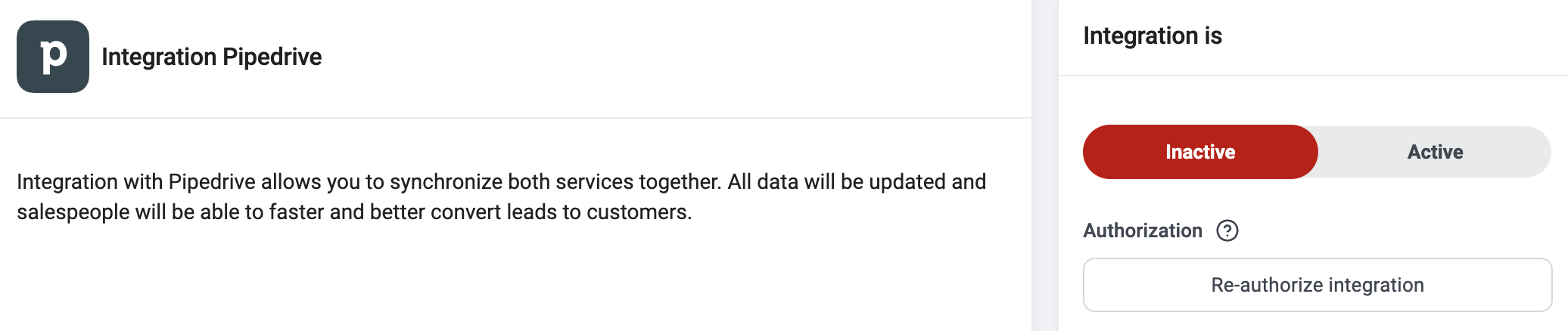 To **delete the integration permanently**, open the Pipedrive integration settings, scroll down, click **Delete Integration**, and type **DELETE** to confirm.
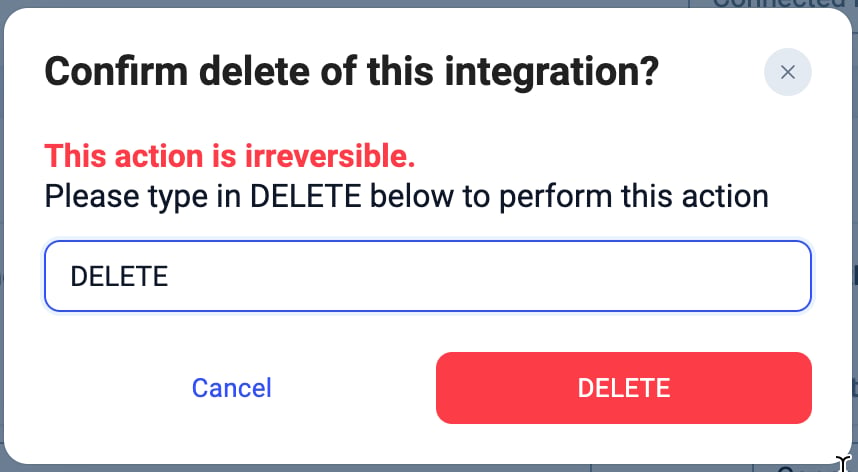 After removal:
* Contact sync stops
* Call and message export stops
* Previously exported data remains in Pipedrive
* Existing CloudTalk contacts are not deleted
***
*Need help or have a question?* Just reach out through our [Support portal](https://support.cloudtalk.io/hc/en-us/requests/new?ticket_form_id=26305535257884) — we're here for you.
## Related topics
- [Using CloudTalk with Pipedrive](/en/articles/5360220-using-cloudtalk-with-pipedrive.md)
- [Send CloudTalk SMS from Pipedrive via Automation](/en/articles/14594584-send-cloudtalk-sms-from-pipedrive-via-automation.md)
- [Pipedrive Deal Stage: Zapier Automation](/en/articles/5724062-pipedrive-deal-stage-zapier-automation.md)
This documentation is built and hosted on [Mintlify](https://mintlify.com), a developer documentation platform.
After removal:
* Contact sync stops
* Call and message export stops
* Previously exported data remains in Pipedrive
* Existing CloudTalk contacts are not deleted
***
*Need help or have a question?* Just reach out through our [Support portal](https://support.cloudtalk.io/hc/en-us/requests/new?ticket_form_id=26305535257884) — we're here for you.
## Related topics
- [Using CloudTalk with Pipedrive](/en/articles/5360220-using-cloudtalk-with-pipedrive.md)
- [Send CloudTalk SMS from Pipedrive via Automation](/en/articles/14594584-send-cloudtalk-sms-from-pipedrive-via-automation.md)
- [Pipedrive Deal Stage: Zapier Automation](/en/articles/5724062-pipedrive-deal-stage-zapier-automation.md)
This documentation is built and hosted on [Mintlify](https://mintlify.com), a developer documentation platform.