> ## Documentation Index
> Fetch the complete documentation index at: https://help.cloudtalk.io/llms.txt
> Use this file to discover all available pages before exploring further.
# Configure Voicemail Settings
> CloudTalk's voicemail feature will help you catch missed calls, including those received outside of your set business hours.
You can add a voicemail step to your call flow for any inbound number in CloudTalk. Each number has its own voicemail configuration, but you can also define company-wide default settings to make setup faster and more consistent.
User Level:
* Admin
***
Set up Voicemail
You can add a voicemail step to a call flow for any of your inbound numbers. While each number will need its own voicemail configuration, there are some default conditions you can apply in **Account > Settings** to make the setup process easier.
For an Inbound Number
Navigate to the **Numbers** tab within your [dashboard](http://dashboard.cloudtalk.io) account. From the numbers list:
1. Select the **edit** icon for your chosen number.
2. Select **Configure call flow**.
3. Select a **`+`** icon to add a new step:
1. Select **Voicemail**.
2. *(Optional) Add an internal **Name** for this voicemail step.*
3. Select a mailbox under **Name of the Voicemail**.
4. Choose settings specific to this number for user notification and recordings. Or, select **Use company settings** to apply your default settings here.
5. **Confirm**.
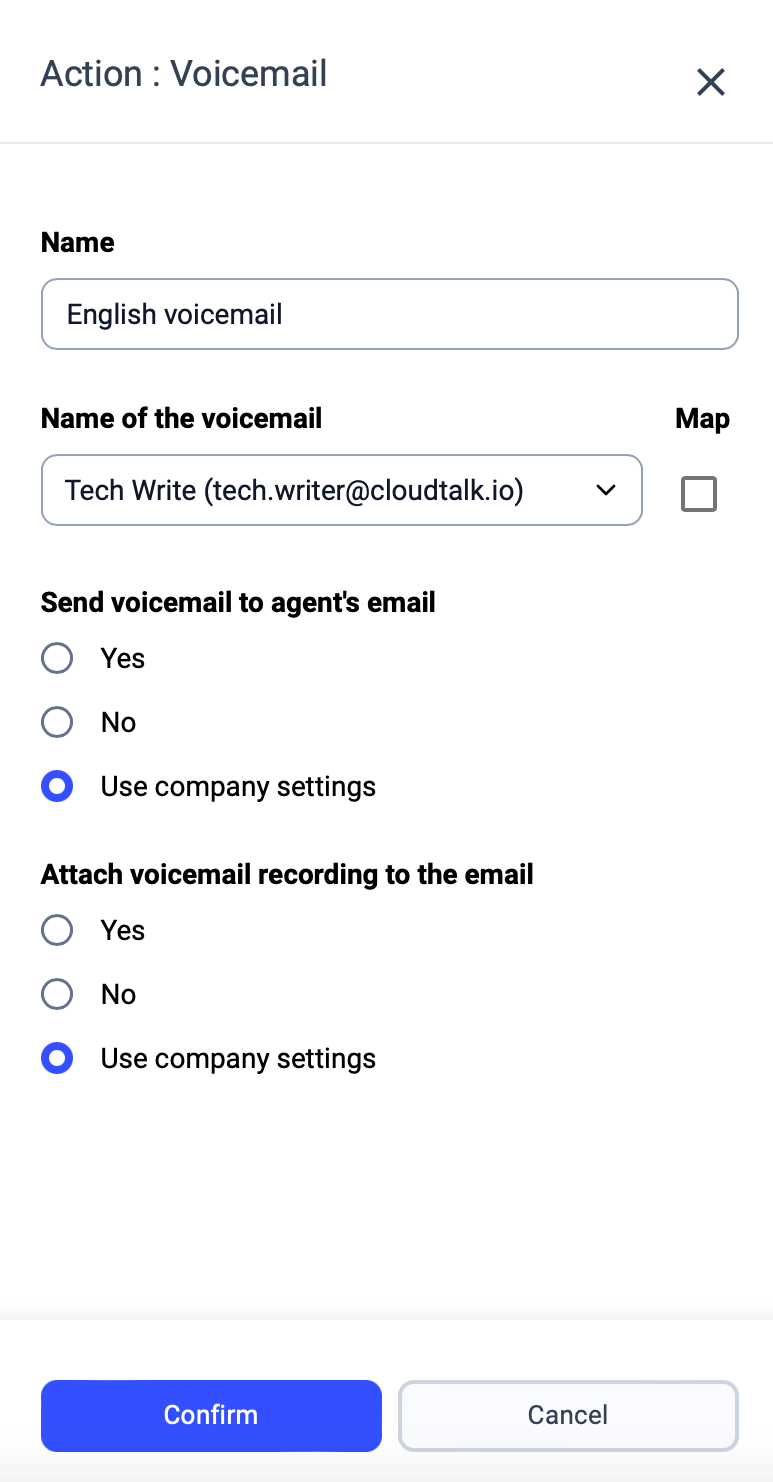 4. Click **Save flow** to apply your changes.
For Out of Office & Holidays
Our [business hours](/en/articles/2144270-business-hours) feature allows you to set what should happen when clients call your number outside of working hours.
To set up a voicemail action for out of office hours:
1. Navigate to **Account > Settings >** *Business Hours* in your dashboard.
2. Confirm **Business hours** are switched on.
1. *This setting requires at least one time and date rule that sets your availability.*
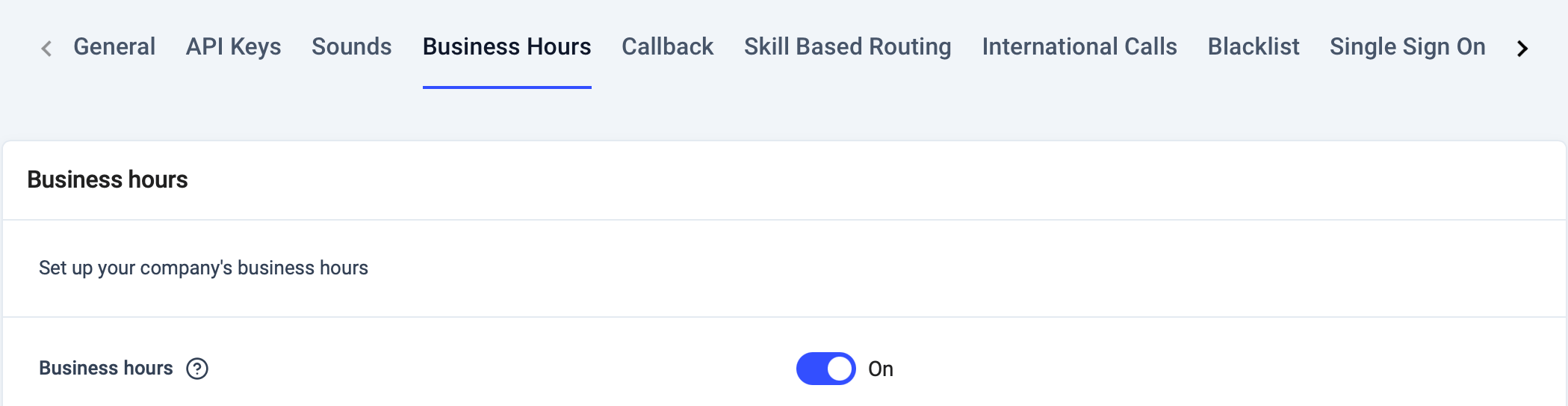 3. For the **Type** setting, select `Voicemail` or `Play sound and Voicemail`.
 1. Select the user to receive incoming voice messages.
2. If a sound is required, select a customer greeting.
4. **`Save changes.`**
1. Select the user to receive incoming voice messages.
2. If a sound is required, select a customer greeting.
4. **`Save changes.`**
Voicemail Notifications
When configuring voicemail within an inbound call flow, notification preferences can be set specifically for that number. These settings would then override the company settings for the number.
Alternatively, you can choose to use the company notification settings. From the dashboard, you can set company settings for voicemail notification within **Account > Settings >** *General*.
Notification Settings
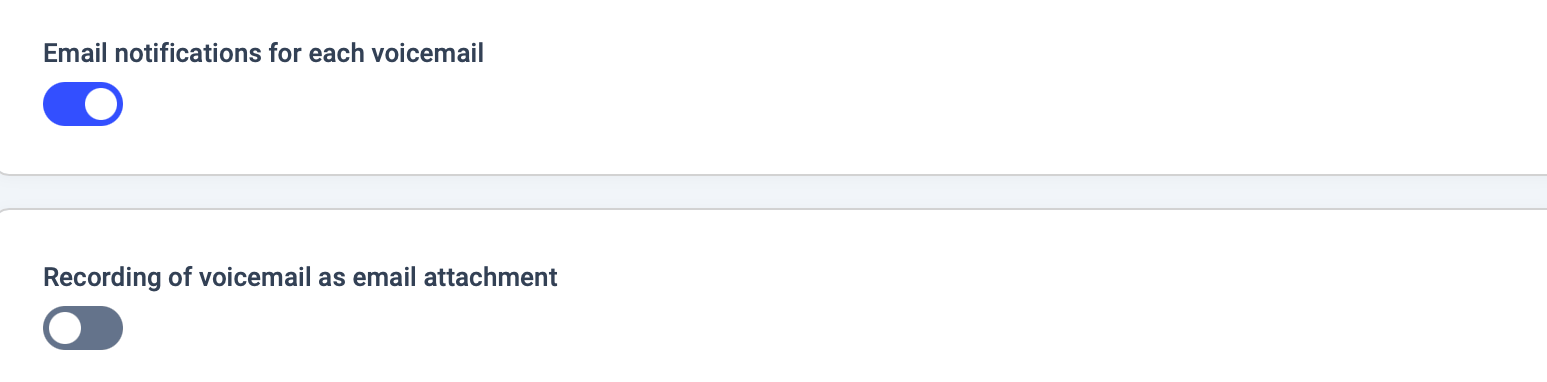 * **Email notifications for each voicemail** sends an email notification per voicemail to the user selected in the voicemail step of your inbound number's call flow.
* **Recording of voicemail as email attachment** attaches the voicemail recording to each notification email that is sent.
* **Email notifications for each voicemail** sends an email notification per voicemail to the user selected in the voicemail step of your inbound number's call flow.
* **Recording of voicemail as email attachment** attaches the voicemail recording to each notification email that is sent.
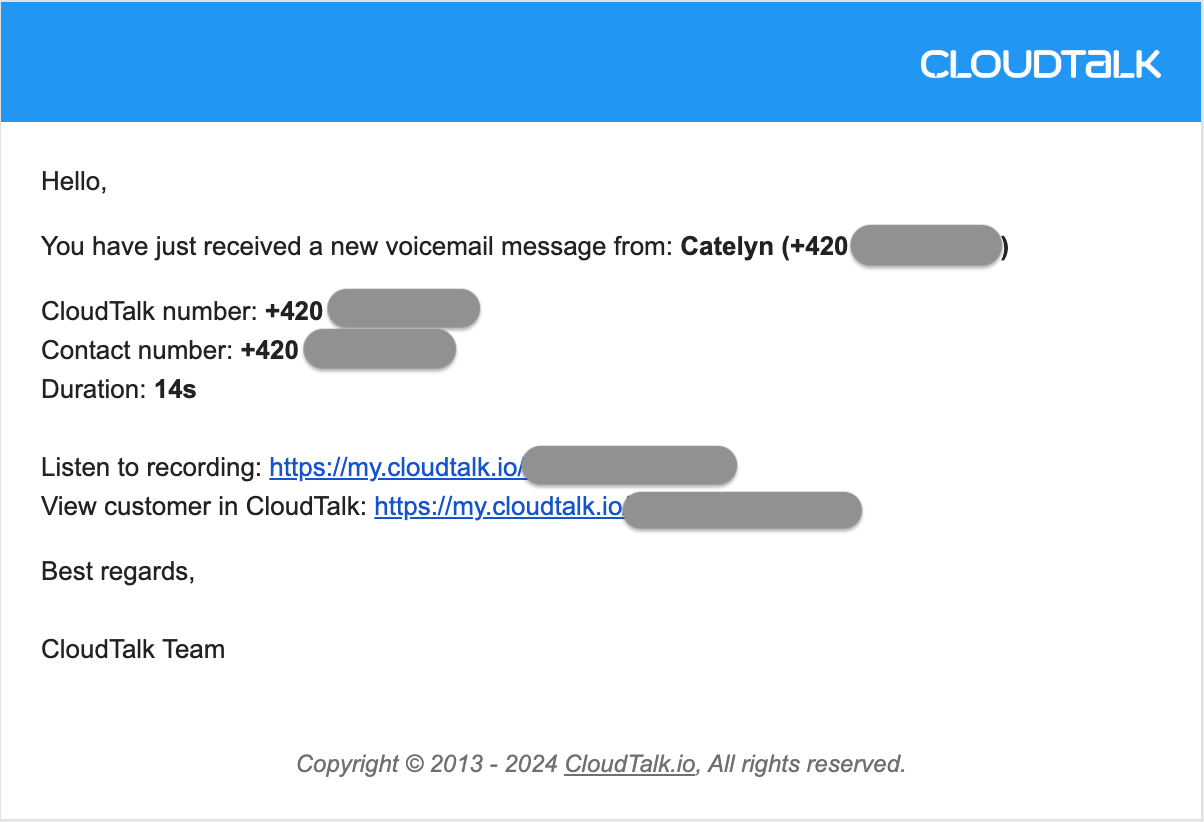
Voicemail Recordings
You can listen to voicemail recordings in two ways:
* Click the link or attachment in the voicemail notification email
* Open **Call History** in your CloudTalk Dashboard and locate the [voicemail](/en/articles/2144945-call-recordings) there
 ***
*Need help or have a question?* Just reach out through our [Support portal](https://support.cloudtalk.io/hc/en-us/requests/new?ticket_form_id=26305535257884) — we’re here for you.
## Related topics
- [Account Settings Guide](/en/articles/10550593-account-settings-guide.md)
- [Voicemail Not Working / Not Playing Audio](/en/articles/12959171-voicemail-not-working-not-playing-audio.md)
- [Call Flow Designer Guide](/en/articles/3669429-call-flow-designer-guide.md)
This documentation is built and hosted on [Mintlify](https://mintlify.com), a developer documentation platform.
***
*Need help or have a question?* Just reach out through our [Support portal](https://support.cloudtalk.io/hc/en-us/requests/new?ticket_form_id=26305535257884) — we’re here for you.
## Related topics
- [Account Settings Guide](/en/articles/10550593-account-settings-guide.md)
- [Voicemail Not Working / Not Playing Audio](/en/articles/12959171-voicemail-not-working-not-playing-audio.md)
- [Call Flow Designer Guide](/en/articles/3669429-call-flow-designer-guide.md)
This documentation is built and hosted on [Mintlify](https://mintlify.com), a developer documentation platform.