> ## Documentation Index
> Fetch the complete documentation index at: https://help.cloudtalk.io/llms.txt
> Use this file to discover all available pages before exploring further.
# Surveys
> Create and manage surveys, assign them to AI Sales Dialer campaigns, and review or export the answers
Learn how to create, manage, and assign surveys, and how to review and export the answers from AI Sales Dialer campaigns.
**User Level**: Admin
***
Surveys give agents a set of structured questions to work through during a campaign call. Answers are saved against the campaign and can be reviewed and exported from the Dashboard. They are useful for qualifying leads, collecting feedback, or building a profile on prospective clients.
💡 Surveys work with the AI Sales Dialer in both sequential and parallel mode. You assign a survey per campaign, and agents fill it in from the Survey tab during or after each call.
Create a survey
1. In the Dashboard, go to **Dialer (new) > Surveys**.
2. Click **+ Add Survey**.
3. Enter a **name** for your survey and add at least one question. For each question, set:
* **Question content**: the text agents will ask the contact.
* **Question type**: the kind of answer allowed (see below).
4. Click **Create survey**.
| **Question type** | **Best for** |
| - | - |
| **Short text** (up to 255 characters) | Brief free-form answers: a name, a company, a one-line comment. |
| **Long text** (up to 65,535 characters) | Longer free-form answers and notes. |
| **Checkbox** | Yes/no answers. Checked means yes, unchecked means no. |
| **Radio options** | Several options, one selection. Best when there are only a few choices. |
| **Select** | Several options, one selection. Better for long lists such as countries or industries. |

Edit or delete a survey
1. Go to **Dialer > Surveys**.
2. Find the survey you want to update.
3. Click the **pencil icon** to edit or the **trash icon** to delete.
⚠️ Deleting a survey that is assigned to an active campaign removes it from that campaign immediately. Answers already collected stay on the campaign.
Assign a survey to a campaign
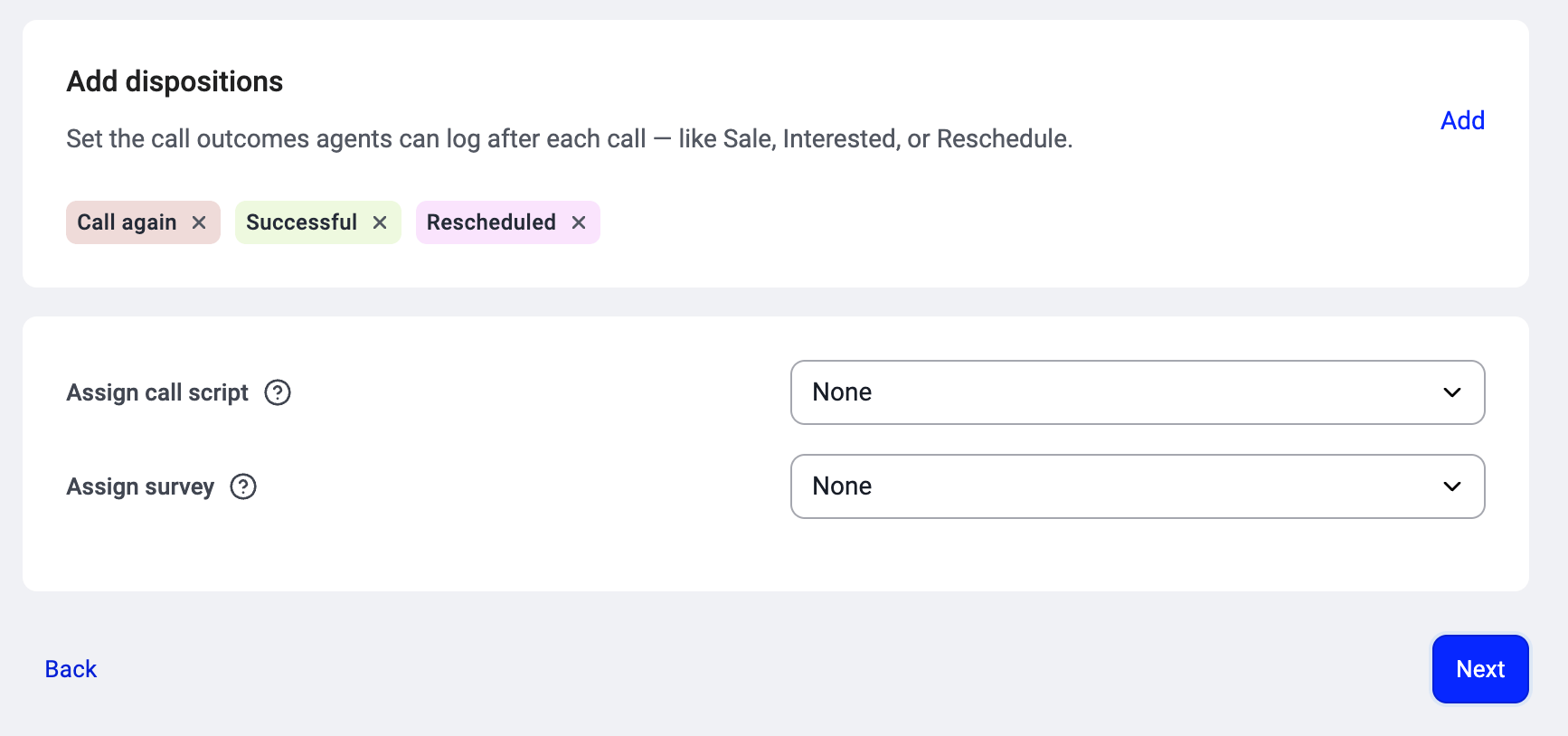
Surveys are assigned in **Step 3: Calling setup** when you create a campaign, or when editing an existing one.
1. Go to **Dialer (new) > Campaigns** and open the campaign, or start a new one.
2. In **Calling setup**, find **Assign survey** and pick the survey from the list. You can search by name.
3. Save your changes.
One survey per campaign. The same survey can be assigned to as many campaigns as you like.
See [Setting up a campaign in the AI Sales Dialer](/en/articles/17025659-setting-up-a-campaign) for the full campaign walkthrough.
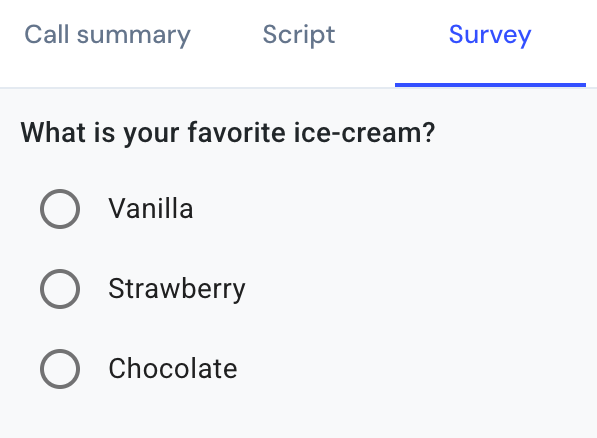
How agents fill in the survey
During a campaign call, the survey appears in the **Survey** tab of the Call summary panel on the right side of the dialer screen. Agents can fill it in during the call or right after, then click **Submit survey**. The answers are saved against that call and contact.
See [Running a campaign in the AI Sales Dialer](/en/articles/17025679-running-a-campaign) for the agent view.
View and export survey answers
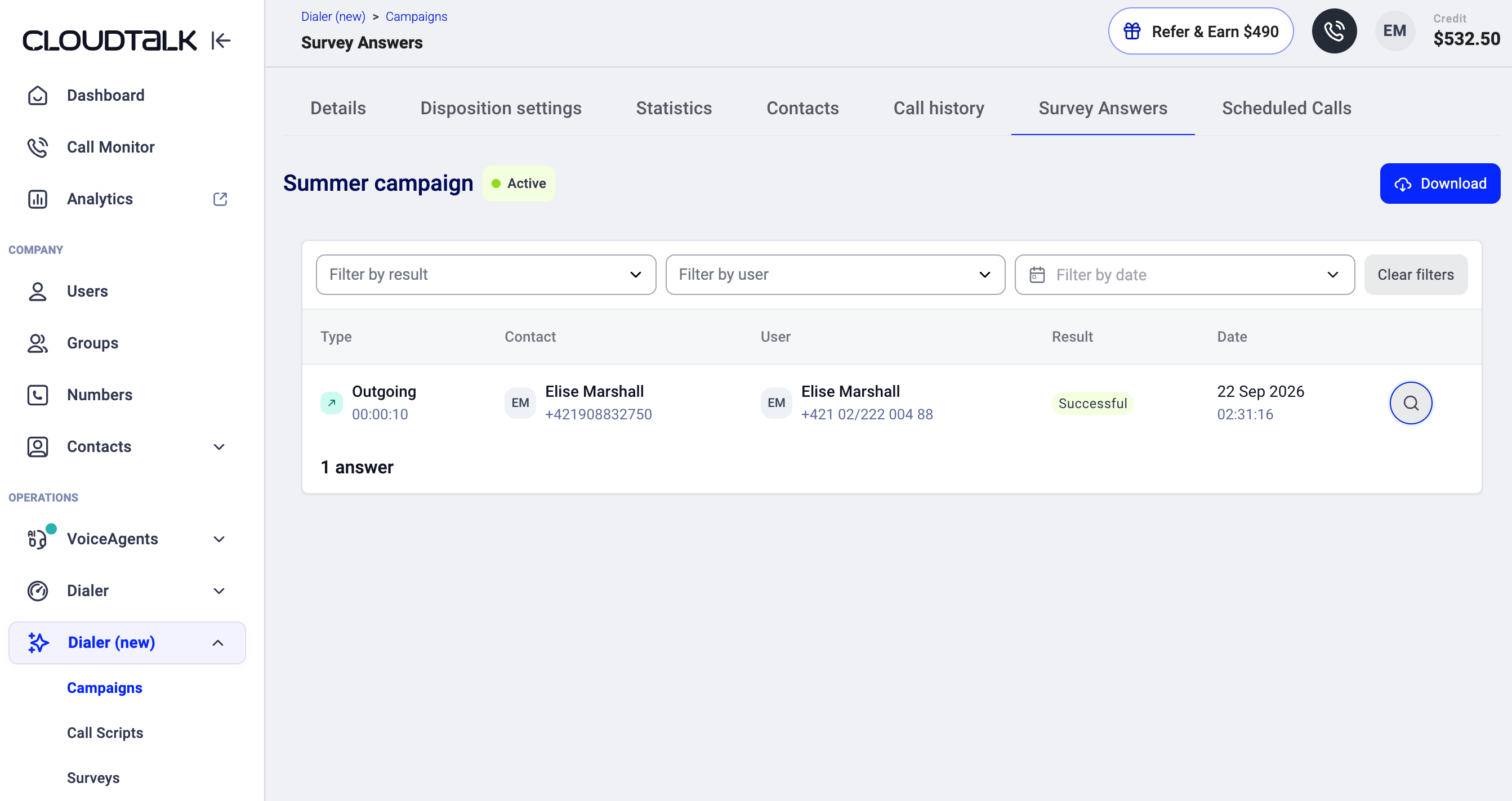
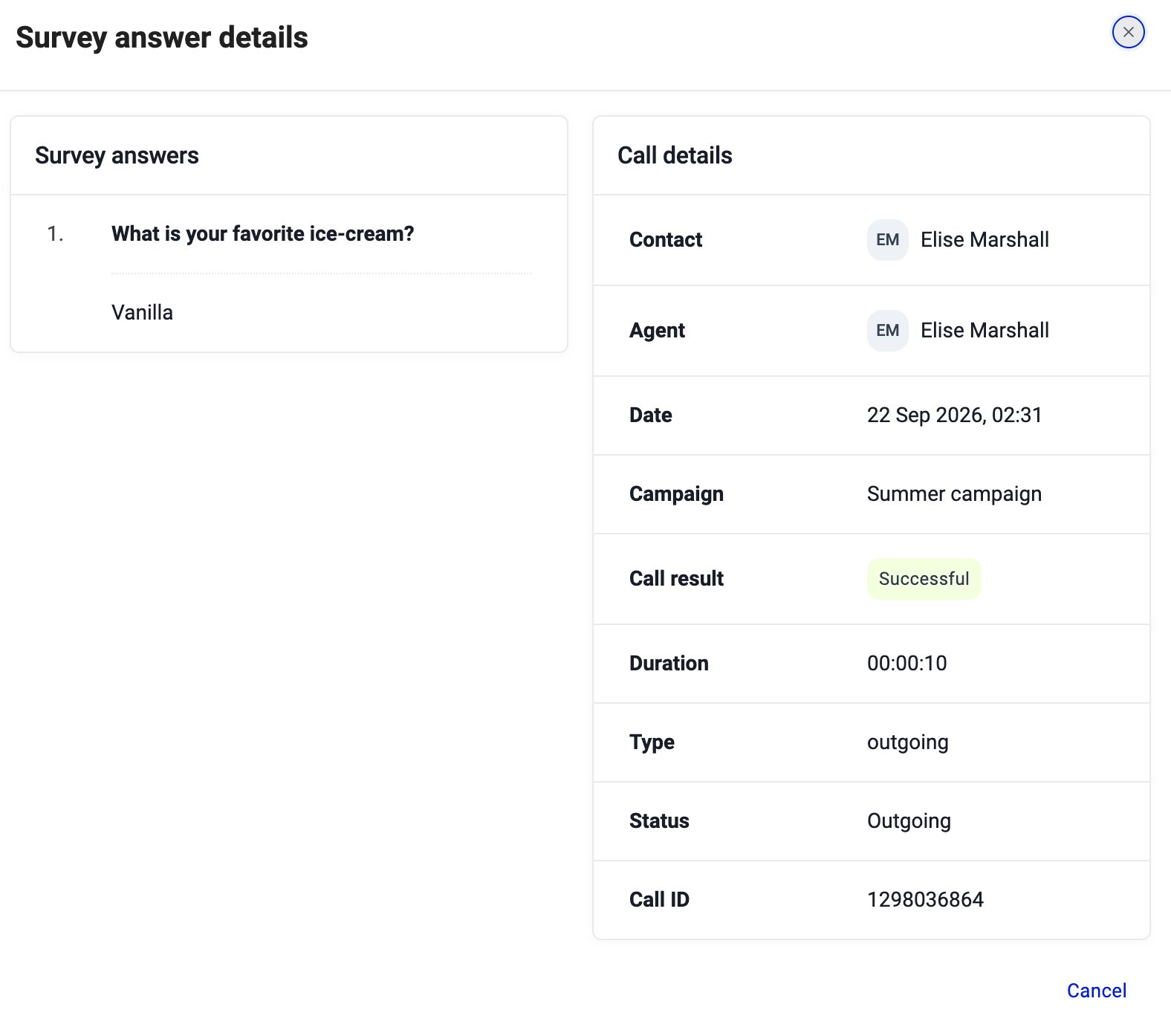
Survey responses are stored on the campaign and can be reviewed once calls have been made.
1. Go to **Dialer (new) > Campaigns** and open the campaign.
2. Open the **Survey Answers** tab.
3. To export all responses, click **Download**.
See [Campaign statistics, call history and exports](/en/articles/17025667-campaign-statistics-call-history-and-exports) for the other campaign tabs and exports.
 If you need to send survey answers to an external system automatically, you can do that with workflow automations. See [Export Survey Answers](/en/articles/7896628-export-survey-answers) for a step-by-step guide.
***
*Need help or have a question?* Just reach out through our [Support portal](https://support.cloudtalk.io/hc/en-us/requests/new?ticket_form_id=26305535257884) — we’re here for you.
## Related topics
- [Create a survey](/api-reference/dialer/create-a-survey.md)
- [List surveys](/api-reference/dialer/list-surveys.md)
- [Get a survey](/api-reference/dialer/get-a-survey.md)
This documentation is built and hosted on [Mintlify](https://mintlify.com), a developer documentation platform.
If you need to send survey answers to an external system automatically, you can do that with workflow automations. See [Export Survey Answers](/en/articles/7896628-export-survey-answers) for a step-by-step guide.
***
*Need help or have a question?* Just reach out through our [Support portal](https://support.cloudtalk.io/hc/en-us/requests/new?ticket_form_id=26305535257884) — we’re here for you.
## Related topics
- [Create a survey](/api-reference/dialer/create-a-survey.md)
- [List surveys](/api-reference/dialer/list-surveys.md)
- [Get a survey](/api-reference/dialer/get-a-survey.md)
This documentation is built and hosted on [Mintlify](https://mintlify.com), a developer documentation platform.