> ## Documentation Index
> Fetch the complete documentation index at: https://help.cloudtalk.io/llms.txt
> Use this file to discover all available pages before exploring further.
# Call Scripts
> Create and manage call scripts, assign them to AI Sales Dialer campaigns, and see how agents use them during calls.
Learn how to create, manage, and assign call scripts, and how agents see them during AI Sales Dialer calls.
**User Level**: Admin
***
Call scripts give agents a structured guide to follow during campaign calls. They can include suggested dialogue, talking points, objection handling, or any other content that helps agents stay consistent and confident on the call.
💡 Call scripts work with the AI Sales Dialer in both sequential and parallel mode. You assign a script per campaign, and agents see it on screen for the whole call.
Create a call script
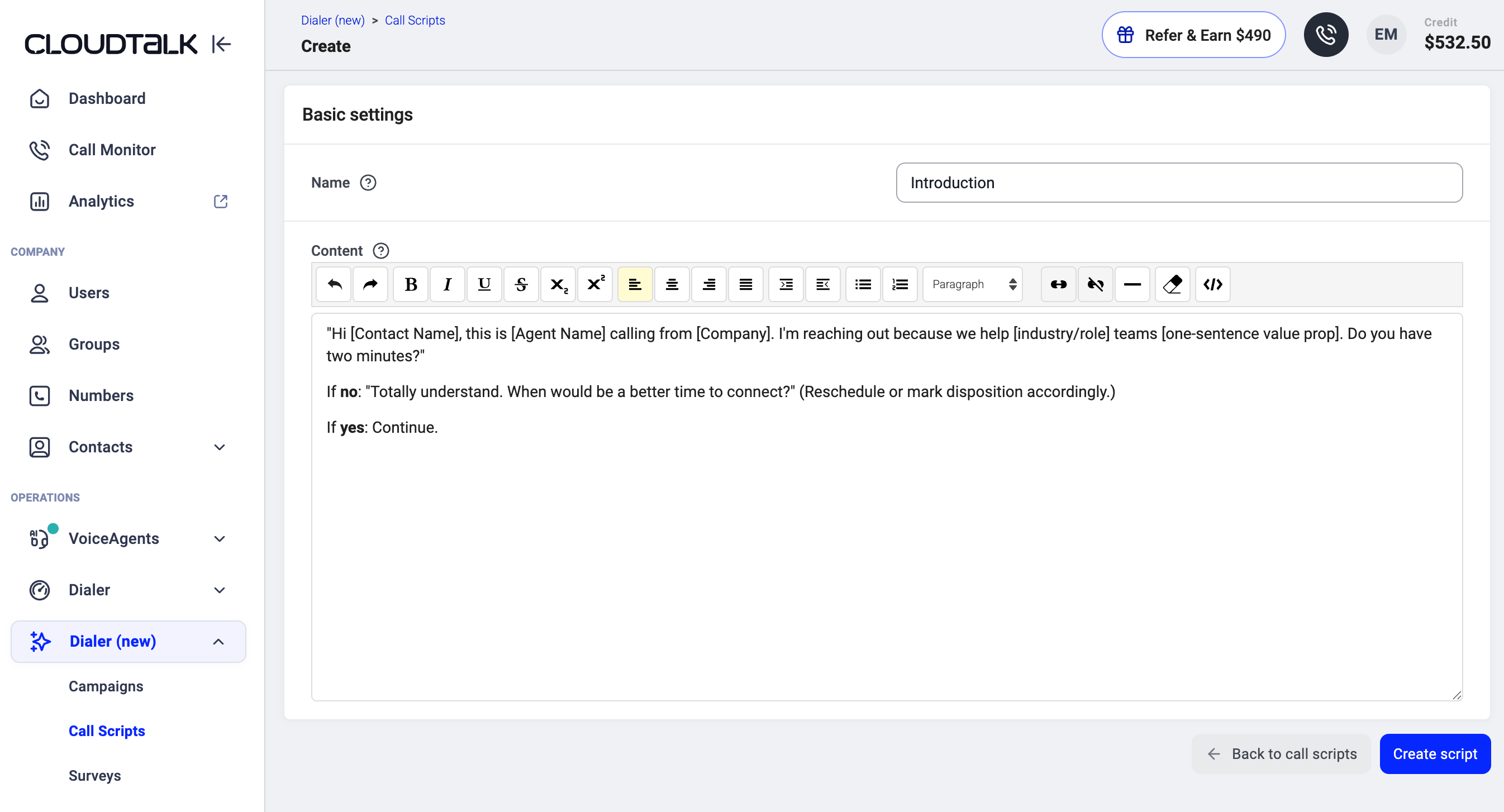
1. In the Dashboard, go to **Dialer (new) > Call Scripts**.
2. Click **+ Add Call Script**.
3. Enter a **name** for your script. Agents don't see the name, but you'll use it to find the script when assigning it to a campaign.
4. Add your content using the editor. You can:
* Type directly, paste text, or format it with the built-in tools.
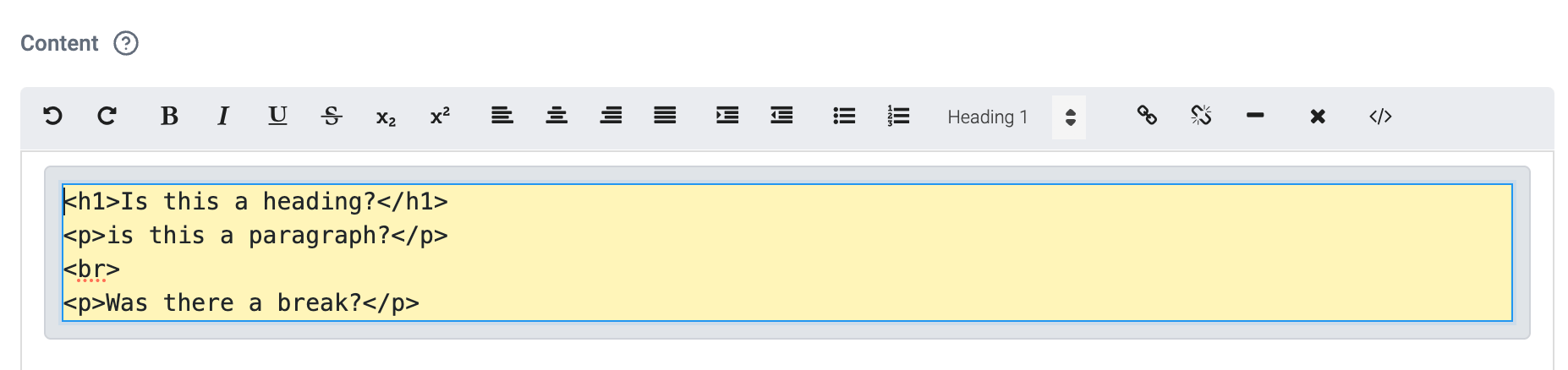
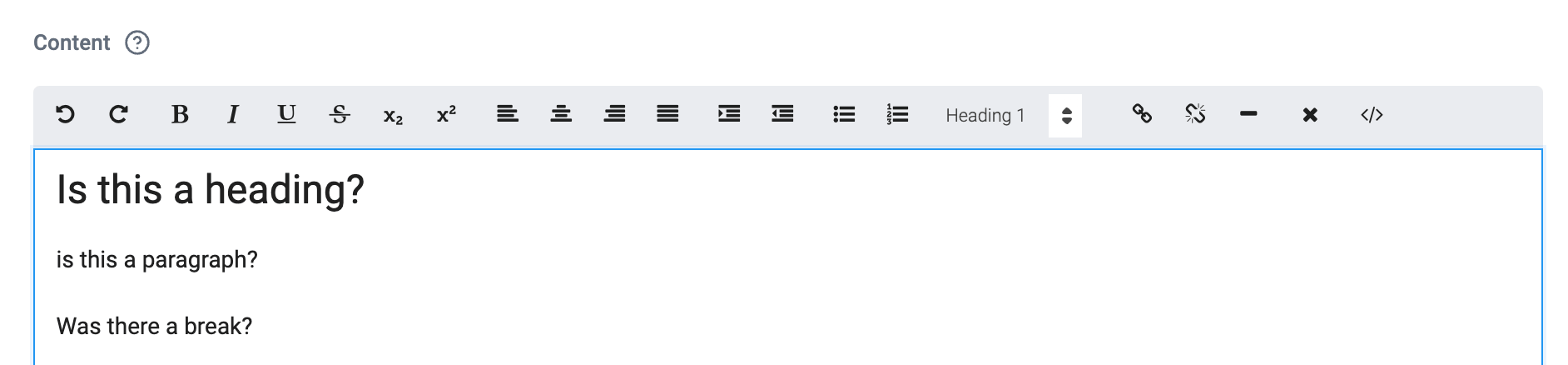 * Switch to HTML mode by clicking the **``** icon and pasting your own HTML template
 5. Click **Create script**.
The script is now available to assign to any campaign.
5. Click **Create script**.
The script is now available to assign to any campaign.
Edit or delete a script
1. Go to **Dialer (new) > Call Scripts**.
2. Find the script you want to update.
3. Click the **pencil icon** to edit or the **trash icon** to delete.
⚠️ If you delete a script that is assigned to an active campaign, it is removed from that campaign immediately. Agents on that campaign will no longer see a script during calls.
Assign a script to a campaign
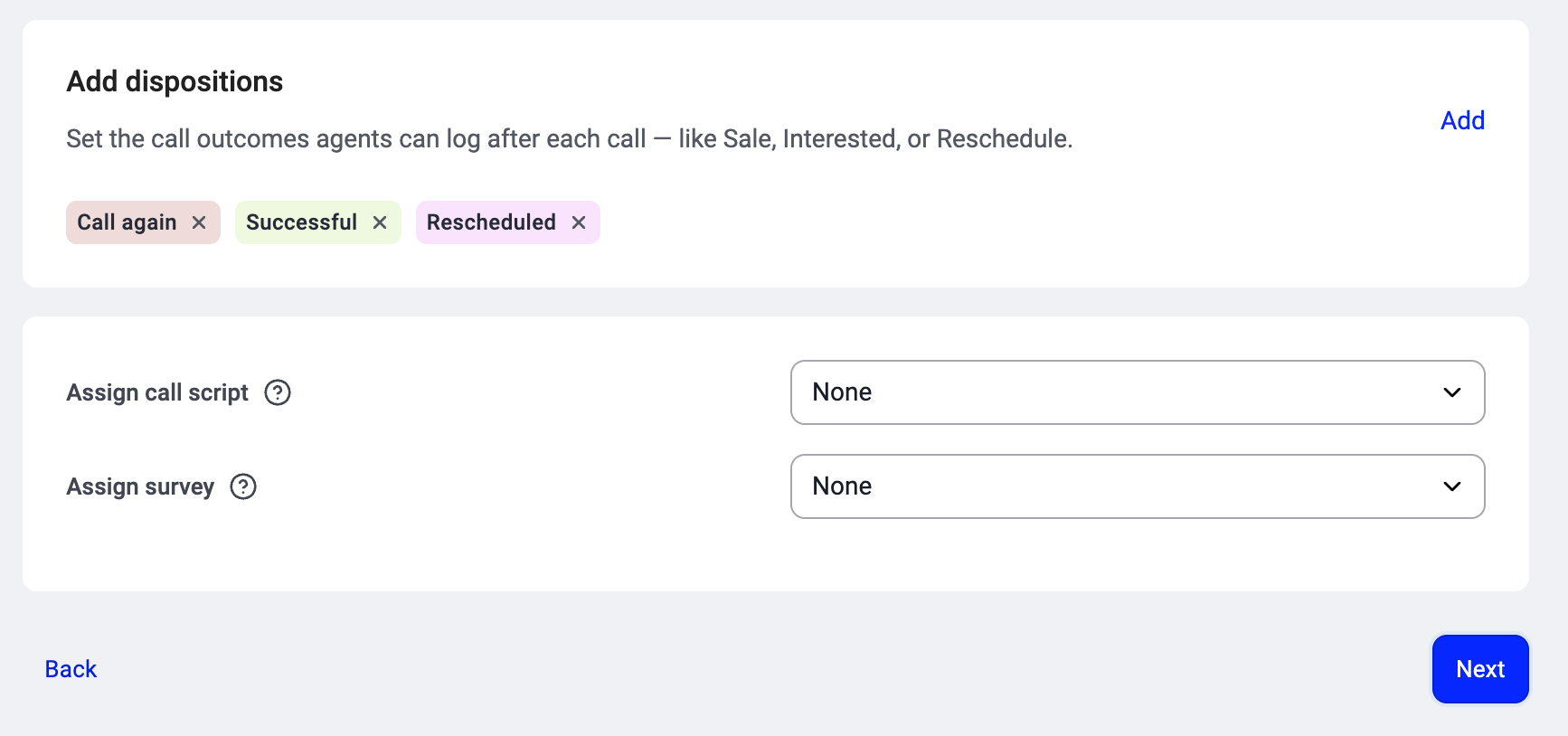
Scripts are assigned in **Step 3: Calling setup** when you create a campaign, or when editing an existing one.
1. Go to **Dialer (new) > Campaigns** and open the campaign, or start a new one.
2. In **Calling setup**, find **Assign call script** and pick the script from the list. You can search by name.
3. Save your changes.
One script per campaign. The same script can be assigned to as many campaigns as you like.
See [Setting up a campaign in the AI Sales Dialer](/en/articles/17025659-setting-up-a-campaign) for the full campaign walkthrough.
How agents see the script
During a campaign call, the script appears in the **Script** tab of the Call summary panel on the right side of the dialer screen. It stays visible for the whole call and doesn't need to be opened separately. Agents can switch between the Script, Survey, and Call summary tabs at any time without interrupting the call.
See [Running a campaign in the AI Sales Dialer](/en/articles/17025679-running-a-campaign) for the agent view.
 ***
*Need help or have a question?* Just reach out through our [Support portal](https://support.cloudtalk.io/hc/en-us/requests/new?ticket_form_id=26305535257884). We're here for you.
## Related topics
- [Create a call script](/api-reference/dialer/create-a-call-script.md)
- [List call scripts](/api-reference/dialer/list-call-scripts.md)
- [Get a call script](/api-reference/dialer/get-a-call-script.md)
This documentation is built and hosted on [Mintlify](https://mintlify.com), a developer documentation platform.
***
*Need help or have a question?* Just reach out through our [Support portal](https://support.cloudtalk.io/hc/en-us/requests/new?ticket_form_id=26305535257884). We're here for you.
## Related topics
- [Create a call script](/api-reference/dialer/create-a-call-script.md)
- [List call scripts](/api-reference/dialer/list-call-scripts.md)
- [Get a call script](/api-reference/dialer/get-a-call-script.md)
This documentation is built and hosted on [Mintlify](https://mintlify.com), a developer documentation platform.