> ## Documentation Index
> Fetch the complete documentation index at: https://help.cloudtalk.io/llms.txt
> Use this file to discover all available pages before exploring further.
# Campaign statistics, call history and exports
> Read your campaign's Statistics tab, review call history, and export call and survey data from the AI Sales Dialer.
Learn how to read your campaign's Statistics tab, review call history, and export call and survey data.
**User Level**: Admin, Agent
***
Every AI Sales Dialer campaign has a built-in **Statistics** tab so you can see how it's performing without leaving the Dashboard. Open a campaign and click **Statistics**.
You can filter everything on the page by time period using the dropdown in the top right (default: **All time**).
Overview cards
Four cards sit at the top of the page:
| **Card** | **What it tells you** |
| - | - |
| **Dialable contacts** | How many contacts in the campaign are available to be called. |
| **Total conversions** | How many calls ended with a positive outcome (e.g., Sale). |
| **Conversion rate** | Conversions as a share of dispositioned calls. Your headline measure of campaign effectiveness. |
| **Dropped percentage** | The share of contacts that exhausted all their attempts without a successful outcome. |
💡 **Dropped percentage** is an exhaustion rate, not a count of dropped or disconnected calls.

Funnel
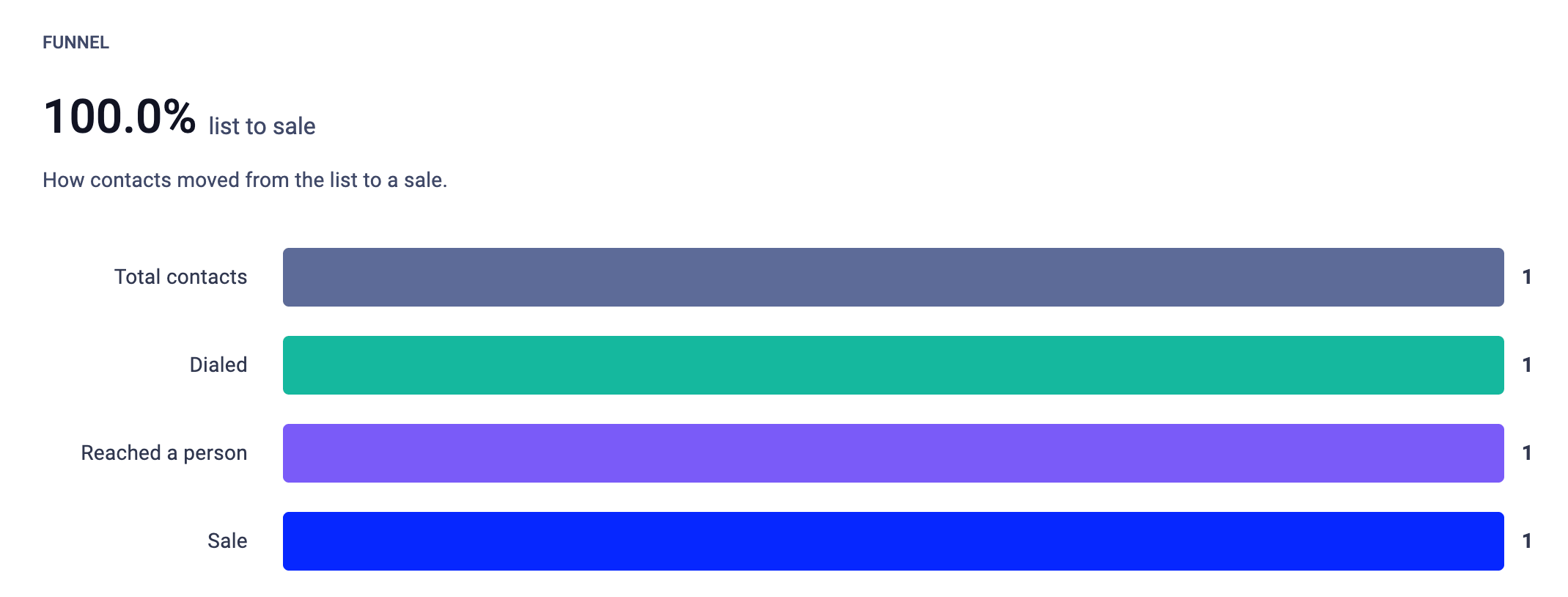
The funnel shows how contacts move through the campaign from list to sale:
* **Total contacts**: everyone in the campaign.
* **Dialed**: contacts where at least one call was placed.
* **Reached a person**: calls answered by a human (not voicemail or machine).
* **Sale**: contacts who reached a positive/conversion outcome.
The percentage at the top ("list to sale") gives you the end-to-end conversion from your full audience to a closed deal.
Outcomes
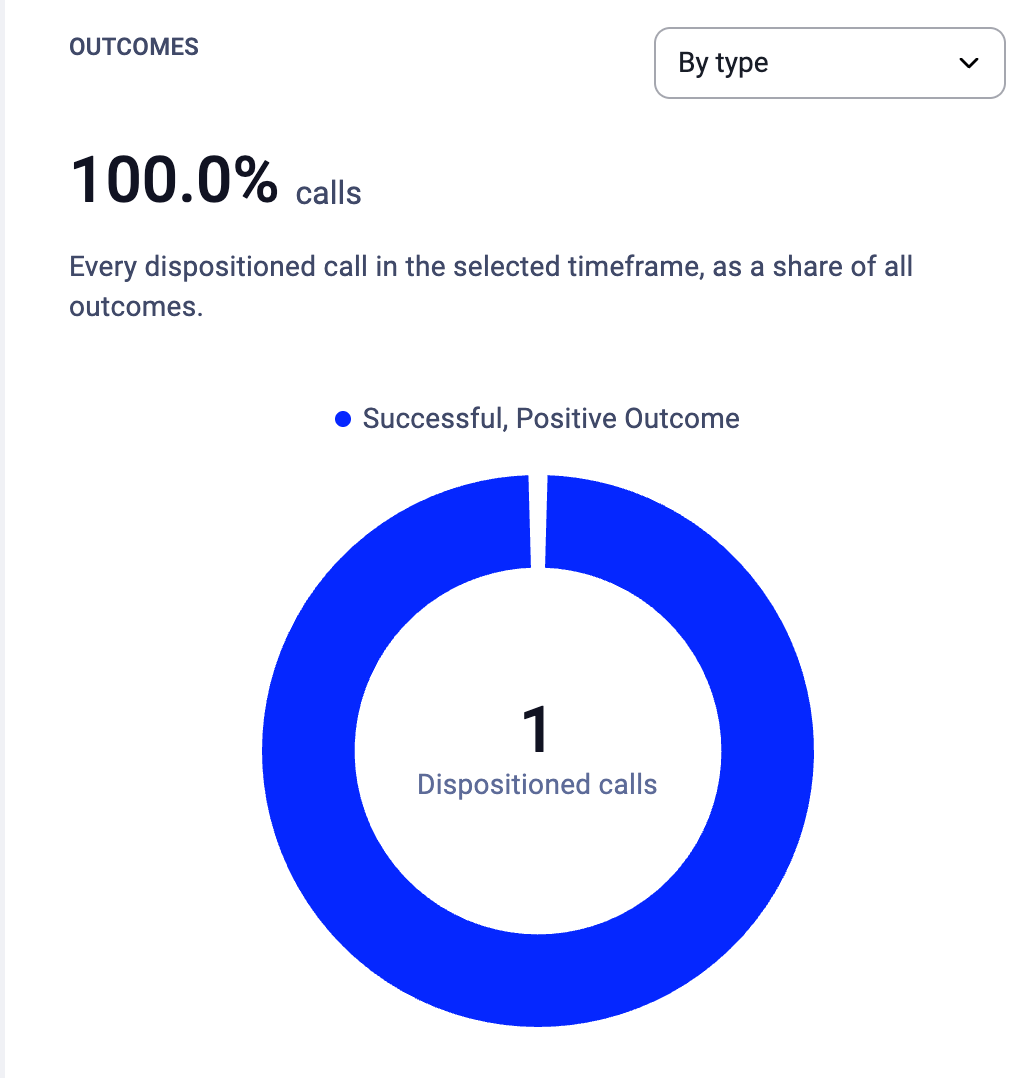
A donut chart showing how dispositioned calls broke down by outcome type (e.g., "Failed, Call Later," "Interested," "Sale"). Switch the view using the **By type** dropdown.
The center of the chart shows the total **Dispositioned calls** count. The percentage at the top shows what share of all calls in the selected timeframe carried an outcome.
How calls were answered
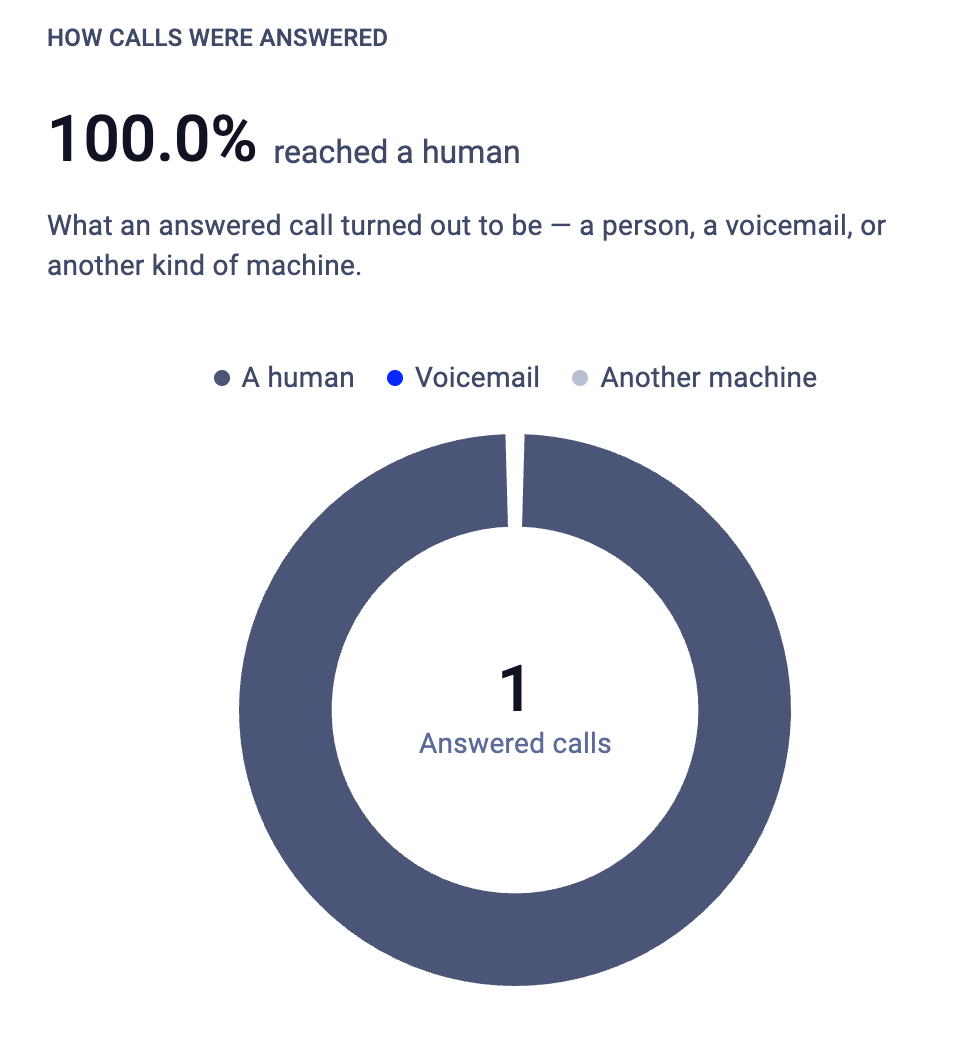
A donut chart breaking down what answered calls turned out to be:
* **A human**: a real person picked up.
* **Voicemail**: the call reached an answering machine.
* **Another machine**: IVR, automated screener, or other non-human pickup.
This tells you how much of your dialing effort is reaching real conversations versus machines.
Call stats
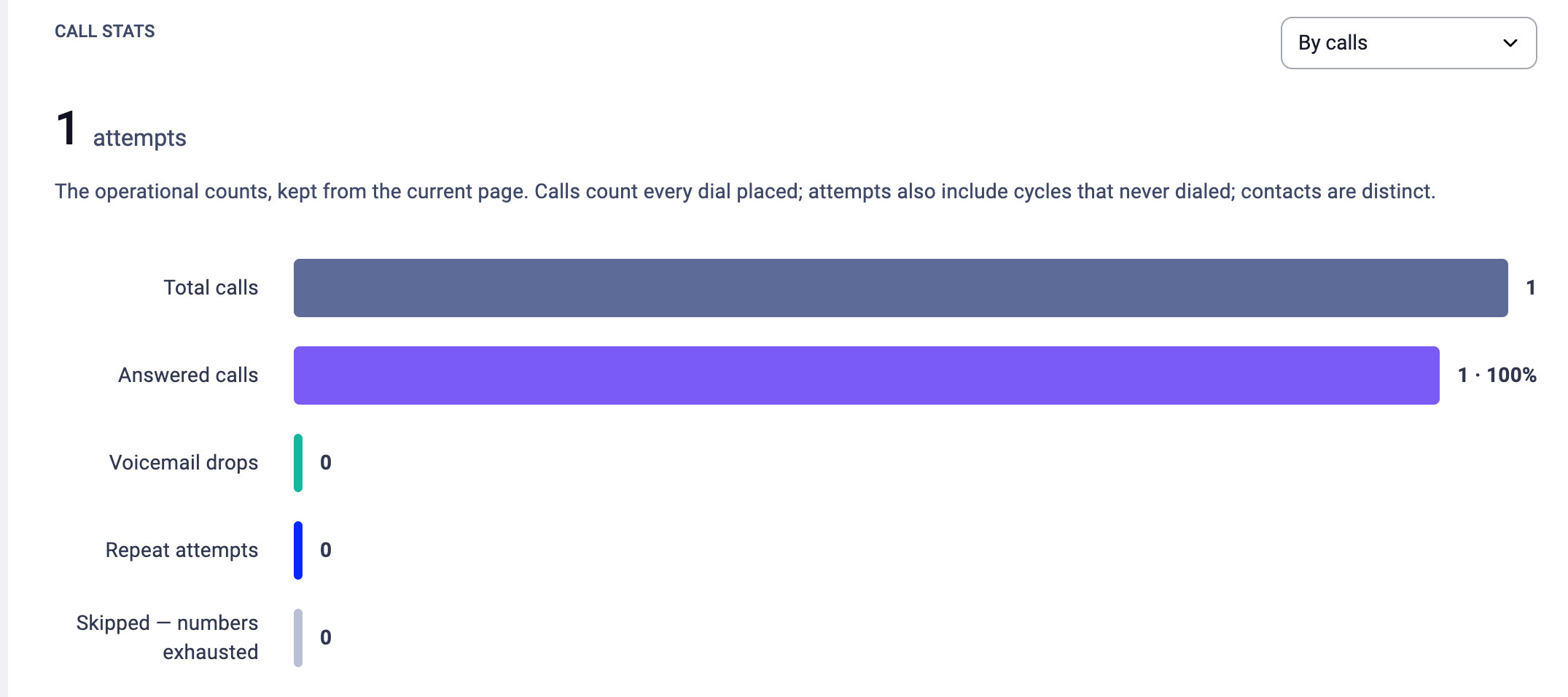
Operational counts for the campaign. A dropdown lets you switch between **By calls** and other views. Key bars:
| **Metric** | **What it counts** |
| - | - |
| **Total calls** | Every call attempt placed. |
| **Answered calls** | Calls that were picked up (with the answer rate as a percentage). |
| **Voicemail drops** | Pre-recorded voicemails left on answering machines. |
| **Repeat attempts** | Retry calls to contacts who were already dialed before. |
Calls count every attempt; contacts are distinct. If you called one contact three times, that's 3 calls but 1 contact.
Where the time went
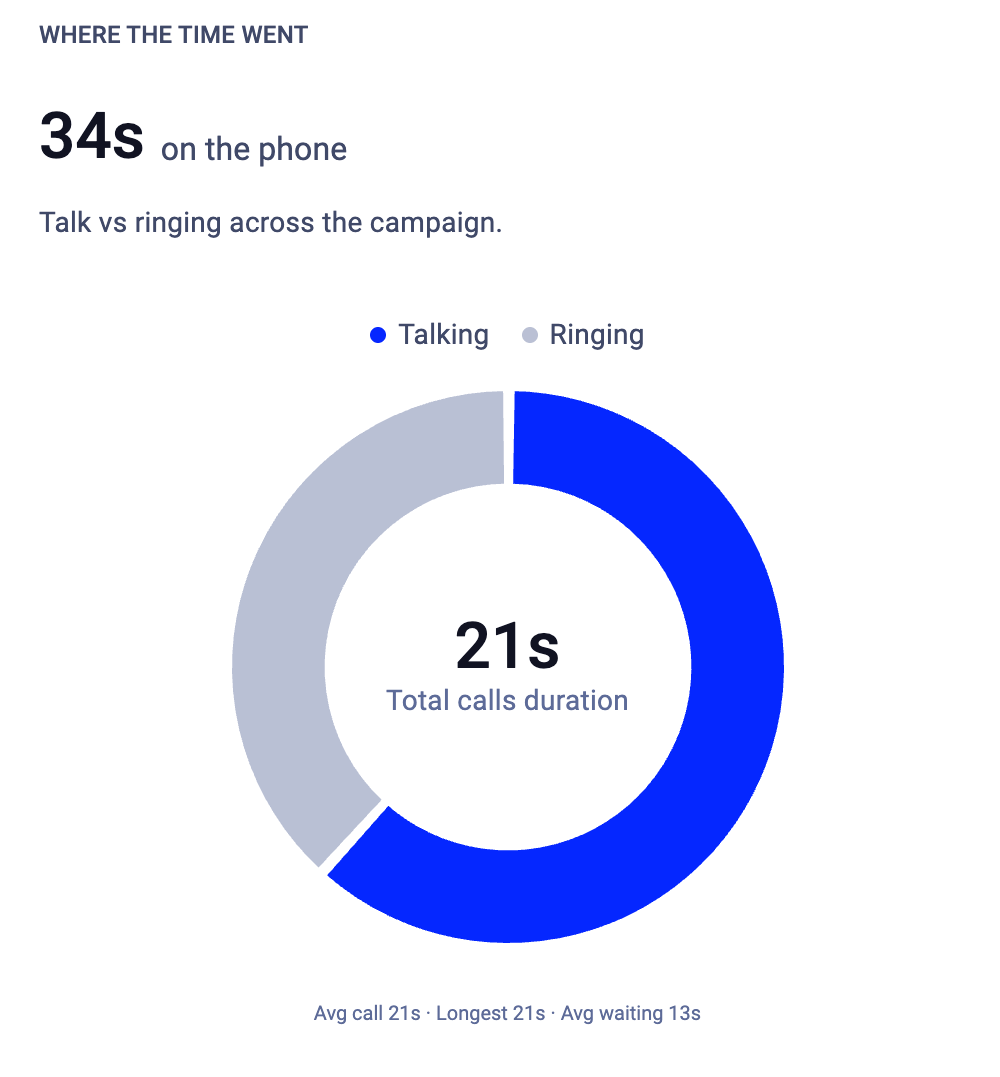
A donut chart splitting total time on the phone into **Talking** and **Ringing**. The center shows **Total calls duration**. Use this to understand how much of your agents' dialing time is productive talk versus waiting for someone to pick up.
First vs. repeat attempts
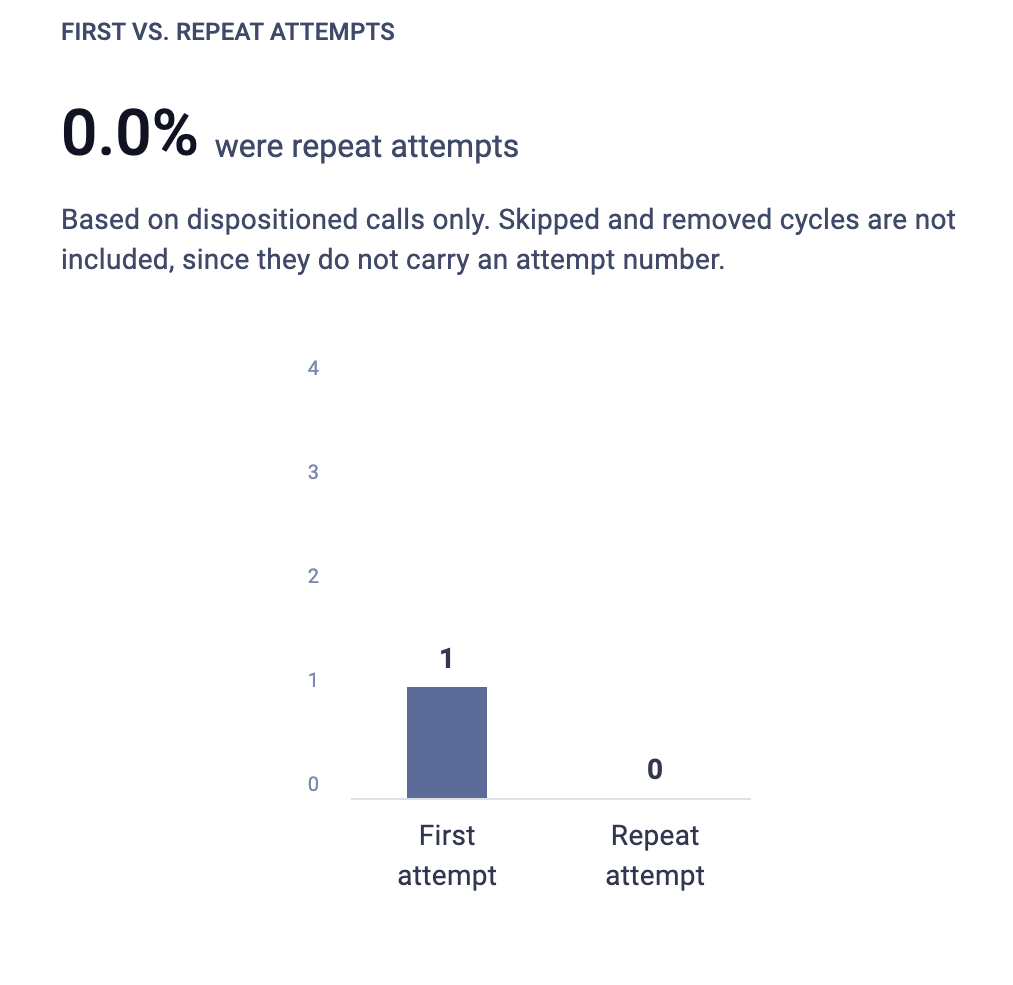
Shows what share of your dispositioned calls were repeat attempts versus first tries. Skipped and removed contacts are not included since they don't carry an attempt number.
This helps you gauge how much of your team's effort goes into retries versus fresh outreach.
Tabs on the campaign page
Each campaign has seven tabs:
* **Details.** Your campaign's live dashboard. At the top, a **Progress** section shows what percentage of contacts are finished, and a bar chart breaks down where every contact sits right now: Finished, Retry, Assigned, or Scheduled. Below that, three cards show **Assigned agents**, how many contacts are **Waiting**, and how many agents are **Active / assigned**. Scroll down for the full **Campaign setup** summary (all settings, dispositions, script, survey, agent controls) with an **Edit campaign** button.
* **Disposition settings.** View and manage the dispositions configured for this campaign. See [Dispositions and outcomes](/en/articles/17025689-dispositions-and-outcomes).
* **Statistics.** The metrics described in this article.
* **Contacts.** A searchable list of every contact in the campaign. Each row shows the contact's **Name** and number, their **Tag** (with a label like "Fresh" or "Retry"), how many **Attempts** have been made, what's **Next** for them (e.g., "Waiting in queue"), and their **Owner** (the agent assigned to them, if any). Filter by tag to find specific groups.
* **Call history.** A log of every call, described below. Includes a **Download** button to export call history.
* **Survey Answers.** All submitted survey responses for the campaign. Includes a **Download** button to export responses.
* **Scheduled Calls.** A list of all callbacks scheduled by agents, showing who is scheduled, when, and which agent owns the callback. See [Scheduled callbacks](/en/articles/17025683-scheduled-callbacks).

Call history
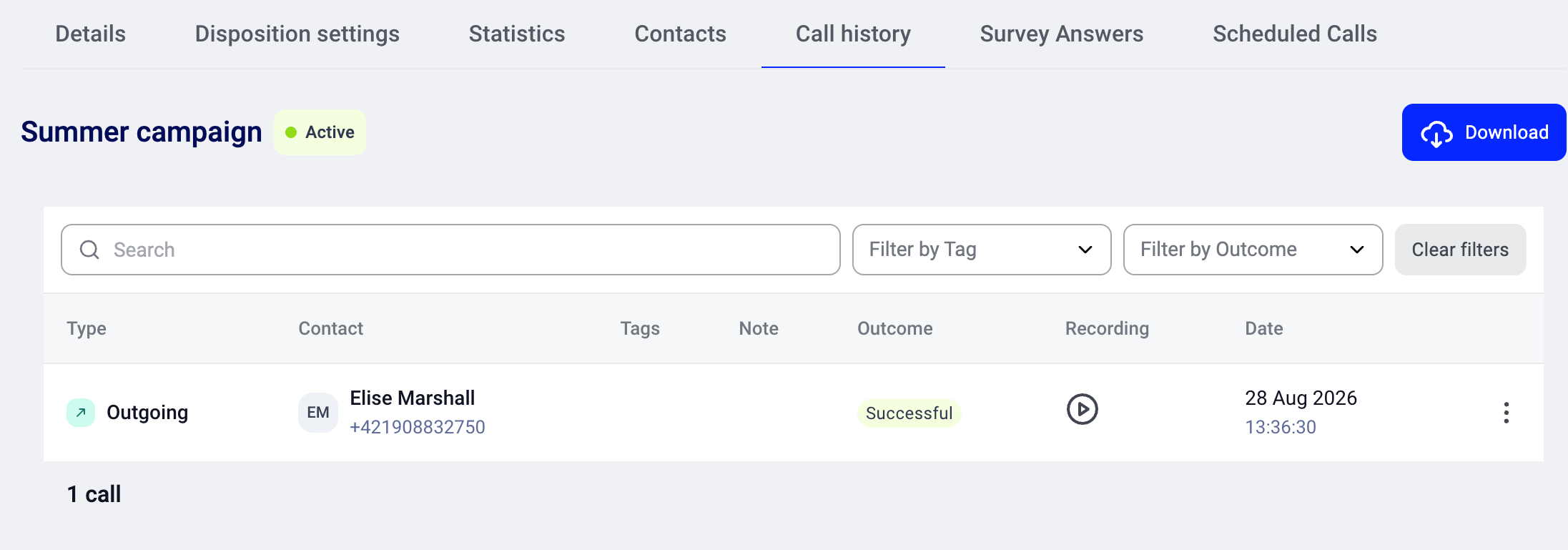
The **Call history** tab lists every call the campaign has made.
| **Column** | **What it shows** |
| - | - |
| **Type** | Outgoing (the call direction). |
| **Contact** | Name and phone number. |
| **Tags** | Tags on the contact. |
| **Note** | Any note the agent left on the call. |
| **Outcome** | The disposition set by the agent or system (e.g., Skip, Not Interested, Sale). |
| **Recording** | A play button to listen to the call recording (if recording is enabled). |
| **Date** | When the call was placed. |
You can filter the list by **search** (free text), **Filter by Tag**, and **Filter by Outcome**. Use **Clear filters** to reset.
Exporting data
You can export call history and survey responses. Each has its own **Download** button on its tab.
* **To export call history:** open the **Call history** tab and click **Download**. The file downloads directly to your computer.
- **To export survey responses:** open the **Survey Answers** tab and click **Download**.
**What's in the call history export:**
* Type, Status, Contact Name, Contact Number, Agent, Via Call Number, Group, Date & Time, Date, Time, Duration, Category, Call ID, Price, Note, Tags, Ringing time, Talking time, Wrap up time, Call rating, Call rating tags, Outcome
* Empty fields are exported as blank cells.
* Dates use the format "DD. MMM YYYY HH:MM:SS" (e.g., "28. Aug 2026 13:35:26") in your company's timezone, not UTC.
💡 The Statistics tab shows aggregate totals. The Call history export includes an **Outcome** column with the exact disposition for every individual call. Use the export whenever you need per-call or per-contact data rather than totals.
Good to know
* **Statistics are per-campaign.** Each campaign has its own numbers. There's no cross-campaign aggregate view in the dialer today.
* **Statistics update as agents work.** No manual refresh or recalculation step needed.
* **Skipped and removed contacts don't inflate your call counts.** They appear in the timeline but don't bump the dialed, answered, or dispositioned counters.
* **Conversion rate uses dispositioned calls as the denominator**, not total contacts or total dials. This gives you the truest measure of how conversations convert.
***
*Need help or have a question?* Just reach out through our [Support portal](https://support.cloudtalk.io/hc/en-us/requests/new?ticket_form_id=26305535257884) — we're here for you.
## Related topics
- [Dispositions and outcomes](/en/articles/17025689-dispositions-and-outcomes.md)
- [Surveys](/en/articles/17029647-surveys.md)
- [Migrating from Power Dialer / AI Sales Dialer Legacy](/en/articles/17025728-migrating-from-power-dialer-ai-sales-dialer-legacy.md)
This documentation is built and hosted on [Mintlify](https://mintlify.com), a developer documentation platform.