> ## Documentation Index
> Fetch the complete documentation index at: https://help.cloudtalk.io/llms.txt
> Use this file to discover all available pages before exploring further.
# Triggering a VoiceAgent Call from Zoho CRM
> Automate outbound VoiceAgent calls directly from Zoho CRM
In this guide, you will learn how to automatically trigger a CloudTalk VoiceAgent call from Zoho CRM using Workflow Rules.
**User level**: Admin
***
Before you start
You will need:
* A CloudTalk VoiceAgent already created (note the VoiceAgent ID)
* CloudTalk API credentials (API Key and Secret) found in **Company Settings > Integrations > API** ([How to access and generate your CloudTalk API keys](/en/articles/15272380-how-to-access-and-generate-your-cloudtalk-api-keys))
* Zoho CRM **Professional plan** or above
* A phone field available on Contact or Lead records
Generate the Authorization header
CloudTalk uses Basic Authentication for API requests.
1. Open [https://www.debugbear.com/basic-auth-header-generator](https://www.debugbear.com/basic-auth-header-generator)
2. Enter your **CloudTalk API Key** as Username and your **API Secret** as Password
3. Copy the generated value. It looks like: `Basic XXXXXXXXX`
Set up the integration
Create the Webhook
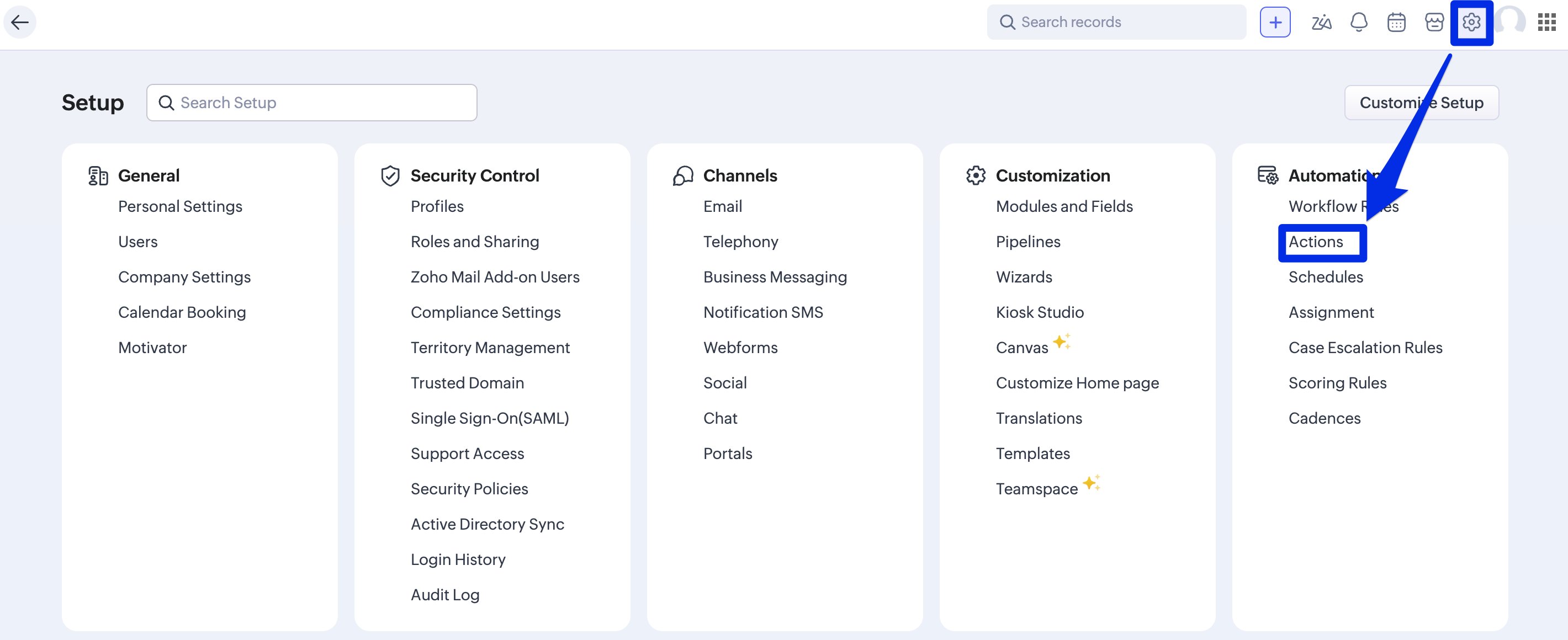
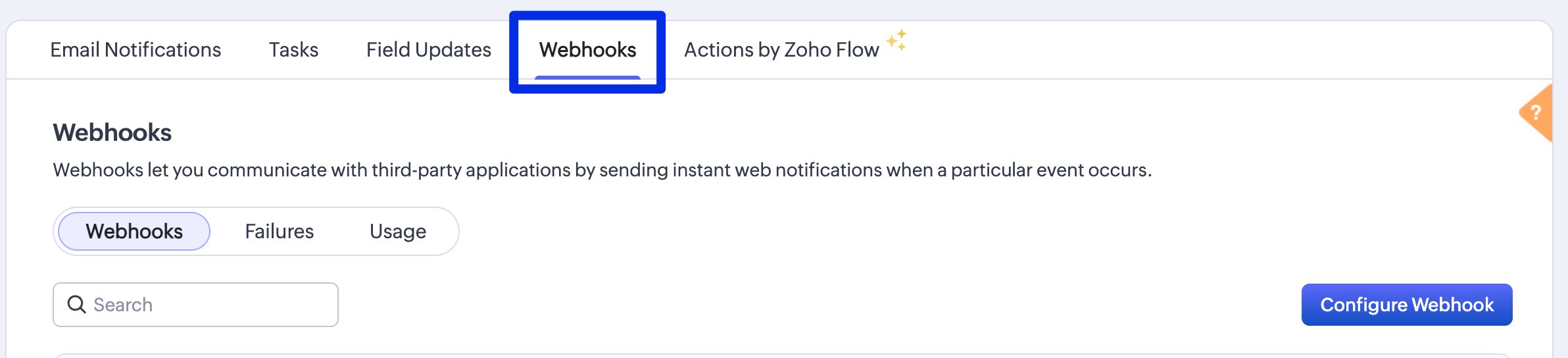
1\. In Zoho CRM, click the **Gear icon** in the top right corner, then go to **Automation > Actions > Webhooks**
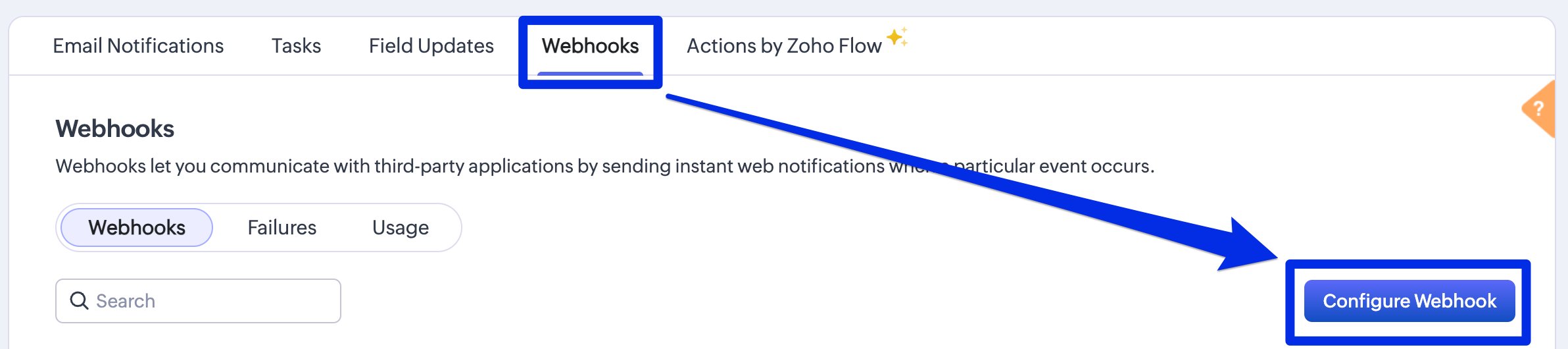
 2\. Click **Configure Webhook**
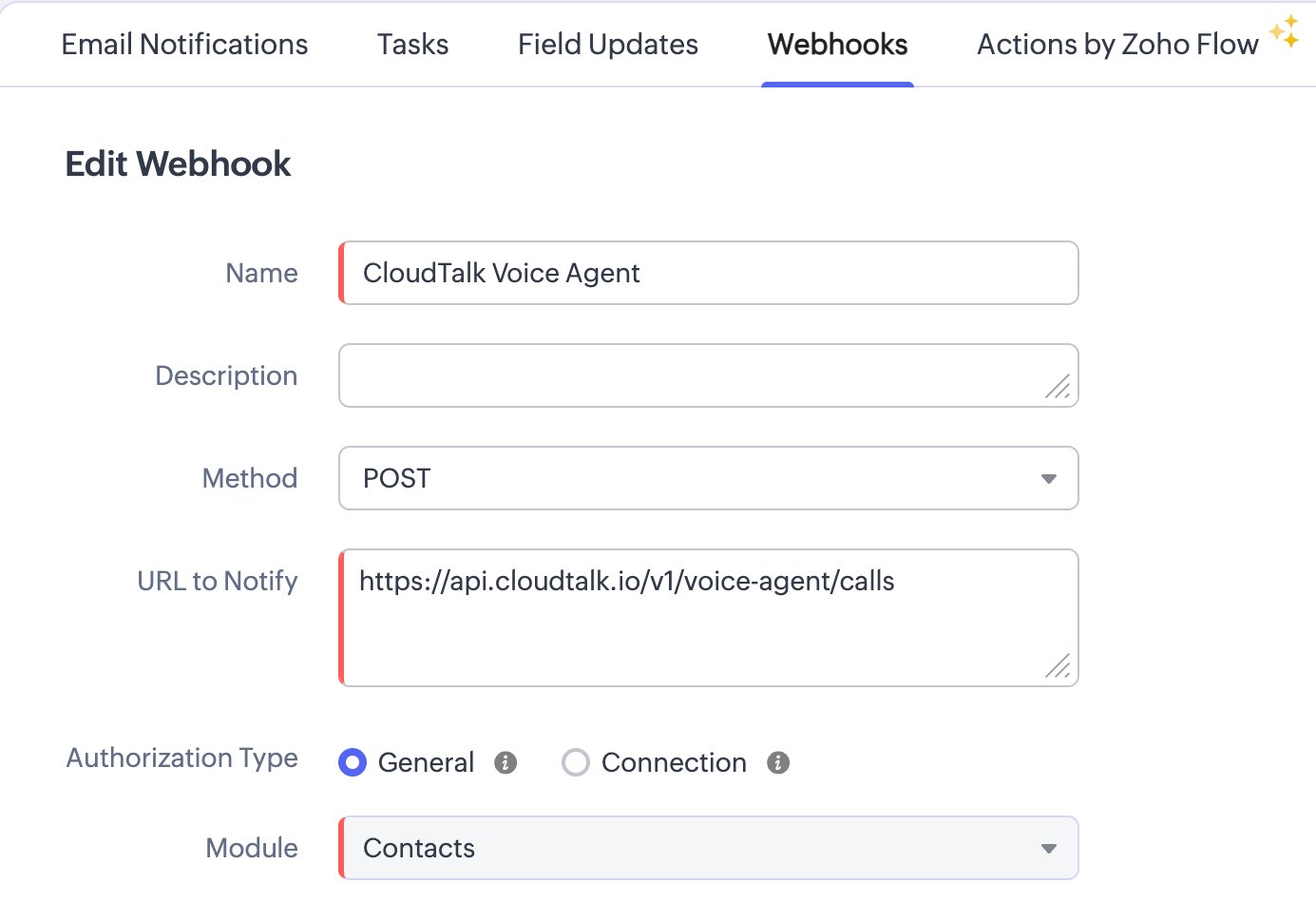
 3\. Fill in the webhook details:
| **Field** | **Value** |
| - | - |
| Name | CloudTalk VoiceAgent |
| URL to Notify | `https://api.cloudtalk.io/v1/voice-agent/calls` |
| Method | POST |
| Authorization Type | General |
| Module | Contacts or Leads |
3\. Fill in the webhook details:
| **Field** | **Value** |
| - | - |
| Name | CloudTalk VoiceAgent |
| URL to Notify | `https://api.cloudtalk.io/v1/voice-agent/calls` |
| Method | POST |
| Authorization Type | General |
| Module | Contacts or Leads |
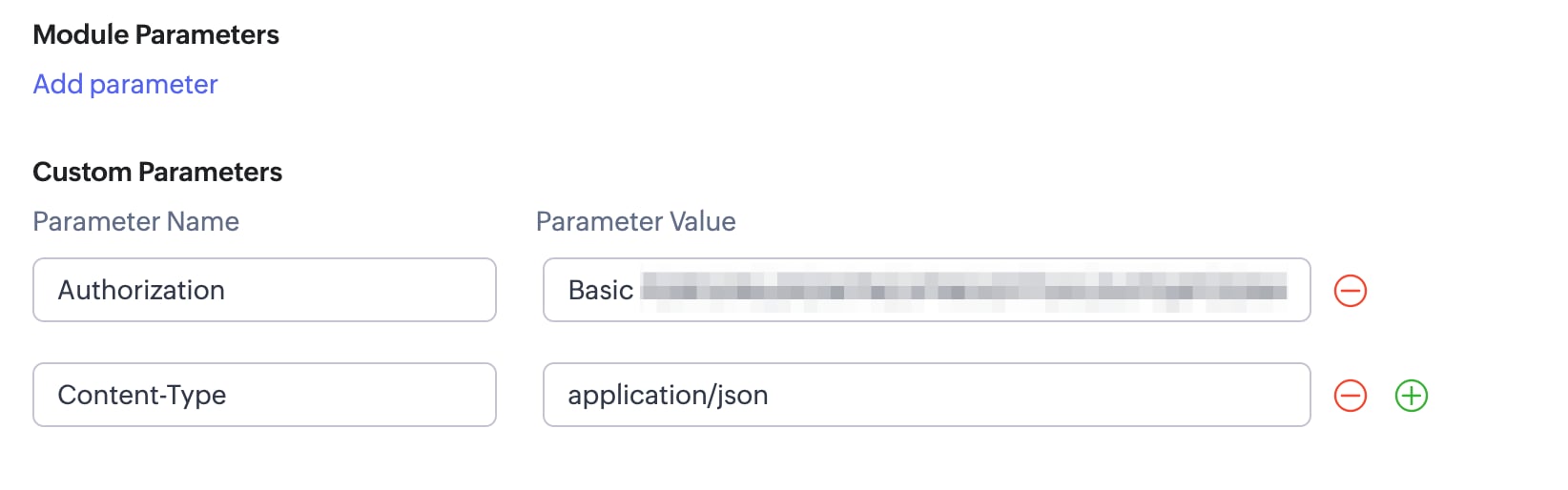
 4\. Under **Custom Headers**, add:
* `Authorization` → `Basic XXXXXXXXX` (your generated value)
* `Content-Type` → `application/json`
4\. Under **Custom Headers**, add:
* `Authorization` → `Basic XXXXXXXXX` (your generated value)
* `Content-Type` → `application/json`
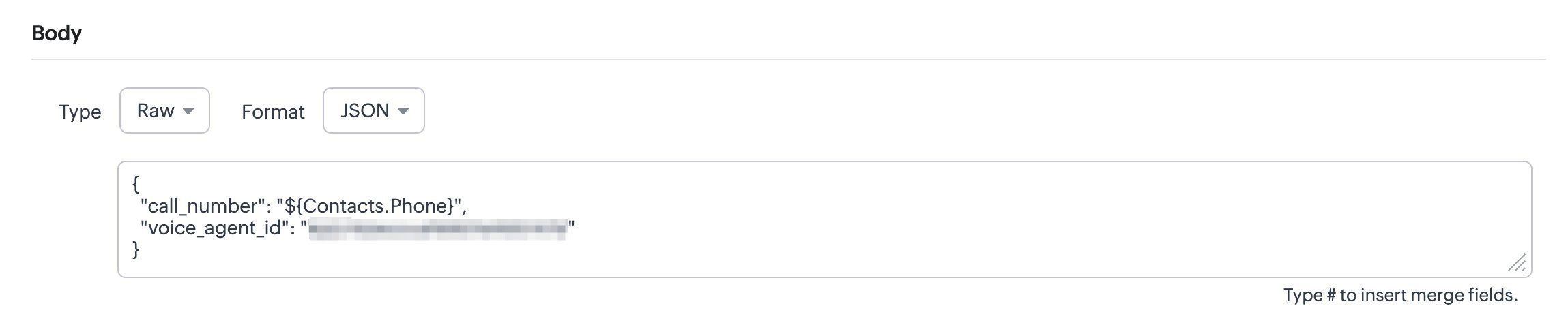
 5\. Under **Body**, set **Type** to Raw and **Format** to JSON, then paste:
```json theme={"system"}
{ "call_number": "${Contacts.Phone}", "voice_agent_id": "YOUR_VOICE_AGENT_ID"}
```
`call_number` and `voice_agent_id` are the only mandatory fields. You can also pass optional `call_properties` such as system prompt variables and output variables, depending on your VoiceAgent configuration. [Learn what to include](/en/articles/11401649-voiceagents-for-outbound-calls)
5\. Under **Body**, set **Type** to Raw and **Format** to JSON, then paste:
```json theme={"system"}
{ "call_number": "${Contacts.Phone}", "voice_agent_id": "YOUR_VOICE_AGENT_ID"}
```
`call_number` and `voice_agent_id` are the only mandatory fields. You can also pass optional `call_properties` such as system prompt variables and output variables, depending on your VoiceAgent configuration. [Learn what to include](/en/articles/11401649-voiceagents-for-outbound-calls)
 6\. Click **Save**
Create the Workflow Rule
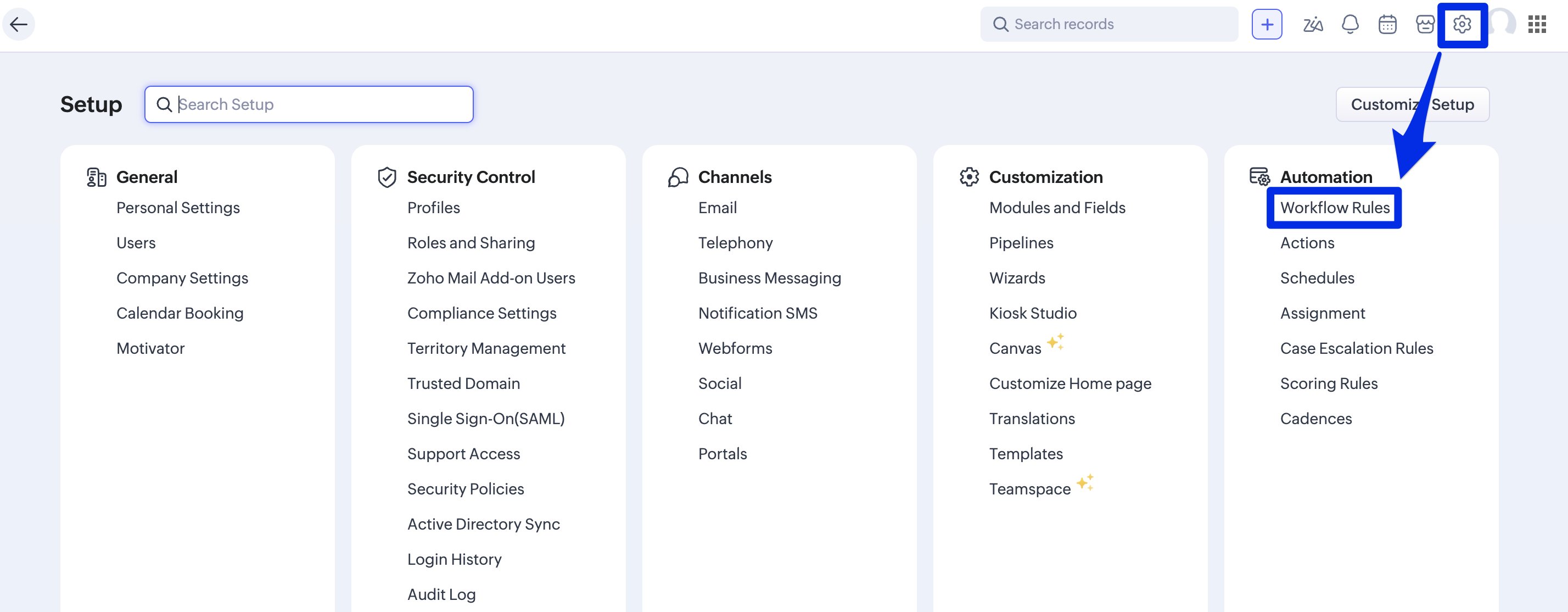
1\. Click the **Gear icon** in the top right corner, then go to **Automation > Workflow Rules**
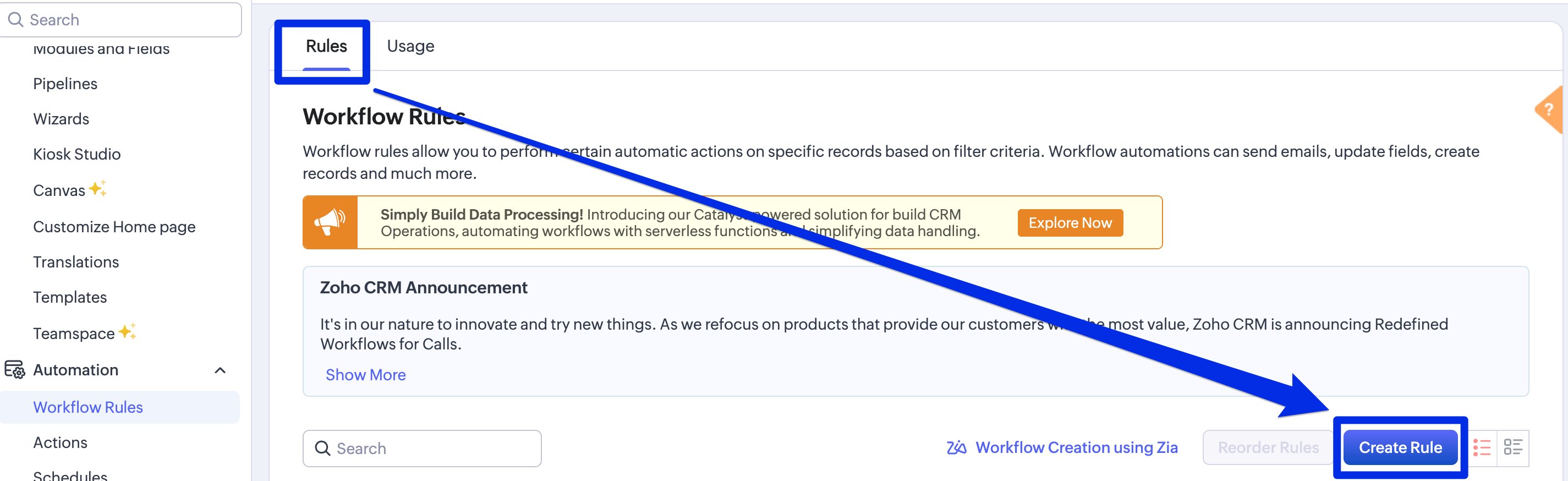
 2\. Click **Create Rule**
 **Note:** Webhooks are available from Zoho CRM Professional edition and above.
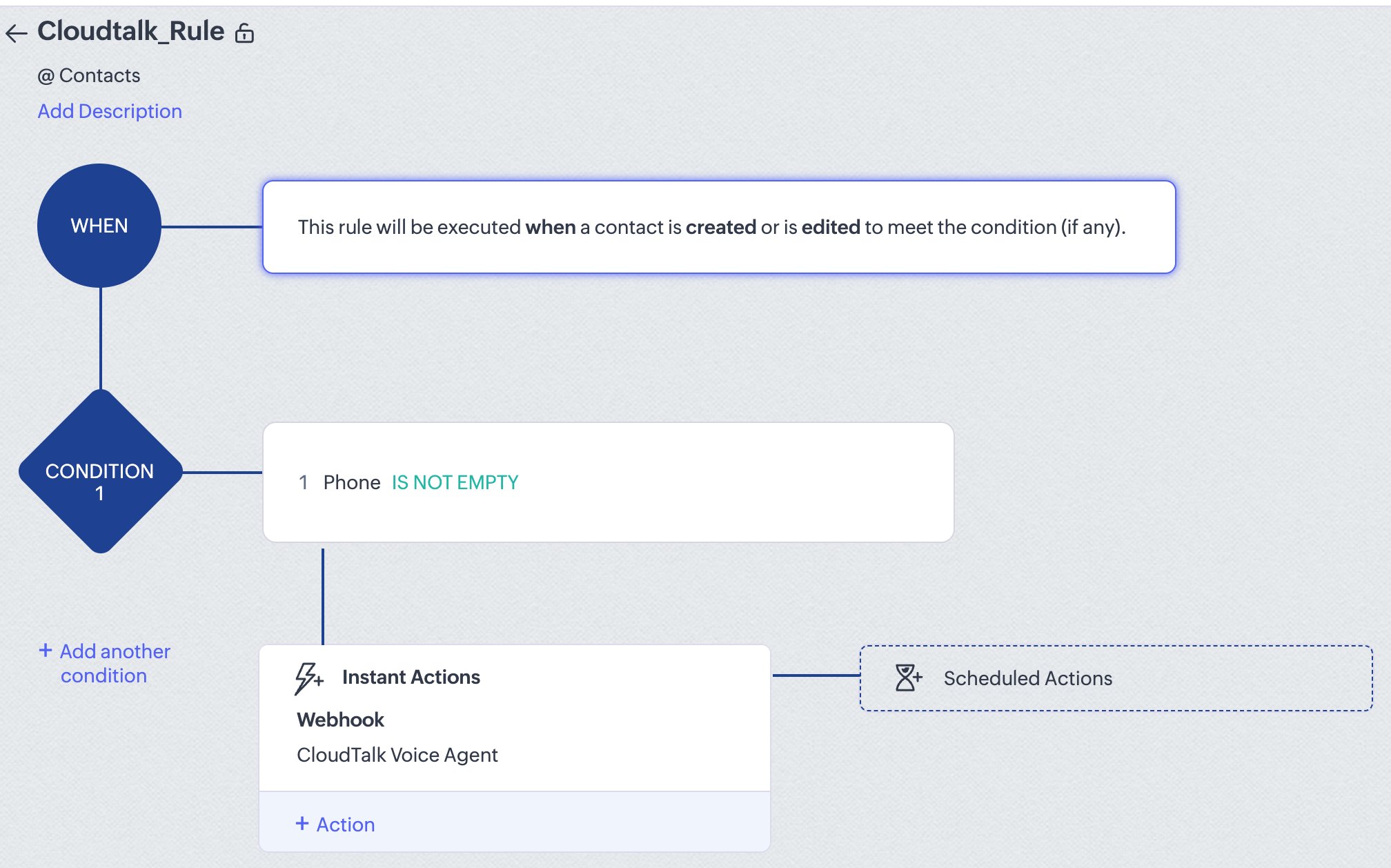
3\. Configure the rule:
* Select the **module** (e.g. Contacts or Leads) and give the rule a name
* Set the **trigger** (e.g. a record is created, a field is modified)
* Add **conditions** to filter records (e.g. phone field is not empty)
* Under **Instant Actions**, add: **Webhook > CloudTalk VoiceAgent**
4\. Click **Save** and then **Activate** the rule
**Note:** Webhooks are available from Zoho CRM Professional edition and above.
3\. Configure the rule:
* Select the **module** (e.g. Contacts or Leads) and give the rule a name
* Set the **trigger** (e.g. a record is created, a field is modified)
* Add **conditions** to filter records (e.g. phone field is not empty)
* Under **Instant Actions**, add: **Webhook > CloudTalk VoiceAgent**
4\. Click **Save** and then **Activate** the rule
Test and verify
1. Create or update a Contact that meets your trigger conditions
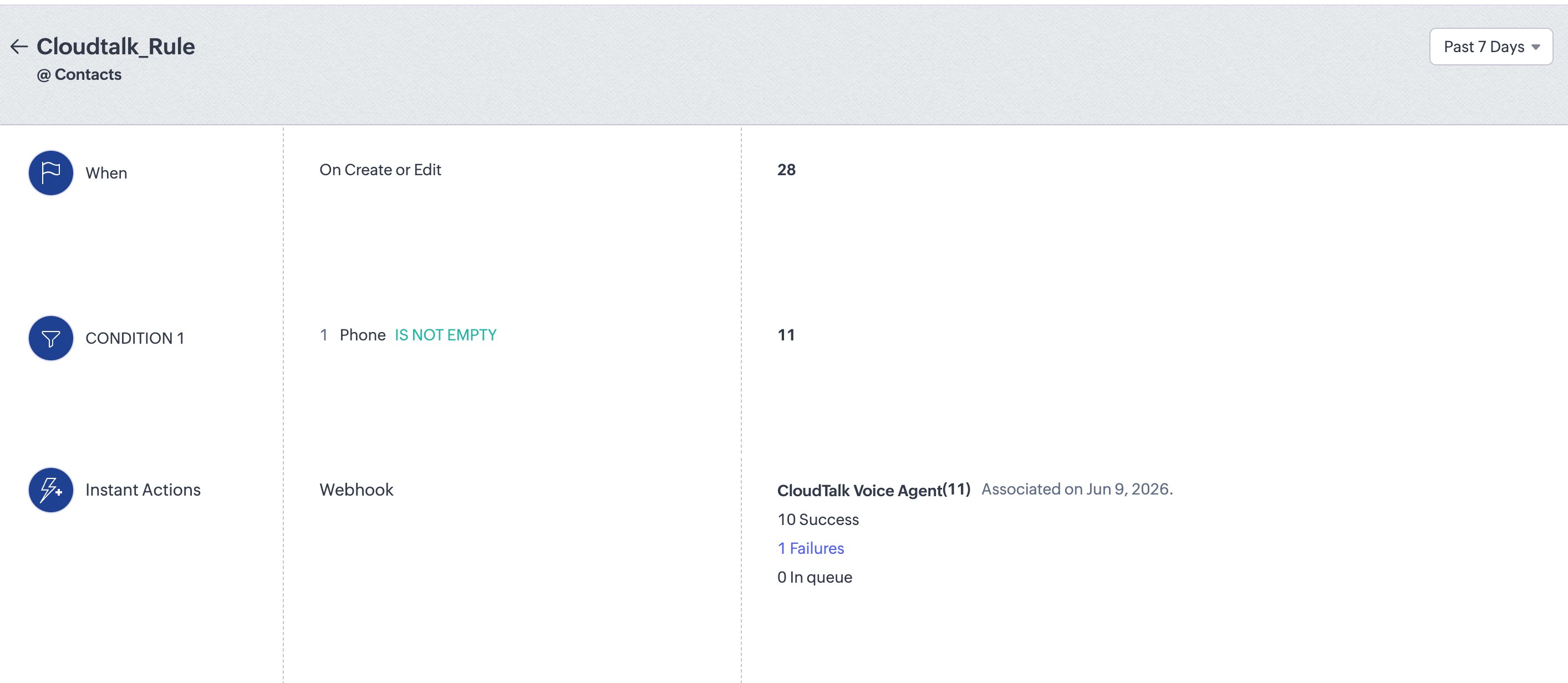
2. Go to **Gear icon > Automation > Workflow Rules**, select your rule, and click **View Usage** to check execution
3. Verify in CloudTalk that the VoiceAgent call was initiated
**You're all set!** 🚀 Your Zoho CRM workflow will now trigger a CloudTalk VoiceAgent call whenever a record meets your chosen conditions.
💡 **API Limits to Keep in Mind**
*To avoid failures or throttling, make sure your workflow handles call distribution carefully. Use delays or scheduling logic where needed, as the standard API rate limit (60 requests per minute) applies to the VoiceAgent endpoint.*
Troubleshooting
If the VoiceAgent call was not made, go to **View Usage** and click **Failures**. Find your record and check the **Reason For Failures** column.
 | **Error** | **What to check** |
| - | - |
| **Authorization** | Incorrect CloudTalk API credentials in the webhook — regenerate and re-enter them |
| **Phone format** | Ensure the number is in E.164 format (`+1234567890`) |
| **Incorrect VoiceAgent ID** | Verify the `voice_agent_id` in the webhook body is correct |
| **Webhook not triggered** | Check that the workflow rule is active and its conditions were met |
***
Need help or have a question? Reach out through our [Support portal](https://support.cloudtalk.io/hc/en-us/requests/new?ticket_form_id=26305535257884). We're here for you.
## Related topics
- [Triggering a VoiceAgent Call from Zoho Desk](/en/articles/15442851-triggering-a-voiceagent-call-from-zoho-desk.md)
- [Triggering a VoiceAgent Call from Freshworks CRM](/en/articles/15477534-triggering-a-voiceagent-call-from-freshworks-crm.md)
- [Triggering a VoiceAgent Call from Zapier](/en/articles/11831224-triggering-a-voiceagent-call-from-zapier.md)
This documentation is built and hosted on [Mintlify](https://mintlify.com), a developer documentation platform.
| **Error** | **What to check** |
| - | - |
| **Authorization** | Incorrect CloudTalk API credentials in the webhook — regenerate and re-enter them |
| **Phone format** | Ensure the number is in E.164 format (`+1234567890`) |
| **Incorrect VoiceAgent ID** | Verify the `voice_agent_id` in the webhook body is correct |
| **Webhook not triggered** | Check that the workflow rule is active and its conditions were met |
***
Need help or have a question? Reach out through our [Support portal](https://support.cloudtalk.io/hc/en-us/requests/new?ticket_form_id=26305535257884). We're here for you.
## Related topics
- [Triggering a VoiceAgent Call from Zoho Desk](/en/articles/15442851-triggering-a-voiceagent-call-from-zoho-desk.md)
- [Triggering a VoiceAgent Call from Freshworks CRM](/en/articles/15477534-triggering-a-voiceagent-call-from-freshworks-crm.md)
- [Triggering a VoiceAgent Call from Zapier](/en/articles/11831224-triggering-a-voiceagent-call-from-zapier.md)
This documentation is built and hosted on [Mintlify](https://mintlify.com), a developer documentation platform.