> ## Documentation Index
> Fetch the complete documentation index at: https://help.cloudtalk.io/llms.txt
> Use this file to discover all available pages before exploring further.
# Surveys (Legacy Dialer)
> Create and manage surveys for campaign calls.
In this article you will learn how to create, manage, assign, and review responses from campaign surveys.
**User level**: Admin
***
**Using the new AI Sales Dialer?** This article covers the legacy dialer. For the new AI Sales Dialer, see [Surveys](/en/articles/17029647-surveys).
This article applies to the **AI Sales Dialer Legacy** and **Power Dialer Legacy**.
Surveys give agents a set of structured questions to work through during a campaign call. Answers are saved against the campaign and can be reviewed, filtered, and exported from the dashboard. They are useful for qualifying leads, collecting feedback, or building a profile on prospective clients.
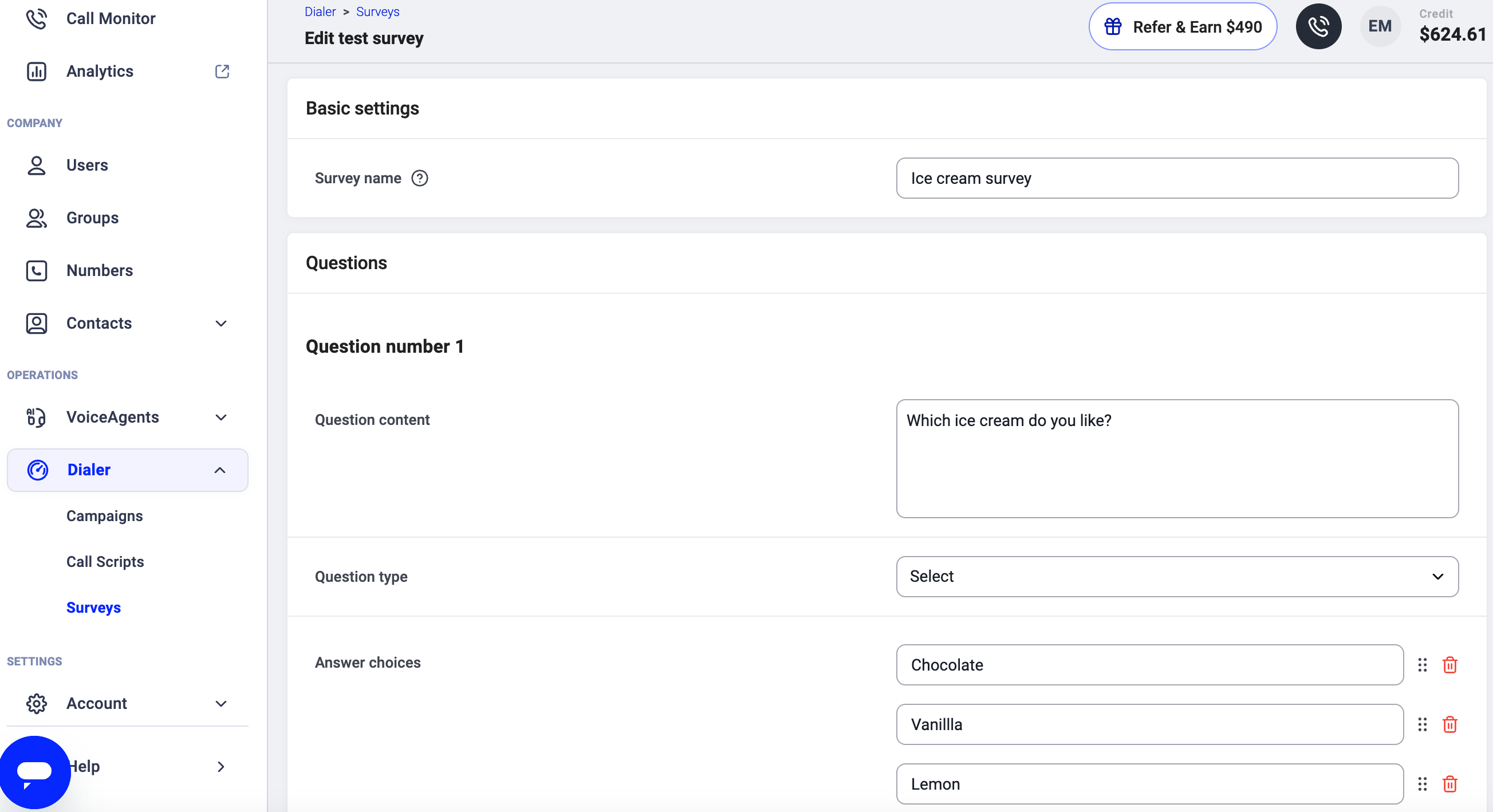
Add a new survey
1. Go to **Dialer > Surveys**.
2. Click **`+ Add Survey`**.
3. Enter a **name** for your survey and add at least one question.
* **Question content**: the text agents will ask the contact.
* **Question type**: determines the kind of answer allowed.
* **Short text** (up to 255 characters): for brief free-form responses.
* **Long text** (up to 65,535 characters): for longer free-form responses.
* **Checkbox**: yes/no answer (checked = yes, unchecked = no).
* **Radio options**: multiple options, single selection. Best when you have just a few choices.
* **Select**: multiple options, single selection. Ideal for longer lists (e.g. countries, colors).
4\. When finished, click **`Create survey`**`.`
Edit or delete a survey
1. Go to **Dialer > Surveys**.
2. Find the survey you want to update.
3. Click the **pencil icon** to edit or the **trash icon** to delete.
Assign a survey to a campaign
Surveys are assigned during [campaign setup](/en/articles/8428838-setting-up-campaigns-legacy-dialer#:~:text=for%20that%20campaign.-,Add%20Campaign,-Select%20%2BAdd%20campaign) or when editing an existing campaign.
1. Go to **Dialer > Campaigns** and open the campaign you want to update.
2. Under **Assign survey**, search for and select the survey.
 3. Save your changes.
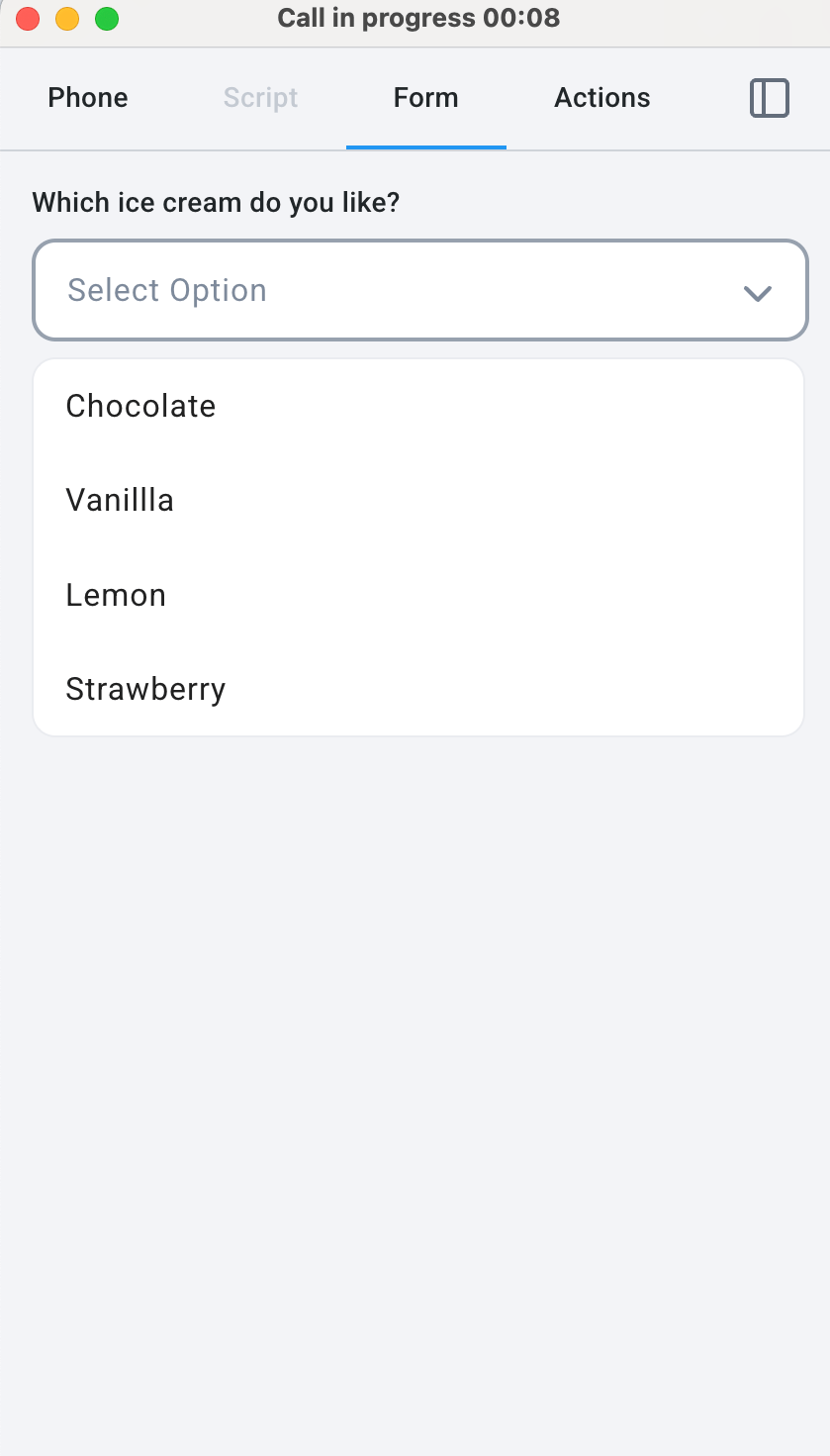
Agents assigned to that campaign will see the survey under the **Form** tab in their calling screen during a call.
3. Save your changes.
Agents assigned to that campaign will see the survey under the **Form** tab in their calling screen during a call.
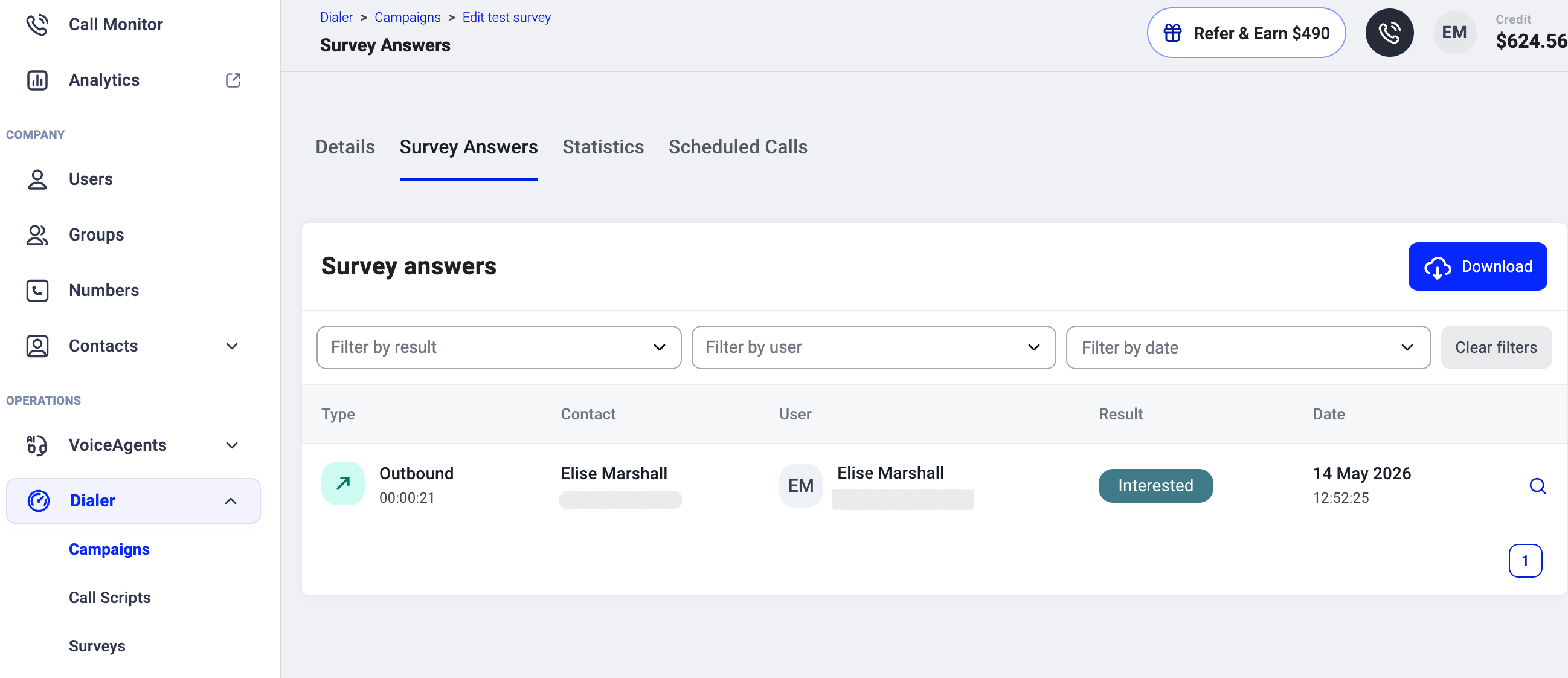
View and export survey answers
Survey responses are stored against the campaign and can be reviewed after calls have been made.
1. Go to **Dialer > Campaigns**.
2. Click the **magnifier icon** next to the relevant campaign.
3. Open the **Survey Answers** tab.
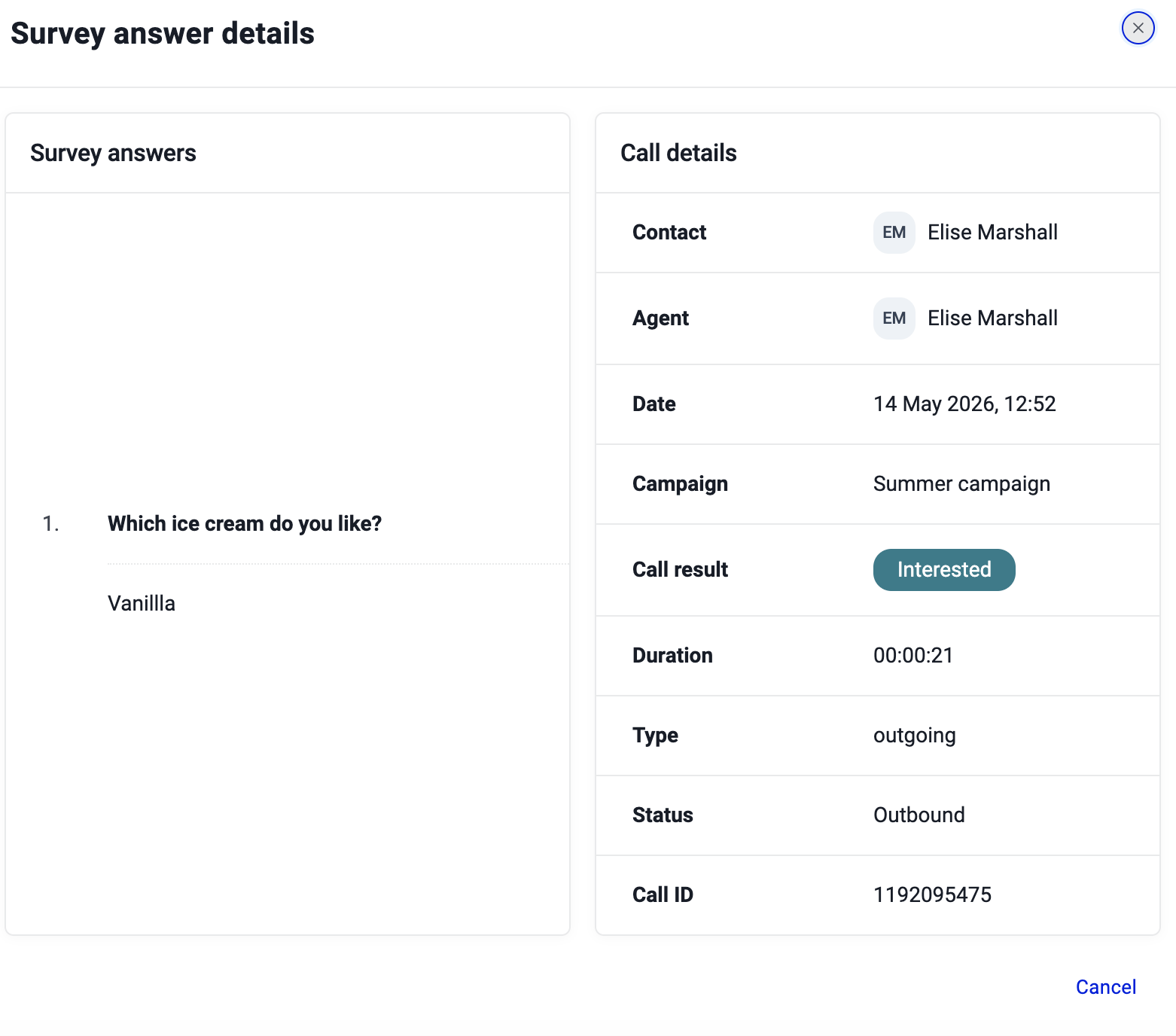
You will see a list of all responses, filterable by result, user, and date. Click the **search icon** on any row to open the full **Survey answer details**, which shows the individual answers alongside the call details.
To export all responses, click the **Download** button in the top right corner.
 If you need to send survey answers to an external system automatically, this can be done via workflow automations. See [Export Survey Answers](/en/articles/7896628-export-survey-answers) for a step-by-step guide.
***
*Need help or have a question?* Just reach out through our [Support portal](https://support.cloudtalk.io/hc/en-us/requests/new?ticket_form_id=26305535257884) — we’re here for you.
## Related topics
- [Setting up Campaigns (Legacy Dialer)](/en/articles/8428838-setting-up-campaigns-legacy-dialer.md)
- [Migrating from Power Dialer / AI Sales Dialer Legacy](/en/articles/17025728-migrating-from-power-dialer-ai-sales-dialer-legacy.md)
- [Dialer Webhook Events: Dispositions and Survey Responses](/guides/webhooks/events/dialer.md)
This documentation is built and hosted on [Mintlify](https://mintlify.com), a developer documentation platform.
If you need to send survey answers to an external system automatically, this can be done via workflow automations. See [Export Survey Answers](/en/articles/7896628-export-survey-answers) for a step-by-step guide.
***
*Need help or have a question?* Just reach out through our [Support portal](https://support.cloudtalk.io/hc/en-us/requests/new?ticket_form_id=26305535257884) — we’re here for you.
## Related topics
- [Setting up Campaigns (Legacy Dialer)](/en/articles/8428838-setting-up-campaigns-legacy-dialer.md)
- [Migrating from Power Dialer / AI Sales Dialer Legacy](/en/articles/17025728-migrating-from-power-dialer-ai-sales-dialer-legacy.md)
- [Dialer Webhook Events: Dispositions and Survey Responses](/guides/webhooks/events/dialer.md)
This documentation is built and hosted on [Mintlify](https://mintlify.com), a developer documentation platform.