> ## Documentation Index
> Fetch the complete documentation index at: https://help.cloudtalk.io/llms.txt
> Use this file to discover all available pages before exploring further.
# Messages Report
> Detailed insights into SMS volume, costs, and communication trends
Learn about the Messages Report in CloudTalk [Analytics](/en/articles/6241287-analytics-reports), including how to track SMS activity, filter data, monitor costs, and analyze trends
**User Level**:
* Admin
***
The **Messages Report** in CloudTalk Analytics provides a detailed overview of all SMS messages sent and received within a given period. Like other reports in CloudTalk Analytics, the Messages Report follows a top-down data structure, allowing users to apply filters, click on statistics, and analyze trends over time. Each section provides a different level of analysis, from general statistics at the top to more detailed message logs at the bottom.
Filters (Top of the Report Page)
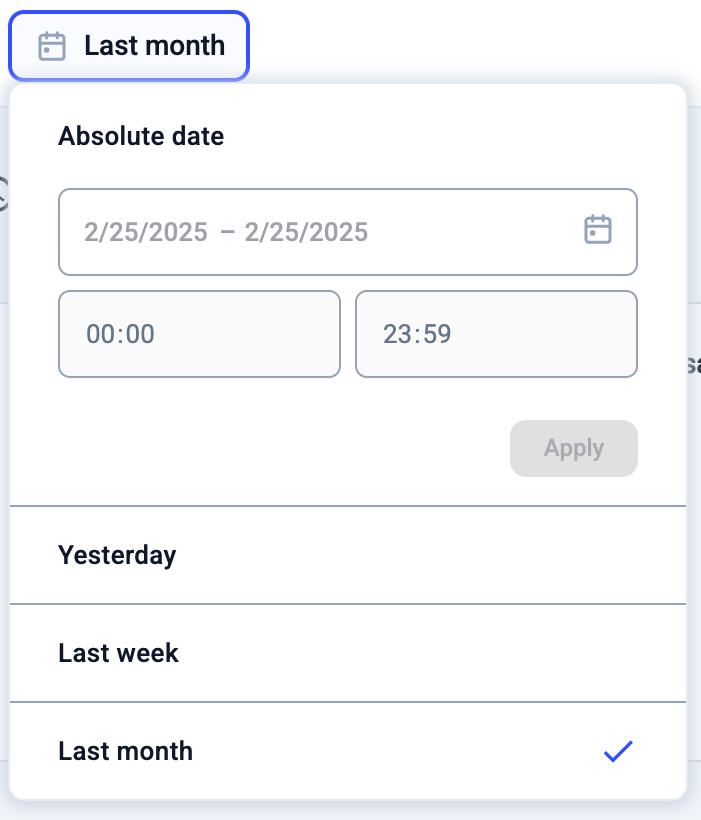
Filters allow users to refine their data and focus on specific periods, contacts, or message types. Filters apply instantly and adjust the data displayed in the statistics and logs below.
**Available Filters:**
* **Date:** Select a custom time period (day, week, or month). Keep in mind that Analytics displays only data from the last 12 months.
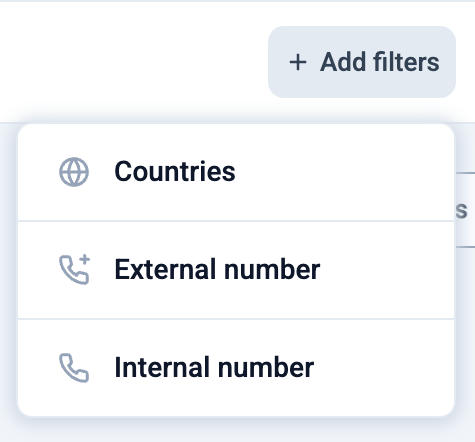
* **Select Countries:** Filter messages by country.
* **Type in External or Internal Number:** View messages associated with a specific phone number.
Stat Cards
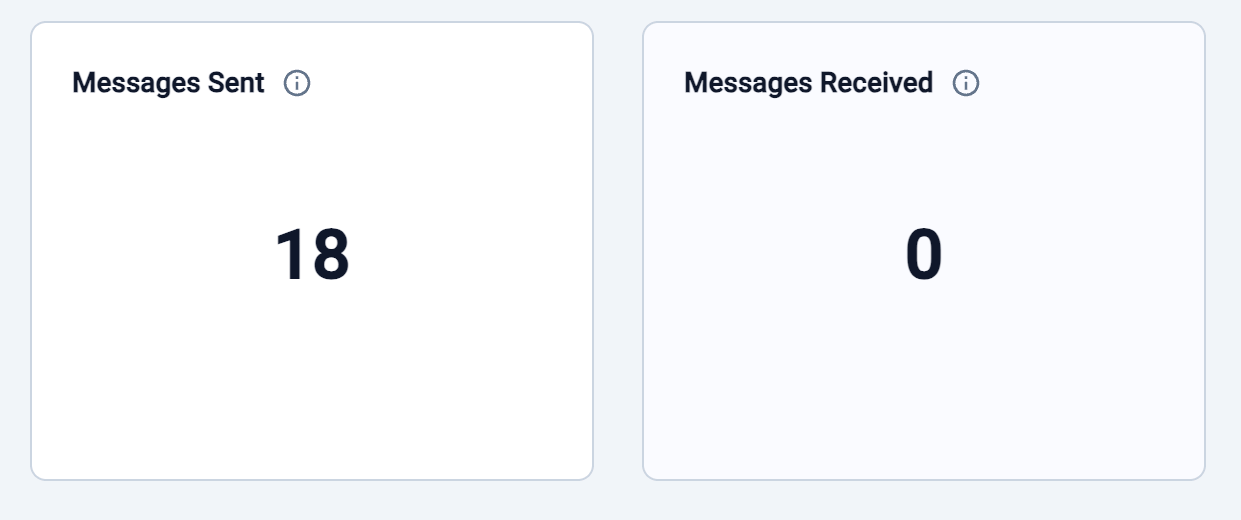
Stat cards provide quick insights into key message metrics. These statistics automatically update based on the applied filters. Clicking on a stat card updates the graph and logs below, refining the displayed data.
**Key Stat Cards:**
* **Messages Sent** – Total SMS messages sent during the selected period.
* **Messages Received** – Total SMS messages received within the selected period.
Graph
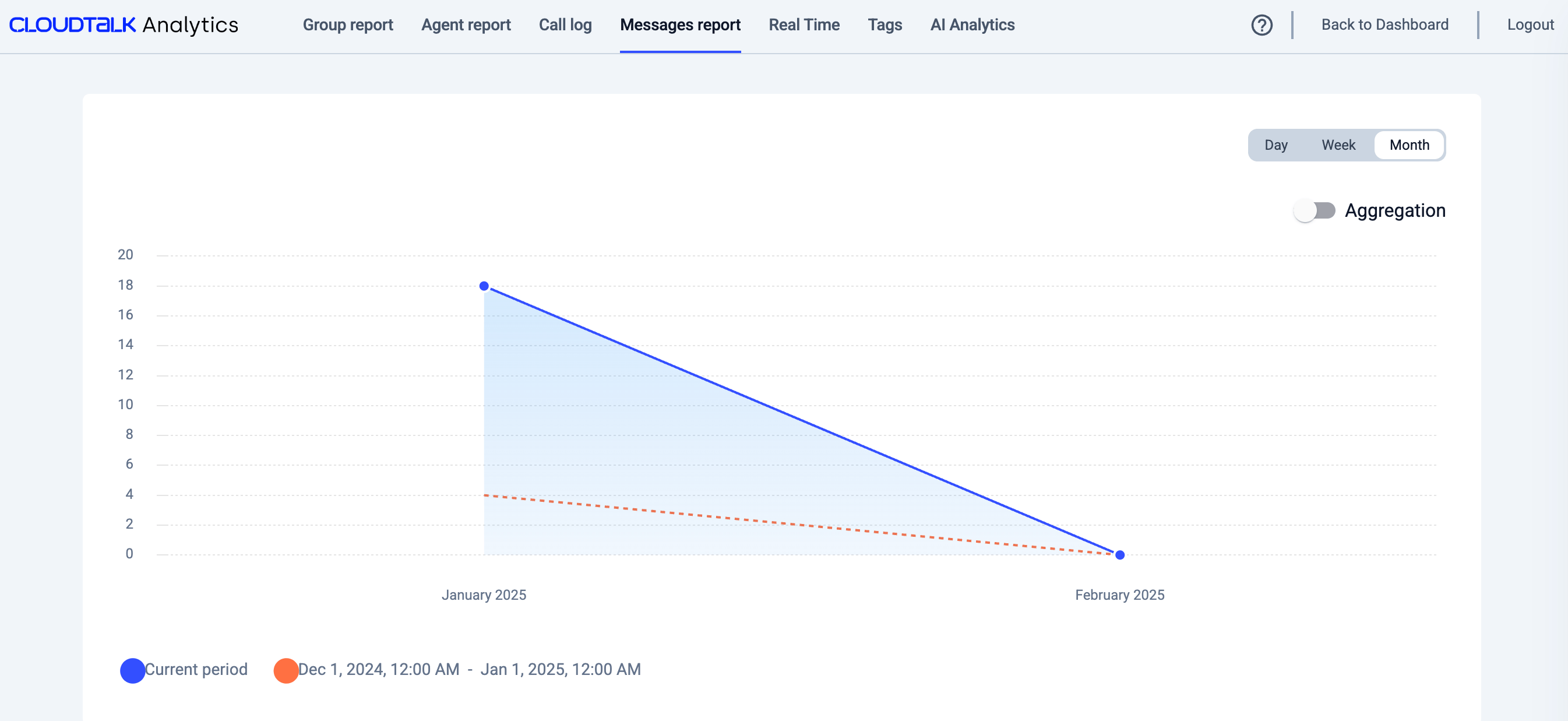
The graph provides a visual representation of message trends over time.
**How it Works:**
* The **Y-axis** represents the number of messages sent/received.
* The **X-axis** represents the selected time period (Day, Week, or Month).
* Clicking a **data point** adjusts the logs below to display messages for that specific time frame.
* **Blue Line** = Current period
* **Orange Line** = Previous period (for comparison)
SMS Activity Breakdown
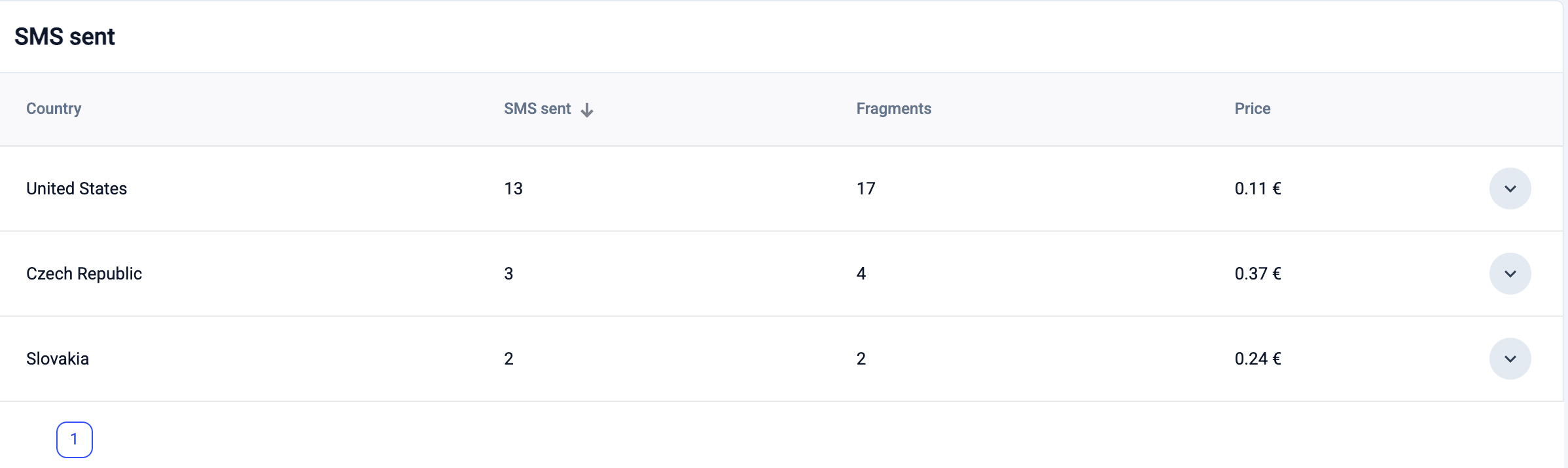
Below the graph, there is a detailed table that provides a breakdown of SMS activity by country, including:
* **Country** – The destination country of the SMS messages.
* **SMS Sent** – Total SMS messages sent per country.
* **Fragments** – The number of message segments used (as SMS may be split into multiple parts).
* **Price** – The total cost of SMS messages sent to each country.
Agent Breakdown
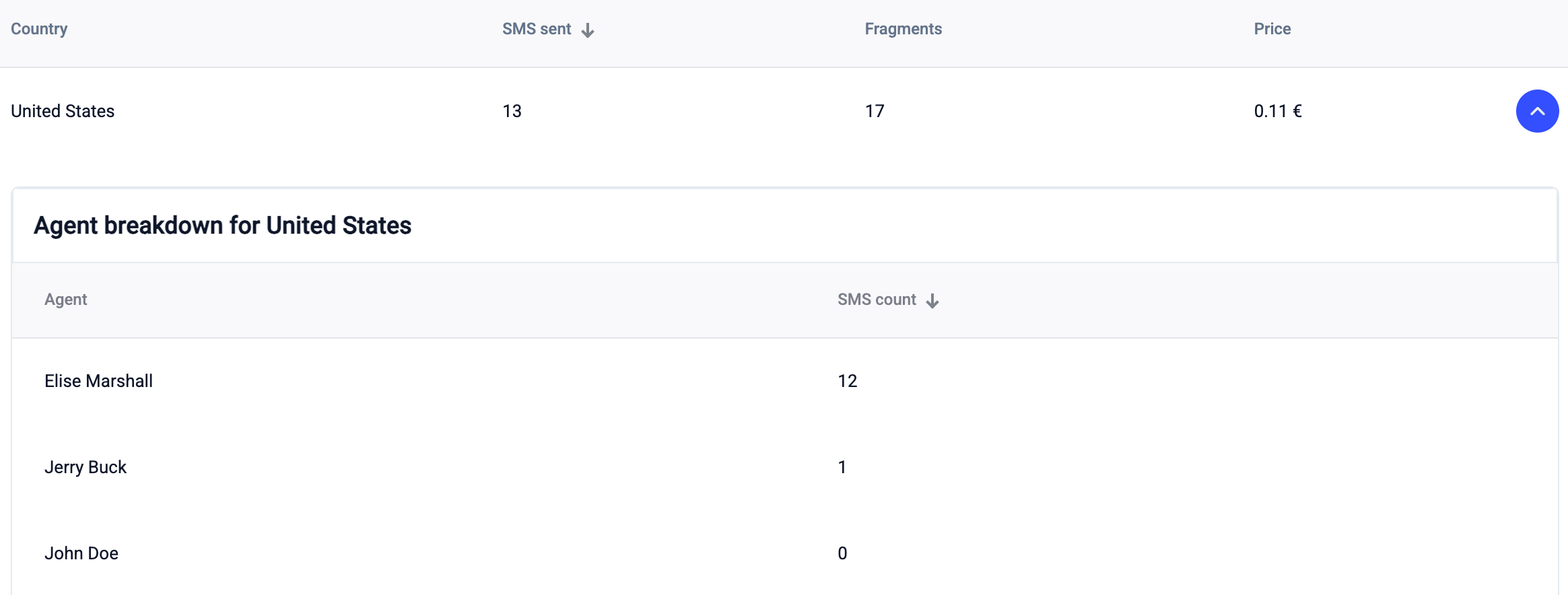
To analyze SMS activity at an individual agent level, users can expand the Agent Breakdown section for each country.
**How to View Agent Breakdown**:
* Locate the country row in the SMS cost breakdown table.
* Click the drop-down arrow on the right to expand the agent breakdown.
* The table will display each agent who sent SMS messages, along with the total SMS count per agent.
Exporting Data
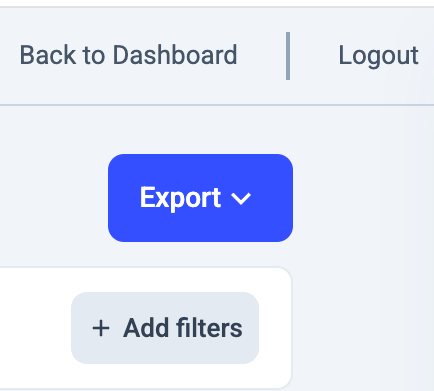
To download a detailed report, click **"Export"** in the top-right corner. Users can export the **Messages Report** in CSV format for further analysis or record-keeping.
 ***
*Need help or have a question?* Just reach out through our [Support portal](https://support.cloudtalk.io/hc/en-us/requests/new?ticket_form_id=26305535257884) — we’re here for you.
## Related topics
- [Introduction to CloudTalk Analytics](/en/articles/6655462-introduction-to-cloudtalk-analytics.md)
- [Analytics Reports](/en/articles/6241287-analytics-reports.md)
- [SMS, MMS, and WhatsApp Pricing](/en/articles/14652499-sms-mms-and-whatsapp-pricing.md)
This documentation is built and hosted on [Mintlify](https://mintlify.com), a developer documentation platform.
***
*Need help or have a question?* Just reach out through our [Support portal](https://support.cloudtalk.io/hc/en-us/requests/new?ticket_form_id=26305535257884) — we’re here for you.
## Related topics
- [Introduction to CloudTalk Analytics](/en/articles/6655462-introduction-to-cloudtalk-analytics.md)
- [Analytics Reports](/en/articles/6241287-analytics-reports.md)
- [SMS, MMS, and WhatsApp Pricing](/en/articles/14652499-sms-mms-and-whatsapp-pricing.md)
This documentation is built and hosted on [Mintlify](https://mintlify.com), a developer documentation platform.